Shopping Cart Overview
The Shopping cart overview content element is used to show the shopping cart lines on the Shopping cart page in the Sana webstore.
Each shopping cart line contains information about products a customer added to the shopping cart, like product number and title, product image, price, discount, quantity, unit of measure, etc.
The information about products added to the shopping cart is taken from the ERP system, that’s why the dummy data is used on the Shopping cart system page in Sana Admin. The real data is shown to a customer in the webstore.
The tools within the Shopping cart overview content element allow you to fully customize the look and layout of your shopping cart lines. Using the Shopping cart line editor in the Shopping cart overview content element, you can define how shopping cart lines appear in the webstore, adding various content elements such as product thumbnails, descriptions, or pricing information. This makes each cart line more informative and visually appealing, while also enhancing the overall shopping cart overview to match your brand’s style and create a more engaging experience for customers.
Content Tab
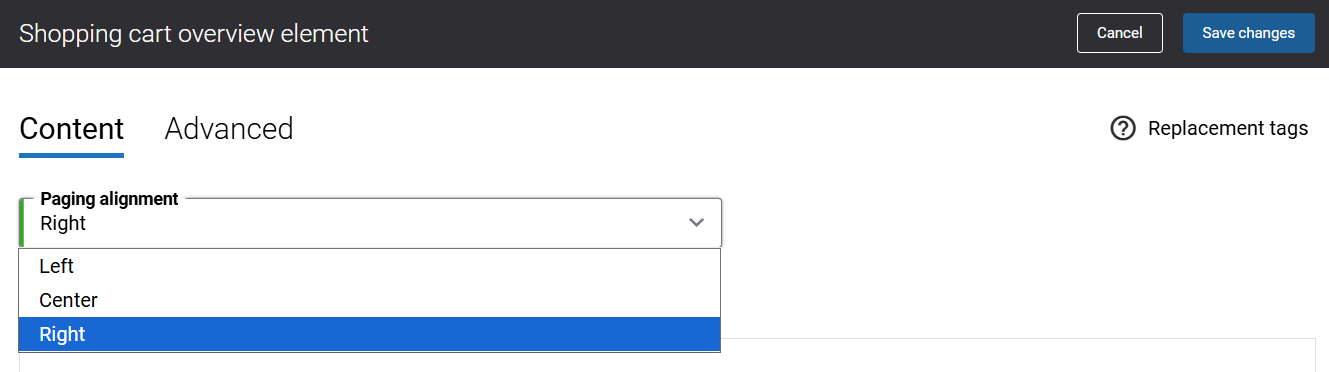
The Paging alignment setting defines the positioning of pagination controls within the shopping cart when more than 10 products are added. The following options are available:
- Left
- Center
- Right
This helps maintain a clean and intuitive cart layout, optimizing user experience by positioning the navigation in a way that fits the overall design of the store.
Advanced Tab
On the Advanced tab of the Shopping cart overview content element, you can configure height, width, and spacing settings.
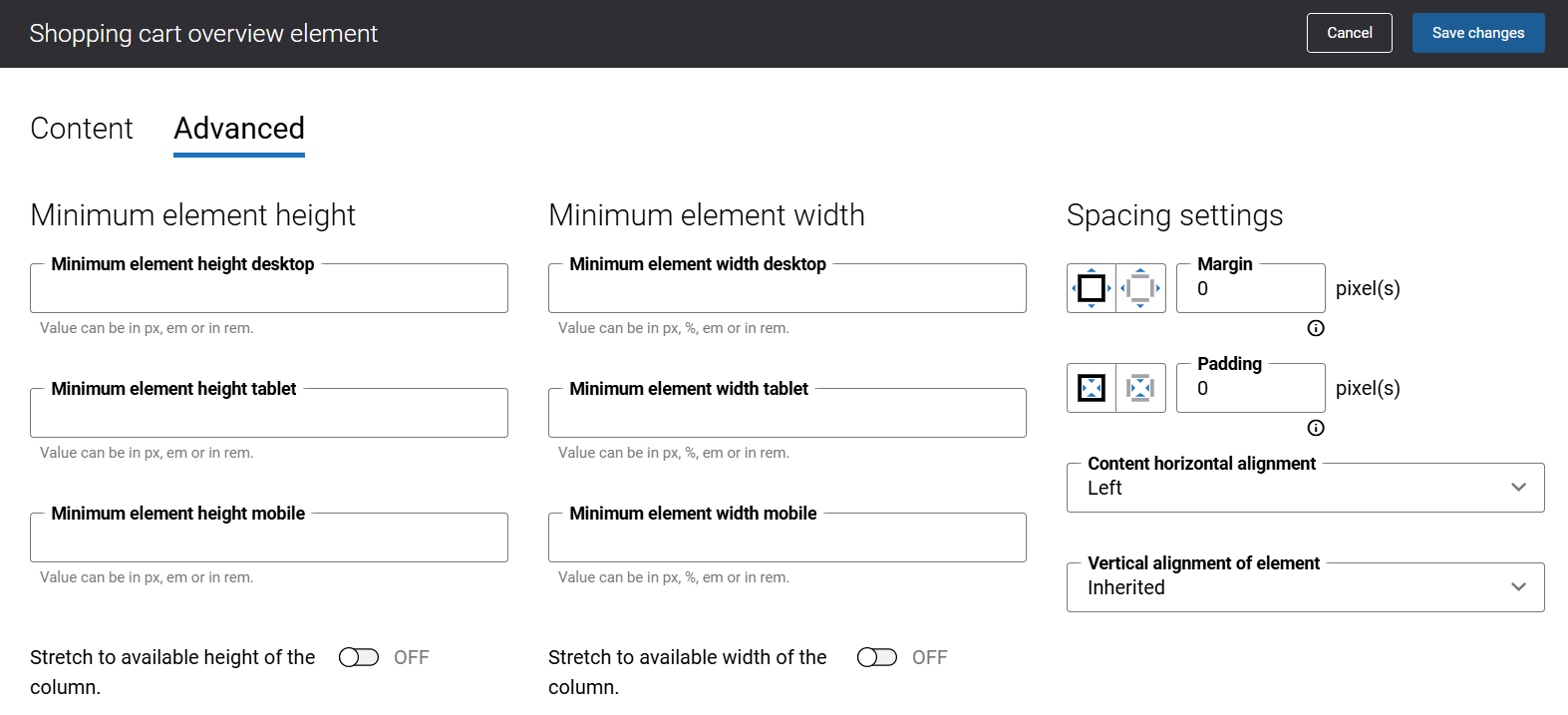
For more information about advanced settings, see Content Elements.
Shopping Cart Line
Using the Shopping cart line editor in the Shopping cart overview content element, you can modify the shopping cart lines the way you need. To access the Shopping cart line editor, go to the Content tab and click Edit content.
You can add and remove various content elements as well as use the content management system of Sana with the page layouts, row and column settings to create high quality and impressive design for the shopping cart lines.
Shopping cart line holds several standard content elements that can be placed anywhere in the shopping cart overview. The standard content elements are present in the Shopping cart overview content element by default. You can add, move, edit and remove any standard content elements using the Shopping cart line editor, and you can also add any other available content elements to style the shopping cart lines.
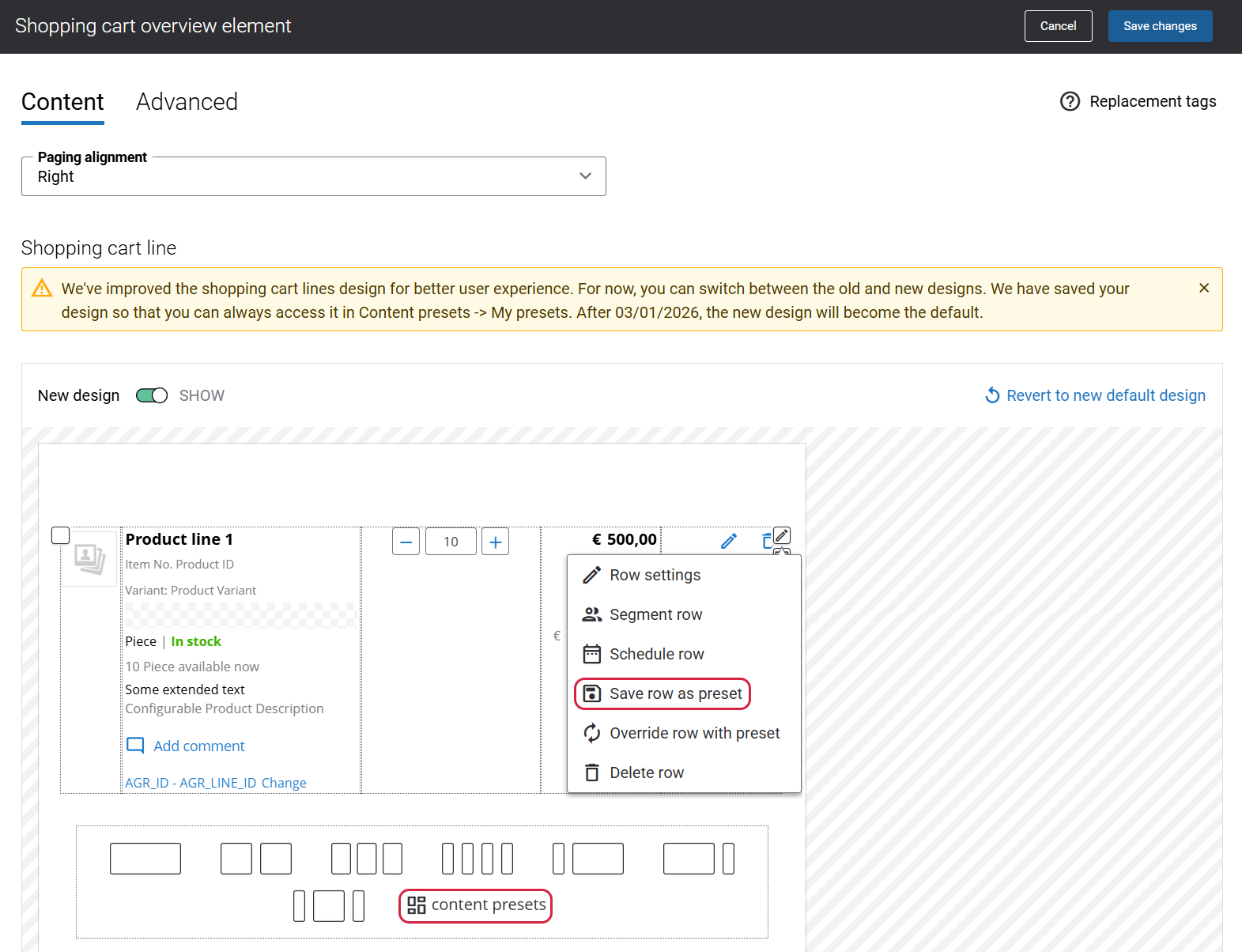
If you want to re-use the modified shopping cart line template later, you can save it as preset. To do this, click edit row and select Save row as preset. It is also possible to select several rows and save them as preset. To use presets, open the necessary page and click content presets. You can choose one of the presets already available by default or you can choose the custom presets which you saved before.
Shopping Cart Lines Design: New vs Old
Before March 1, 2026, two versions of shopping cart line designs were available: the old design and the new design. This transition period gave users the opportunity to move to the new design. Shop administrators could choose between the old and new designs. However, after March 1, 2026, Sana completely adopted the new shopping cart line design, and the ability to switch between the old and new designs was removed.
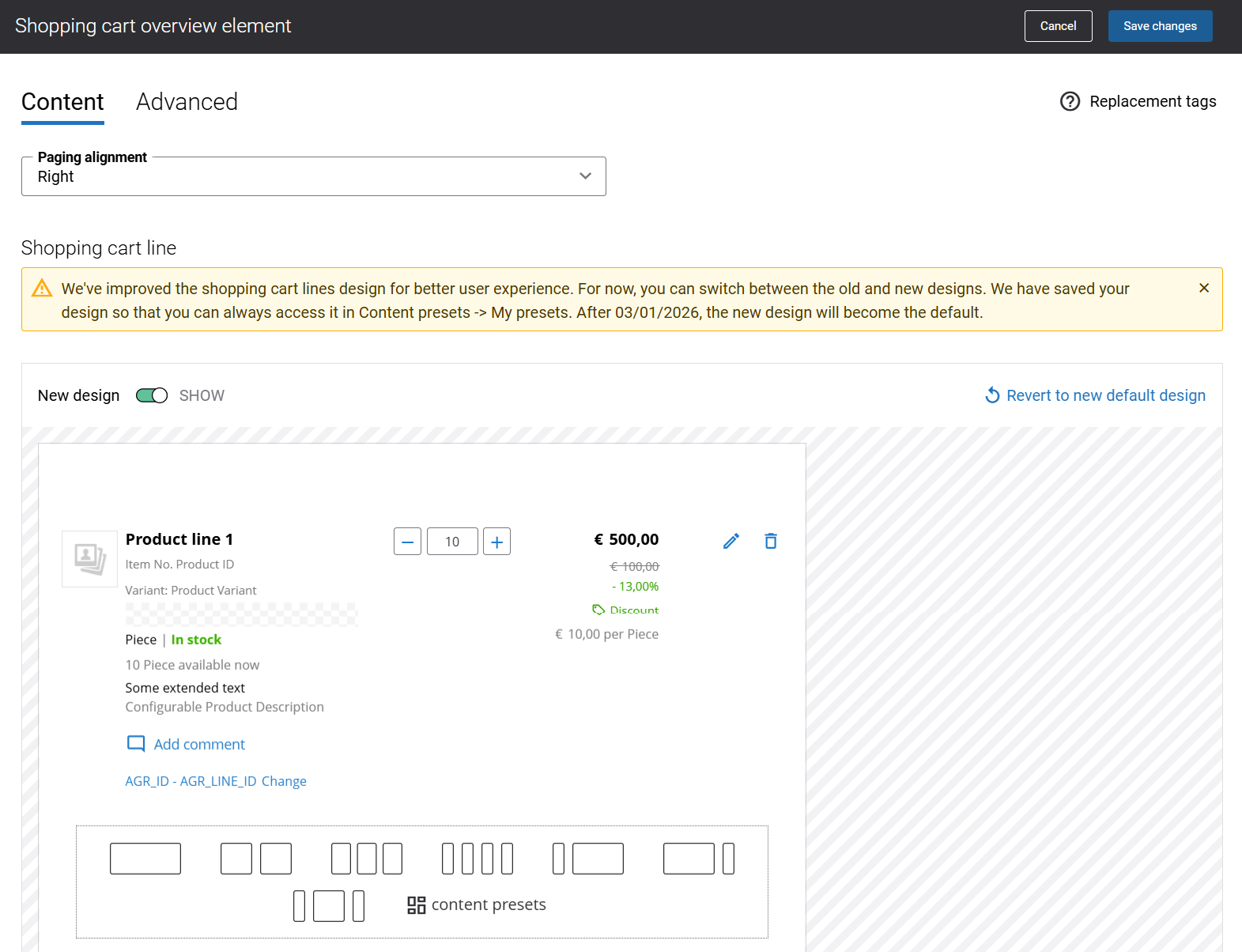
Shopping cart lines new design
-
New Sana Commerce Cloud installations will automatically use the new shopping cart line design.
-
If your webstore is still using the old design and you haven’t transitioned to the new one, you can continue using it. However, note that it is now a custom design, and any future updates to the shopping cart will only apply to the new design.
-
If you're using the old design and click Revert to default in the Shopping cart overview, your shopping cart lines will reset to the new default design.
-
If you prefer to go back to your old shopping cart lines design, it's available in My Presets. Here's how to do it:
Step 1: Remove the shopping cart line row.
Step 2: Click content presets and open the My presets tab.
Step 3: There are two default presets on the My presets tab:
- Legacy desktop shopping cart line design
- Legacy mobile shopping cart line design
Choose the appropriate preset based on the layout you're working with (desktop or mobile).
Shopping Cart Line Content Elements
Here is the list of content elements that are used for the shopping cart lines and are available in the template by default:
- Shopping cart line thumbnail
- Shopping cart line title
- Shopping cart line item number
- Shopping cart line variant title
- Shopping cart line unit of measure
- Shopping cart line stock indicator
- Shopping cart line estimated availability dates
- Shopping cart line extended texts
- Shopping cart line configured product description
- Shopping cart line comment
- Shopping cart line sales agreement control
- Shopping cart line quantity input box
- Shopping cart line total price
- Shopping cart line discount and from price
- Shopping cart line discount code label
- Shopping cart line unit price
- Shopping cart line reconfigure button
- Shopping cart line delete button
There are some content elements that are used only for the shopping cart lines, but they are not available in the template by default. You can add them if you need to. These content elements are:
- Shopping cart line discount
- Shopping cart line price per base UOM
- Shopping cart line UOM base quantity
- Shopping cart line min, max & quantity step information
- Shopping cart line add to list
- Shopping cart line product ratings & reviews score
- Shopping cart line price extra fields

Besides the above-mentioned content elements, you can also use any other content elements available in Sana to enrich the shopping cart lines. For example, you can add text, paragraph, images, button, etc.
Shopping Cart Line Thumbnail
The Shopping cart line thumbnail content element is used to show product thumbnails in the shopping cart overview.
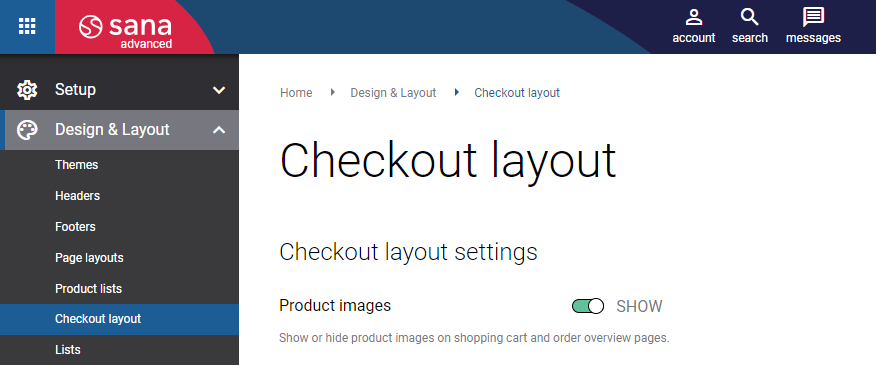
Additionally, you can show or hide product image thumbnails in the shopping cart using Sana Admin settings.
In Sana Admin click: Design & Layout > Checkout layout. Use the Product images option to show or hide product images in the shopping cart and on the order overview page.
Shopping Cart Line Title
The Shopping cart line title content element is used to show the name of a product in the shopping cart overview. The product name is retrieved from your ERP system.
Shopping Cart Line Item Number
The Shopping cart line item number content element is used to show the ID of a product in the shopping cart overview.
Shopping Cart Line Variant Title
The Shopping cart line variant title content element is used to show the name of a product variant in the shopping cart overview.
Shopping Cart Line Unit of Measure
The Shopping cart line unit of measure content element is used to show the unit of measure of a product in the shopping cart overview.
On the Content tab of the Shopping cart line unit of measure content element, you can set where the divider should appear using the Divider alignment setting. The available options are:
- Hidden
- Left
- Right

Shopping Cart Line Stock Indicator
The Shopping cart line stock indicator content element is used to show stock in the shopping cart overview.
In Sana Admin you can change stock presentation to whatever you want. Moreover, you can show and hide stock in your webstore. Whether a product is in stock, out of stock or it has a low stock is determined by stock levels in Sana Admin.
Using Custom stock texts, you can change stock presentation in your webstore. It can be the exact stock amount retrieved from your ERP system, any text or even stock indicators of different colors for in stock, low stock and out of stock indication.
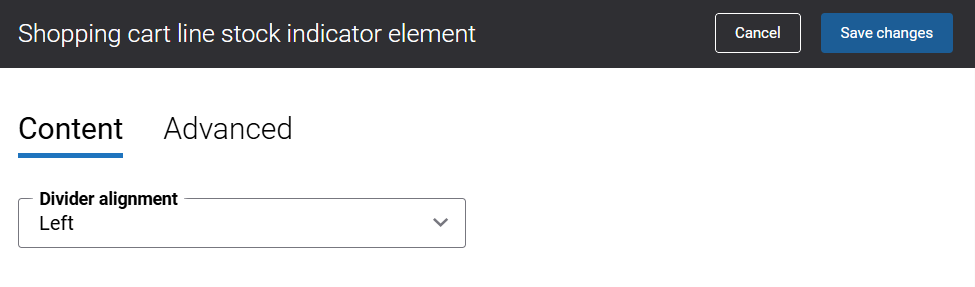
On the Content tab of the Shopping cart line stock indicator content element, you can set where the divider should appear using the Divider alignment setting. The available options are:
- Hidden
- Left
- Right
Shopping Cart Line Estimated Availability Dates
The Shopping cart line estimated availability dates content element is used to display product availability dates in the shopping cart overview in the Sana webstore.
When customers add products to the shopping cart and proceed to checkout, Sana Commerce Cloud can show how many units are physically available in stock. If customers need more than is currently available, Sana can display when the missing quantity will be replenished.
Shopping Cart Line Extended Texts
The Shopping cart line extended texts content element is used to show some extra information about the shopping cart line in the shopping cart overview.
Shopping Cart Line Configured Product Description
The Shopping cart line configured product description content element is used to show description of a configurable product in the shopping cart overview.
A configurable product is generated through interactive configuration engines such as Expivi or the e-Con Product Configurator.
Shopping Cart Line Comment
The Shopping cart line comment content element is used to add a comment field to the shopping cart overview where a customer can add a personalized comment for each product or remove it.
The comment field is not displayed for the supplementary products and service items.
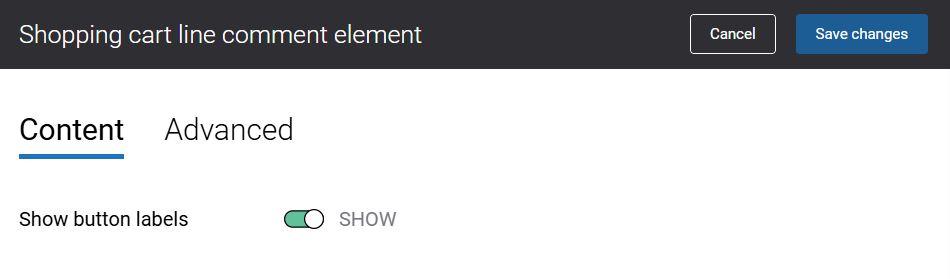
On the Content tab of the Shopping cart line comment content element, you can control the visibility of the button labels using the Show button labels option.
Shopping Cart Line Sales Agreement Control
The Shopping cart line sales agreement control content element is used to add the sales agreement term field to the shopping cart line in the shopping cart overview where a customer can select the relevant sales agreement term.
Companies that sell products in bulk usually have more complex and long-term sales agreements with their customers. A sales agreement is a contract that commits the customer to buy products in a specific quantity or for a specific amount over time, in exchange for special prices and discounts.
To use sales agreements in the Sana webstore, sales agreements should be configured in your ERP system and enabled in Sana Admin.
For more information, see Sales Agreements.
Shopping Cart Line Quantity Input Box
The Shopping cart line quantity input box content element is used to add quantity input field to the shopping cart line in the shopping cart overview. Using the quantity input box, a customer can increase or decrease the quantity of a product in the shopping cart.
This content element displays as an editable quantity box for products, product variants, and configurable products. For supplementary products and service items, however, it is shown as a read-only value that cannot be modified.
Shopping Cart Line Total Price
The Shopping cart line total price content element is used to show the total price of a shopping cart line in the shopping cart overview.
For more information, see Prices and Discounts.
Shopping Cart Line Discount and From Price
The Shopping cart line discount and from price content element is used to show product price and discounts in the shopping cart overview.
For more information, see Prices and Discounts.
Shopping Cart Line Discount
The Shopping cart line discount content element is used to show product discount in the shopping cart overview.
For more information, see Prices and Discounts.
Shopping Cart Line Discount Code Label
The Shopping cart line discount code label content element is used to show discount code label in the shopping cart overview.
Shopping Cart Line Unit Price
The Shopping cart line unit price content element is used to show product price per base unit of measure in the shopping cart overview.
For more information, see Prices and Discounts.
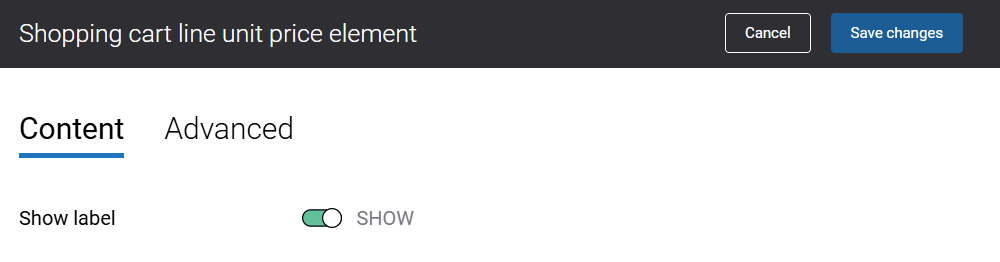
On the Content tab of the Shopping cart line unit price content element, you can manage whether to show price with unit of measure or without using the Show label option.
Shopping Cart Line UOM Base Quantity and Shopping Cart Line Price per Base UOM
The Shopping cart line UOM base quantity and Shopping cart line price per base UOM content elements are used to show the quantity and price per base unit of measure in the shopping cart overview in addition to showing the item price for other units of measure. The Shopping cart line UOM base quantity and Shopping cart line price per base UOM content elements can be also useful if you sell products in bulk.
The Shopping cart line UOM base quantity and Shopping cart line price per base UOM are mostly the informative content elements. For example, you can show to a customer that 10 pieces of some product in one box are sold at a certain price. You can set a reduced price for a box with 10 pieces. In this way, buying a box will be cheaper, than buying each piece separately. This information can help a customer make a better purchasing decision.
The information from the Shopping cart line UOM base quantity and Shopping cart line price per base UOM content elements is not displayed for the service items and configurable products.
To use the Shopping cart line UOM base quantity and Shopping cart line price per base UOM content elements in the Sana webstore, follow the steps listed below.
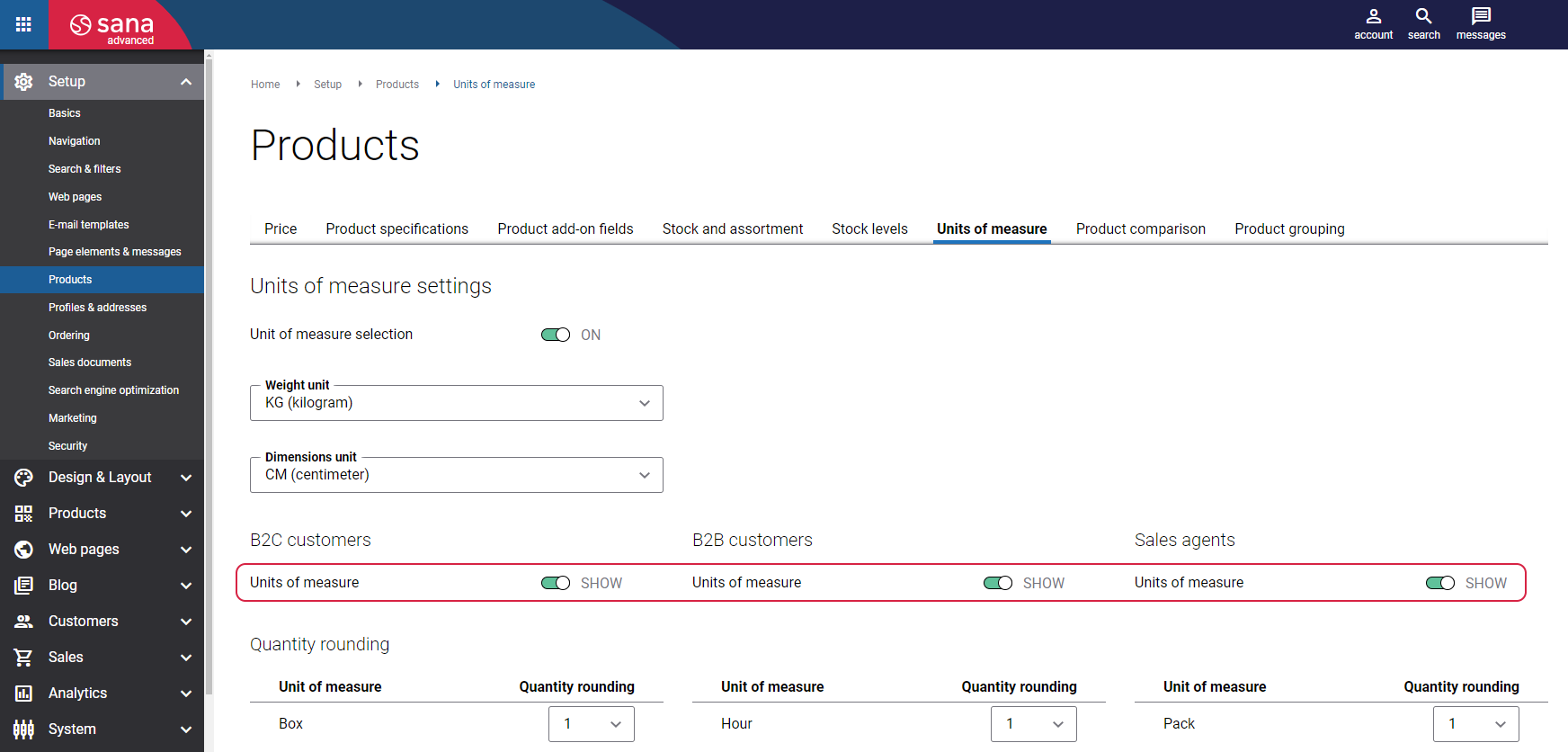
Step 1: In Sana Admin click: Setup > Products > Units of measure. Enable the Units of measure option.
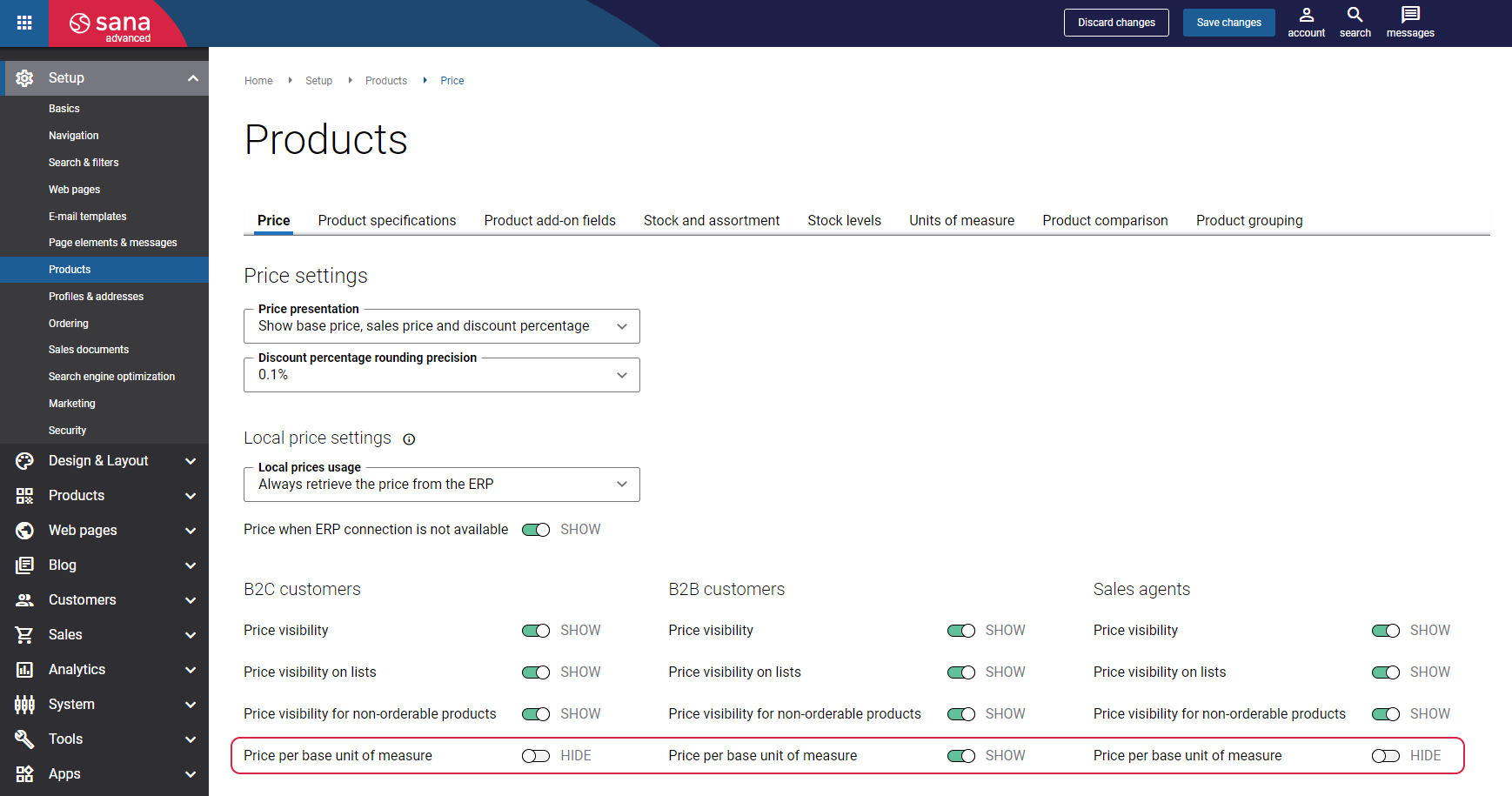
Step 2: In Sana Admin: Setup > Products > Price. Enable the Price per base unit of measure option.
Step 3: In your ERP system configure the units of measure for a product. For more information, see Price Settings.
Shopping Cart Line Price Extra Fields
This content element can only be used by making the necessary customizations in ERP. The standard Sana Commerce Cloud ERP connector does not return any product price extra fields from ERP.
The Shopping cart line price extra fields content element is used to show the additional product price, discount, tax, service charge, etc. in the shopping cart overview. The additional information about the product, like extra price, discount, tax, etc. can be retrieved from your ERP system and shown in the shopping cart overview in the following format: text + value. For example, Sugar tax: € 2,95.
Up to three lines of additional product information can be added using the Shopping cart line price extra fields content element. For example:
Discount 1: 5%
Discount 2: 10%
Tax: € 3,25
The information from the Shopping cart line price extra fields content element is not displayed for the supplementary products, service items and configurable products.
Shopping Cart Line Min, Max & Quantity Step Information
In the ERP system, you can define the default quantity of a product, minimum and maximum, and the quantity step. Your customers will not be able to buy less or more than it is set for a product in your ERP system. When customers try to buy less or more units of the product, they will see a validation message.
The Shopping cart line min, max & quantity step information content element is used to show a text in the shopping cart overview which explains to customers what product quantity they can purchase.
The information from the Shopping cart line min, max & quantity step information content element is not displayed for the supplementary products, service items and configurable products.
The Shopping cart min, max & quantity step information content element is shown in the shopping cart overview, only if quantity settings are configured for a product in the ERP system. Take into account that quantity settings can differ depending on the ERP system you use.
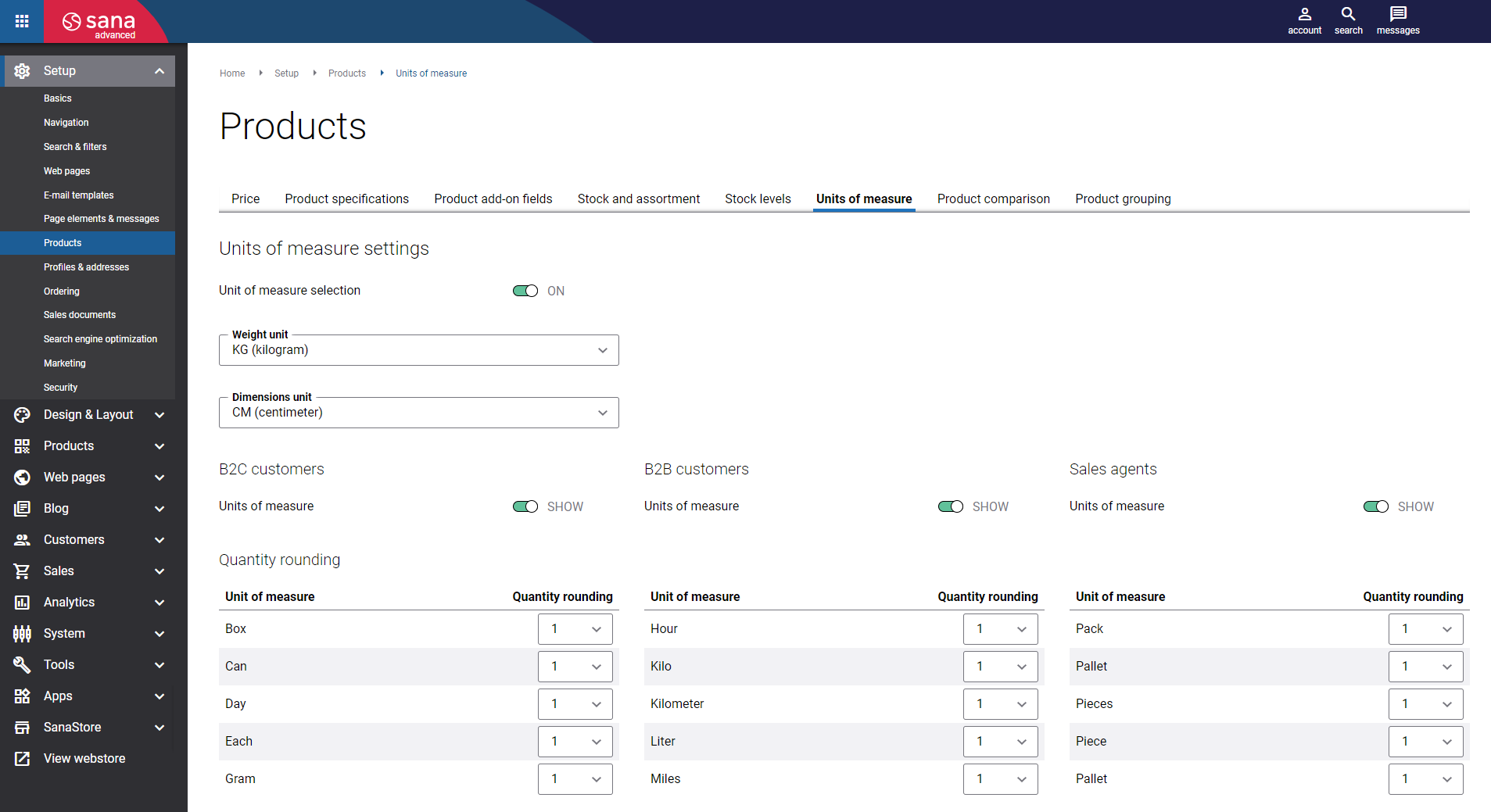
The Shopping cart line min, max & quantity step information content element also works for quantity rounding. In Sana Admin a webshop administrator can define quantity rounding for products per unit of measure. For more information, see Units of Measure.
Shopping Cart Line Add to List
The Shopping cart line add to list content element is used to show the Add to list button in the shopping cart overview.
When the customer clicks on this button, the Add to list pop-up window opens where the customer can add a product to one or multiple lists.
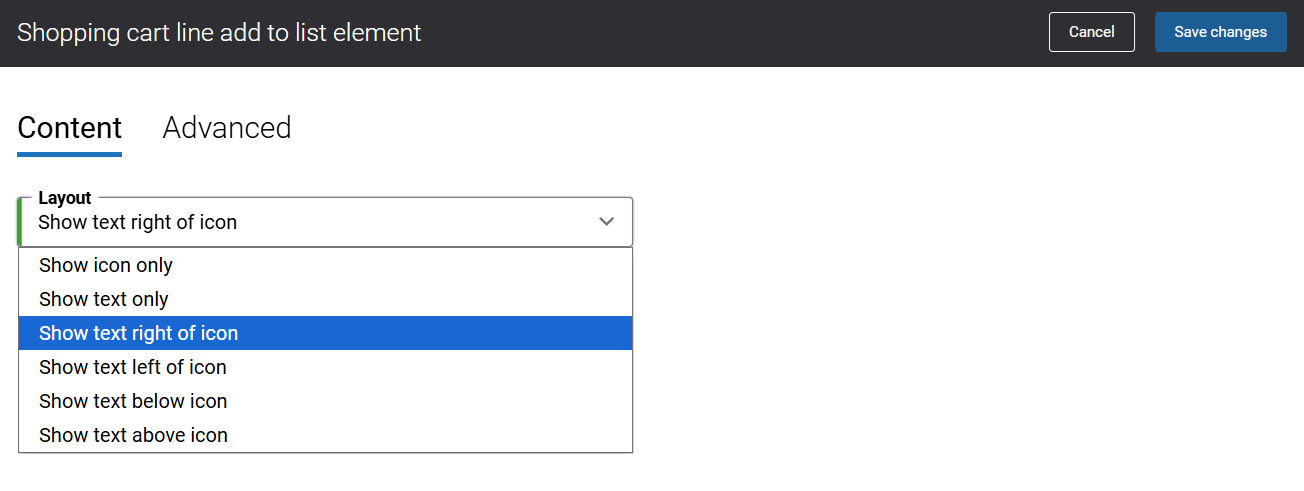
There are different layouts of the Add to list button. You can choose the one you like in the content element settings, on the Content tab:
- Show icon only
- Show text only
- Show text right of icon
- Show text left of icon
- Show text below icon
- Show text above icon
Shopping Cart Line Product Ratings & Reviews Score
The Shopping cart line product ratings & reviews score content element is used to add ratings and reviews to the shopping cart overview. It displays an overall rating score along with the total number of reviews for each product in the shopping cart.
Shopping Cart Line Reconfigure Button
The Shopping cart line reconfigure button content element allows you to add a button to the shopping cart line using which a customer can reconfigure a configurable product.
A configurable product is generated through interactive configuration engines such as Expivi or the e-Con Product Configurator.
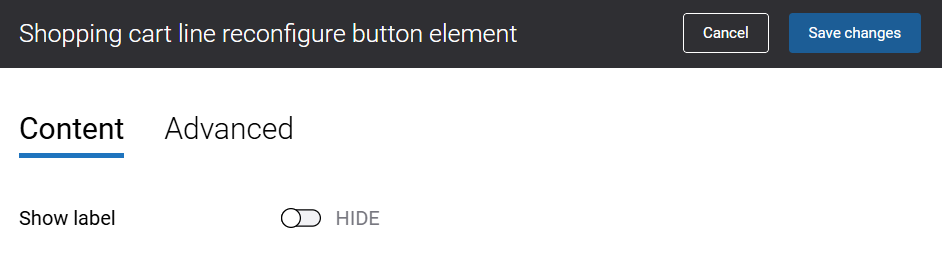
On the Content tab of the Shopping cart line reconfigure button content element, you can control the visibility of the button label using the Show label option.
Shopping Cart Line Delete Button
The Shopping cart line delete button content element allows you to add a button to the shopping cart line using which a customer can remove a product from the shopping cart.
On the Content tab of the Shopping cart line delete button content element, you can control the visibility of the button label using the Show label option.
The delete button is not displayed for the supplementary products and service items.

Content Elements Advanced Tab
On the Advanced tab of each content element in the Shopping cart line area, you can configure height, width, and spacing settings. These settings are the same for all content elements.

For more information about advanced settings, see Content Elements.
Change the Shopping Cart Line Default Texts
You can easily change the standard shopping cart line texts available in the shopping cart overview in the English language or any other installed webstore language. You can do this either in the Page elements & messages or using In-site editor.
Translate the Shopping Cart Line Content
Sana Commerce Cloud is a multi-lingual e-commerce solution. By default, a Sana webstore is available in English, but we also deliver the language packs which can be installed with a single button click from the Sana App Center.
The Sana language packs contain the default webstore interface texts, error and validation messages and system e-mails in the language of your choice. The language packs also allow you to translate your webstore content to different languages.
To translate the shopping cart line content, open the Shopping cart system page. In the right-hand panel, navigate to the Page setup tab and choose the desired language from the list. Then, select the Shopping cart overview content element. You can translate any shopping cart line content to the selected language.


