Secrets
Secrets allow you to securely store sensitive values, such as API keys, service URLs, or credentials, and reuse them across workflows without exposing the raw values in plain text. The value of a secret is encrypted and never displayed in the interface after it is saved.
Storing sensitive values such as service account credentials or API tokens in plain text within workflow configuration fields violates security policies. Always use secrets for this purpose.
When to Use Secrets
Use secrets in the following workflow actions:
- Send HTTP Request: For the URL, header values, and request body when they contain sensitive data such as API tokens or credentials.
- Google Sheets: For the service account credentials.
Referencing Secrets in Workflows
Once a secret is created, you can reference it in any compatible field.
When configuring a workflow step and selecting a secret, you see only the secret name and its description - never the actual value.
Creating a Secret
Step 1: On the Workflows page, click Secrets.
Step 2: On the Secrets page, click Add secret.
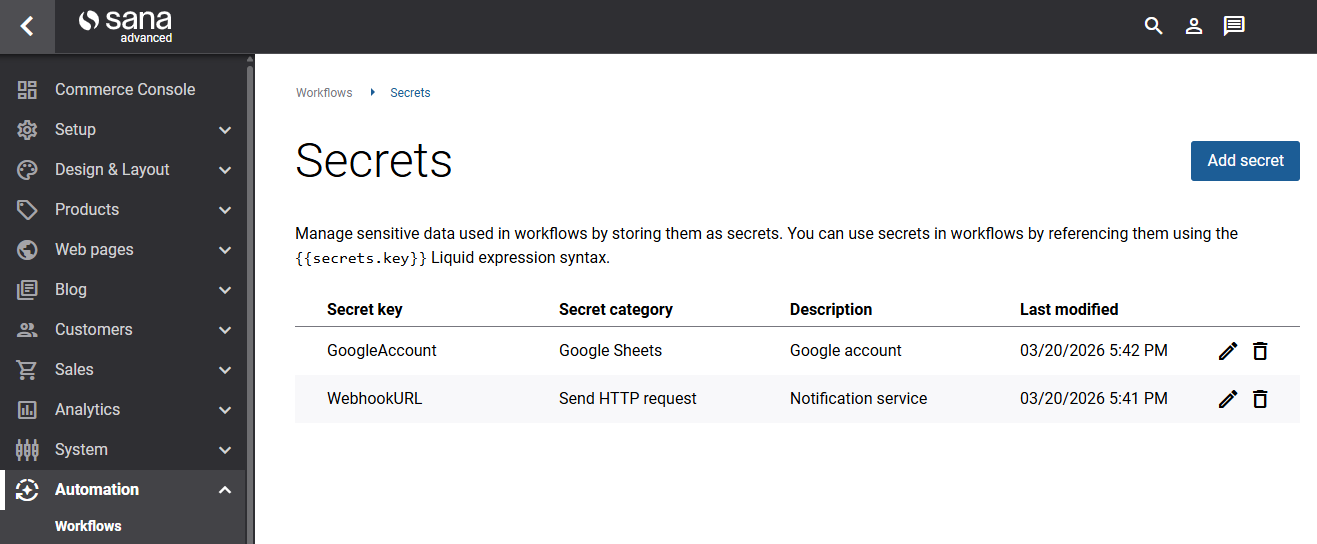
Step 3: Fill in the following fields:
| Field | Description |
|---|---|
| Secret key | A unique identifier used to reference the secret in workflows (e.g., GoogleAccount). It can contain only letters and numbers. The key cannot be changed after creation. |
| Secret value | The sensitive data to store. This value is encrypted and will never be displayed. |
| Secret category | Indicates which action type this secret is intended for: |
| Description | An optional description to help identify the secret’s purpose. |
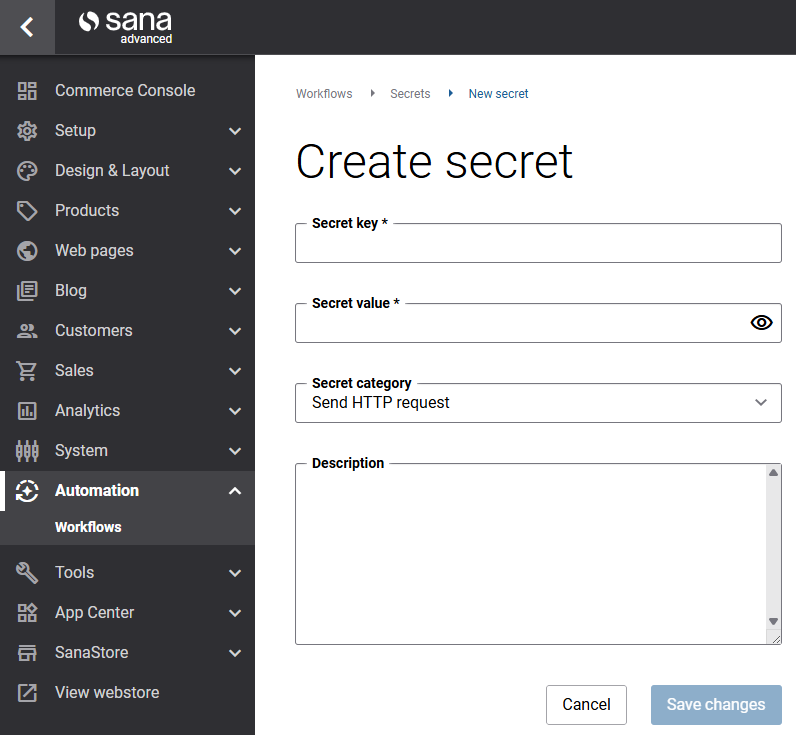
Step 4: Click Save.
After a secret is created, only its key, category, and description are visible. The value cannot be retrieved or displayed. If you need to update the value, create a new secret with a new key, or overwrite the existing value.


