Set Up Product Grouping in Sana Admin
Product grouping allows you to display related products as a single product group in the Sana webstore. Products assigned to the same group in your ERP system can be presented together on product list pages and dedicated product group pages, helping customers compare variants and purchase multiple products more efficiently.
Configure Product Grouping
Step 1: In Sana Admin click: Setup > Products > Product grouping.
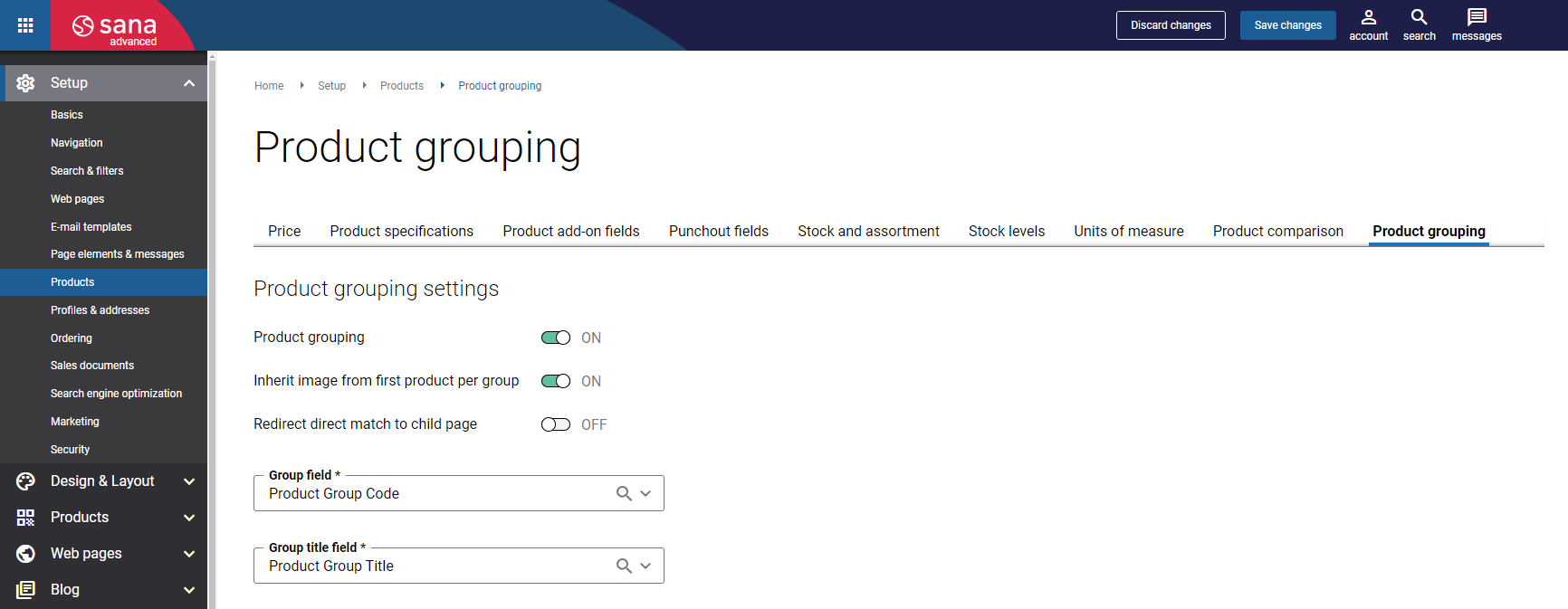
Step 2: Use the Product grouping option.
-
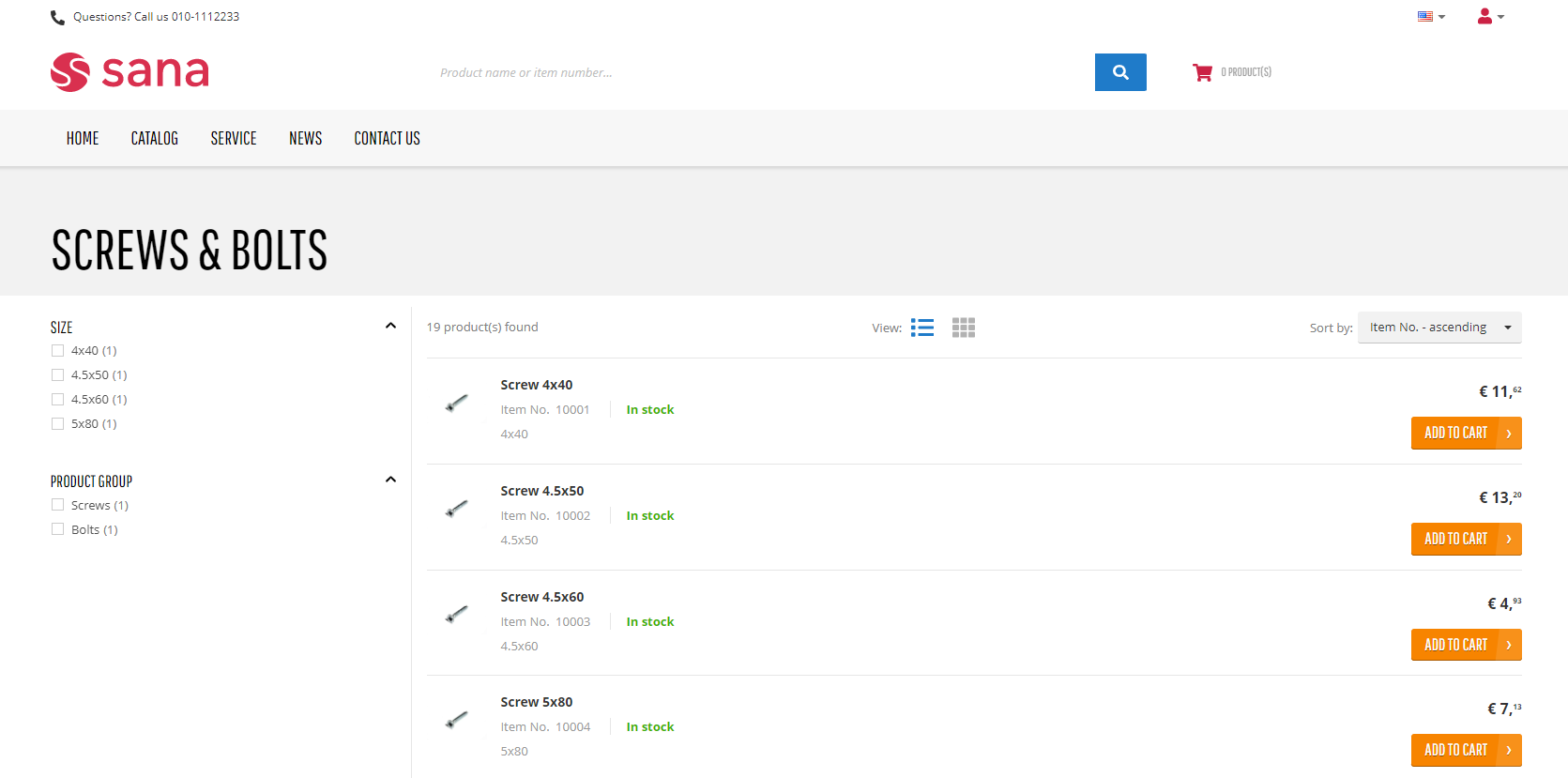
If this option is disabled, all products are shown on the product list pages in the Sana webstore as individual items. When a customer searches for a product, the individual items are shown in the search results but not the product group.
-
If this option is enabled, all products that are assigned to a certain group in ERP are grouped together and are shown as a product group on the product list page. The number of products in a group is shown under the product group name.
By default, product list pages follow your store's product grouping setup. When product grouping is enabled in Sana Admin, products that belong to a group are shown together as a single group rather than as separate products. You can override this default behavior for individual product list pages, so grouped products are shown separately on the pages where you don't want grouping applied, while grouping stays in effect everywhere else. For more information, see Product List Pages: Advanced Settings.
Step 3: Select two product fields from your ERP that are used to group products. In the Group field and Group title field dropdown lists, you can see product fields and attributes from your ERP system. For more information, see Group Products.
If the necessary product fields from your ERP are not available in the list, run the General information import task to synchronize all product fields between Sana and your ERP system and then check again.
Step 4: Use the Redirect direct match to child page option.
Using the Redirect direct match to child page option, you can specify what search results customers get when they search for a product by an exact product ID match in the Sana webstore.
-
If this option is enabled, an exact product ID match shows the individual product in the search results dropdown list and opens the product details page but not the product group. A partial match does not return the individual product.
-
If this option is disabled, the product group is shown in the search results but not the individual product.
When a customer searches for a product by a product ID in the shopping cart, an individual product is always shown but not the product group.
Step 5: Click Save changes.
Step 6: In Sana Admin click: System > Scheduled tasks. Rebuild the product index by running the Product import task. You must rebuild the product index but not update it.
This task will detect the grouped products in your ERP system and create product groups.
It will also create product group pages automatically in Sana Admin.
You need to rebuild the product index only when you enable product grouping, or make a lot of changes to the product groups in ERP, for example, reassign the products to other product groups, create a lot of new product groups, or remove existing ones. When there are not so many changes, you can simply update the product index to apply them.
Product Group Presentation in the Webstore
When product grouping is disabled, products are shown as individual items on product list pages and in search results. When product grouping is enabled, products assigned to the same ERP group are displayed as product groups on product list pages, and customers can open a dedicated product group page to view them.
On the screenshot below see the product groups and ungrouped products shown in the search results.
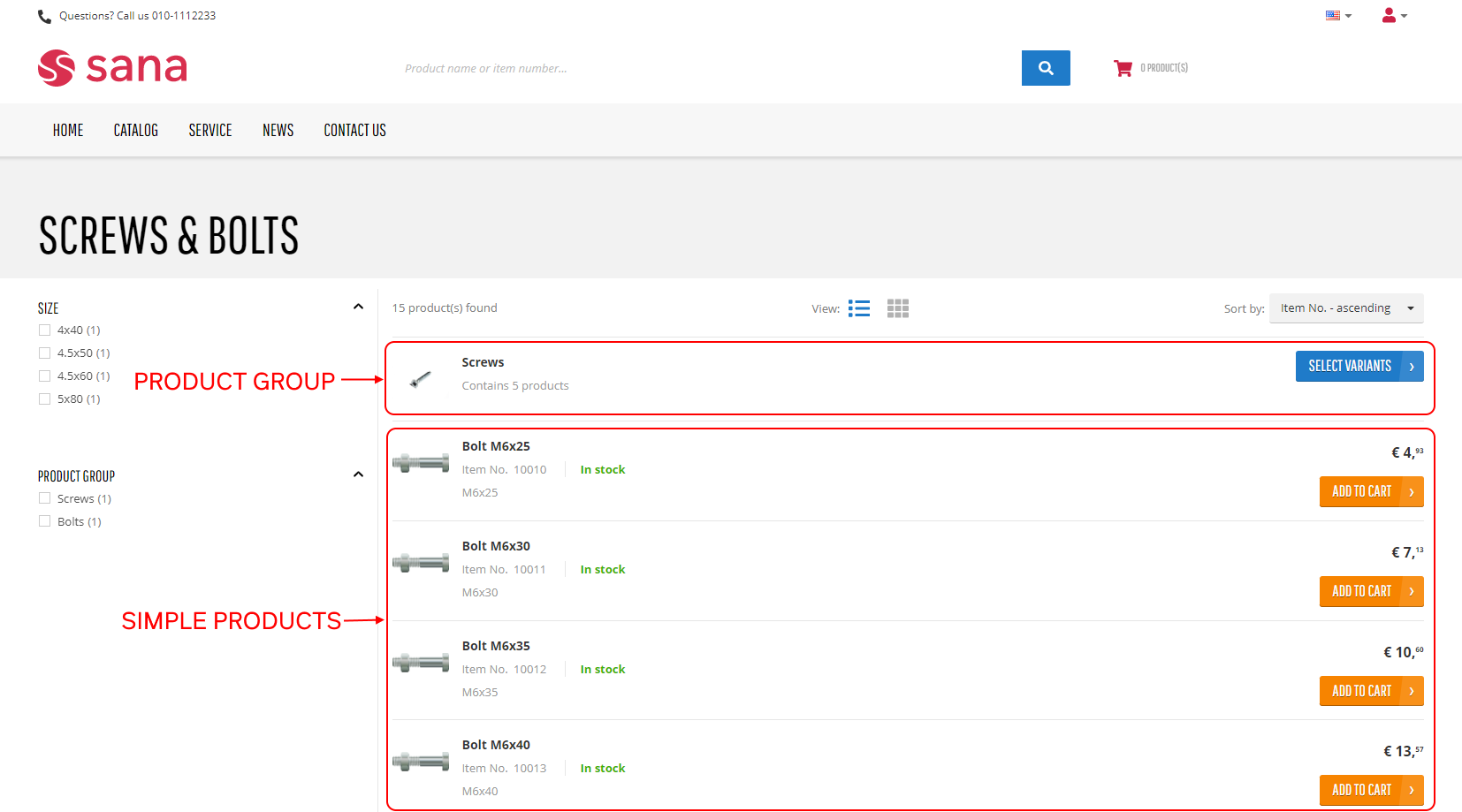
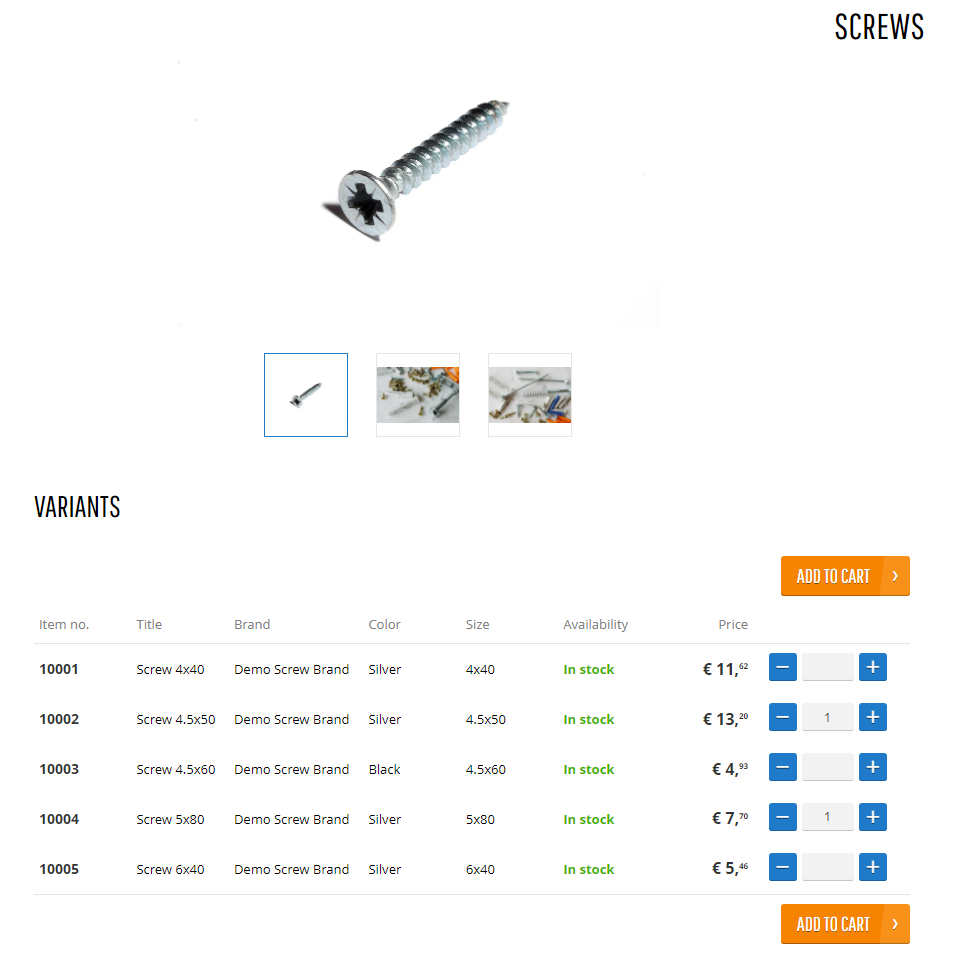
Clicking on the product group on the product list page opens the product group page. There customers can see all visible and valid products that are assigned to this particular group in ERP.
Clicking on the item number opens the product details page of that particular product.
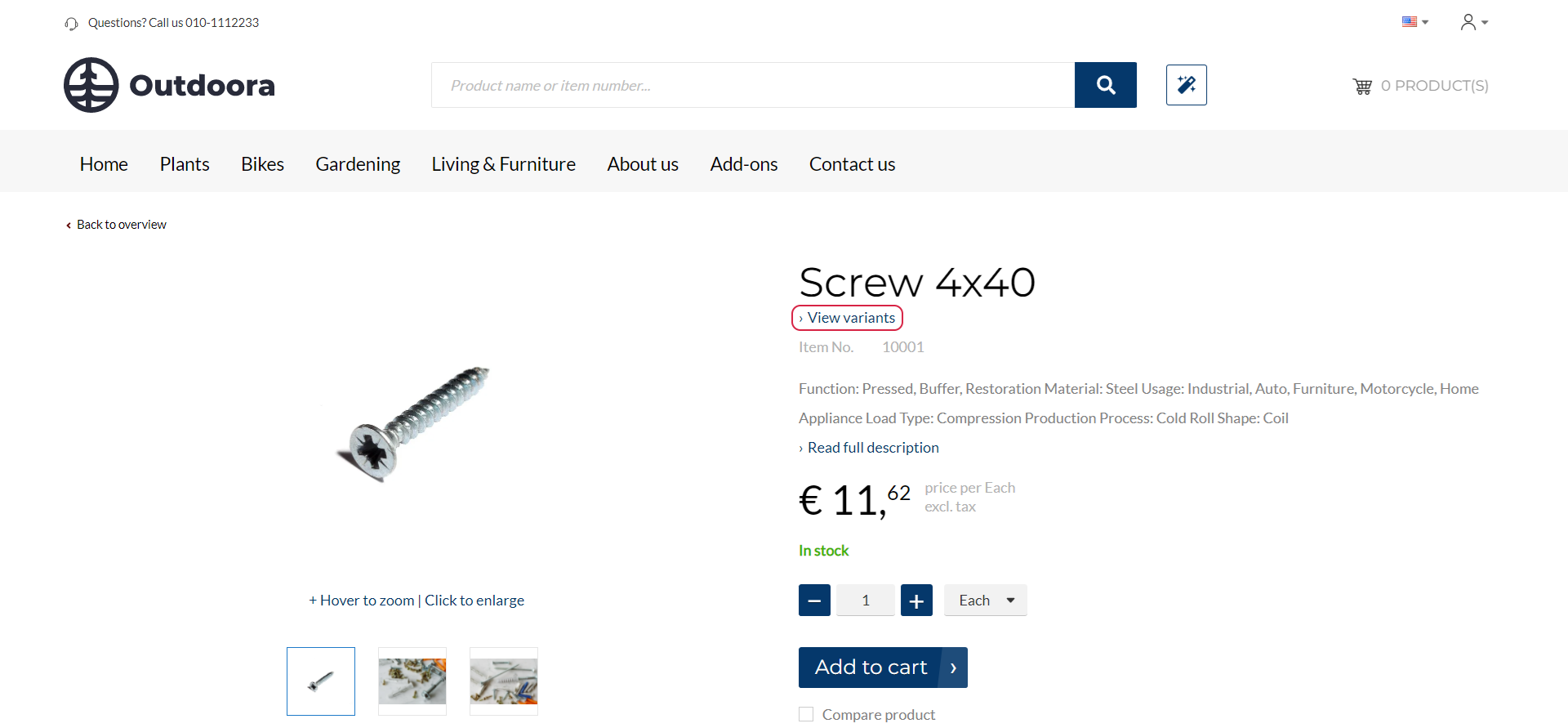
You can also add a View variants link to the product details page using the Product group link content element. Clicking the link navigates to the product group page this product belongs to if the product grouping is enabled.
On the product group page, customers can see product details, such as item number, stock availability, and product price which are shown by default. But you can also add up to five extra product specifications.
Customers can also see product group media on the page, such as images and videos. You can add them manually to the page or inherit from the first product in a group.
Customers can specify the desired quantity for the necessary products in the group and add them to the shopping cart.
All articles below describe how to set up product grouping in Sana and ERP.


