Configure Eway
When the Eway payment provider is installed and configured, it should be also configured in Sana Admin.
Step 1: The Eway payment provider is available as an app. It can be installed from the Sana App Center.
In Sana Admin click: App Center > Apps > Apps Explorer. When the Eway app is installed, you can configure it.
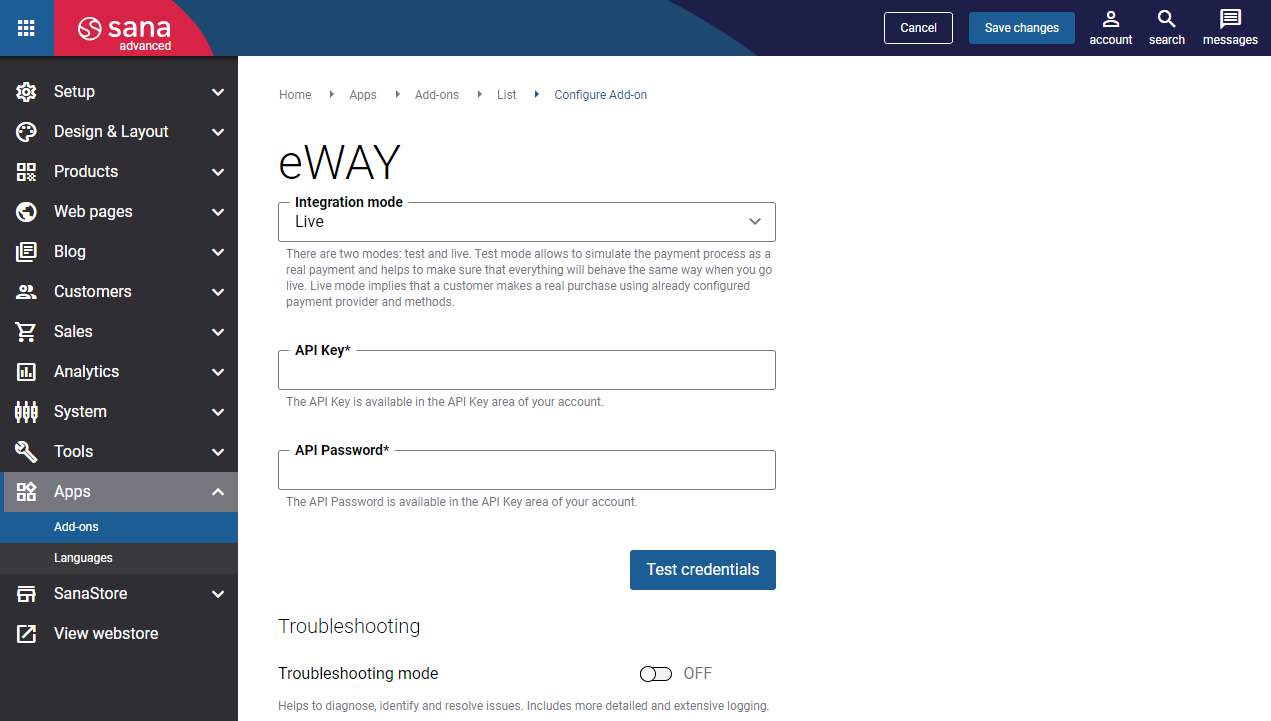
Step 2: Choose the appropriate payment integration mode.
There are two modes: test and live. Test mode allows to simulate the payment process as if it is a real payment and helps to make sure that everything will behave the same way when you go live. Live mode implies that a customer makes a real purchase using already configured payment provider and methods.
Step 3: Enter the API Key and API Password. The API Key and API Password are available in the Eway Business Centre, click: My Account > API Key. Copy the necessary information and insert it in Sana Admin.
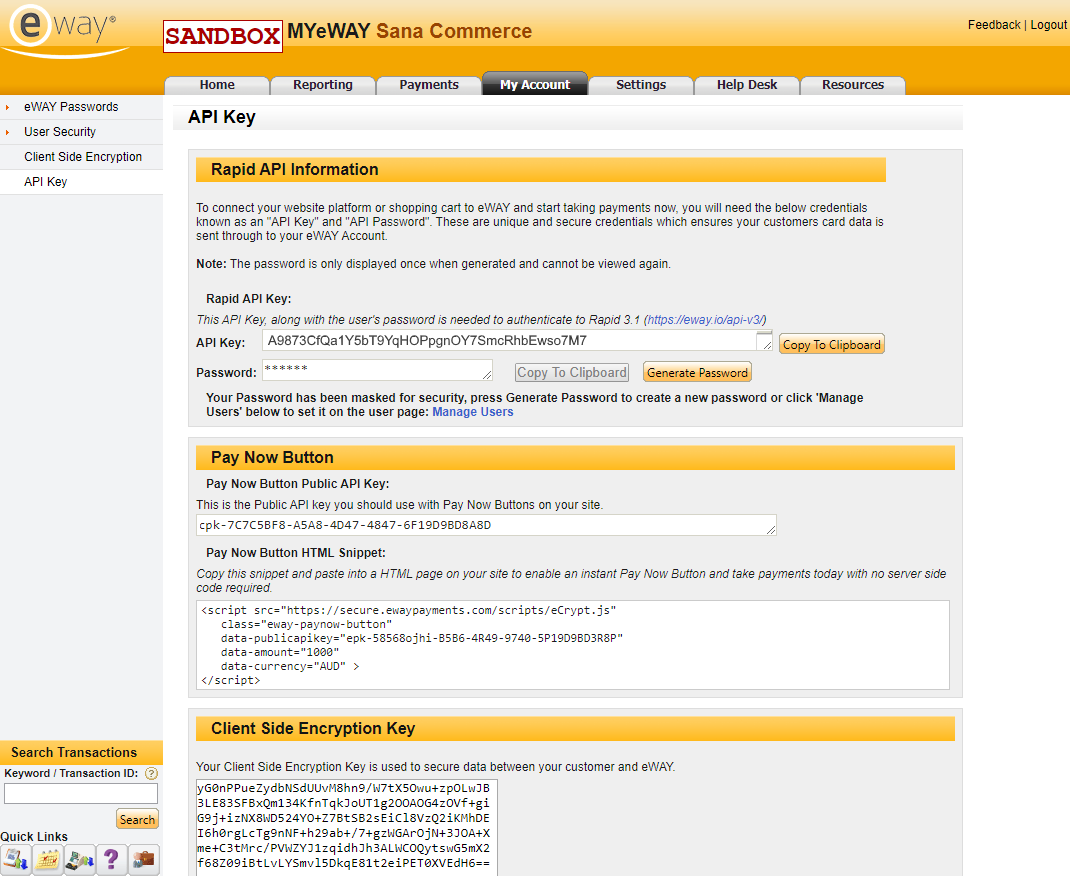
Step 4: Click Test credentials to check if the API key and password are valid and Sana Commerce Cloud can connect to Eway.
You can use the Troubleshooting mode to diagnose, identify, and resolve issues if any occur. It includes more detailed and extensive logging.
Abandoned Payment Synchronization
Eway uses a hosted payment page. When a customer clicks Pay, they are redirected to the Eway payment page to complete the transaction and are then returned to the Sana webstore. In some cases, a customer starts a payment but never finishes it. For example, they close the browser tab while on the Eway page, and never return to the webstore. This creates an abandoned payment. Because Eway does not return a final payment result, the payment remains In progress, and the corresponding order stays open.
To prevent abandoned payments from remaining open indefinitely, the Eway add-on supports abandoned payment synchronization. This feature works together with the Sync payment statuses between Sana and PSP scheduled task, which periodically checks the status of payments with Eway.
The settings below determine how the scheduled task handles payments that remain In progress without a final payment result.
Settings
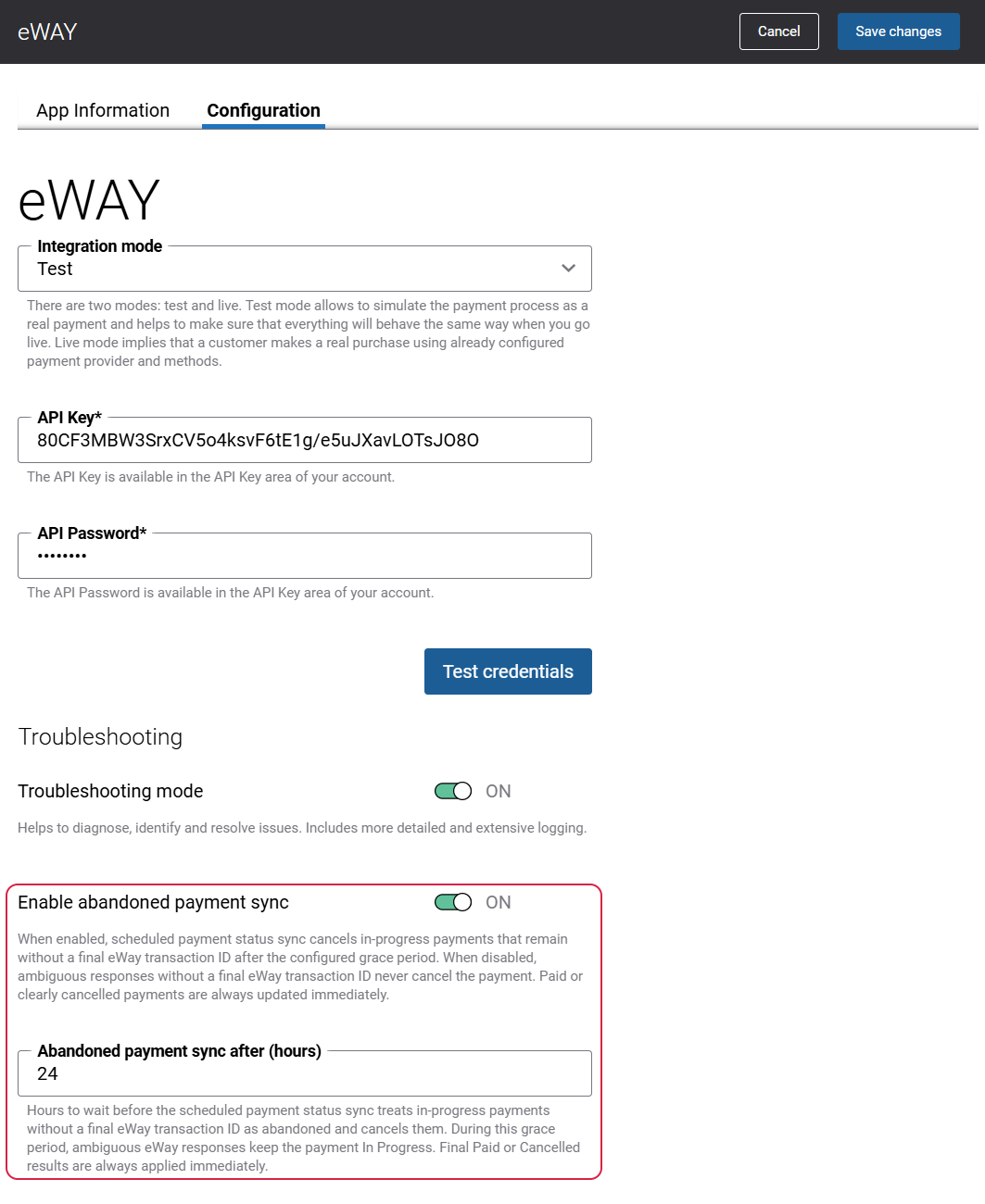
Enable abandoned payment sync
Enables automatic cancellation of abandoned payments.
When this setting is enabled, the Sync payment statuses between Sana and PSP scheduled task cancels In progress payments that still have no final transaction result when the configured number of hours has passed.
When disabled, the scheduled task does not cancel these payments. They remain In progress until Eway returns a final payment result.
Default value: Enabled.
Abandoned payment sync after (hours)
Specifies how many hours an In progress payment without a final Eway transaction result can remain pending before it is treated as abandoned and cancelled by the Sync payment statuses between Sana and PSP scheduled task.
During this waiting period, payments without a final transaction result remain In progress.
This setting is available only when Enable abandoned payment sync is enabled.
Default value: 24 hours.
Allowed values: 1–168 hours (up to 7 days).
Payments with a final result are not affected by these settings. As soon as Eway returns a completed (Paid) or declined/cancelled (Cancelled) payment result, Sana updates the payment status immediately, regardless of the time specified in Abandoned payment sync after (hours).
| Scenario | Result |
|---|---|
| Eway returns a completed payment | Paid (updated immediately) |
| Eway returns a declined or cancelled payment | Cancelled (updated immediately) |
| Payment has no final result and is still within the configured waiting period | stays In progress |
| Payment has no final result after the configured waiting period expires | Cancelled (order handled as a failed payment) |
When an abandoned payment is cancelled after the configured waiting period expires, the corresponding order is processed through the standard failed-payment flow. For example, any open order is removed from the ERP, preventing abandoned orders from remaining open indefinitely.
Configure Eway Payment Methods
In Sana Admin click: Setup > Ordering > Payment. On the Payment tab, create and configure the payment methods.
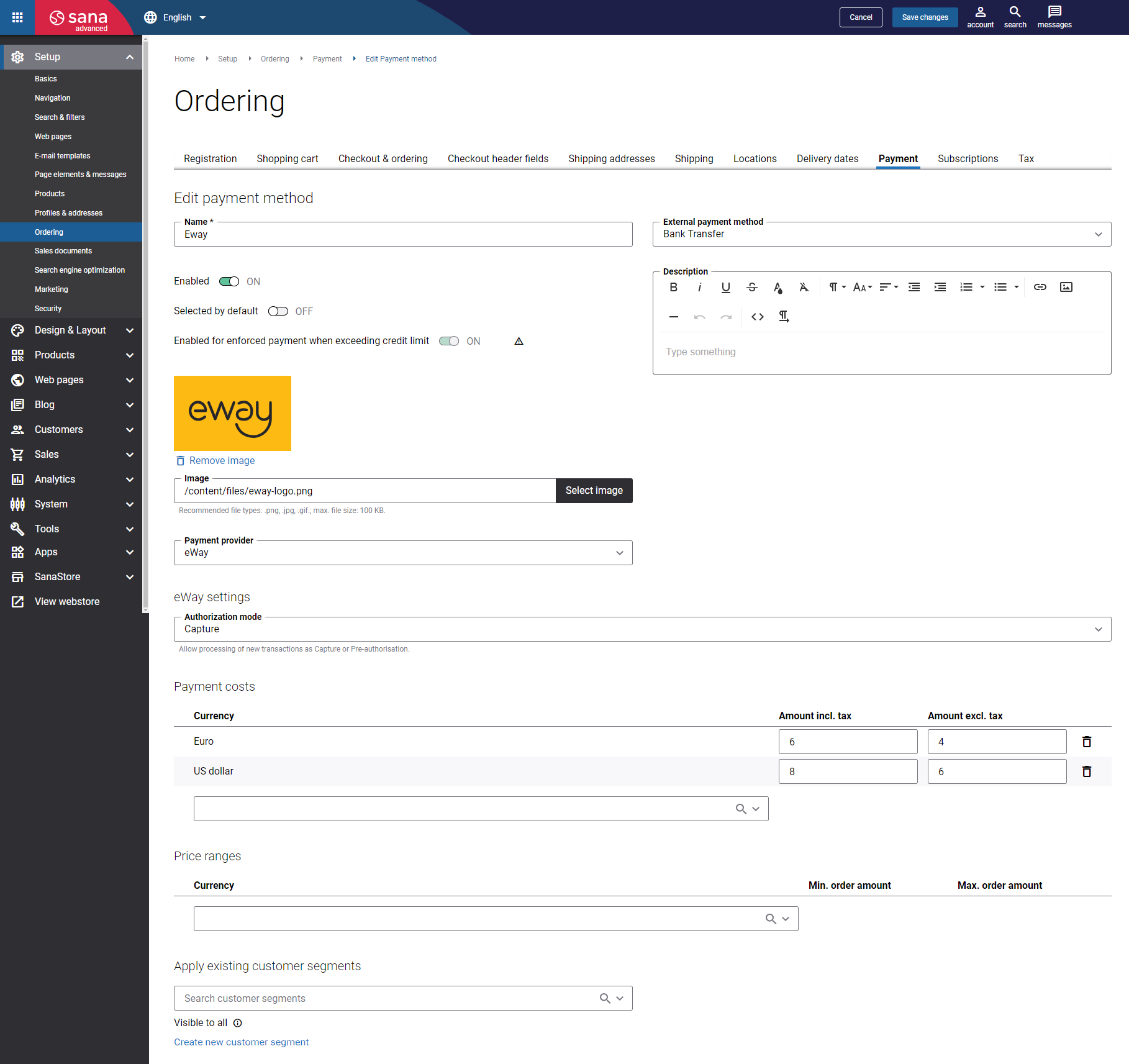
In the Authorization mode field, define how the payment transactions should be processed. The available options are:
-
Capture: Eway charges the customer's card immediately after a successful authorization.
-
Pre-authorisation: Eway reserves funds on a customer's card without charging it immediately. It means the money remains in the customer’s account until the capture has been performed. For more information, see the official Eway documentation Pre-Auths.
For more information about how to create and configure payment methods in Sana Admin, see Online Payment Methods.


