General Information Import
The General information import task must be started before the Product import and Customer import tasks. You must run it after you connect Sana Commerce Cloud to your ERP system.
The General information import task is used to synchronize settings between Sana Commerce Cloud and your ERP system. It also imports the basic data from your ERP system to the Sana database.
When you run the General information import task, the following data will be synchronized between Sana and your ERP system:
- ERP settings (the task synchronizes the Sana settings with the ERP settings and checks whether the ERP system supports for example return orders, online invoice payments, product images, sales statistics, shopping cart suggestions, quote to order conversion, large orders, etc.)
- Currencies
- Countries
- Units of measure
- B2C and B2B customer templates
- Product categories / item groups
- Product variant components (for example, style, size or color)
- Shipping methods from ERP
- Tax number formats
- Sales statistics fields which are used to create customer segments
- Filter fields which are used for catalog indexing, online customer registration, customer profile, and shipping address
Those data which is synchronized between Sana and ERP by the General information import task is also used by Sana when there is no connection to your ERP system. This allows to accept orders and continue business operations without interruption, even when connection to your ERP system is not available for some reasons. For more information, see Maintenance Mode.
Set Up the General Information Import Task
To set up the General information import task, click Edit.
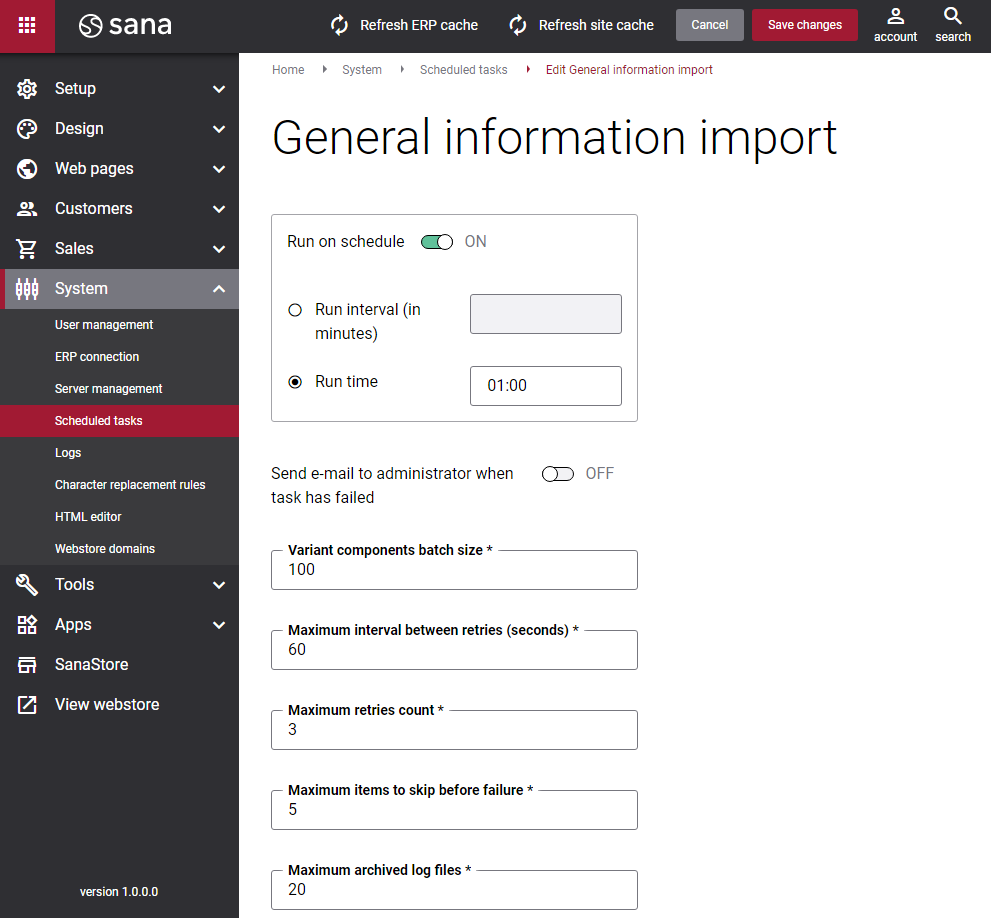
The table below provides the description of the General information import task settings.
| Settings | Description |
|---|---|
| Run on schedule | Use this option to enable automatic running of the General information import task according to the configured schedule, or disable it to allow only manual start of the task.
If you enable Run on schedule, you should enter either the interval in minutes when the task should run automatically in the Run interval (in minutes) field or enter the fixed time in the Run time field. |
| Run interval (in minutes) | Enter the time interval in minutes when the task should run automatically. |
| Run time | Enter a fixed time when the task should start automatically. Use the time picker to set the desired time. The user’s local time zone is used. |
| Send e-mail to administrator when task has failed | Use this option to enable or disable e-mail notifications when a scheduled task fails.
If the scheduled task has failed, the webstore administrator receives an e-mail with the name of the task that failed, the name of the webstore, which is useful in case you have several webstores, when the task failed, and the error message. Thanks to this, the webstore administrator can quickly respond to problems with data synchronization. |
| Load variant components |
Enable the Load variant components checkbox to retrieve the product variant components from the ERP system during the General information import task run.
Disable this checkbox only if you are not using product variants. Your ERP system may contain a large number of variant components, but if you don’t use product variants, then you don’t need them. Disabling it can improve the performance of the General information import task. Note that disabling this checkbox does not disable product variants entirely. Product variants are retrieved separately via the Product import task and will remain visible in the webstore if they exist in the ERP system and are marked as visible. However, disabling this checkbox means that variant components will not be retrieved from the ERP, which may affect variant-related functionality such as filtering and search by product variants. |
| Variant components batch size |
Applies to: ERP systems which support product variants. Enter a quantity of product variant components that should be handled in one batch. |
| Maximum interval between retries (seconds) | Enter the maximum number of retries and the maximum interval between retries. If for some reason some general information cannot be indexed, the task will make more attempts to index this information within the specified time interval. These two values are interrelated - the number of retries is counted within the specified interval.
Example: |
| Maximum retries count | |
| Maximum items to skip before failure | Enter the maximum items to skip before failure. When some general information cannot be indexed for some reason, this value specifies the amount of general information that can be skipped before the task fails. |
| Maximum archived log files | Enter the maximum number of log files to store. If this number exceeds, the oldest log file will be removed and the new one will be created. |


