Customer Segments
WATCH THE VIDEO
Customer segmentation is a marketing strategy which involves dividing a target market into subsets of customers that are similar in specific ways, for example, customers from a certain country or those customers who are essential for your business prosperity. Because your individual customers have different needs, it will be easier to give them what they want if you divide them into groups and treat each group differently. Using customer segments, you can build loyal relationships with customers by developing and offering them the products, content, and services they want.
You can assign customer segments to:
When you assign a customer segment to Content Elements, Menu Items, Payment Methods, and Discounts, you will see the icon  indicating that the customer segment is assigned.
Create a Customer Segment
Step 1: In Sana Admin click: Customers > Customer segments.
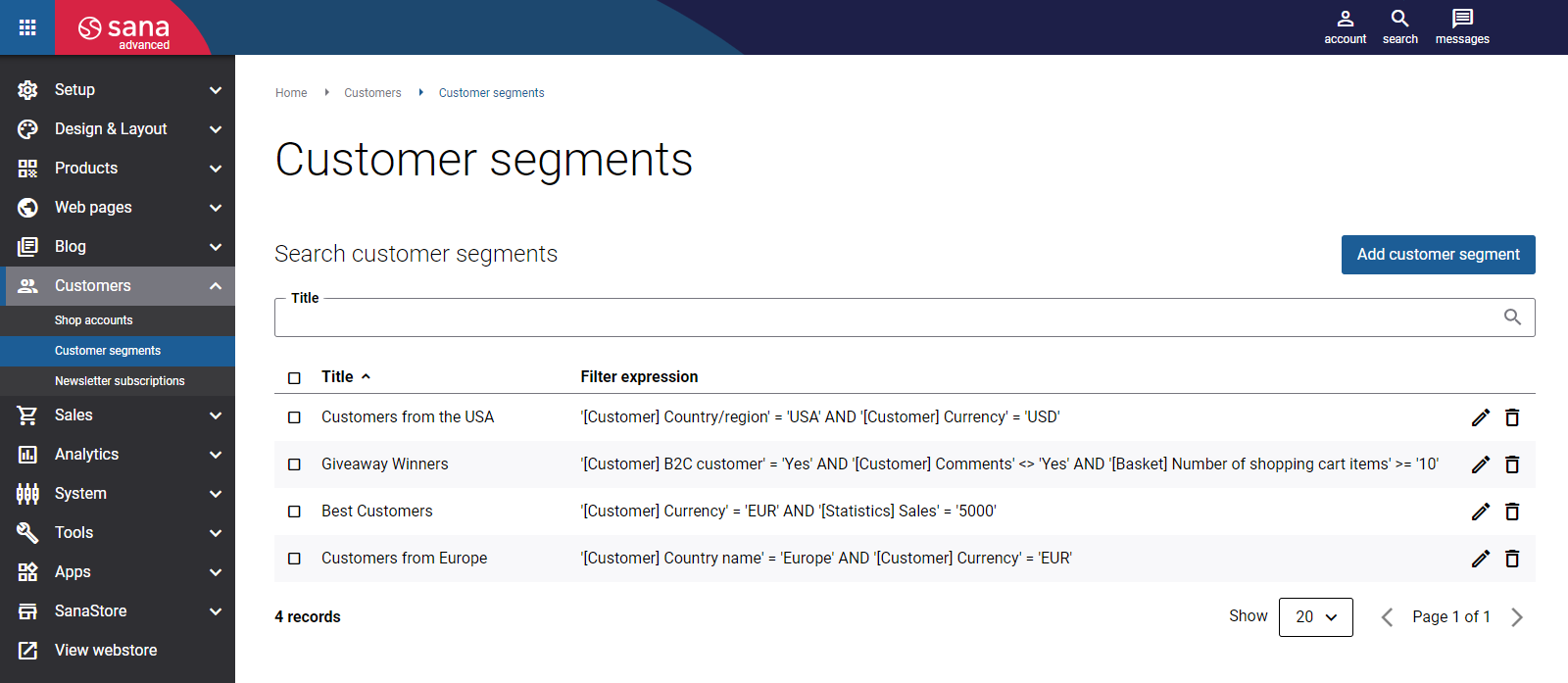
Step 2: On the Customer segments page, click Add customer segment, enter the title and set the filter expressions by specifying:
- Field name
- Condition
- Value
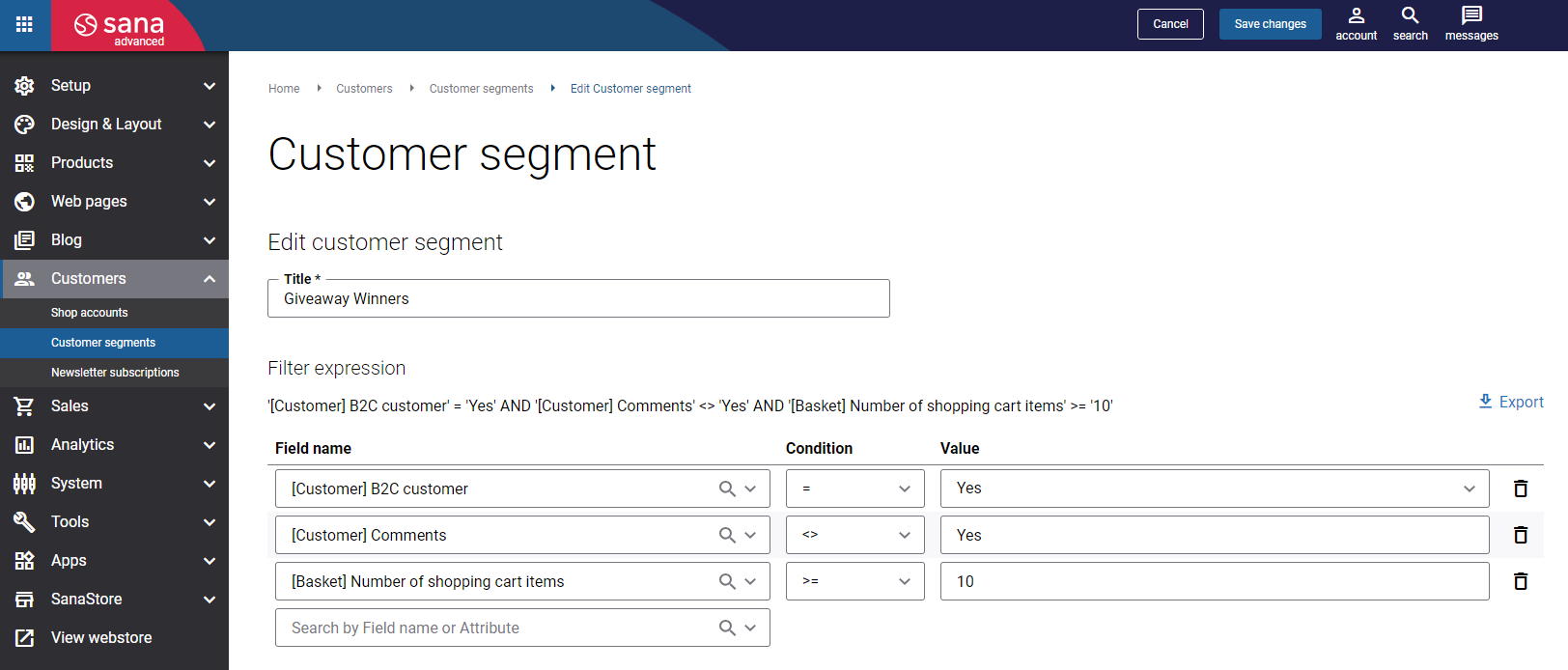
Filter expression is used to filter the customers that should be in the customer segment.
The field names in the Field name dropdown list are retrieved from different places. You can use the data from Sana Commerce Cloud and your ERP system.
There are different sources of data which can be used to create customer segments:
-
Customer data from ERP
-
Customer's sales statistics from ERP
-
Shop accounts in Sana Admin: account ID, name, e-mail, shop account type (customer, contact, and sales agent), last web order date, last login date of a customer, whether a user is logged in or not, whether a B2B customer is approved or not, customer permissions (can order products, can see prices and stock).
-
Please note that if you create customer segments for specific shop accounts, for example, to display certain content only to selected customers, you must also include the following rule: [Shop account] Logged in = YES. This rule ensures the customer segment is applied only when the customer is logged in. For example, if you want to show certain content only to customers who have permission to see product prices, you should set up the following rules:
[Shop account] Logged in = YES
AND
[Shop account] Can see prices = YES -
If a shop account has multiple customers assigned to it (one to multi relation), avoid using [Shop account] Account ID to create a customer segment, as this may lead to unexpected results. Use the customer ID/number field from ERP instead.
-
-
Baskets of the webstore customers: the date when the shopping cart was modified by a customer for the last time, how many hours ago, and the number of items in the shopping cart
-
Shipping methods created in Sana Admin
-
Available shipping address data of the customers
-
Delivery method (location or shipping method)
-
Location data
Customer fields may differ depending on the ERP system you are connected to as customer fields are retrieved from the customers table in your ERP system.
When you create a customer segment, filtering is performed by field, condition, value and by different filter expressions within the same field.
Conditions
| Condition | Description | Example | Explanation |
|---|---|---|---|
| > | Greater than | Order amount > 100 | Includes customers whose order amount is greater than 100. |
| < | Less than | Number of orders < 5 | Includes customers who have placed fewer than 5 orders. |
| = | Equal to | Country = Belgium | Includes customers from Belgium. |
| >= | Greater than or equal to | Invoice amounts >= 1000 | Includes customers with invoice amount of 1000 or more. |
| <= | Less than or equal to | Discounted amounts this year <= 10 | Includes customers who receive a 10% discounted amounts or less this year. |
| <> | Not equal to | Total order amount <> 0 | Includes all customers whose total order amount is not zero. |
AND / OR Operators
You can create one or more filter expressions to define a customer segment. When multiple filter expressions are used, you can define how they are combined by selecting logical operators (AND / OR) between them.
- If only one filter expression is created, no operator is required.
- When multiple filter expressions are added, operators are used to define the relationship between them.
- Operators can be applied between filter expressions for the same field or for different fields, and can be changed at any time.
Examples
If you define filter expressions for different fields, filtering is performed based on all selected fields according to the chosen operators.
For example, if you create a customer segment by specifying:
- Currency = USD
- Country/region = USA
and combine these filter expressions using the AND operator, a group of customers who are from the United States and use the US dollar currency will be created. In this case, customers in your ERP system are filtered by the fields Currency AND Country/region.
If a customer segment contains multiple filter expressions for the same field, you can define whether customers must match one or more of these expressions.
For example, if you create a customer segment with the following filter expressions:
- Total orders < 100
- Total orders between 200…500
- Country/region = USA
you can use the OR operator between the Total orders filter expressions to include customers whose total number of orders fits at least one of the specified ranges, and combine this result with the Country/region filter using AND.
As a result, the customer segment will include customers from the United States whose total number of orders matches one or more of the defined criteria.
AND / OR Operator Priority and Grouping
Filter expressions combined with the AND operator have a higher priority than those combined with OR. This means that AND conditions are evaluated first.
If you need to change the evaluation order and give higher priority to certain OR conditions, you can group filter expressions.
To group filter expressions:
Step 1: Select the required filter expressions using the checkboxes.
Step 2: Click Group selected items in the panel that appears at the bottom of the page.
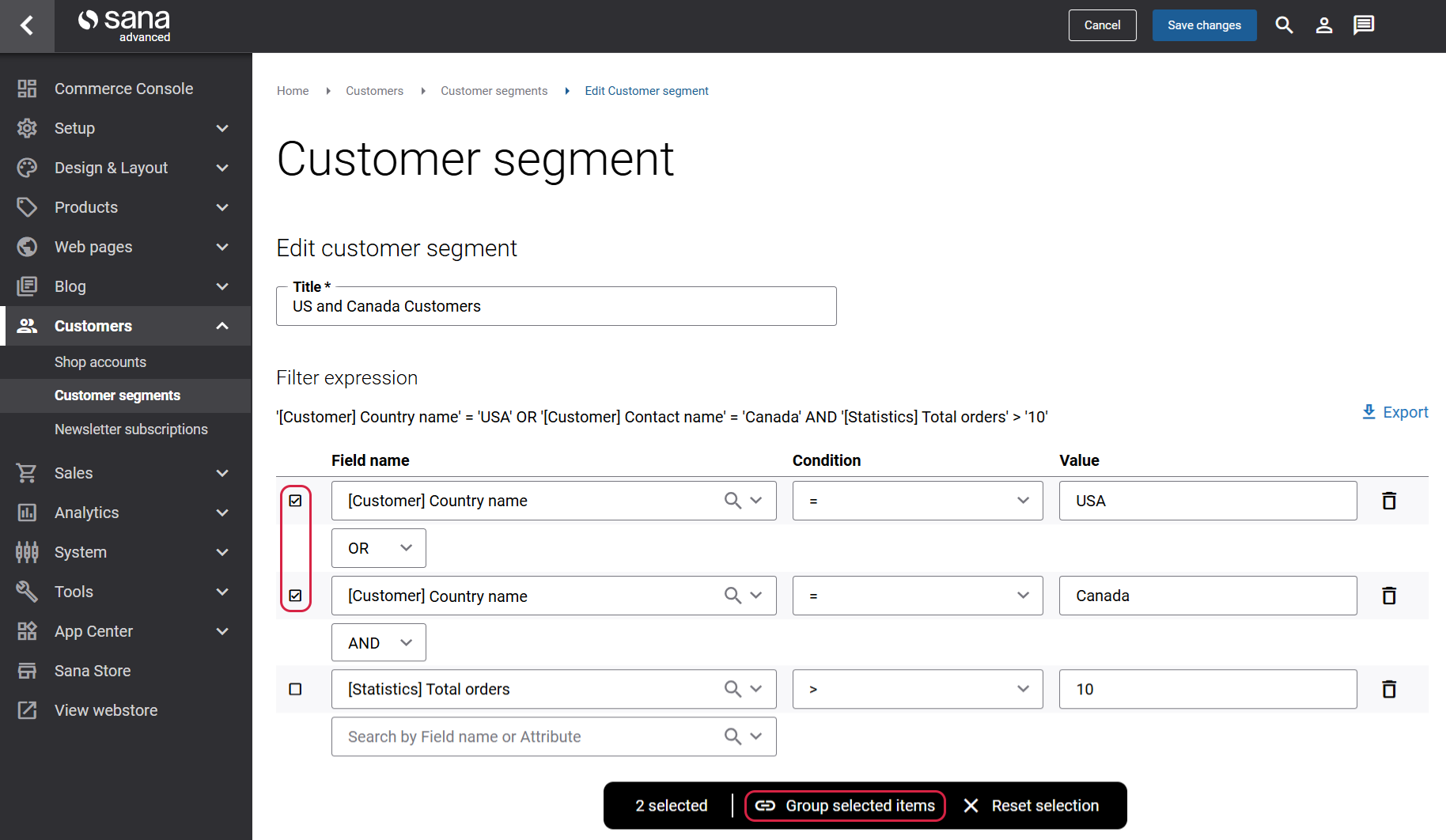
The selected filter expressions are grouped together and evaluated as a single logical unit.
Grouped filter expressions can be separated if required by clicking Ungroup next to the grouped expressions.
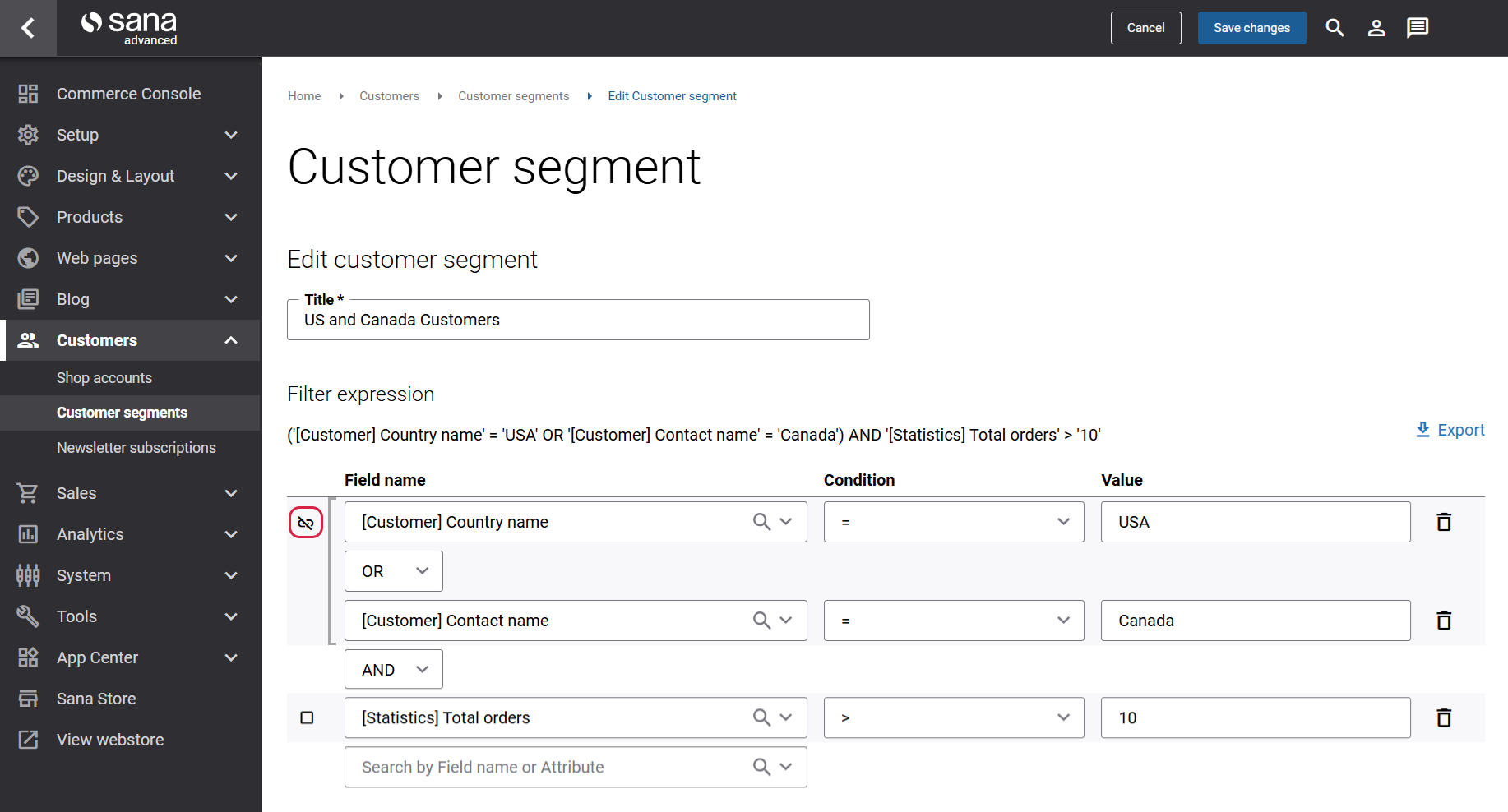
Example
Suppose you want to create a customer segment that includes:
- Customers from the United States or Canada,
- Who have placed more than 10 total orders.
You can define the following filter expressions:
- Country name = USA
- Country name = Canada
- Total orders > 10
If you combine these expressions without grouping, the AND operator will be applied first, which may lead to an unintended result.
To ensure the correct logic, group the country-related filter expressions:
- (Country name = USA OR Country name = Canada)
AND - Total orders > 10
By grouping the OR conditions, the customer segment will include customers from the United States or Canada who have placed more than 10 orders.
Date Fields
When you create a customer segment, in the Value field of the date field, you can either specify the exact date using the calendar or you can use one of the predefined date filters. You can see the predefined date filter values in the drop-down list when you create a customer segment with some date fields.
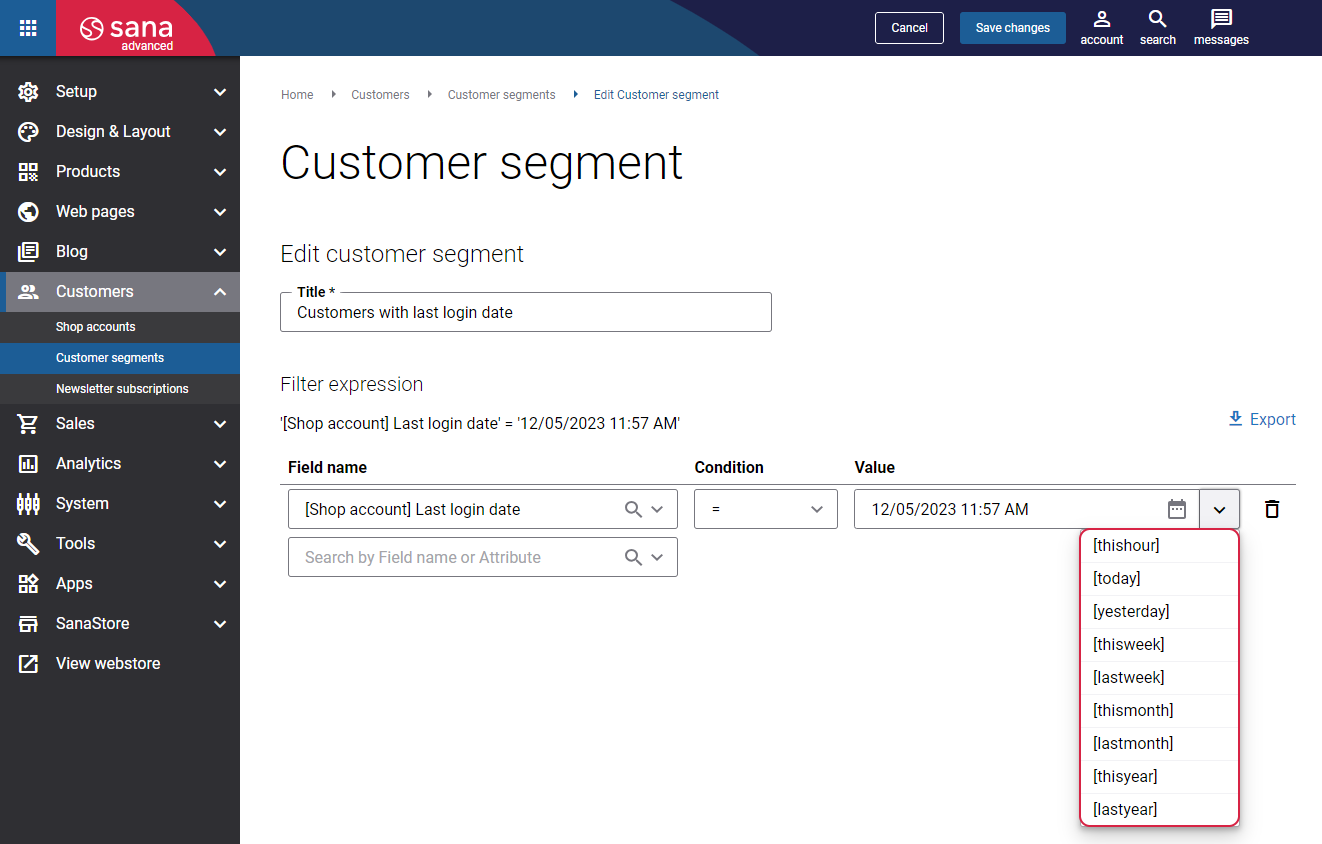
For example, if you are creating a customer segment with the last login date of a customer, you can also use the predefined filter values, such as "[today]", "[thisweek]", "[lastmonth]", etc. This way, you have more flexibility in using date filters and you don't need to update dates all the time.
Content Management
You can assign one or several customer segments to a row. It allows to show different content elements inside a row on the page to specific customer groups. When you assign customer segments to the row on the page, you can show certain content only to the customers who are in the customer segment. All other customers will not see this content. This way, you can fill your webstore with customer-specific content.
E-Mail Marketing
You can even use customer segments for the e-mail marketing extensions Mailchimp and Dotdigital to provide personalized messaging to the target audience. Use customer segments to create content for the promotional campaigns targeted to certain customers or markets, or to satisfy your most profitable customers by giving them some discount offers and sending personalized e-mails.
Customer segments can be used for different purposes. The above-mentioned scenarios are very useful in building marketing and promotional campaigns and thus loyal relationships with target audiences. But you can also use this feature for a different purpose, for example, for A/B testing together with the Mailchimp extension.
Export the Contents of the Customer Segment
To export the contents of a customer segment, in Sana Admin click: Customers > Customer segments. Open the necessary customer segment and then click Export.
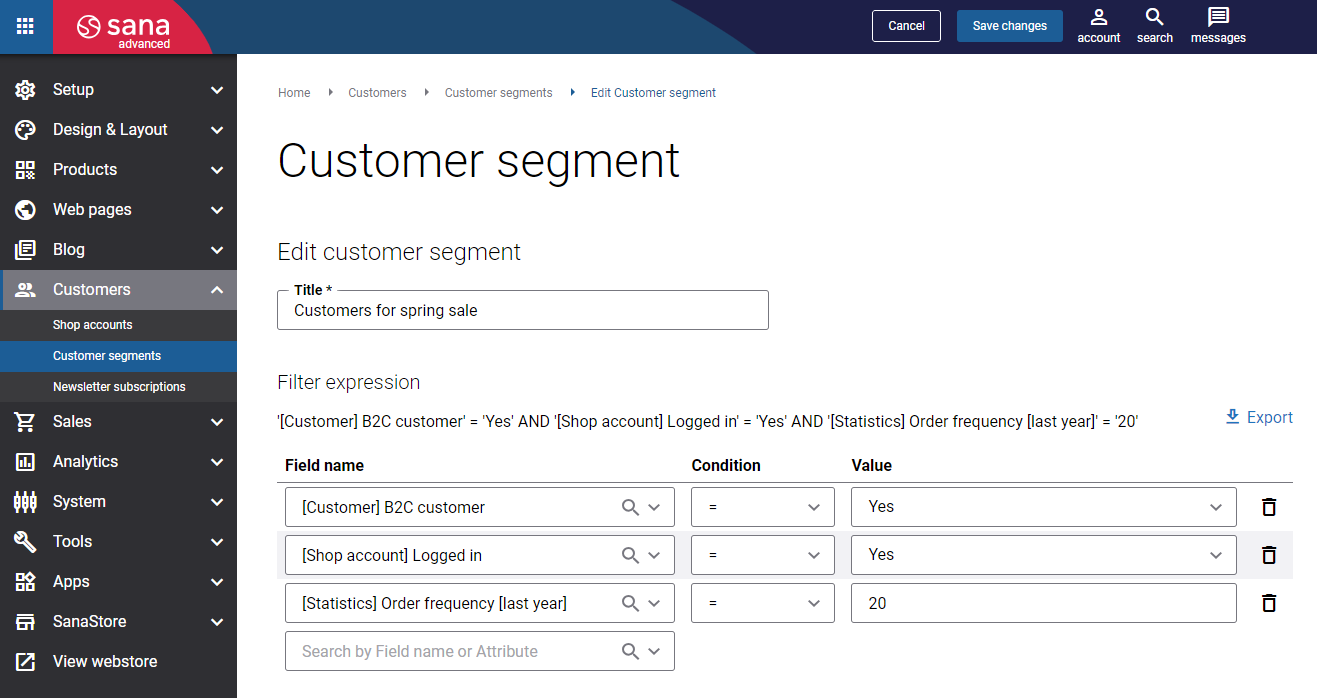
You will find this functionality useful if you want to check what shop accounts meet the criteria of a customer segment and then change the customer segment rules if it is necessary.
All shop accounts that correspond to the rules set in the customer segment will be exported from Sana Admin to the CSV file. In the CSV file, you will see the shop account name, email address, account ID and customer name.