Pending Revenue
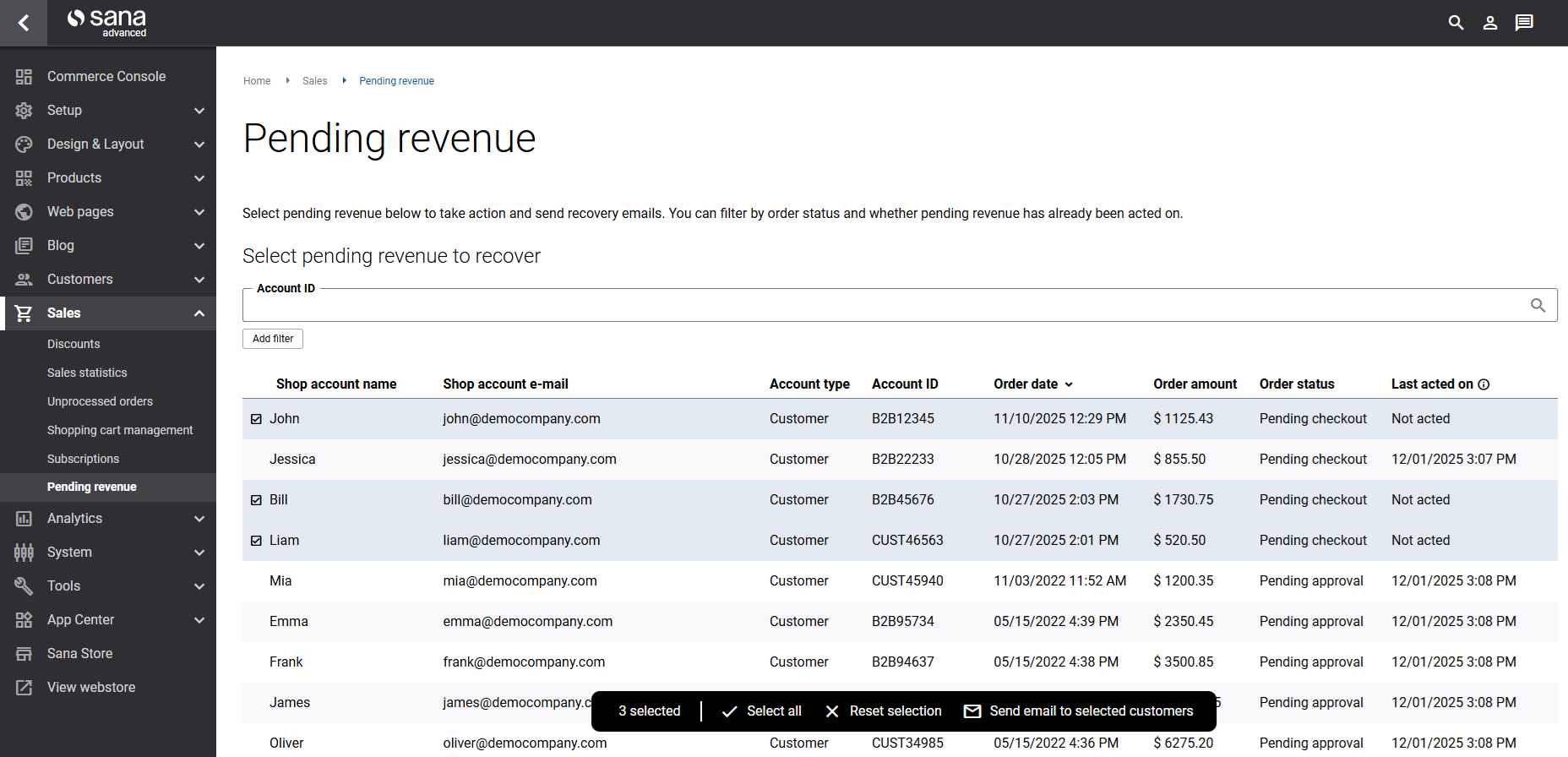
The Pending revenue page provides e-commerce managers with a focused view of orders that represent potential income waiting to be realized. By highlighting both abandoned carts and delayed order approvals, this page enables you to take proactive steps to recover revenue that might otherwise be lost and keep your sales process moving efficiently by ensuring buyers receive timely follow-up.
You can access this page from Sana Admin: Sales > Pending revenue, or by clicking action buttons from the action signals widget on the Commerce Console.
What Is Pending Revenue?
Pending revenue represents orders with potentially expected income that have not yet been completed. The data on this page focuses on two key situations:
Orders Pending Checkout
These are cases where customers added items to their shopping cart but did not complete the checkout for more than 14 days. Cart abandonment is a common challenge in e-commerce, and these orders represent revenue that may be lost if customers don’t return to complete their purchase.
On this page, you can:
- View all orders that are currently pending checkout and their amounts.
- Select one or more customers and send them an e-mail reminder.
- Help recover revenue that may be lost due to cart abandonment.
The reminder prompts the customers to return to the webstore and complete their order.
Orders Pending Approval
These are orders placed by sub-accounts that require approval from an account manager and have been waiting for more than 3 days. Delayed approvals can create frustration for buyers and slow down your order fulfillment process.
On this page, you can:
- View all orders waiting for approval and their amounts.
- Select the relevant customer accounts and send reminder e-mails to encourage timely approval.
This helps reduce processing delays and ensures orders can move forward without unnecessary waiting.
For more information, see Shop Account Roles.
Searching and Filtering
On the Pending revenue page, e-commerce managers can use a powerful set of search and filtering options to quickly find the orders they need to act on.
Search
Account ID: Look up pending checkout or pending approval orders by entering the customer’s account ID.
Filters
You can refine the list of pending revenue records using the following filters:
- Shop account name or e-mail
- Account type
- Customer
- Contact
- Sales agent
- Order date
- Order status
- Pending checkout
- Pending approval
- Acted / Not acted: The Acted filter indicates whether a reminder e-mail has already been sent:
- If no reminder has been sent, the Last acted on field shows Not acted.
- If a reminder has been sent, the Last acted on field shows the date of the last e-mail sent to the customer.
These filters make it easy to identify customers who have not yet been contacted or follow up on orders where reminders have already been sent.
Sending Reminder E-Mails
E-commerce managers can select individual customers or multiple customers at once with pending checkout or approval orders and send reminder e-mails directly from the Pending revenue page.
A sticky toolbar at the bottom of the page provides quick access to actions:
- Select all records across all pages
- Reset selection
- Send email to selected customers
Once customers and their orders are selected, simply send the reminders using the toolbar.
Depending on the type of pending revenue, Sana Commerce Cloud automatically uses the correct webstore e-mail template:
| Order status | E-mail subject | Template identifier |
|---|---|---|
| Pending checkout | Action needed: Complete your pending order | AbandonedBasketReminder |
| Pending approval | Action needed: Pending order approval | OrderAuthorizationReminderMail |
These e-mails inform customers about the next step they need to take, checking out or approving an order, and guide them back into the purchasing process.
After sending reminders, the Last acted on field updates with the current date, helping you track your outreach and avoid sending multiple reminders too close together.
Best Practices
To get the most value from the pending revenue functionality:
- Check regularly for new pending orders to maximize your chances of recovery.
- Use the Not acted filter to focus on customers who haven’t received a reminder yet.
- Pay special attention to high-value orders where the potential revenue impact is greatest.
- Monitor the effectiveness of your reminders by tracking which orders convert after outreach.
- Avoid over-communicating by checking the Last acted on date before sending follow-up reminders.
It is an essential tool for managing customer engagement, improving order completion rates, and strengthening your digital sales performance.


