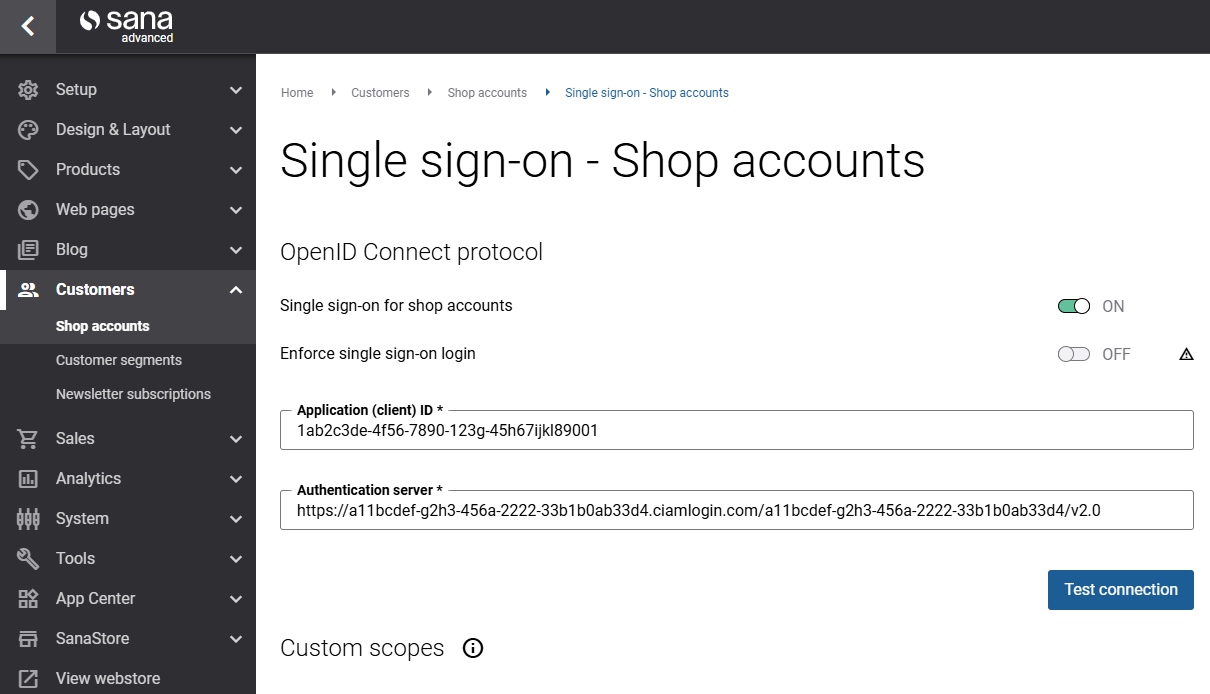
Microsoft Entra External ID
Microsoft Entra External ID lets you securely authenticate external users, such as customers or partners, when they sign in to the Sana webstore using single sign-on (SSO). It is designed specifically for customer identity scenarios. It allows users to sign in using corporate accounts or supported social identity providers.
Microsoft Entra External ID provides a secure and consistent login experience for webstore customers while allowing you to apply Microsoft security features such as identity protection and access policies.
To allow your webstore customers to sign in to the Sana webstore using Microsoft Entra External ID, you will need to:
- Create a Microsoft Entra External ID tenant.
- Register a Sana Commerce Cloud application.
- Set up the necessary permissions.
You will also need to connect Sana Commerce Cloud to Microsoft Entra External ID, create shop accounts, and modify the Login page of your webstore. For more information, see Single Sign-On.
Register a Sana Commerce Cloud Application in the Microsoft Entra ID
The application is needed to connect Sana Commerce Cloud to Microsoft Entra External ID.
Step 1: Create an external tenant in the Microsoft Entra admin center. How to do this, read in the Microsoft article Quickstart: Use your Azure subscription to create an external tenant.
Step 2: In the Microsoft Entra admin center, register a new application.
On the App registrations page, click New registration.
Step 3: Enter a meaningful Name for your application, for example, Sana Commerce Cloud, Sana, your webstore, or company name.
Step 4: Select the supported account type. You can leave the default value.
Step 5: In the Redirect URI (optional) section, select the Single-page application (SPA) platform and enter your webstore URL in the following format: https://your-webstore-domain.com/profile/login/callback.
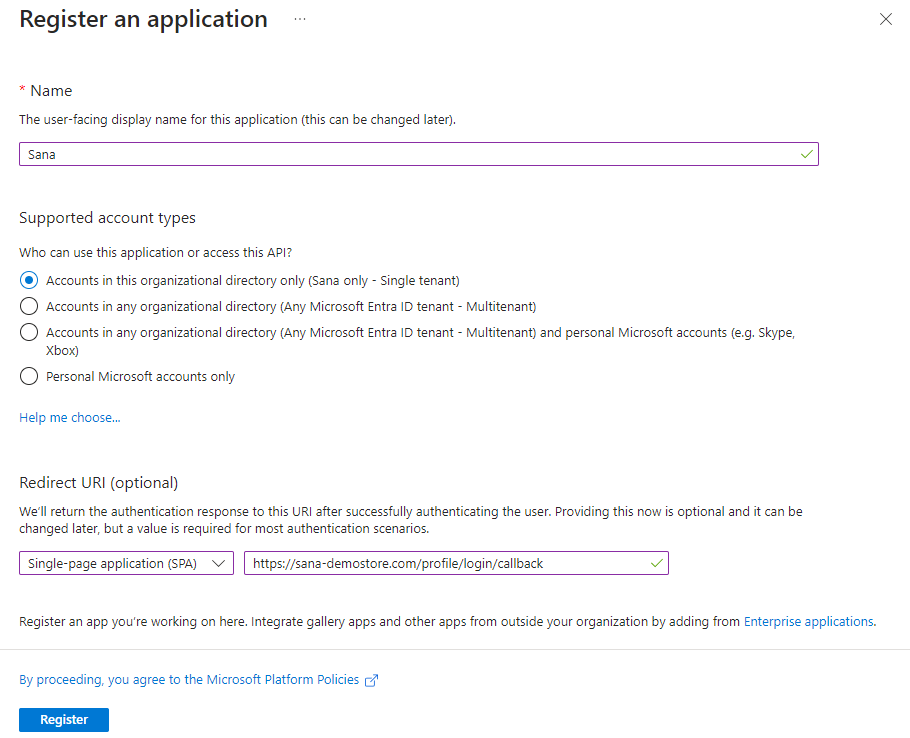
A redirect URI is where the Microsoft identity platform redirects a user's client and sends security tokens after authentication.
If you have multiple Sana Commerce Cloud webstores and want to use single sign-on for all your webstores, you must add all your webstore URLs to the Redirect URIs section. You can do this on the Authentication page only after the application is registered.
If you have a multi-lingual webstore, you need to add all webstore URLs for all languages, for example:
https://your-webstore-domain.com/de-de/profile/login/callback
Step 6: Click Register to complete Sana Commerce Cloud app registration.
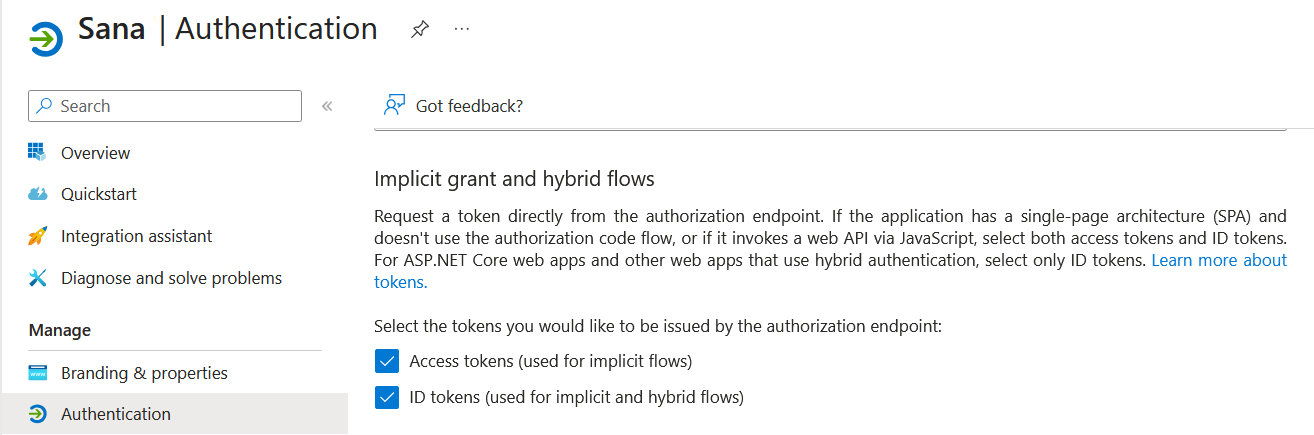
Step 7: Once the application is registered, navigate to the Authentication page and select Access tokens and ID tokens.
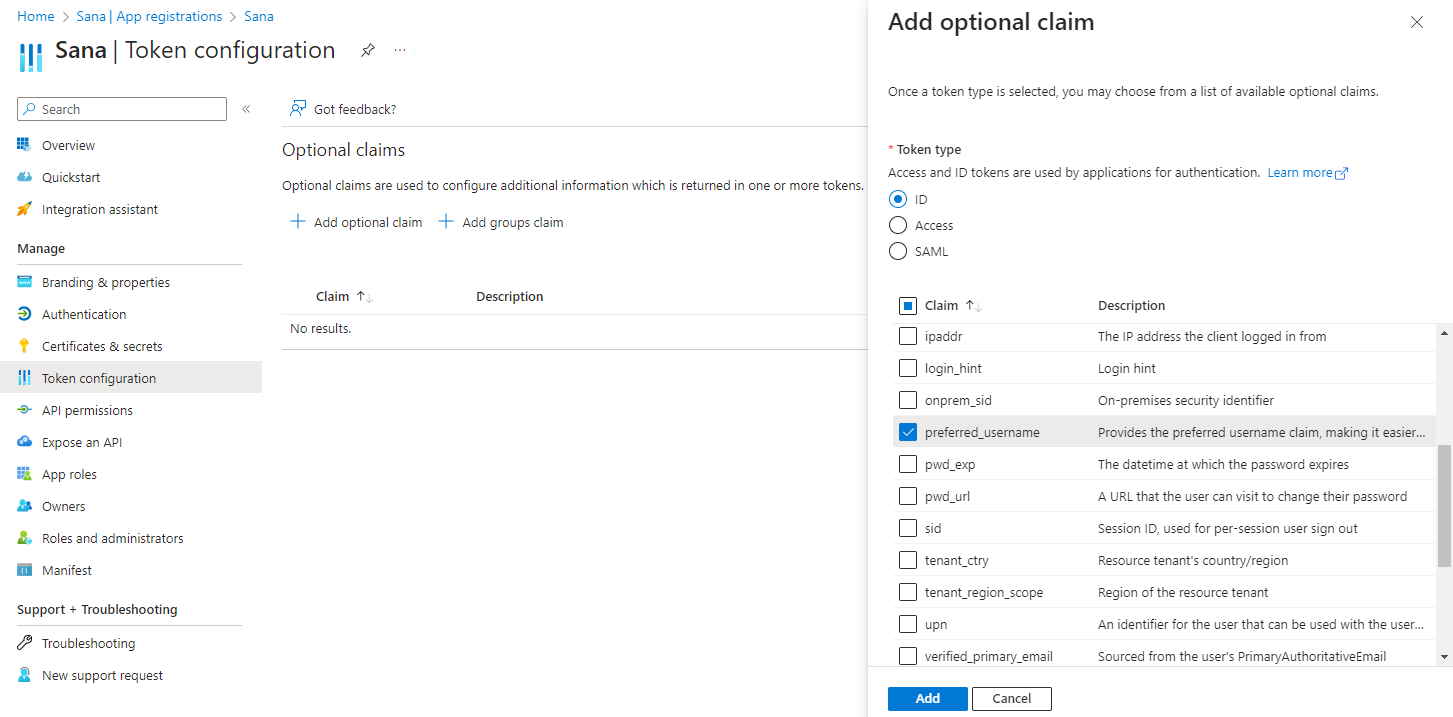
Step 8: Open the Token configuration page. Click Add optional claim.
Step 9: Select the ID token type. Then, find and select the preferred_username claim, and click Add.
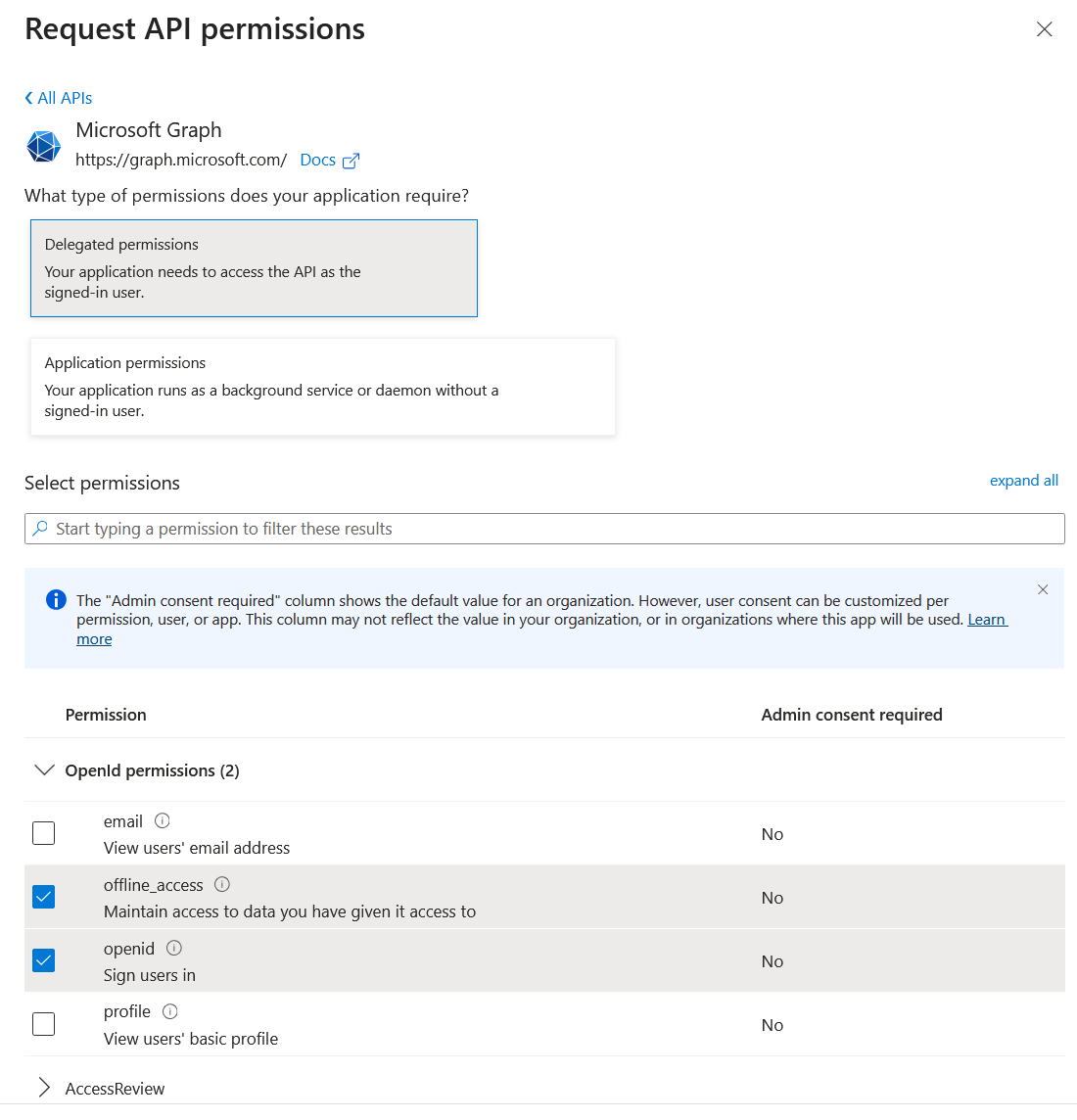
Step 10: Open the API permissions page.
Step 11: Select Microsoft Graph and the following Delegated permissions: offline_access and openid.
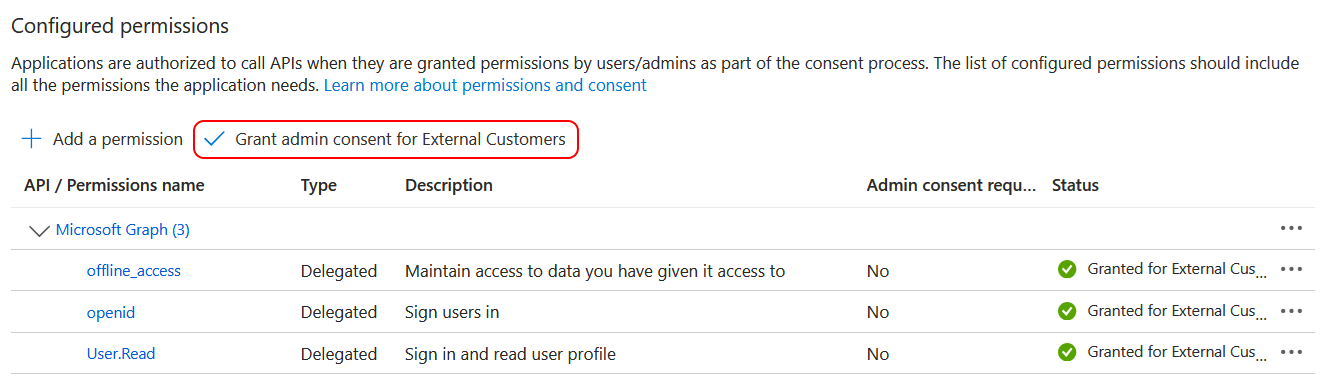
Step 12: Click Grant admin consent for External Customers.
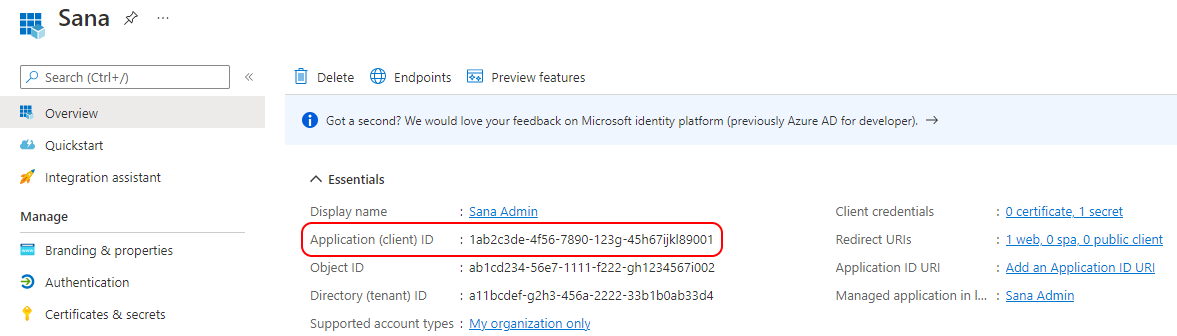
Step 13: Open the Overview page. See the details of your application, such as the Application (client) ID. The application (client) ID uniquely identifies your application in the Microsoft identity platform. You will need the application (client) ID to connect your Sana Commerce Cloud application to Microsoft Entra External ID. Thus, you can copy it.
Step 14: The Application server used in Sana Admin must be in the following format:
https://{tenantId}.ciamlogin.com/{tenantId}/v2.0