Configure Cybersource Payment Methods
You must configure payment methods in the Cybersource Business Center and in Sana Admin.
Configure Payment Options and Card Brands in Cybersource Business Center
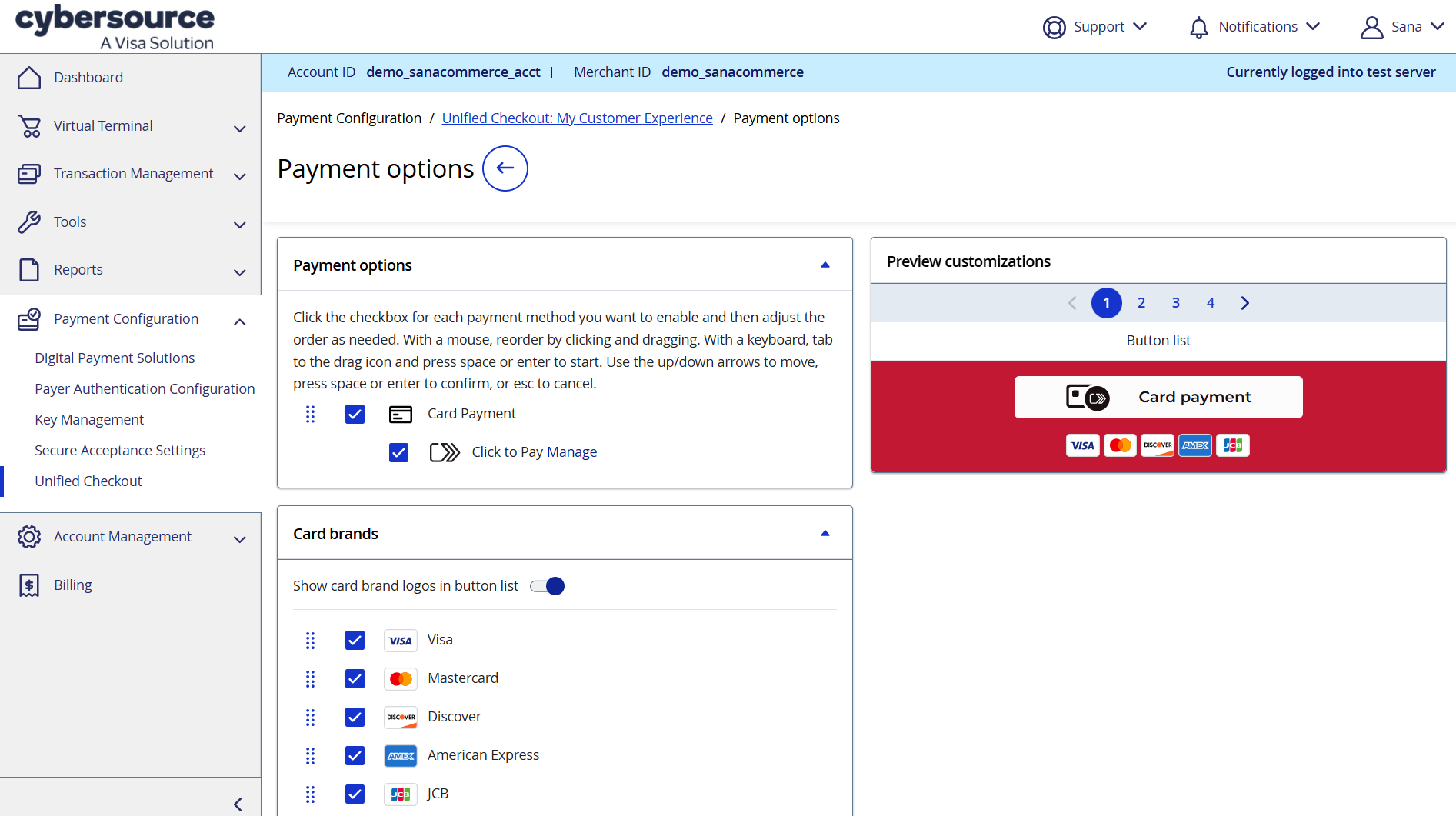
In the Cybersource Business Center, click: Payment Configuration > Unified Checkout.
Use Payment options to configure payment methods for your Sana webstore. You can also specify card brand logos to show on the payment buttons, ensuring a clear and intuitive payment experience in your Sana webstore.
Configure Payment Methods in Sana Admin
When the Cybersource payment provider is configured in the Cybersource Business Center and in Sana Admin, you need to set up the corresponding payment methods to allow customers to pay using the Cybersource Unified Checkout app.
Step 1: In Sana Admin click: Setup > Ordering > Payment.
Step 2: On the Payment tab, create and configure the necessary payment methods.
For more information about how to create and configure payment methods in Sana Admin, see Online Payment Methods.
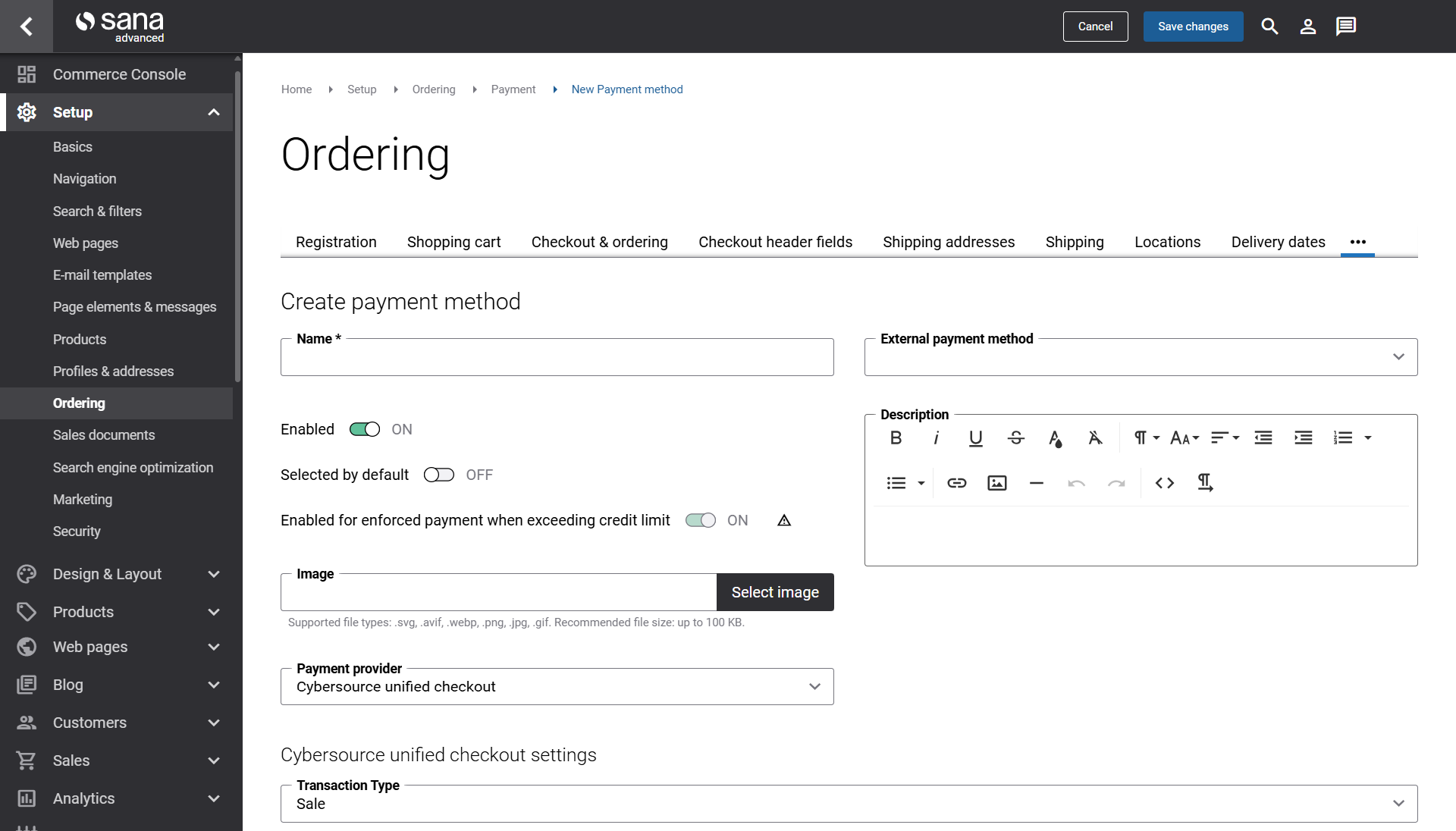
When you select Cybersource unified checkout in the Payment provider field, a Cybersource-specific setting appears: Transaction Type, with two available options − Sale and Authorization.
-
Sale: Immediately authorizes payment and captures (settles) the full order amount at the time of checkout. Use this option if you want orders to be paid and settled automatically.
-
Authorization: Only checks card validity and reserves/holds the order funds on the customer’s card without capturing it immediately. A merchant must manually trigger the final capture/settlement in the Cybersource Business Center. Sana’s Cybersource Unified Checkout app does not automatically capture authorized transactions.


