Usercentrics Cookiebar
Sana Commerce Cloud currently supports Usercentrics Web CMP v3.
Protecting personal information is essential because it is a fundamental human right. Therefore, for businesses to earn their customers’ trust, it is critical to protect data from unauthorized access, misuse, and breaches.
Usercentrics is a consent management platform which is GDPR, CCPA, LGPD and POPIA compliant. It offers a consent banner which is known as a cookiebar.
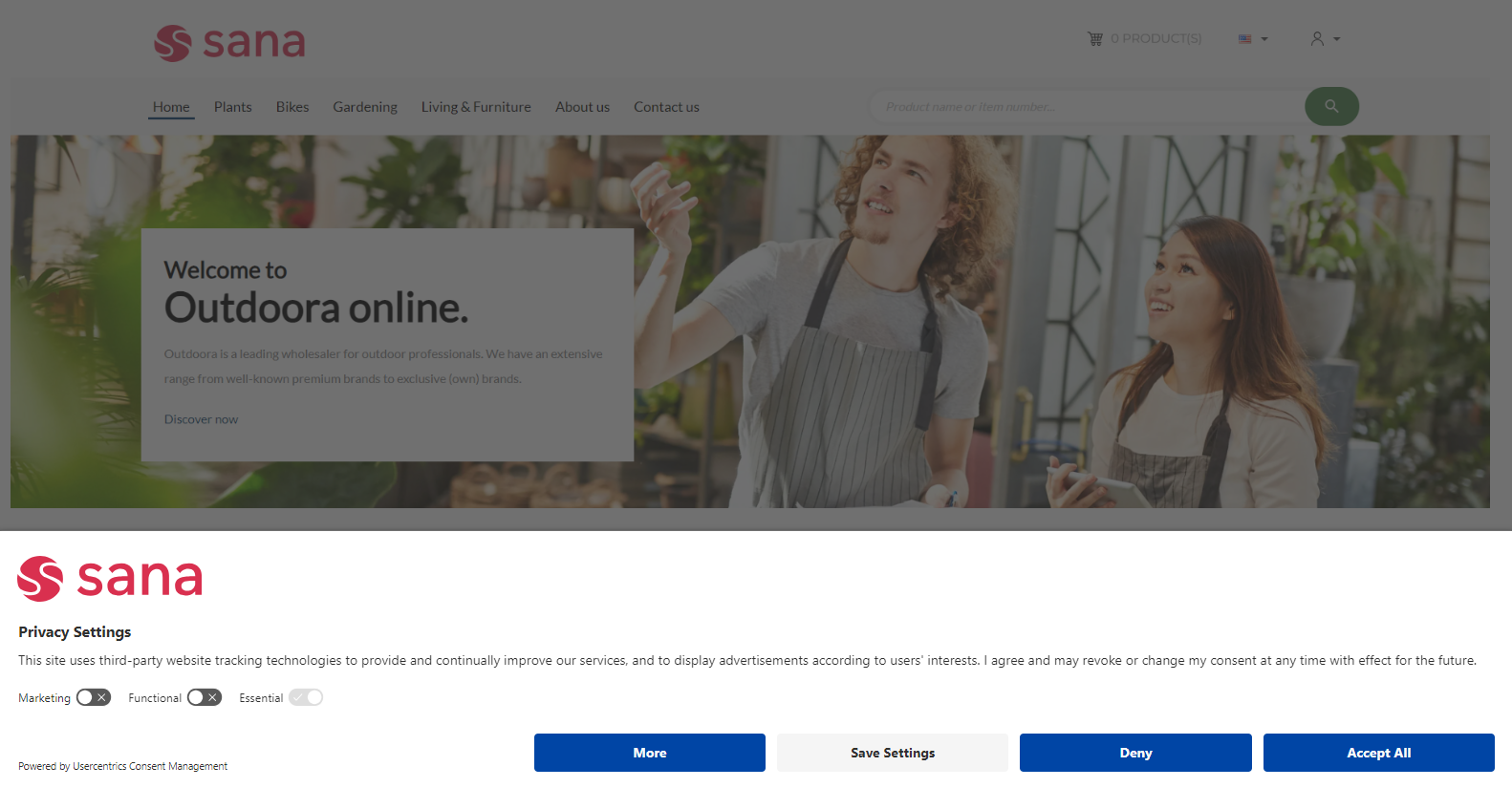
Usercentrics provides transparency for all cookie usage and tracking technologies on your website. It is trusted by 900,000 websites in 180+ countries. Usercentrics is compatible with the most well-known marketing tools in the sphere of analytics, A/B testing, tracking, retargeting, and more.
Data privacy safeguards customers’ personal information from unauthorized access, ensuring that sensitive data such as social security numbers, financial records remains secure. Various data protection laws and regulations, such as GDPR and CCPA, require organizations to implement measures to protect customers’ data privacy rights. Compliance with these regulations helps businesses avoid legal repercussions, hefty fines, and damage to their reputation.
Thus, when customers trust that their data is handled responsibly, they are more likely to willingly share information and do shopping in your webstore. This data, in turn, can be used to derive valuable insights, drive personalized experiences, and create more personal relationship with your customers. By respecting customers’ autonomy, data privacy ensures that personal information is not exploited or misused without consent.
Set Up Usercentrics Cookiebar
Step 1: In Sana Admin click: Setup > Page elements & messages > Cookiebar.
Step 2: In the Cookiebar type field, select Usercentrics.
Step 3: Enter the Usercentrics Setting-ID.
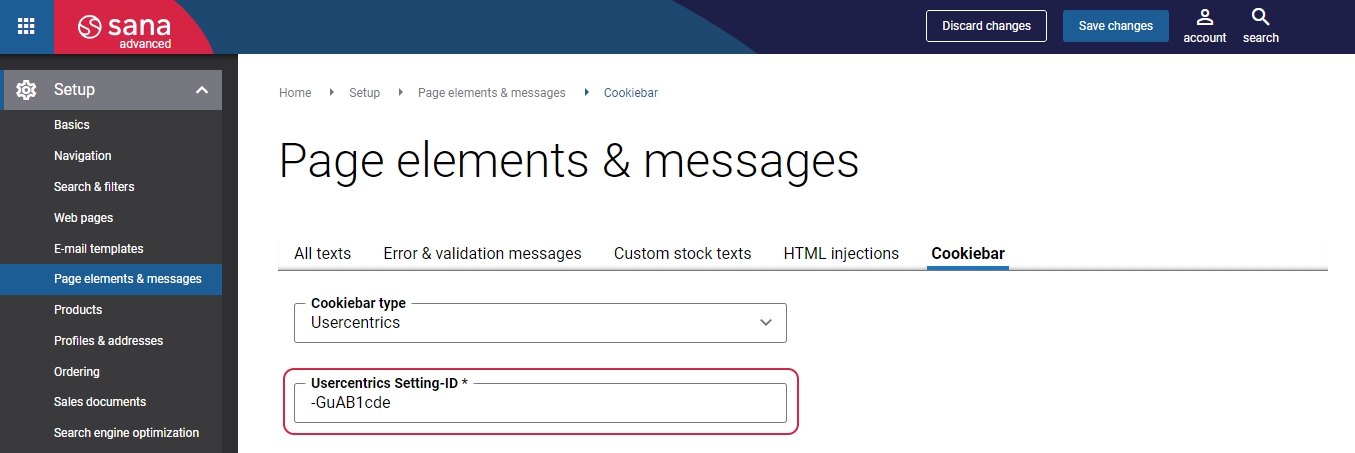
To find the Usercentrics Setting-ID, do the following steps.
1. Log in to the Usercentrics Admin Interface with your Usercentrics account.
For more information about how to set up a new Usercentrics account, see Getting Started with Usercentrics Web CMP.
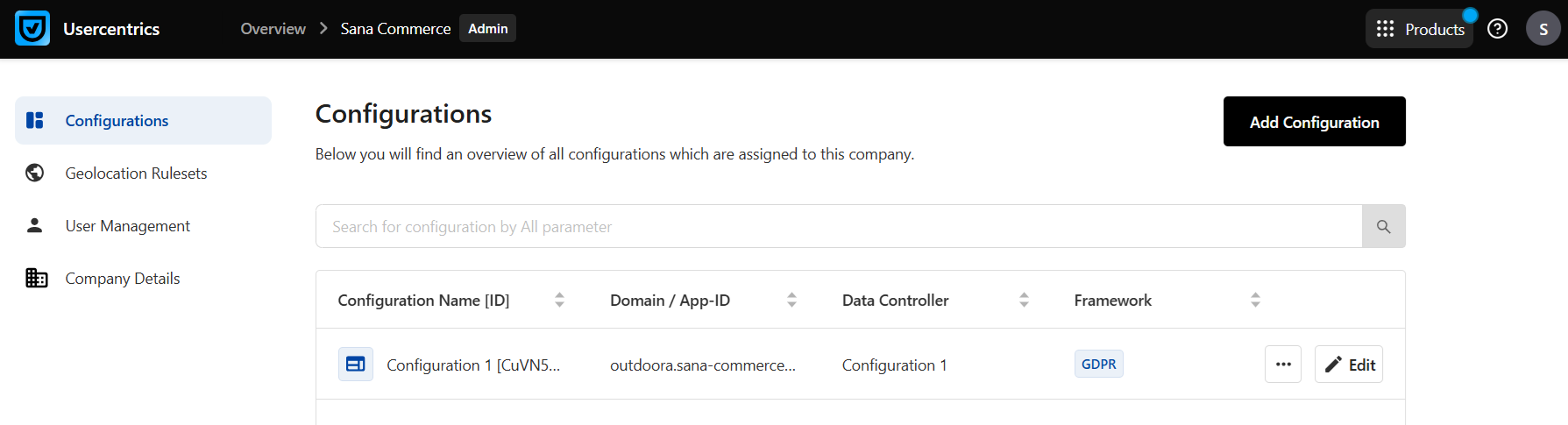
2. Select your company.
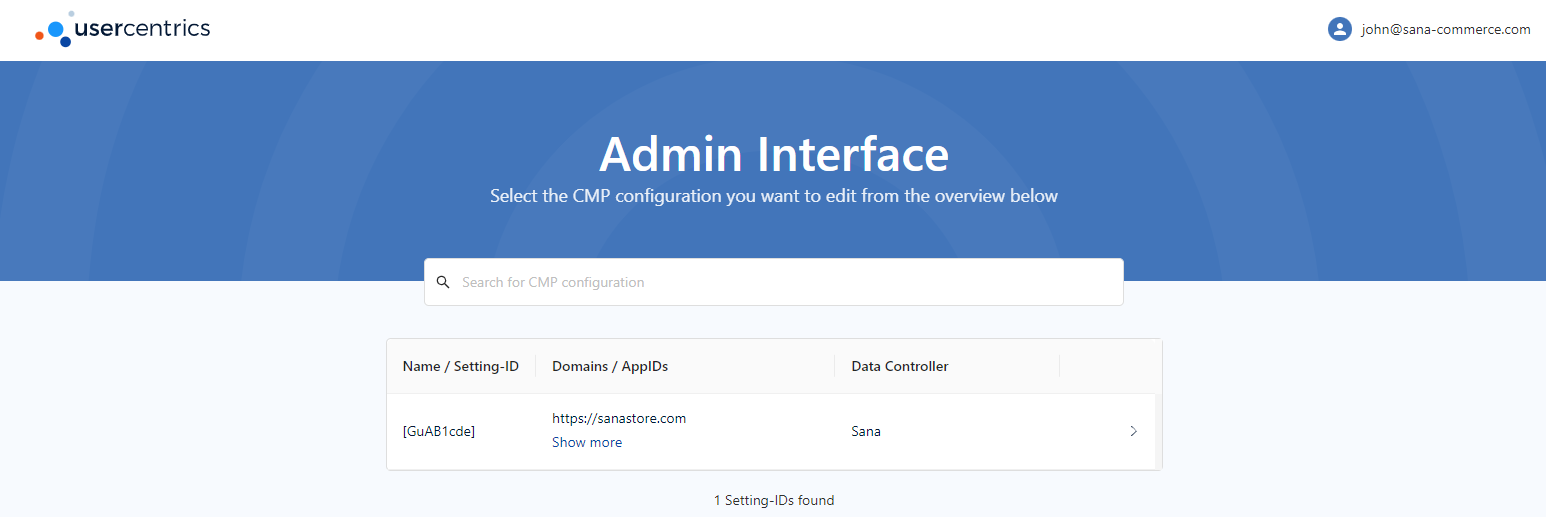
3. Open the required configuration.
4. In the header of the Usercentrics Admin Interface, locate the configuration ID (setting ID).
Click the ID to copy it to your clipboard.
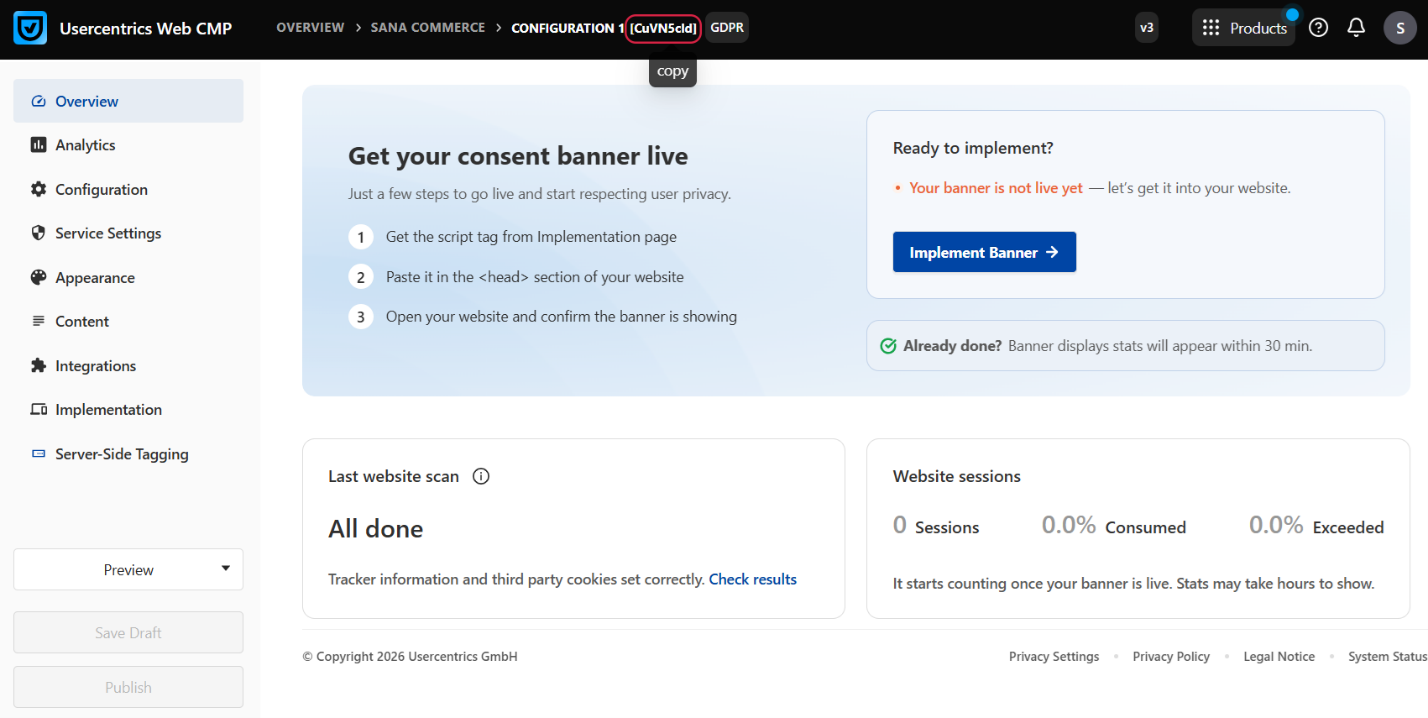
5. Paste the copied configuration ID from the Usercentrics Admin Interface to the Usercentrics Setting-ID field in Sana Admin.
Usercentrics Service Settings
Usercentrics supports a lot of services and in most cases they will be added automatically to the existing list of the data processing services, but some services you need to add manually.
The data processing services that are not added to Usercentrics will be blocked on the Sana webstore. The refusal of the webstore visitor to use certain cookies may also lead to the blocking of certain functionality. If you use any third-party services for your Sana Commerce Cloud solution, make sure they are added to Usercentrics. You must add:
- Third-party services built into Sana, for example, Google Analytics, Google reCAPTCHA, Friendly Captcha, Piwik Pro used for Sana Commerce Insights, etc.
- Payment, shipping, marketing services, etc.
- Third-party services integrated into Sana using HTML injections.
Third-party services injected via HTML injections should not be placed in the Head start section, as Usercentrics may not detect or recognize the service correctly.
- Other third-party services, for example, online video-sharing portals, such as YouTube and Vimeo.
Usercentrics leverages the Smart Data Protector script to detect and block third-party services.
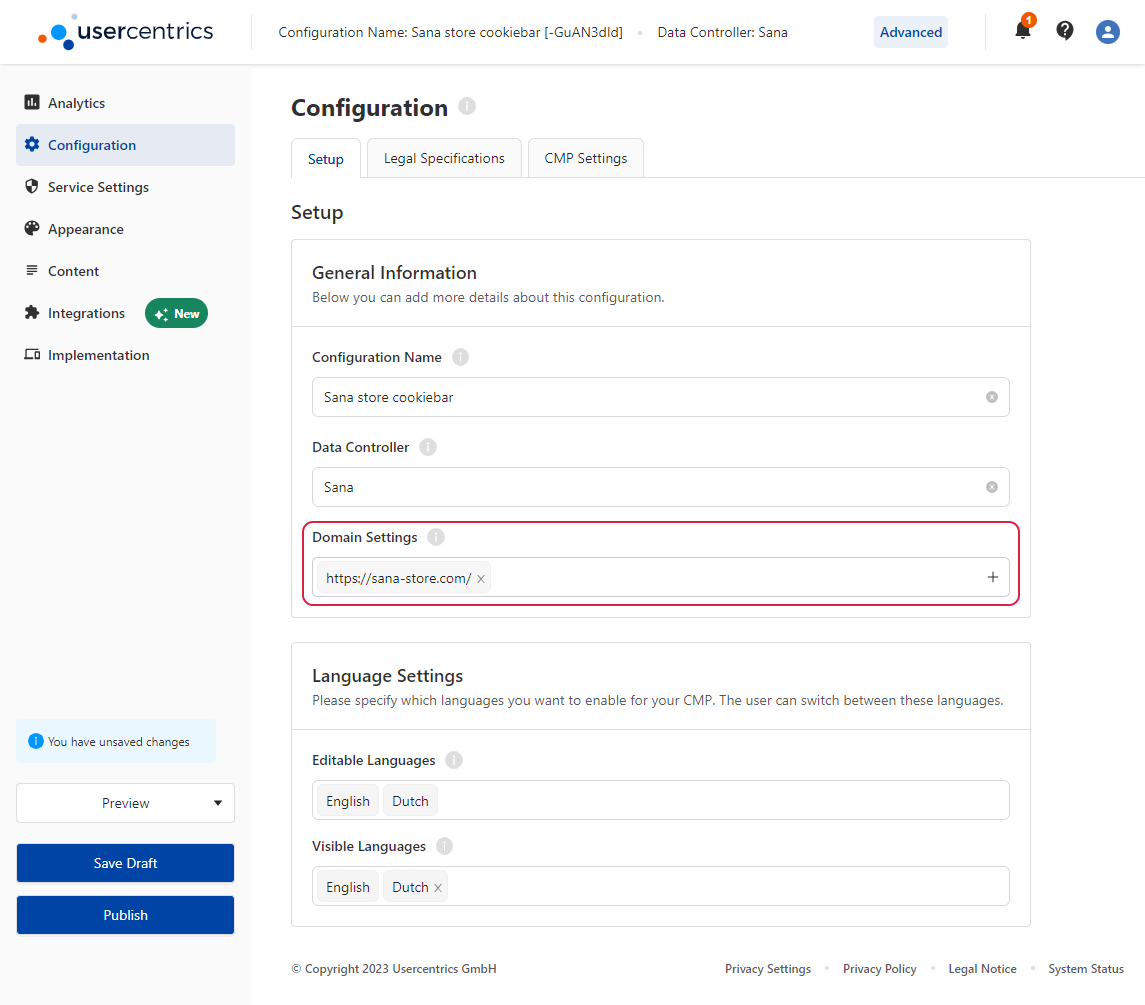
To scan your webstore and identify the services that are used, you must first add your webstore domain to Usercentrics.
In the Usercentrics Admin Interface click: Configuration > Setup. In the Domain Management section, add your webstore domain.
Use DPS Scanner to scan your webstore for third-party services and automatically add them to Usercentrics. Scanning a webstore takes several hours.
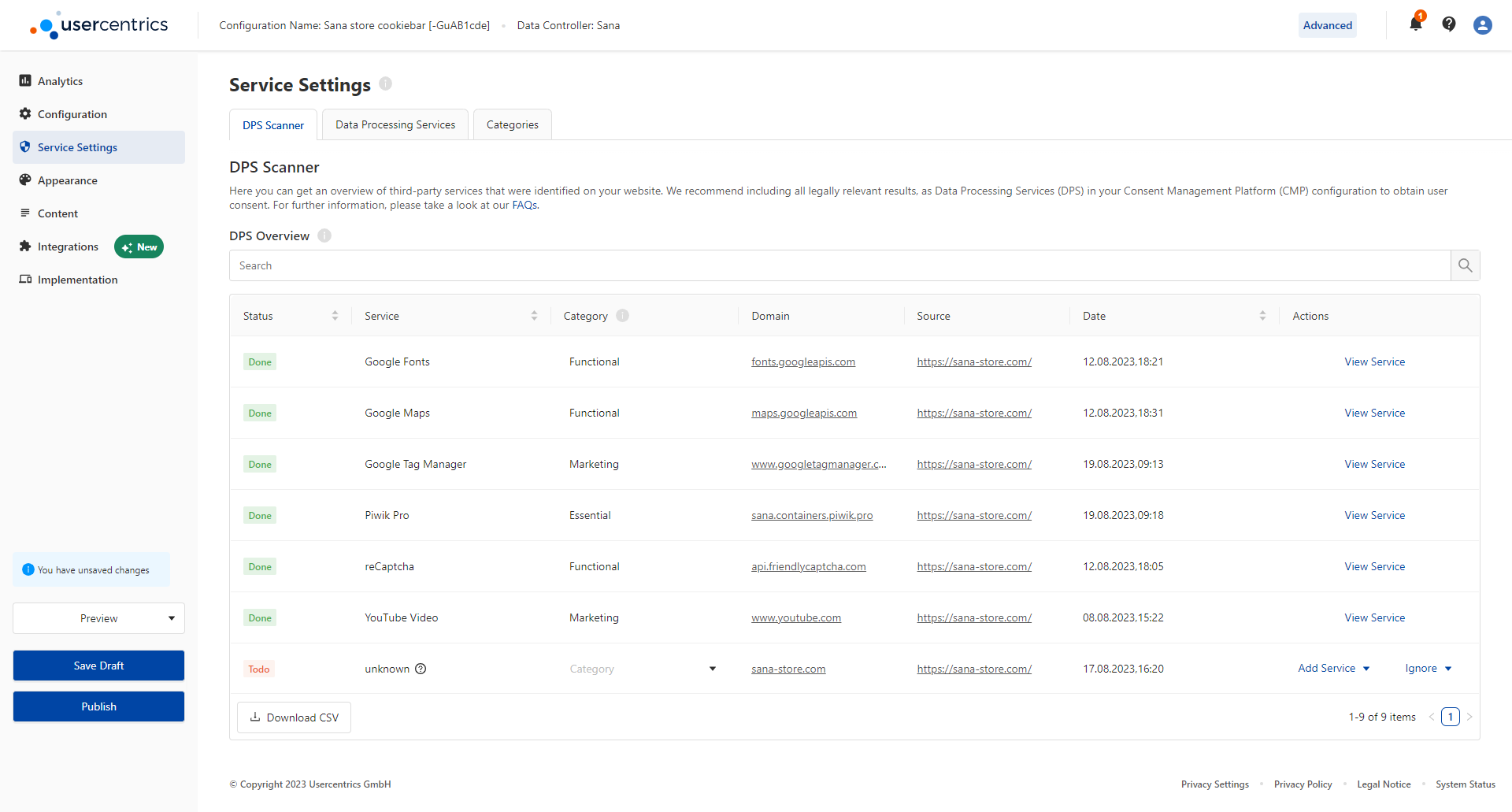
To manually add the necessary services, in the Usercentrics Admin Interface click: Service Settings > Data Processing Services.
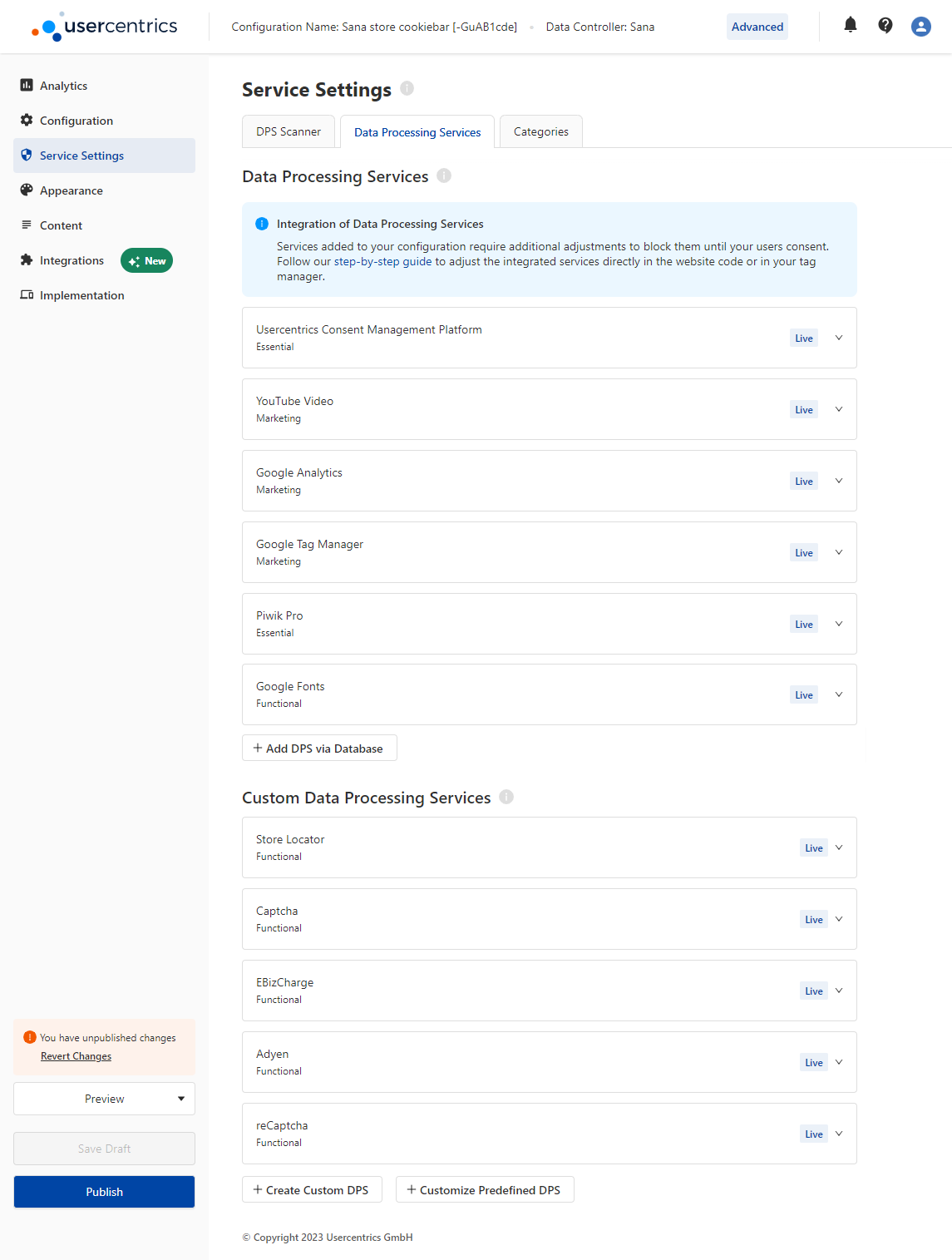
For more information about the Data Processing Service (DPS) Scanner, see the video Usercentrics DPS Scanner and read documentation Usercentrics DPS Scanner.
Configure Piwik Pro with Usercentrics
Make sure that the service added automatically or manually is called Piwik Pro. This is important for Piwik to work correctly.
Usercentrics will automatically scan your webstore identifying all available tracking services. This includes Piwik Pro, an essential component for the smooth operation of Sana Commerce Insights.
It is important to note that you need to explicitly configure Piwik Pro within Usercentrics once it has been detected. This configuration will determine if Piwik Pro is categorized as an essential cookie (that operates irrespective of user consent) or an optional cookie (requiring user consent, typically found in Marketing category).
Failure configuring Piwik Pro in Usercentrics can result in interruption of the analytic data flow from your website to the analytics platform. This can impact your ability to gather insights and understand customer behavior on your site.
To avoid this, we strongly recommend you follow the steps outlined in the Usercentrics setup guide to configure Piwik Pro correctly once it's been detected by Usercentrics.
For more information about how to use Usercentrics, refer to the official Usercentrics documentation.
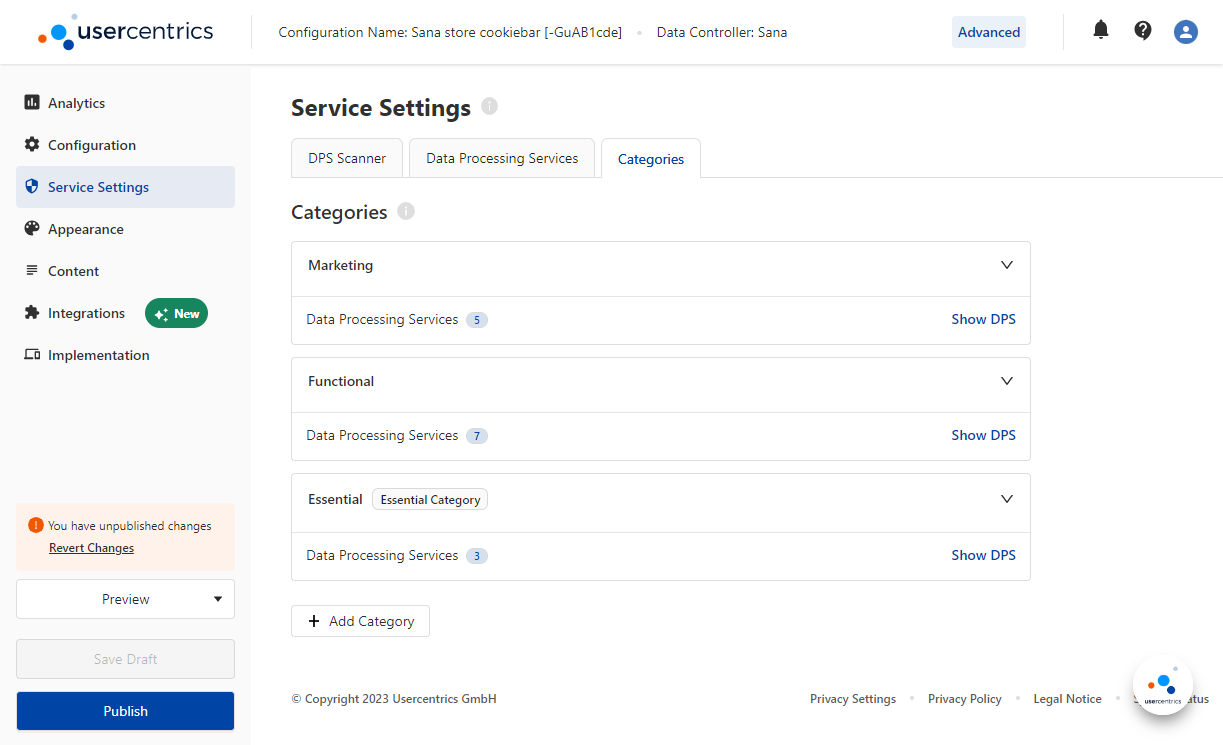
Usercentrics Categories
On the Categories tab, you can create, modify and delete categories. You must assign all Data Processing Services to particular categories. The default categories are:
- Marketing
- Functional
- Essential
Usercentrics Cookiebar Design
In the Usercentrics Admin interface click: Appearance > Layout. Here, you can configure the design of the Usercentrics cookiebar.
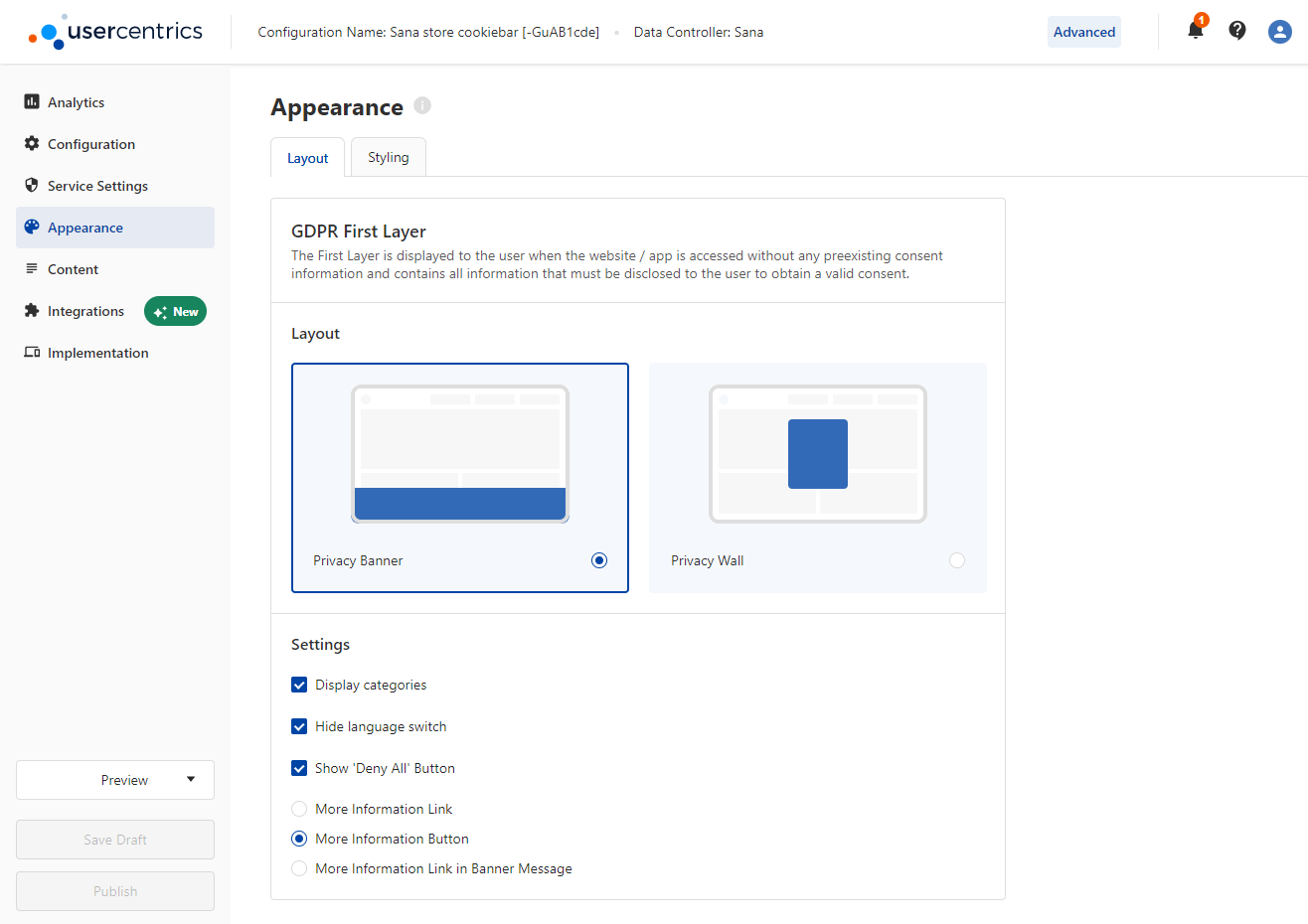
On the Layout tab, you can configure the following settings:
-
First Layer (Privacy Information)
- Dialog
- Bar
- Wall
- Banner
-
Second Layer (Privacy Settings)
- Left
- Center
- Right
-
Privacy Trigger
- Privacy Button
- Privacy Link
Useful Tips for Technical Specialists
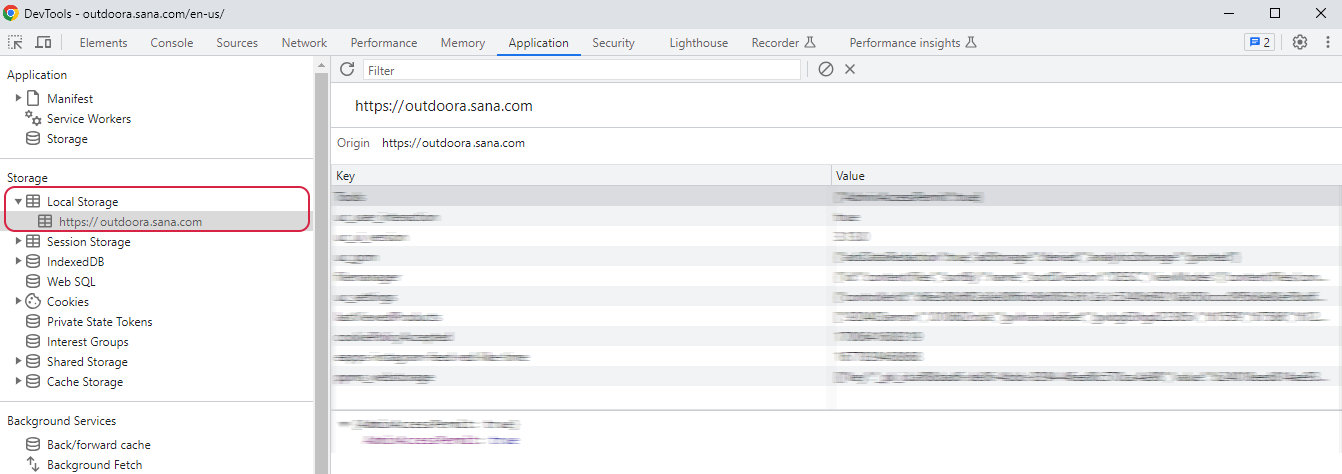
- If you need to see the first GDPR layer again after you have accepted all cookies, you can use one of the options listed below.
Open the webstore in the Incognito mode of your web browser.
In the developer console execute the command __ucCmp.clearUserSession() and refresh the page.

In the developer console on the Application tab, clear Local storage.
-
After adding any changes to the Usercentrics, you need to click Publish to apply them.
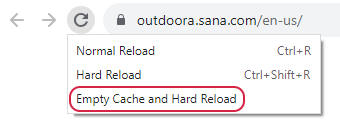
To see the changes in your webstore, clear the cache and perform a hard reload of the page. Note that it may take some time before the changes become visible in your webstore.