Sales Agreements
Companies that sell products in bulk usually have more complex and long-term sales agreements with their customers. A sales agreement is a contract that commits a customer to buy products in a specific quantity or for a specific amount over time, in exchange for special prices and discounts.
The prices and discounts of the sales agreements override other prices and discounts, for example, sales prices and discounts or trade agreements.
Business customers can see all available sales agreements and their details in the Sana webstore. Customers can place orders based on the sales agreements they have with their merchants, triggering all terms and conditions in the ERP system. A customer can also combine the products from the sales agreements with those that do not relate to any agreement in one sales order.
Additionally, multiple sales agreements can be applied to the same order, enabling customers to take advantage of various price and discount structures for different products within the same transaction.
Multi-agreement orders are available from Sana Commerce Cloud 1.131 and later. Your ERP system and the Sana ERP connector must also support multiple sales agreements for a single order.
-
Single-agreement order: A single-agreement order is a sales order that references one sales agreement. All products and pricing in the order are governed by the terms (quantities, discounts, and pricing) defined in that sales agreement.
-
Multi-agreement order: A multi-agreement order allows a customer to apply multiple sales agreements within the same sales order. Different products in the order can be linked to different agreements, enabling the customer to benefit from various prices and discounts in one transaction.
Key benefits for customers:
- Effortless ordering: Manage everything online in a single flow without splitting purchases or contacting sellers.
- Guaranteed best terms: Always receive correct prices and discounts from your agreements.
- Time saver: Reduce back-and-forth communication and manual checks, gaining speed and accuracy in every transaction.
Key benefits for merchants:
- Customer loyalty: Consistently honor agreed prices and terms to build trust and encourage repeat business.
- Online revenue: Capture orders that might otherwise be lost offline, driving webstore adoption.
- Efficiency: Reduce manual workload and errors with agreements applied automatically.
Two widgets complement the sales agreements functionality:
- The seller-facing sales agreements widget: A Commerce Console widget in Sana Admin that gives sellers visibility into the health of their customers’ sales agreements. It surfaces agreements that need attention – because they are expiring soon, being under-used, or going quiet − so your team can step in before revenue is lost.
- The buyer-facing sales agreements widget: A widget on the My account dashboard in the Sana webstore that lets logged-in B2B customers track their own agreements, usage, and remaining commitments.
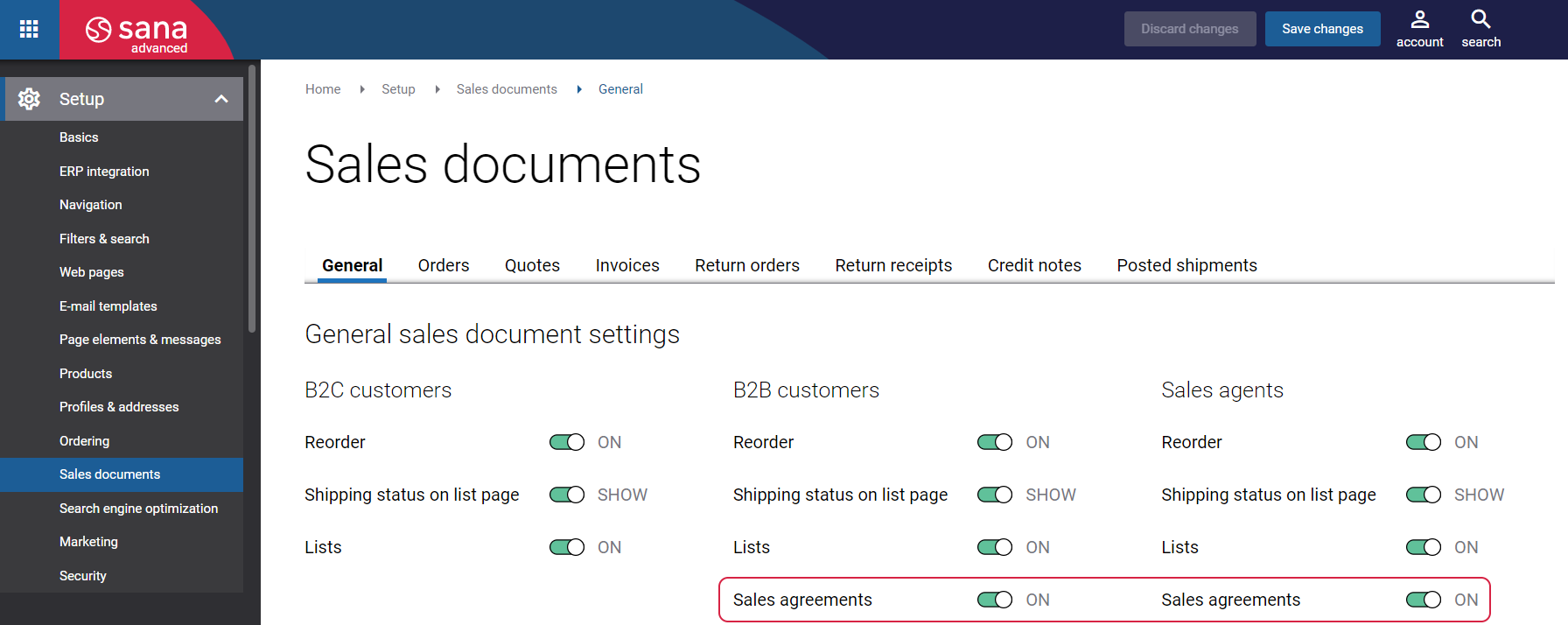
To enable or disable sales agreements for B2B customers and sales agents, log in to Sana Admin and click: Setup > Sales documents > General.
Sales Agreement Limitations
Here are some limitations that you might need to know if you are going to use sales agreements.
-
Sales agreements work with the Default order processing strategy only. Sales agreements are not supported if you use the order processing strategy optimized for large orders.
-
B2B customers cannot edit sales orders created using sales agreements.
-
Sales agreements are available only to B2B customers and sales agents.
-
Sales agreements are not supported by quotes.
-
Sales agreements are not available when Sana is in the maintenance mode.
-
Microsoft Dynamics AX and Microsoft Dynamics 365 for Finance and Operations do not support applying multiple sales agreements to a single order. Only one sales agreement can be used per sales order.
-
SAP S/4HANA does not support sales agreements.
Sales Agreements Pages
There are two default system pages used for managing customer sales agreements:
-
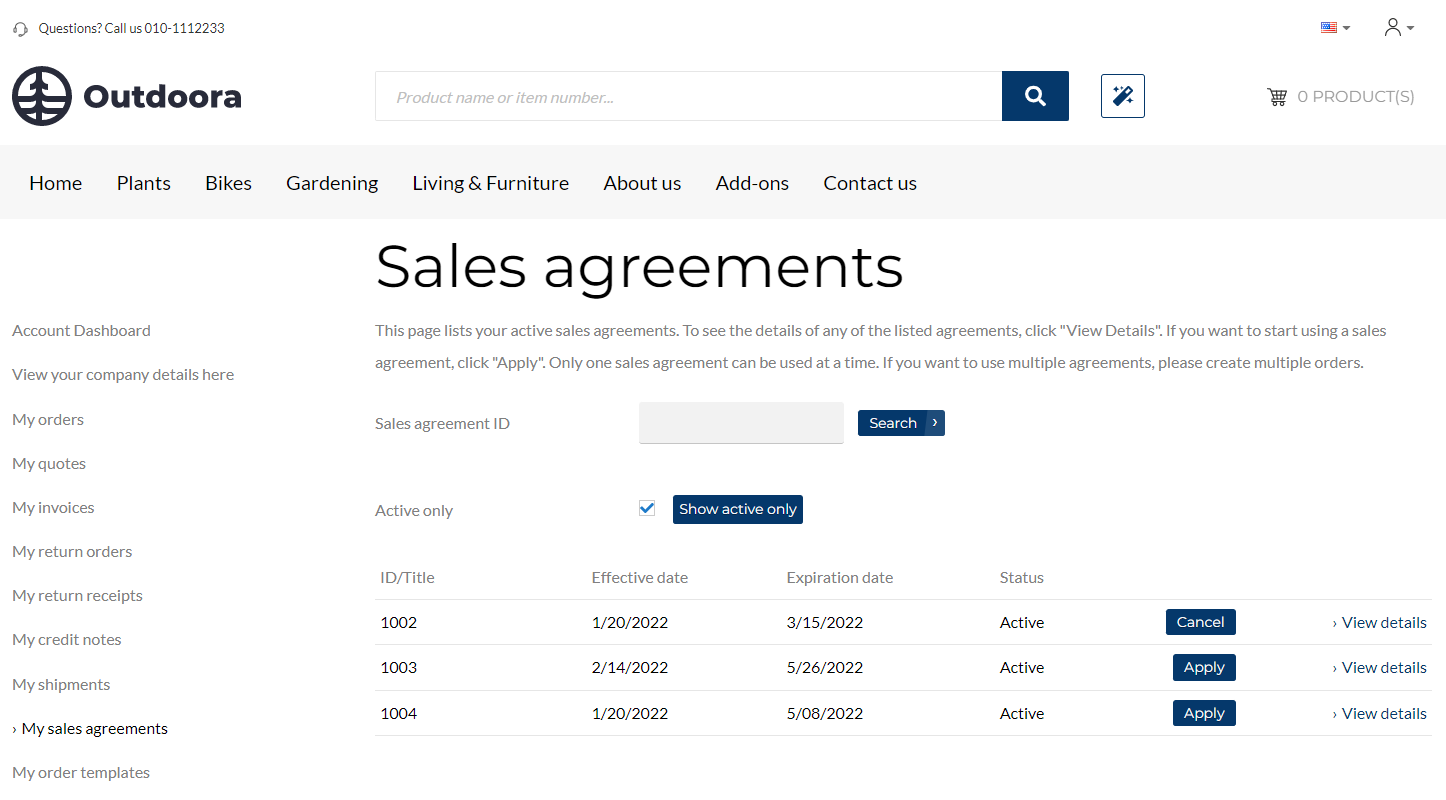
Sales agreements page displays up-to-date information about customer sales agreements, including sales agreement ID or title, effective date, expiration date, sales agreement status, etc. A customer can apply or cancel a sales agreement from the Sales agreements page.
-
Sales agreement details page provides detailed information about a specific sales agreement. A customer can see the Sales agreement details page by clicking View details on the Sales agreements page.
The Sales agreements and Sales agreement details pages are system pages that exist in Sana by default, but you can customize their content and styling to fit your brand and specific business requirements.
Sales Agreements in Sana
Depending on the ERP system your Sana webstore is connected to, there could be slight differences.
If sales agreements are available for a customer in the ERP system and they are enabled in Sana Admin, then they will be shown on the My Account page in the Sana webstore.
Viewing Sales Agreements
Customers can search for the sales agreement by its number. Using the Active only checkbox, customers can see only valid sales agreements or all available.
Below you can see descriptions of the available sales agreement statuses.
| Status | Description |
|---|---|
| Active | The sales agreement is valid and can be used by a customer. |
| On hold |
Available only in Microsoft Dynamics AX and Microsoft Dynamics 365 for Finance and Operations. The sales agreement is waiting to become valid, or the agreement is no longer used. |
| Closed | The sales agreement is completely fulfilled by the customer. |
Click View details to see the information about a sales agreement and its terms (sales agreement lines). All details of the sales agreements and their lines are taken from the ERP system.
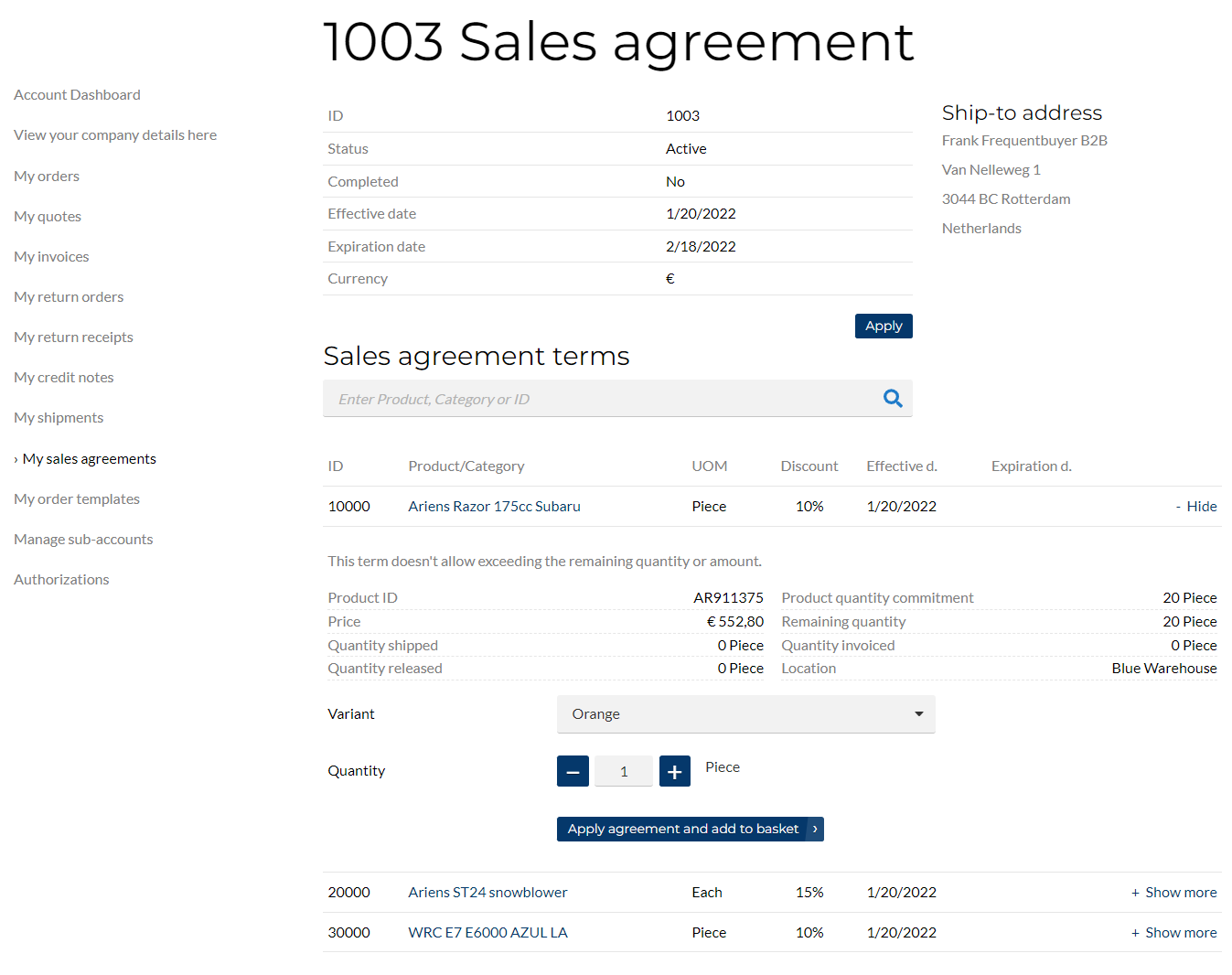
A customer can search for a sales agreement term (line) by product number, product name, agreement term number, product category number, or name.
Each sales agreement term (line) contains information, like how many units of a product customers committed to buy or commitment amount, a discount percentage customers will get, if they buy a certain quantity of a product or products for a certain amount, as well as product or category ID and name, product unit of measure, location (warehouse) where the product is stored and shipped from, also shipped, invoiced, released and remaining quantity or amount.
A customer can also check the validity period of a sales agreement and its terms (lines).
Sales Agreement Discovery
Sales agreement information is displayed throughout the webstore to help customers identify products covered by sales agreements and understand the terms that may apply to their purchase.
Sales agreement labels are displayed across the webstore wherever products are shown, including product details pages, product list pages, search results, product groups, last viewed products, product comparison pages, quick order, related products, and other areas where products are available.
On product details pages, the sales agreement term selector is also available for viewing and selecting applicable sales agreement terms.
In the Sana webstore, customers can see two types of sales agreement labels:
-
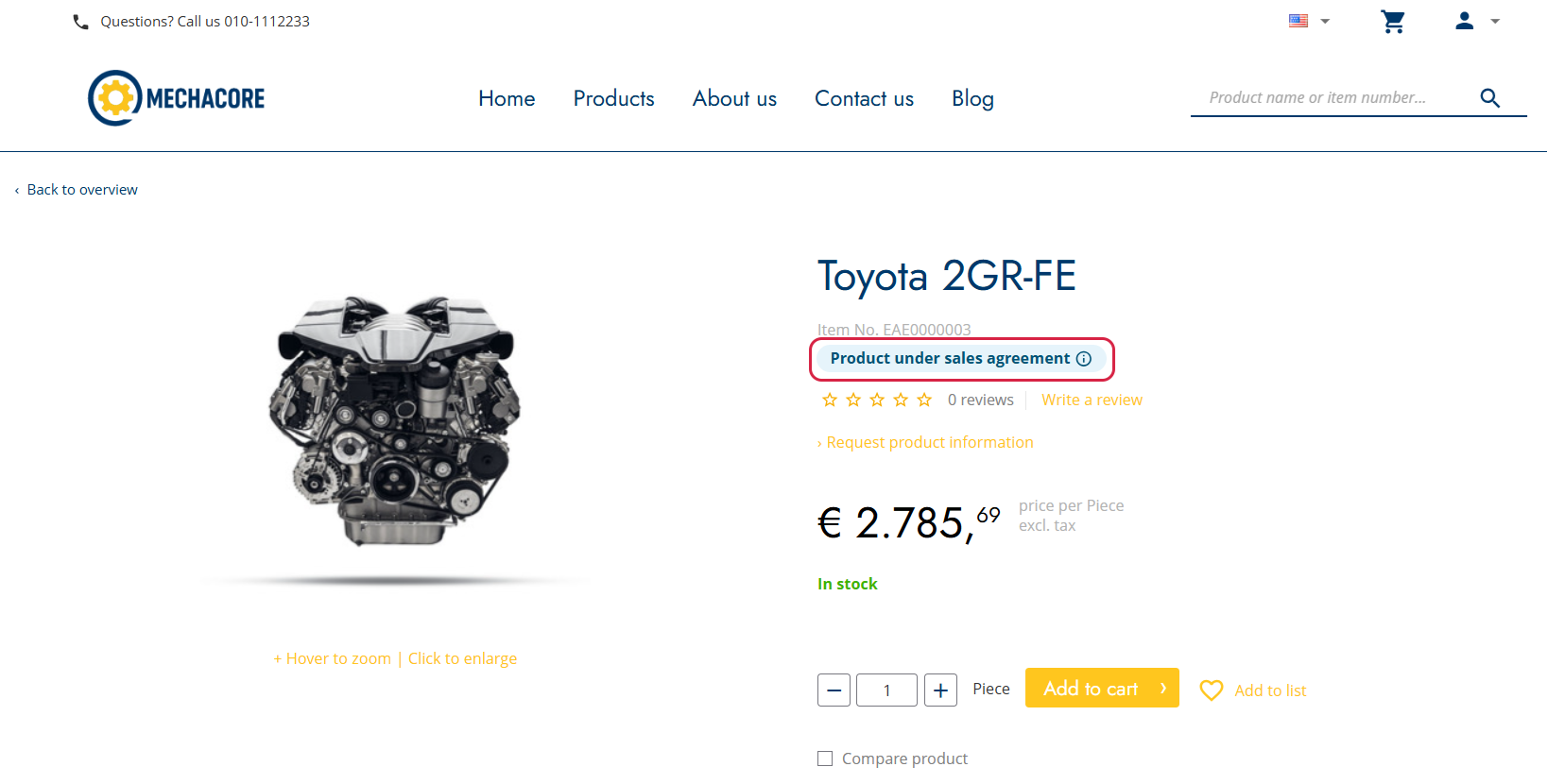
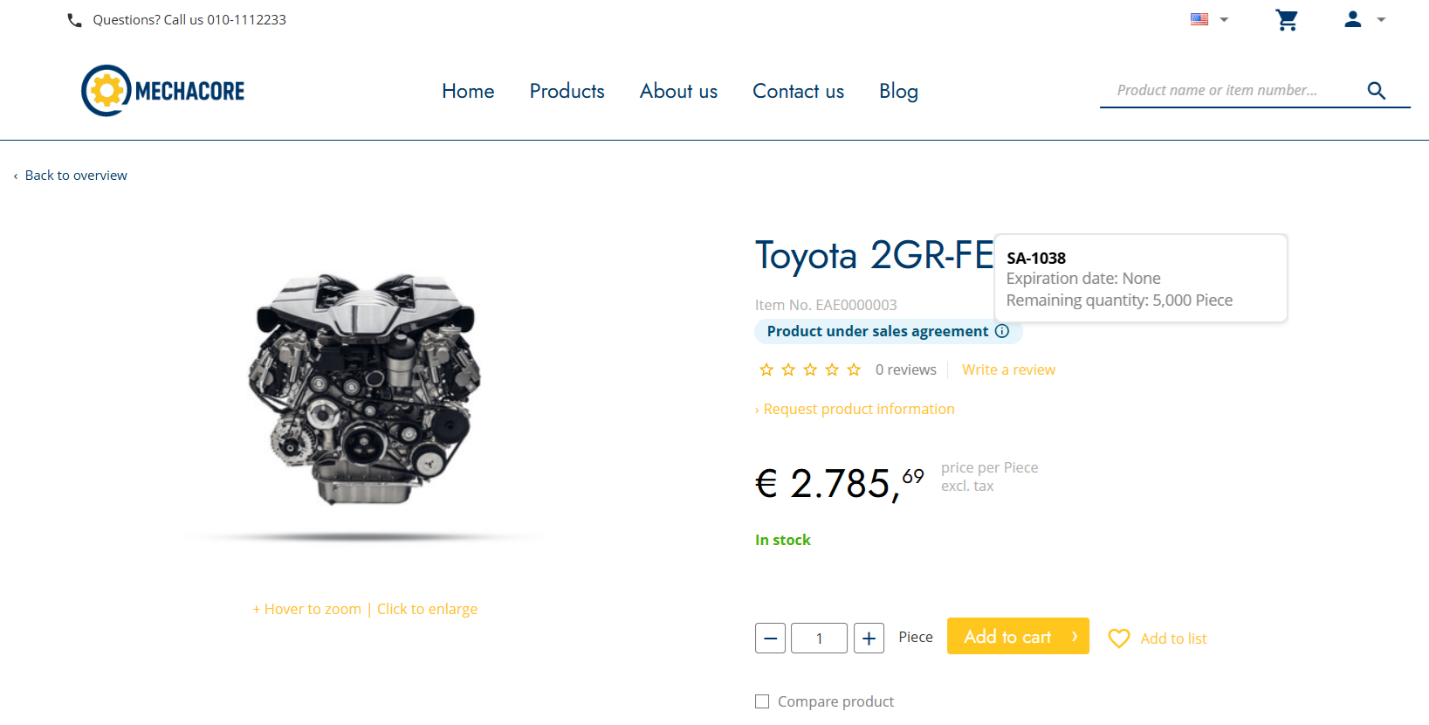
Product under sales agreement (Blue label): This label indicates that the product is included in a sales agreement and completely fulfills the requirements of the agreement.
-
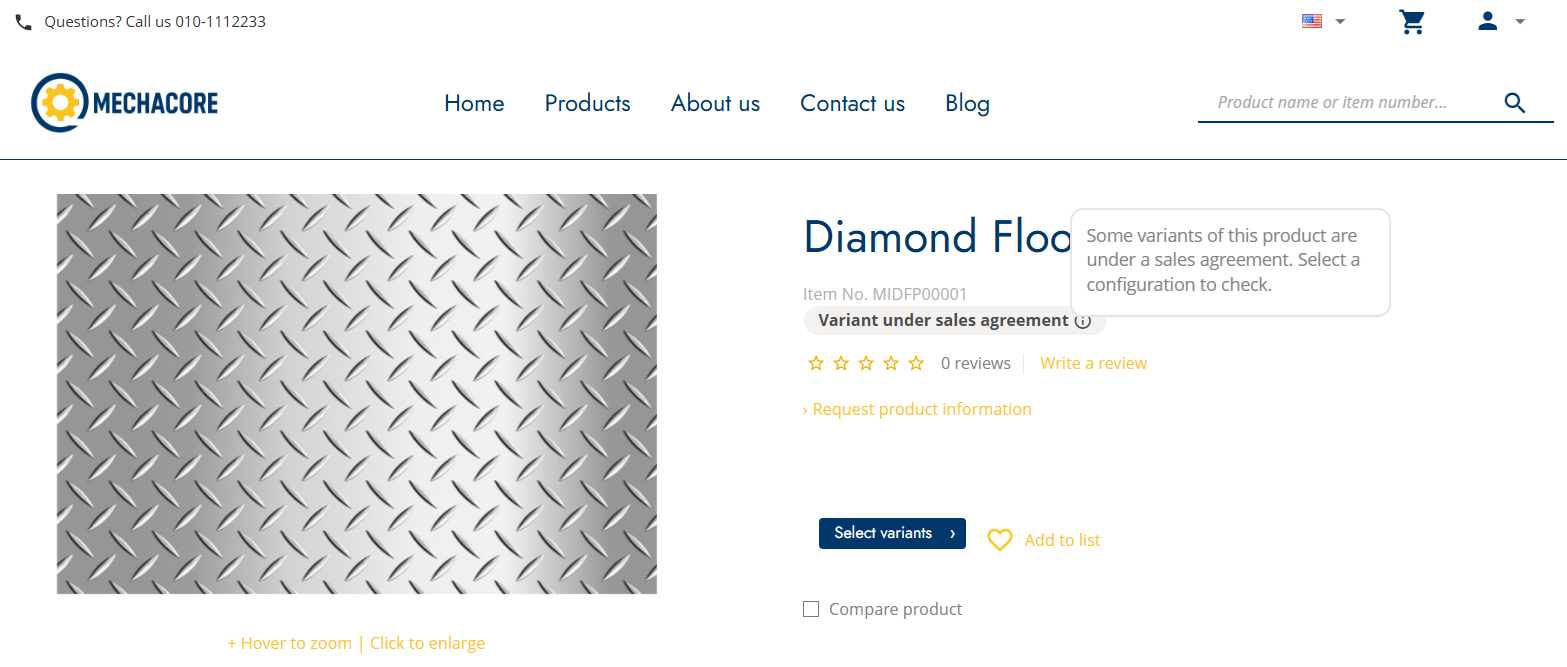
UOM under sales agreement or Variant under sales agreement (Grey label): This label indicates that the product is included in a sales agreement but only partially fulfills its requirements. For example, the selected unit of measure or product variant may differ from the one specified in the sales agreement.
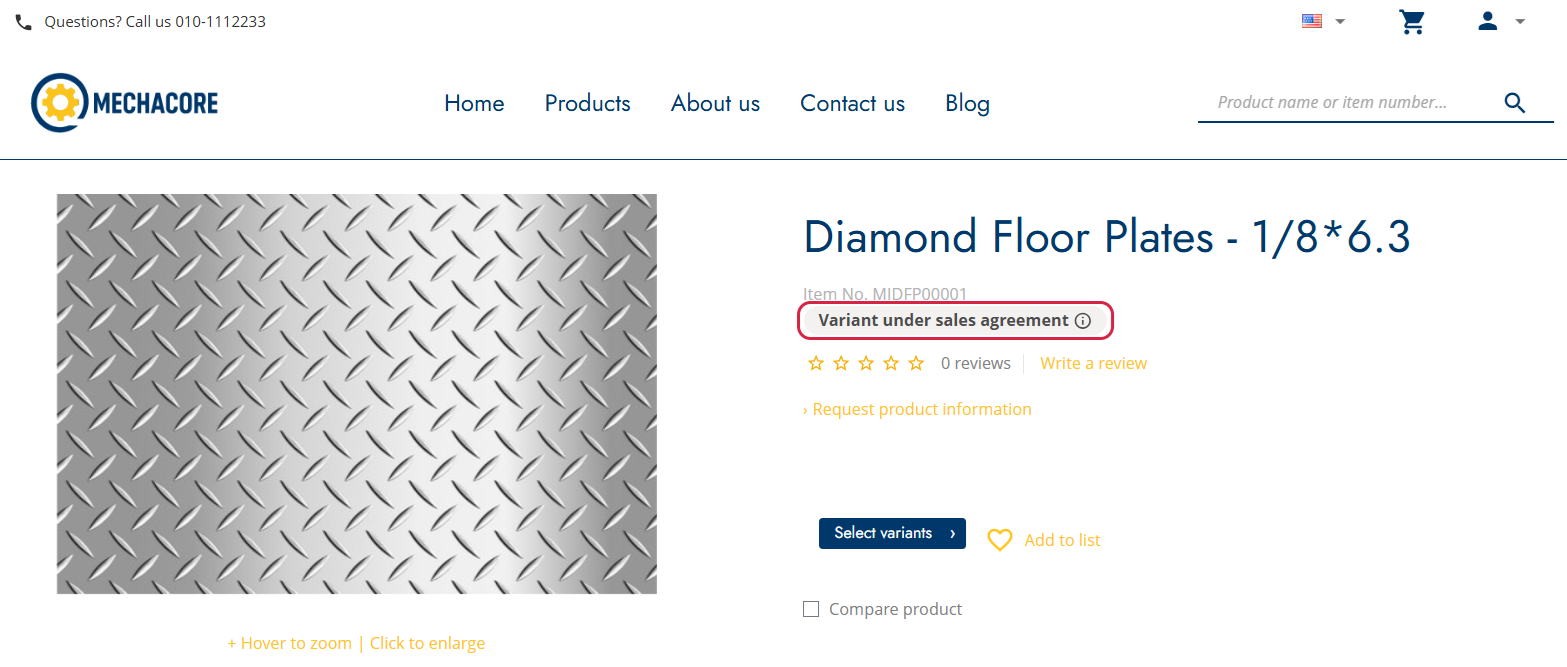
Each label includes a tooltip with additional information:
-
The tooltip for the blue label can display the sales agreement ID, expiration date, remaining quantity, or remaining amount. If multiple agreement terms can apply to the sales agreement, the tooltip displays information for the agreement term with the earliest expiration date.
-
The tooltip for the grey label informs the customer that some variants or units of measure of the product are covered by a sales agreement and instructs them to select a configuration to determine whether the selected option is covered.
The sales agreement label can be added to the product details pages, product list pages, and search results pages using the Sales agreement label content element.
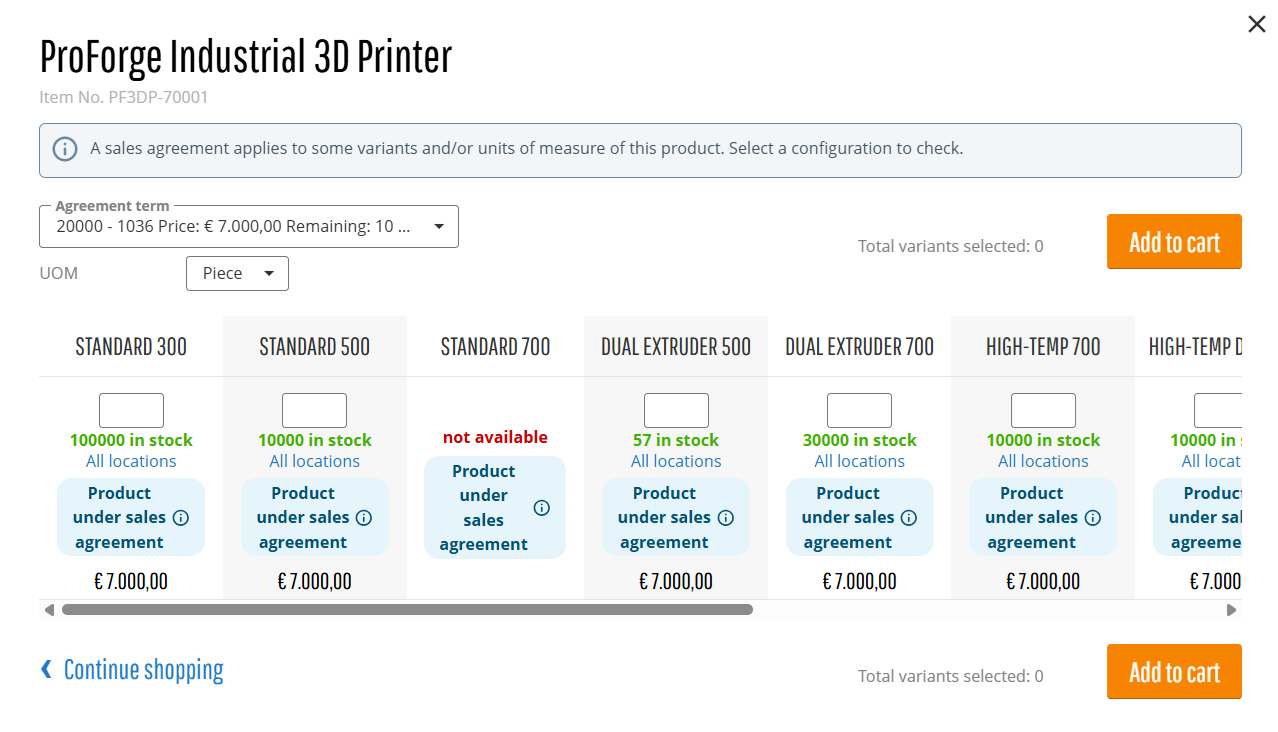
Sales agreement labels are also displayed for products in the variant matrix. If a product has more than one unit of measure, an alert can be displayed within the matrix to inform the customer that a sales agreement applies to some variants and/or units of measure. The customer should select a specific configuration to check whether the selected variant or unit of measure is covered by the sales agreement.
Filtering Products by Sales Agreements
Customers can use the Sales agreements facetted filter on product list and search results pages to find products associated with sales agreements. This allows customers to quickly identify products covered by sales agreements among other products in the webstore.
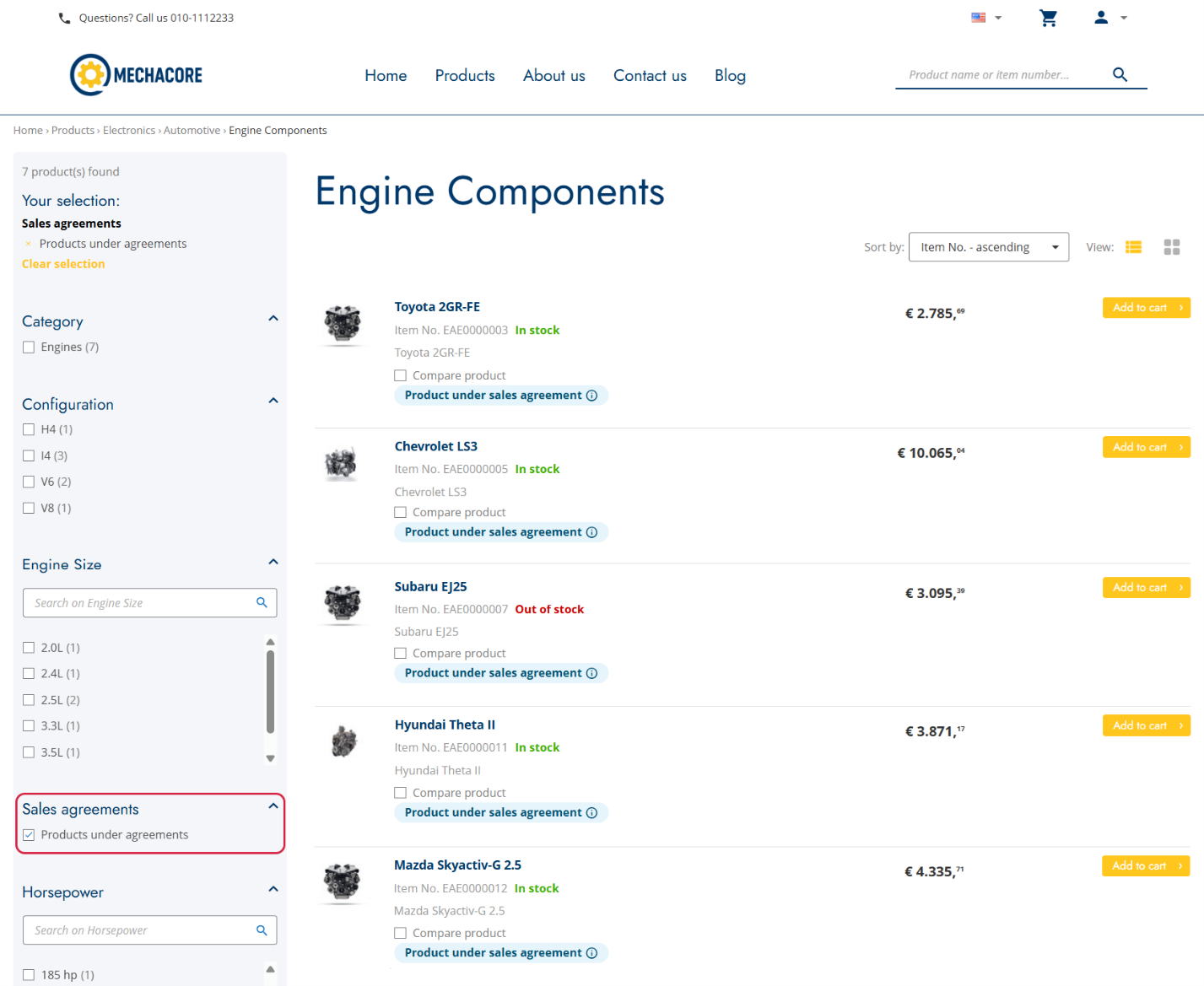
To add the filter:
Step 1: In Sana Admin, go to Setup > Search & filters > Facetted filters.
Step 2: On the Facetted filters tab, add the Sales agreements field.
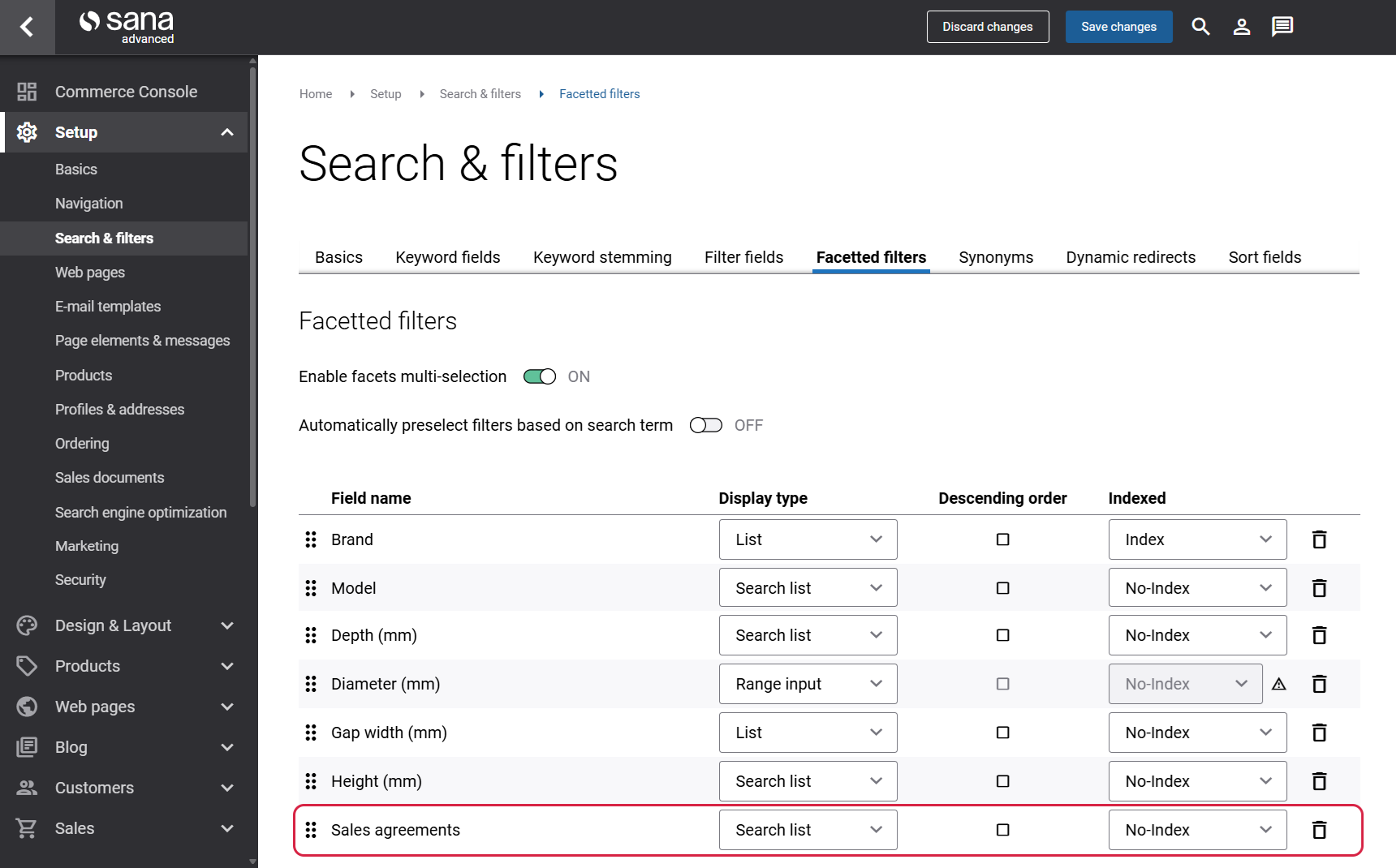
For more information, see Product Filtering.
Selecting a Sales Agreement on the Product Details Page
If a product is linked to one or more sales agreements, the product details page displays a label and a selector listing the associated agreements. The customer can select the appropriate sales agreement and apply it.
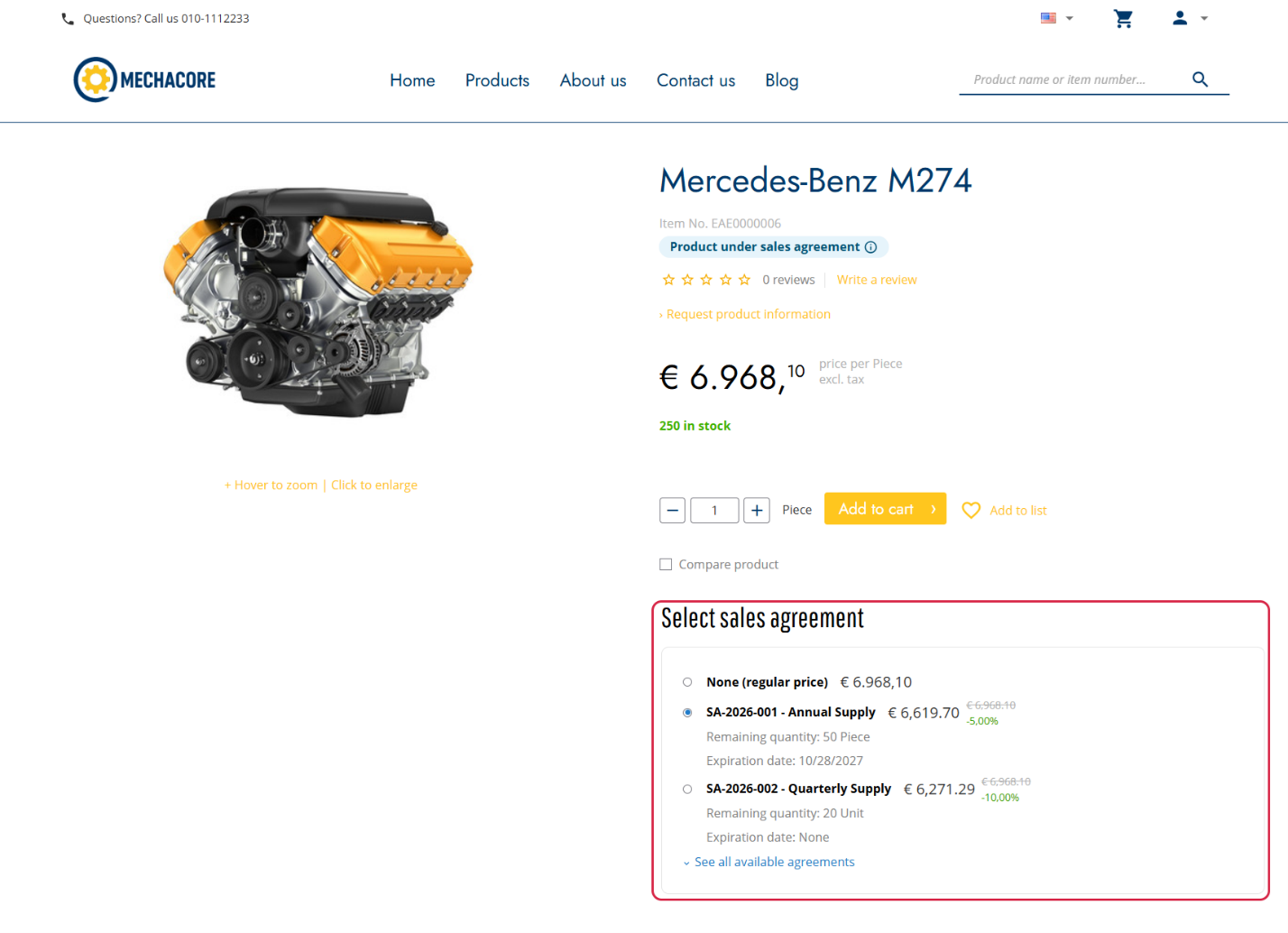
For each sales agreement in the selector, the following information is shown:
- sales agreement name and term
- price or discount percentage
- remaining quantity or amount
- expiration date
When a customer selects a sales agreement, the product price is updated accordingly, and the selected agreement is applied when the product is added to the shopping cart.
The sales agreement selector can be added to the product details page using the Sales agreements content element.
Applying Sales Agreements
A customer can check and apply a sales agreement:
-
On the Sales agreements page. You can open it from the My account page.
-
On the details page of a particular sales agreement. When you add a product to the shopping cart from the sales agreement details page, the agreement will be automatically applied to it.
-
On the product details page, if there is a sales agreement for this product.
-
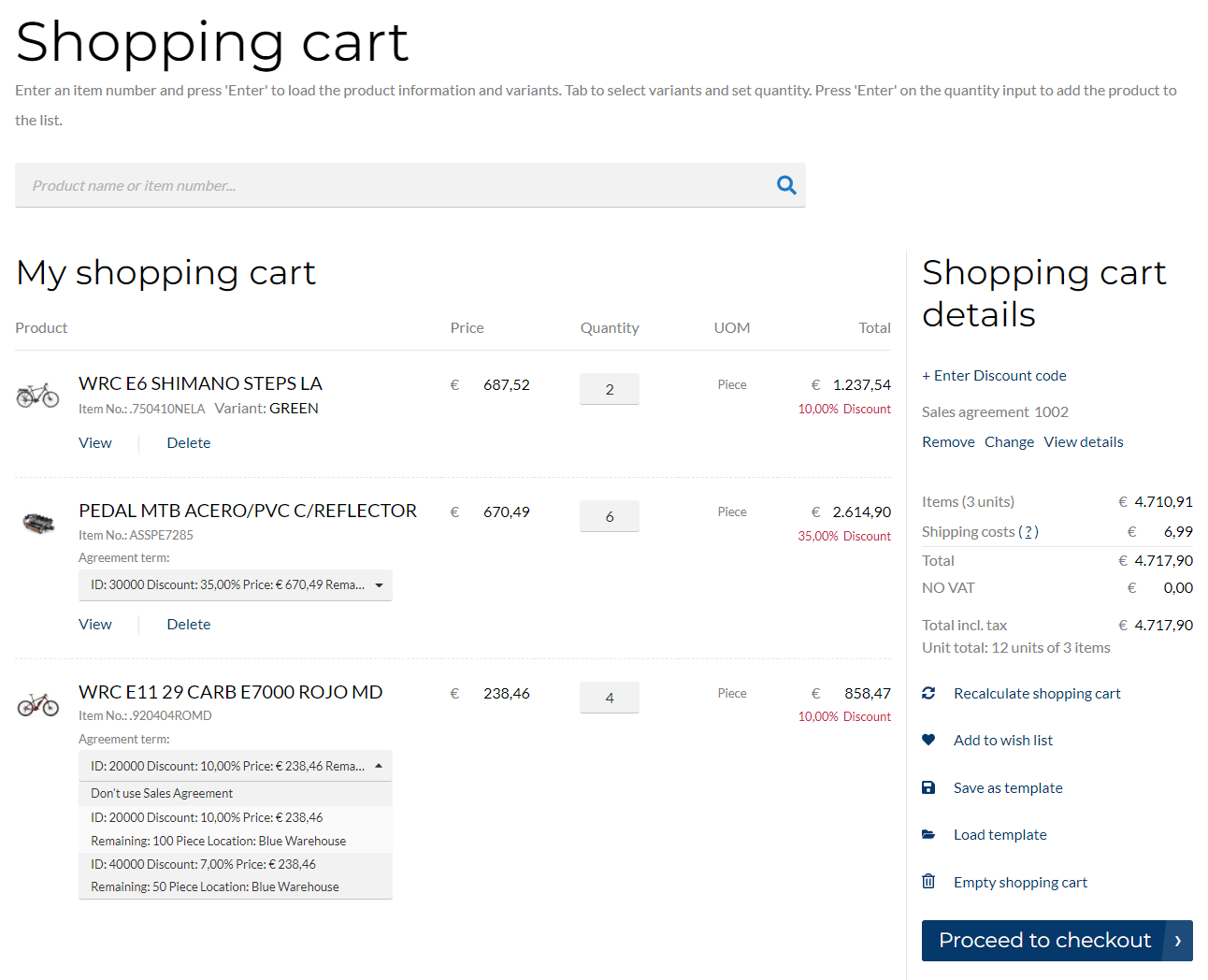
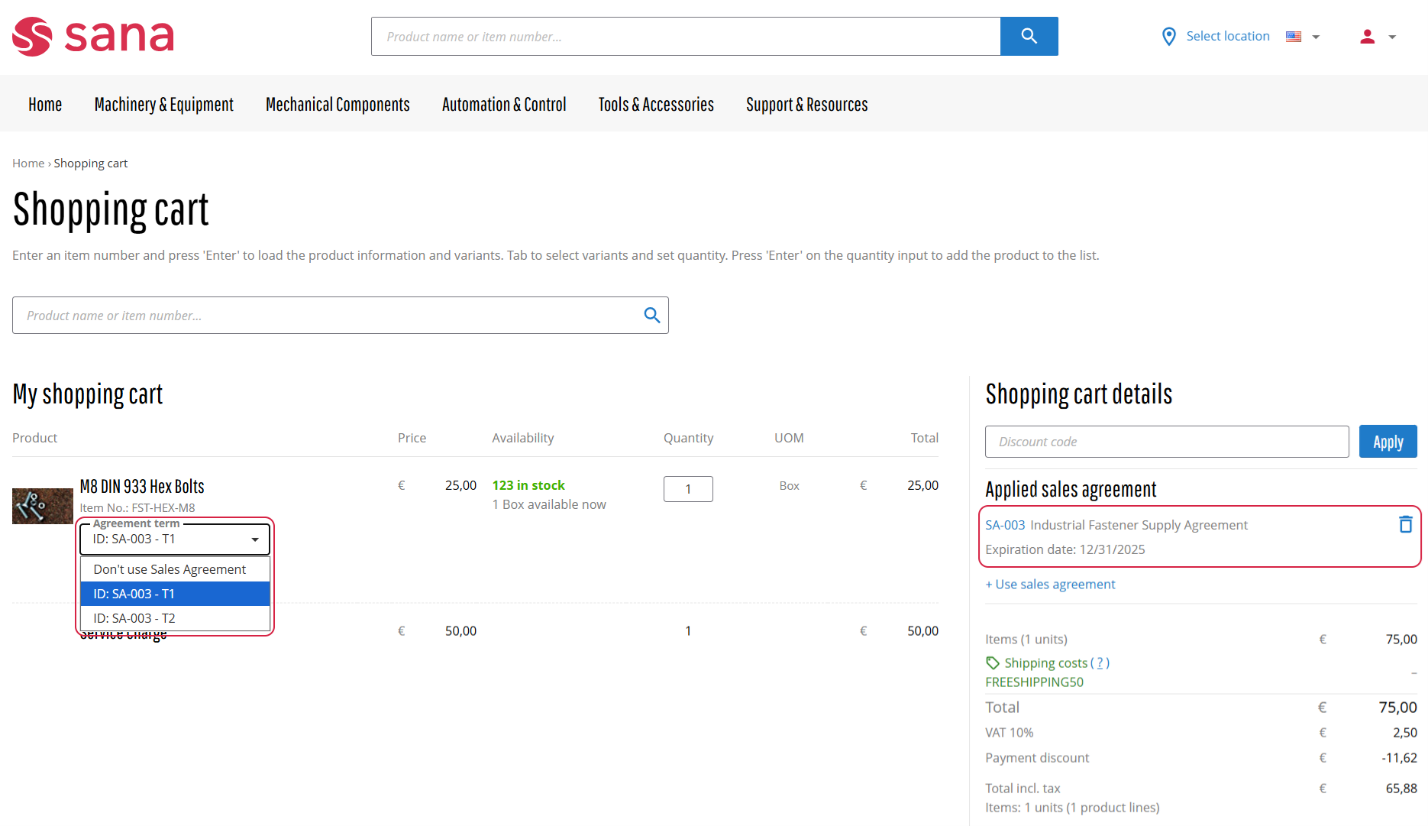
In the shopping cart. There you can open the list of all sales agreements, see the sales agreement that has been applied to the shopping cart, remove it, change it, view details, and change the sales agreement term for each line.
Applying Multiple Sales Agreements
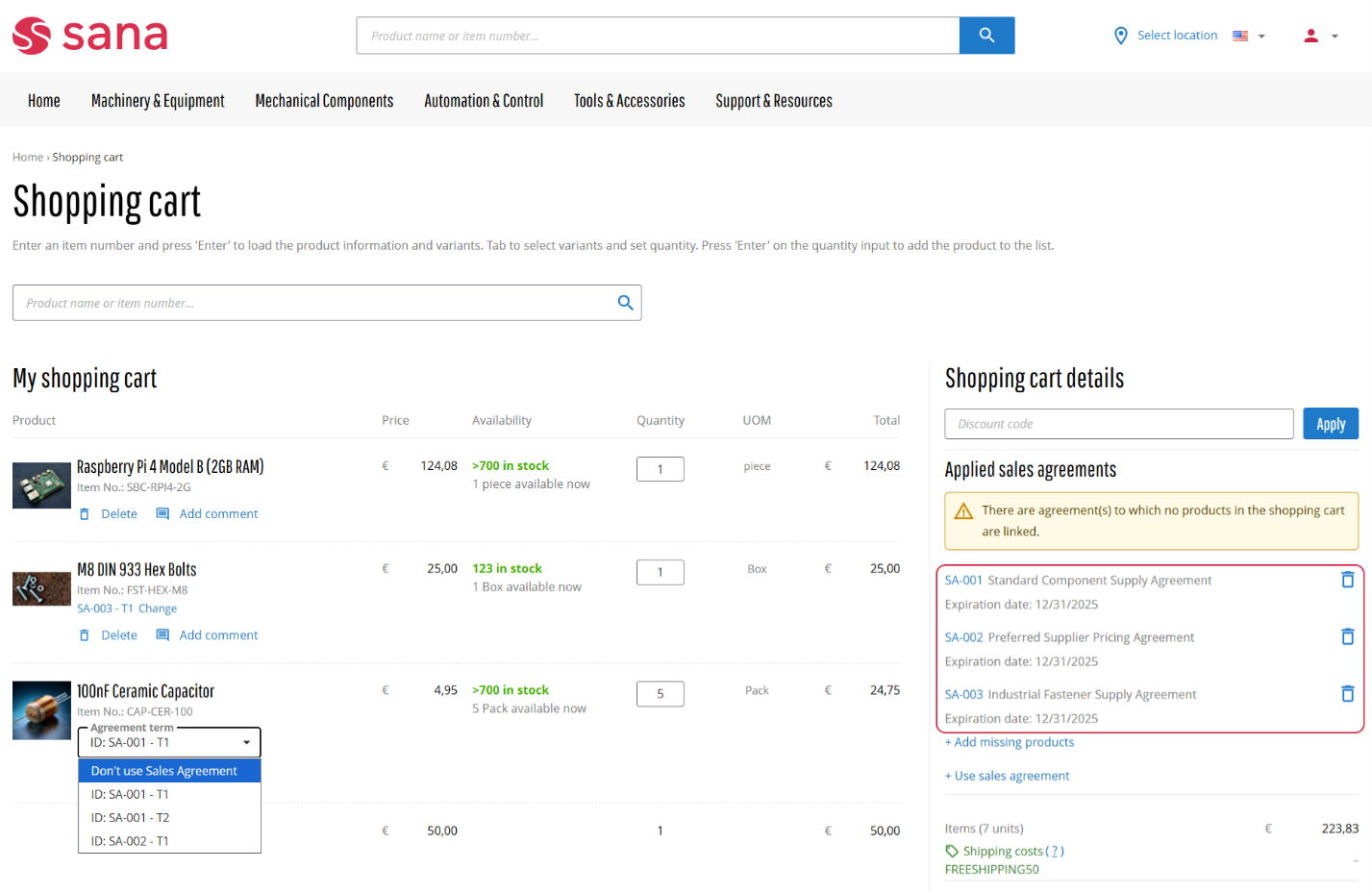
It is possible to apply multiple sales agreements to a single order. This allows customers to take advantage of the most favorable terms available for each product in their shopping cart. When multiple agreements are available, the system enables the customer to select the most beneficial sales agreement term for each product, based on factors such as pricing, discounts, validity dates, and other conditions. This flexibility ensures that customers can maximize their savings and tailor their purchases according to the specific terms of each agreement.
The design and user experience of managing sales agreements in the webstore will vary depending on whether a single or multiple agreements are applied. In cases where multiple agreements are in use, the interface may provide additional options to support more granular control.
Shopping Cart with a Single Sales Agreement Applied
Shopping Cart with Multiple Sales Agreements Applied
Selecting Sales Agreement Terms in the Shopping Cart
When customers apply a sales agreement to the shopping cart, and if no sales agreement term is selected for the sales order line, they can select it by clicking Change next to the Agreement term field below the sales order line.
For ease of identification, each option in the Agreement term field includes the relevant sales agreement ID and agreement term ID.
Microsoft Dynamics AX 2012 and Microsoft Dynamics 365 for Finance and Operations support automatic application of sales agreement terms. As a result, customers of sellers using Microsoft Dynamics AX 2012 or Microsoft Dynamics 365 for Finance and Operations can apply sales agreement terms to all sales order lines automatically by clicking Apply terms automatically in the shopping cart. The ERP system takes the first sales agreement term that meets the conditions and assigns it to the sales order line. When sales agreement terms are configured to apply automatically, shop administrators should remove the Sales agreements content element from product details pages, either individually or through the assigned product page template.
Sales Agreement Requirements
A product should satisfy all requirements of a sales agreement. Otherwise, a customer will not get an agreed discount or special price. For example, according to a sales agreement, customers can get a discount if they buy a certain product in pieces. In case a customer buys this product in a different unit of measure, the conditions of the sales agreement will not be fulfilled, and the customer will not get the agreed discount. A customer will not be able to use the sales agreement if its currency differs from the currency of the customer.
Sales Agreements and Shipping Addresses
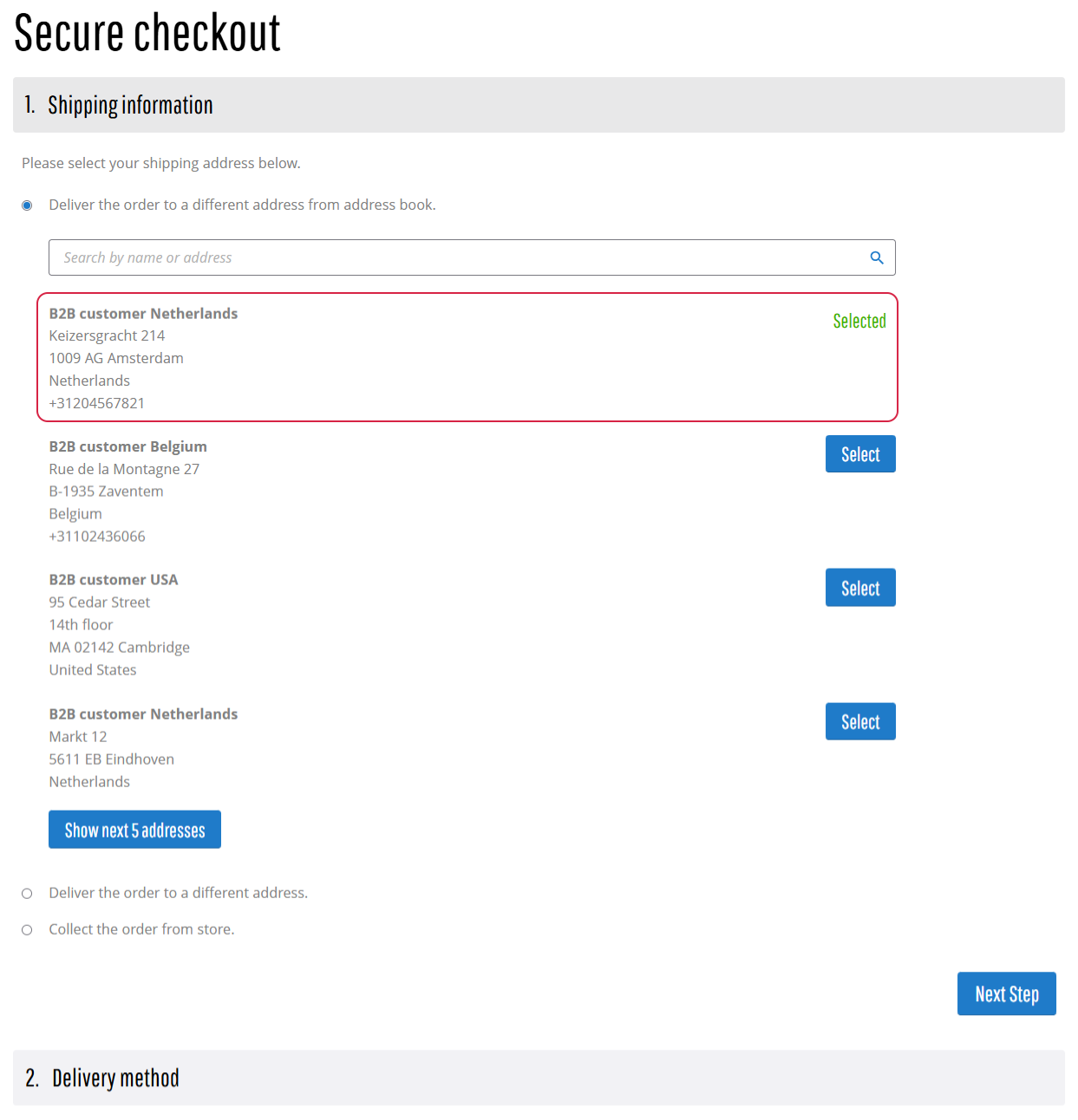
Sales agreements can include predefined shipping addresses. When a sales agreement is applied to a sales order and its shipping address matches the customer’s shipping address, that address will be preselected on the Shipping information step at checkout, but the customer can change it.
If multiple sales agreements are applied to a single order and all share the same shipping address, which also matches the customer’s address, this address will be preselected. However, if at least one of the applied sales agreements has a different shipping address, the system will not preselect any address. In that case, the customer must manually select the correct shipping address during checkout.
If a sales agreement does not include a shipping address, it is not considered during address validation.
Sales Agreements at Checkout and in Orders
Sales agreements applied to a sales order are displayed at checkout in the Shopping cart summary area, under the Applied sales agreements section.
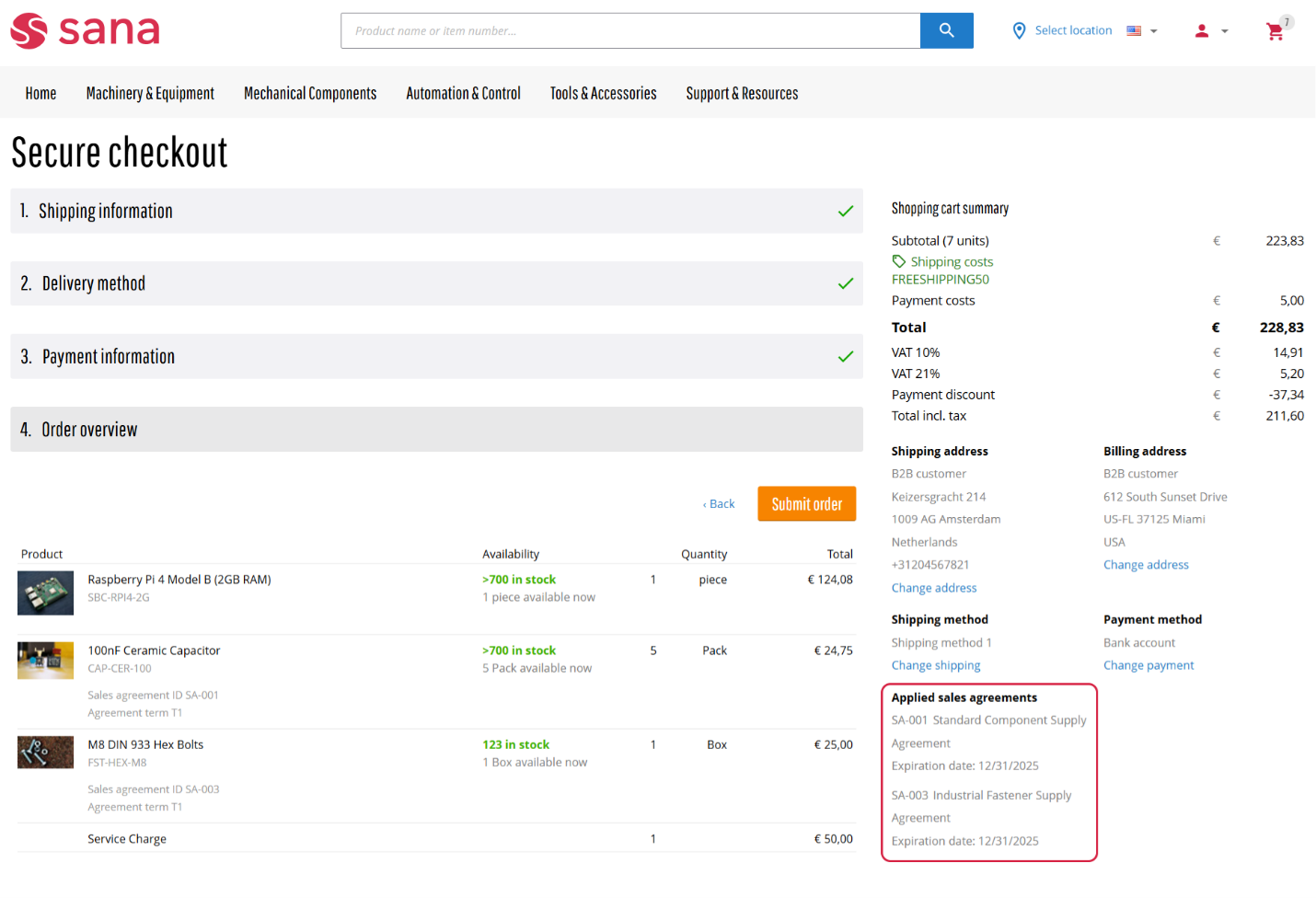
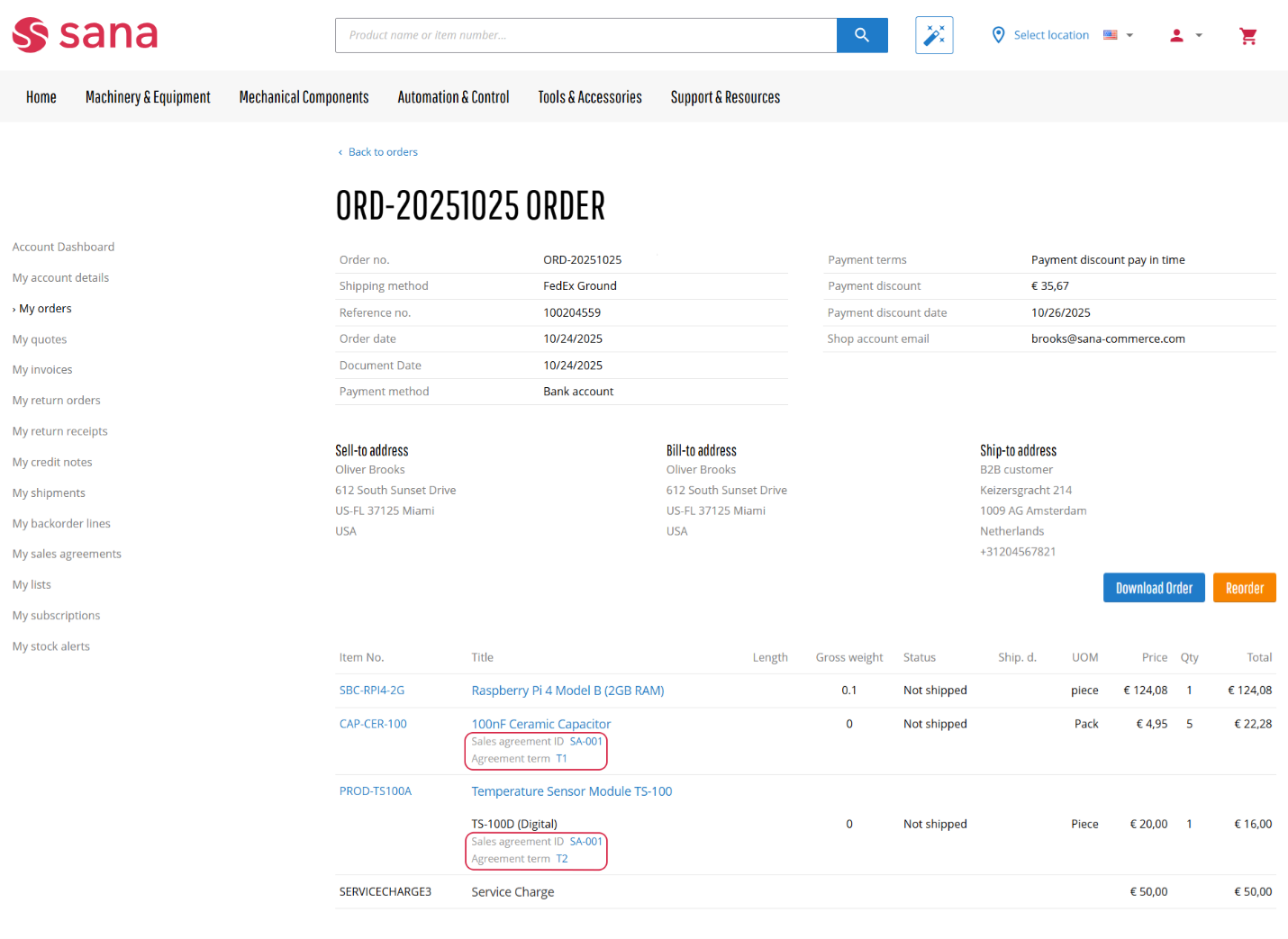
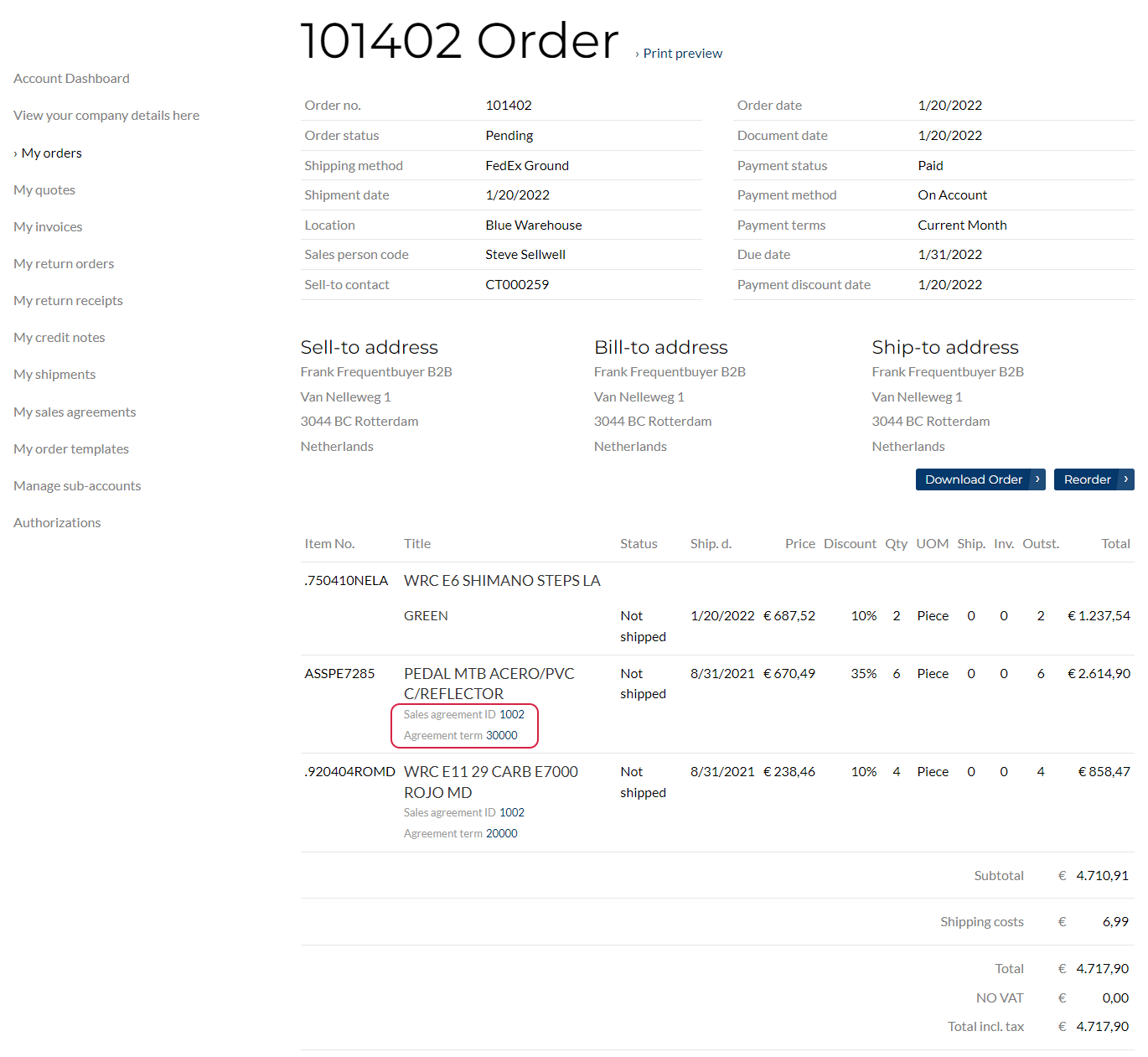
When a customer applies a sales agreement to the shopping cart and places an order, information about the sales agreement that is used will be shown in the order details.
A customer can see the sales agreement ID that was applied to the sales order and the agreement terms that were used for each sales order line. It is possible to open the sales agreement and its terms that were used for the order and check the details by clicking on the links.
Order Details with a Single Sales Agreement Applied (Multiple Terms)
Order Details with Multiple Sales Agreements Applied
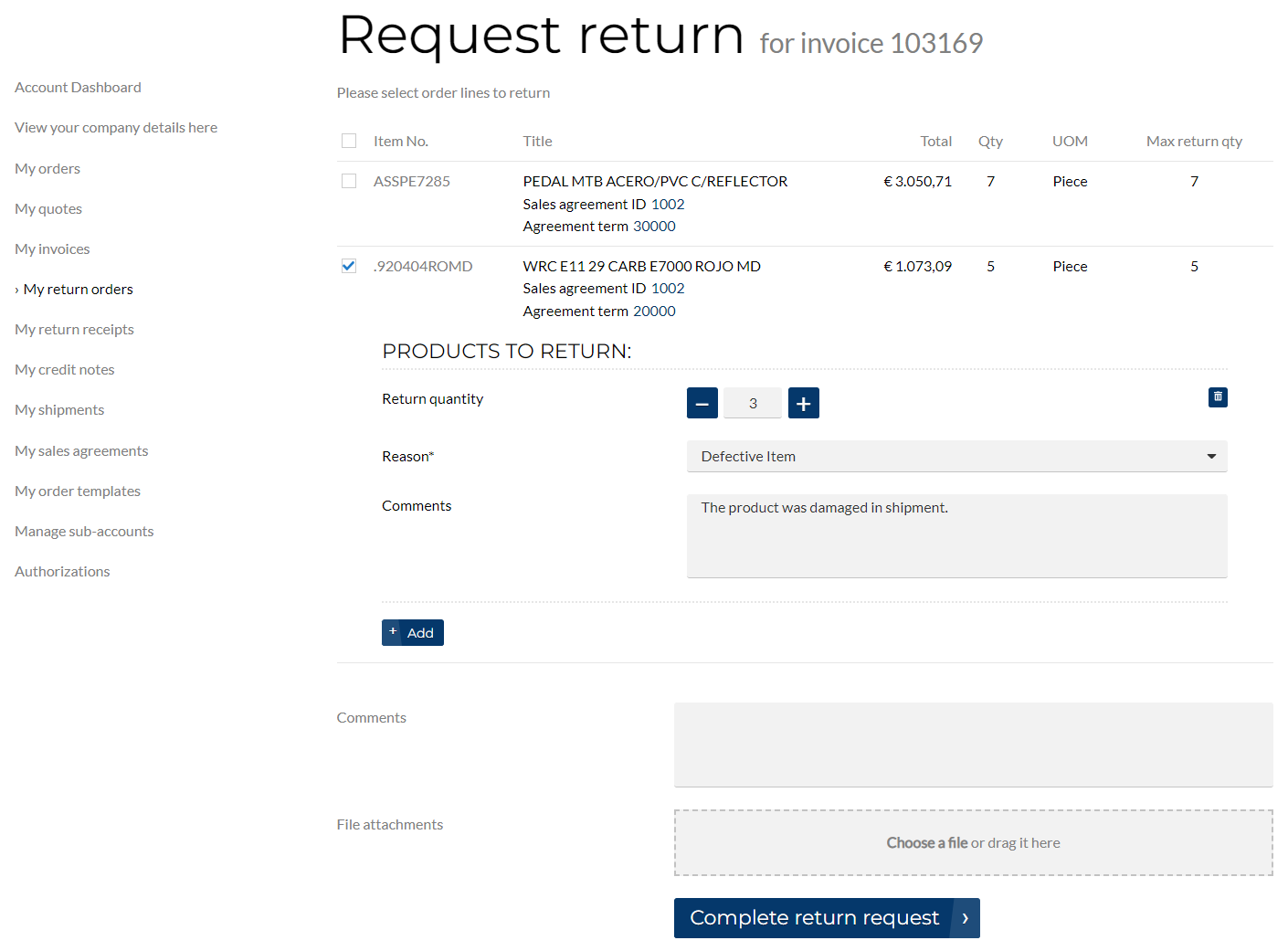
Sales Agreements and Returns
A customer can return products purchased based on sales agreements. When customers create a return order from the invoice, they will see the agreements applied to the sales order lines.
Related Articles
Microsoft Dynamics NAV: Blanket Sales Orders
Microsoft Dynamics AX: Sales Agreements
Microsoft Dynamics 365 Business Central: Blanket Sales Orders
Microsoft Dynamics 365 for Finance and Operations: Sales Agreements
SAP Business One: Sales Blanket Agreements
SAP ECC: Quantity Contract


