Column Settings
Sana Commerce Cloud CMS gives you the option to manipulate column settings. With a few clicks, you can change column height, a background color, add a background image or video, set up border and spacing settings, use animation, and change content orientation and alignment.
Using column settings, you can add content such as background images or videos and customize the columns with various styling options. You can do the same in the row settings. You can also add different content elements to the columns in a row, such as text, image, video, product set, etc. Therefore, before adding some content, think about what you want to achieve and add the content correctly and thoughtfully. Otherwise, content elements added to the columns in the row can interfere with the row and column settings. Set up only the necessary settings. After adding the necessary content and setting up row and column settings, make sure that your content looks good on the page. To check this, preview the page.
You can move content elements and columns with content horizontally in one row, as well as vertically between different rows, by dragging and dropping them. When you move columns vertically between different rows, they scale automatically to fit the width of the page.
Column Actions
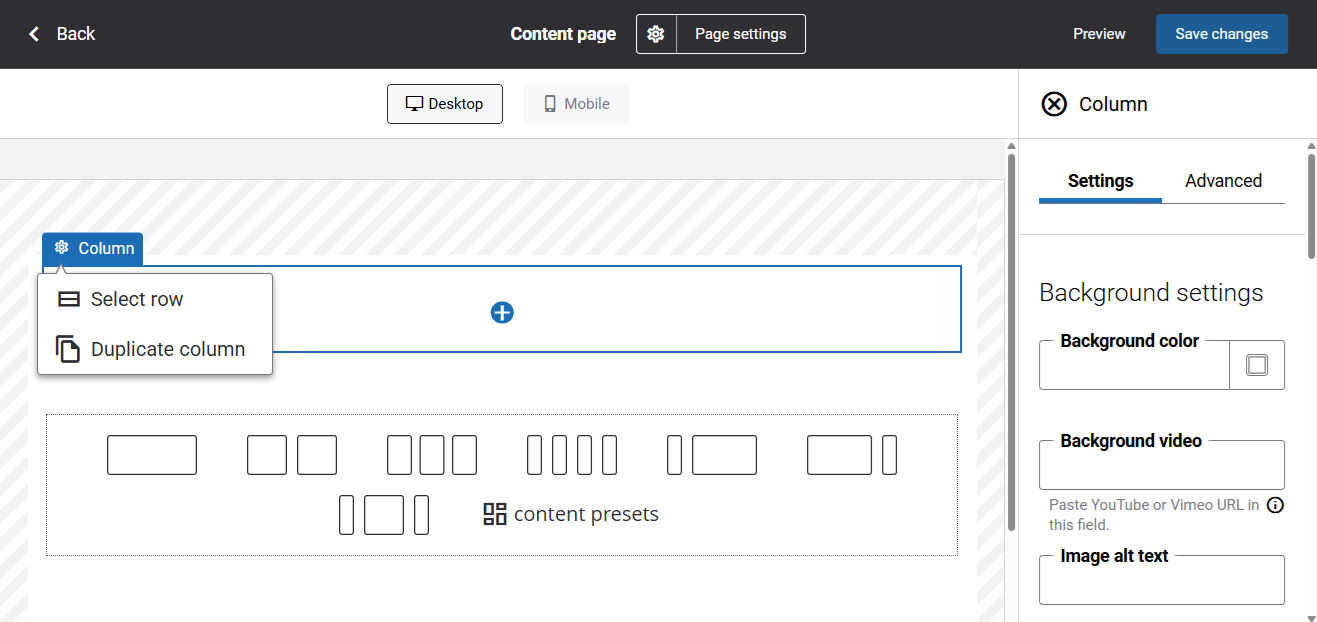
When a column is selected in the page editor, its name and a configure button appear in the top-left corner. Clicking this button opens a dropdown with available actions. From there, you can select the parent row or duplicate the column.
Settings
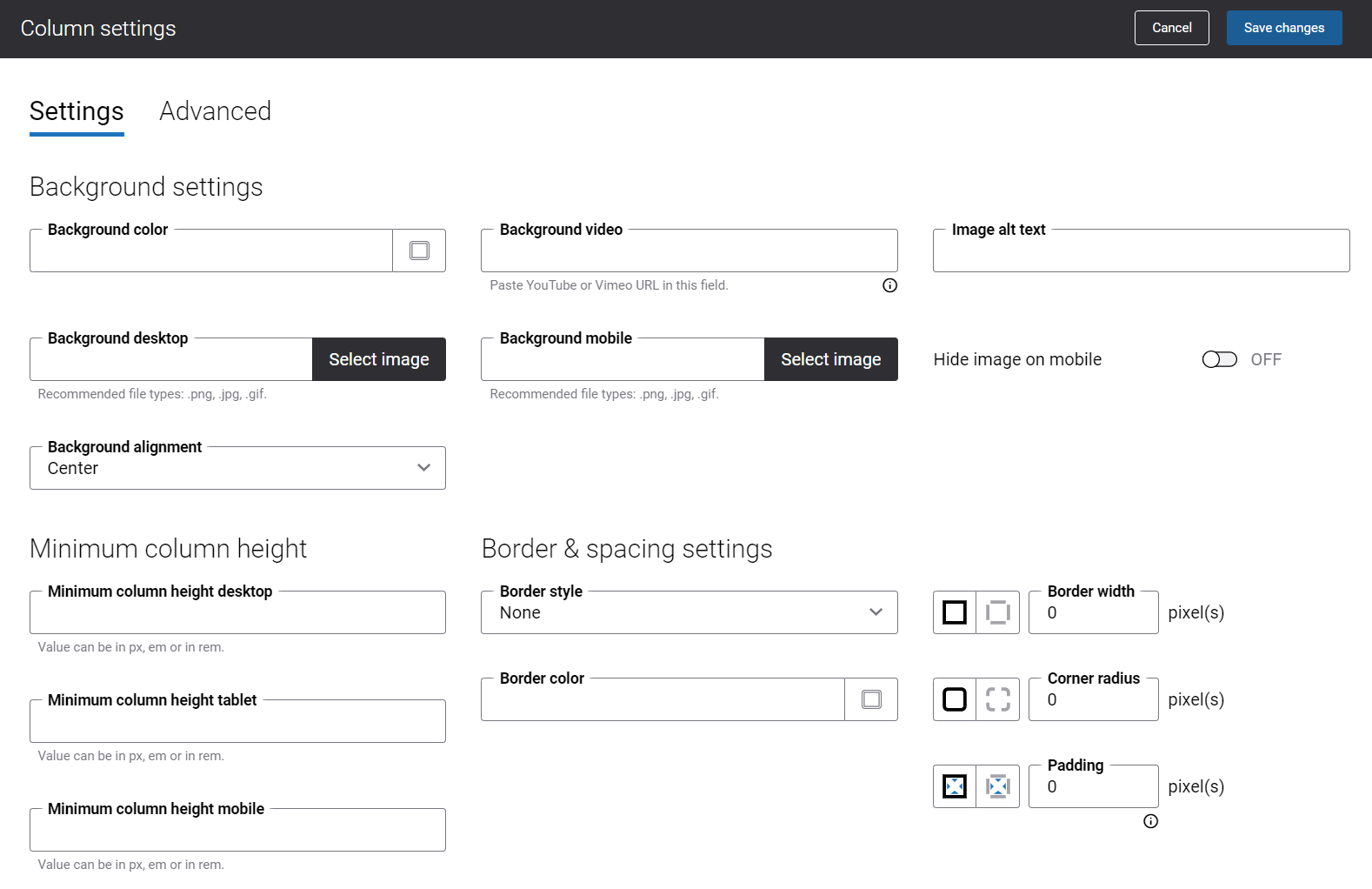
When you select a column in the visual designer, its settings appear in the panel on the right.
Background Settings
| Setting | Description |
|---|---|
| Background color | Column background color.
You can change it using the color picker, or by entering the color hex code, RGB, or HSL values. |
| Background video | Column background video.
To add the background video, enter the URL of the video hosted on an online video-sharing portal, such as YouTube or Vimeo. |
| Image alt text | Background image alt text.
Alt (alternative) text is used to describe the appearance and function of an image on a page. Visually impaired users using screen readers can read the alt text to better understand what is shown on the image. |
| Background desktop | Column background image. It is shown on desktop computers and tablets. |
| Background mobile | Column background image. It is shown on mobile devices. |
| Hide image on mobile | If you enable this option, the background image will not be shown on mobile devices. |
| Background alignment | Use this option to define which part of the background image or video should be shown in the column, in case the background image or video is bigger than the column. The available background alignment options are:
Some options might not work due to the size of your background image or video. |
Minimum Column Height
The default column height is 1px. If you add a background color, image, or video to the column, you must also specify the minimum column height in pixels.
You can specify the minimum column height for desktop computers, tablets, and mobile devices.
If you add some content element to a column in a row, the column will automatically take the height of the content element.
Border & Spacing Settings
A column is essentially a box that wraps around the content inside it. It consists of: borders, padding, and the actual content. The image below illustrates the box model.
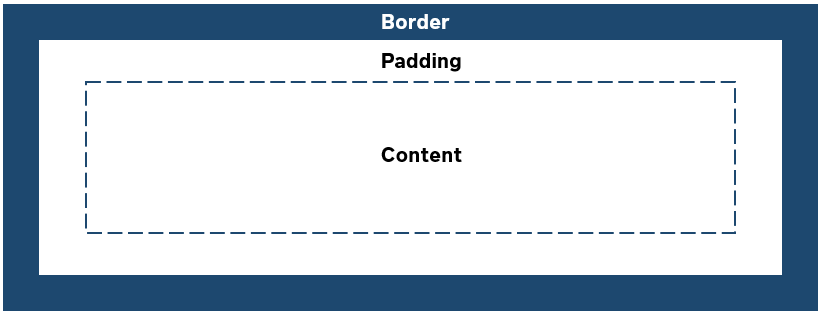
A border is a part of a box that contains content inside it. You can show it or hide.
| Setting | Description |
|---|---|
| Border style | The border style sets the line style for all four sides of a border. You can show or hide the border. If you do not want to show the border, select None. The border can be:
|
| Border color | If you show the border, you can change its color using the color picker or by entering the color hex code, RGB, or HSL values. |
| Border width | Each border has a width in pixels that you can change individually or specify the same width for all borders. There are settings for specifying the border width for each side:
|
| Corner radius | Each border has a corner radius in pixels that you can change individually or specify the same radius for all corners. There are settings for specifying each corner radius individually:
|
Padding is an area around the content. Each side of a content element has a padding size in pixels that you can change individually or specify the same size for all paddings.
Using padding, you can define space between the column borders and the content element.
There are settings for specifying padding for each side of a column border:
- t – top padding
- r – right padding
- b – bottom padding
- l – left padding
If you use a layout with several columns in a row, by default, each column has a padding of 16px on the right and left. Using the option in the row settings, Hide spaces between columns, you can remove this padding, and there will be no space between all columns in the row.
Advanced
Advanced Settings
| Field | Description |
|---|---|
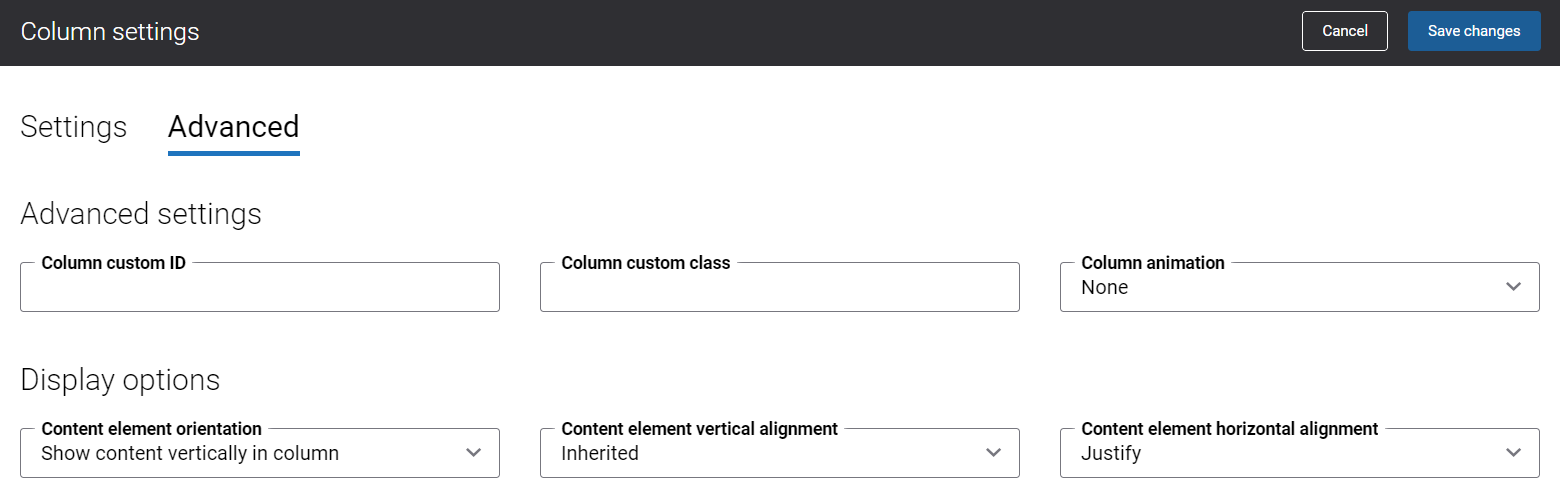
| Column custom ID | Column custom ID and class can be used by web developers to add additional styles to the column. |
| Column custom class | |
| Column animation | You can animate the content in a column. Effects can make the content appear, zoom, or move. Animation can help make your content on a page more dynamic and highlight the content you want to draw your customers’ attention to. The available column animation effects are:
|
Display Options
| Field | Description |
|---|---|
| Content element orientation | Use this option to show content vertically or horizontally in a column. You can use this option in combination with vertical and horizontal alignment to position several content elements in a column as you like.
|
| Content element vertical alignment | Use this option to set the vertical alignment of content in a column. The available vertical alignment options are:
|
| Content element horizontal alignment | Use this option to set the horizontal alignment of content in a column. The available horizontal alignment options are:
|
Keep in mind that it is not always appropriate to apply horizontal orientation to some content elements in a column. You should use it when you create large content from small pieces.
For example, below you can see four columns with icons and text added as separate content elements and positioned horizontally, icon on the left and the text on the right.
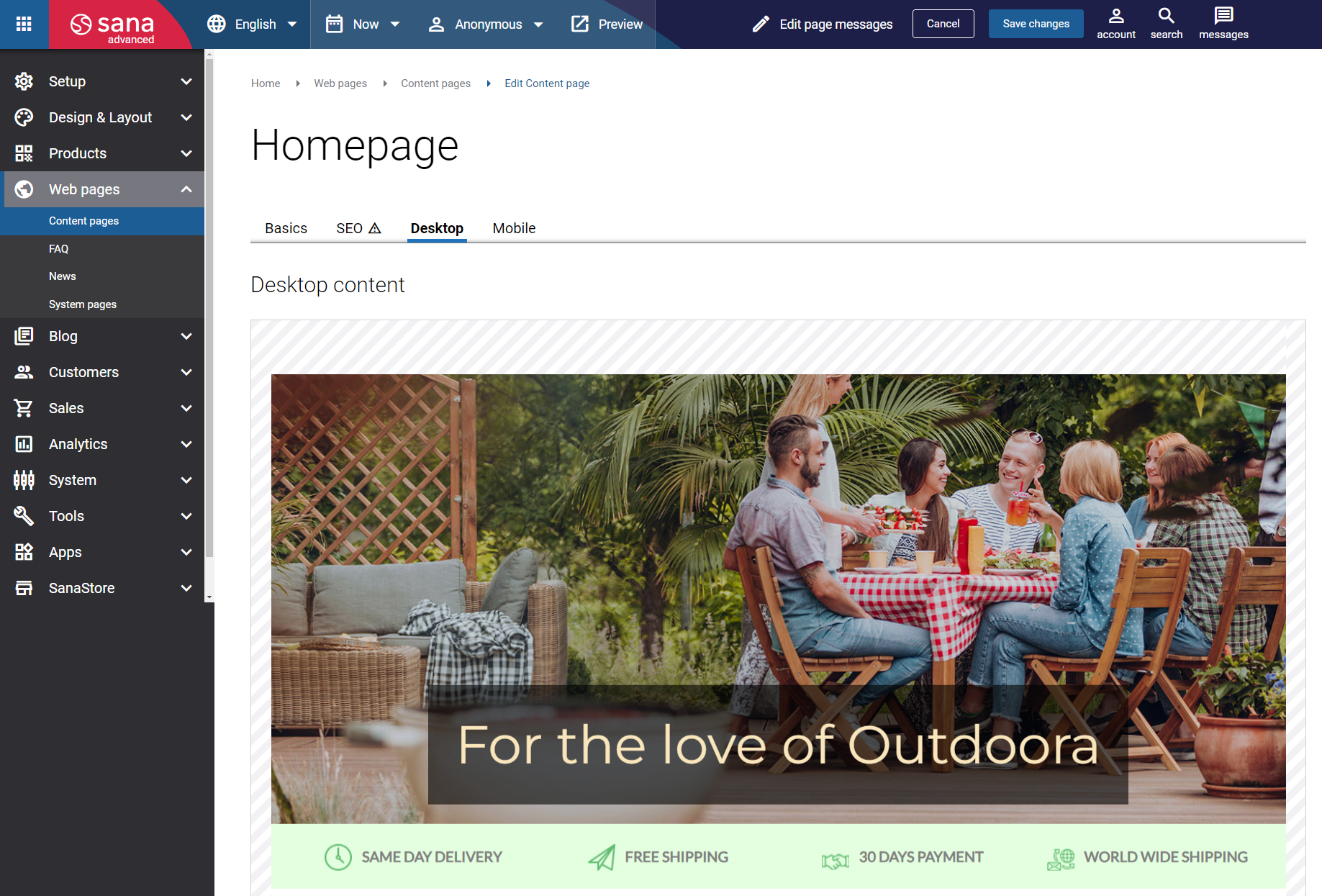
You can add several small content elements to one column, such as text, an image, or a button, and show them horizontally.
However, we don’t recommend using horizontal orientation for large content elements, such as product set, image slider, store locator, parallax, lookbook, etc. It’s better to add such content elements to different columns or even rows. Adding large content elements to one column will not look good on the page, either vertically or horizontally.


