Upgrade Sana in SAP Business One Using the Add-On Manager
Before upgrading the Sana add-on in SAP Business One, please reach out to your Sana contact to confirm compatibility.
You can use this manual if you want to upgrade the Sana Commerce add-on in SAP Business One using the Add-on Manager.
To upgrade the Sana add-on in SAP Business One:
Step 1: Log in to SAP Business One with the administrator privileges. All other users must log out from the system.
Step 2: Click: Administration > Add-Ons > Add-On Administration. On the Company Preferences tab click Register Add-On.
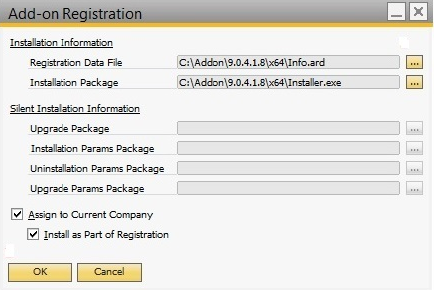
Step 3: In the Registration Data File field, add the *.ard file from the new Sana add-on package for SAP Business One, and also add the *.exe file to the Installation Package field. Select the files from the relevant 32/64-bit package which corresponds to your SAP Business One client bit version.
Step 4: Select the checkboxes Assign to Current Company and Install as Part of Registration, and then click OK.
Step 5: In the Add-On Administration window you will see the Sana add-on in the Company-Assigned Add-Ons list.
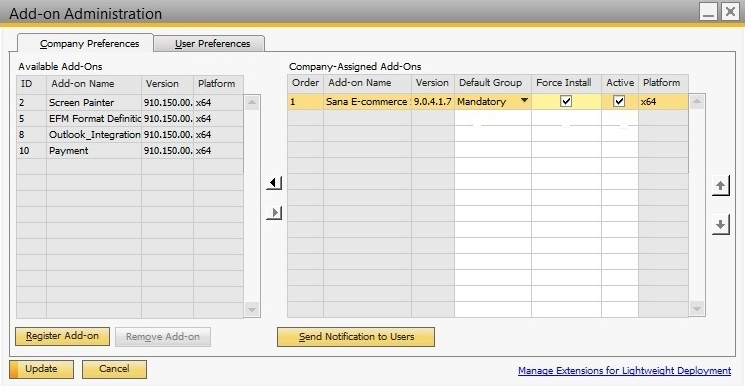
Step 6: In the Default Group field, select Mandatory for the Sana add-on. The default group defines the way the add-on is opened and used when SAP Business One is started. When Default Group is set to Mandatory, SAP Business One starts the add-on automatically. Users cannot start and stop the mandatory add-ons manually.
Step 7: Select the Force Install and Active checkboxes and click Update.
Step 8: Click: Administration > Add-ons > Add-on manager. On the Pending Add-Ons tab, click Install.
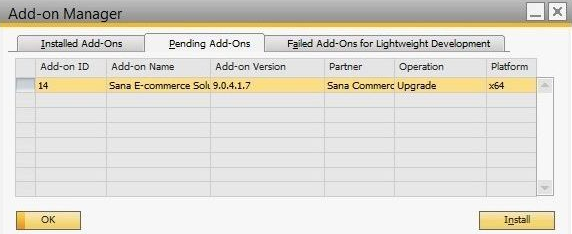
The Sana add-on will be upgraded.
Step 9: When the Sana add-on has been upgraded, click: Web Store > Setup > Parameters.
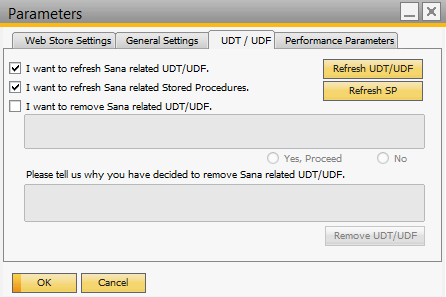
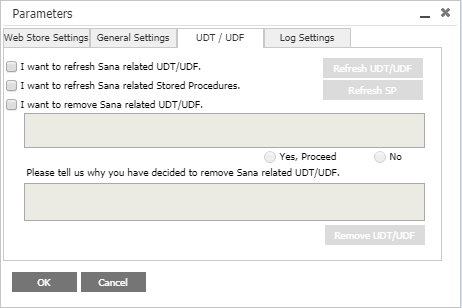
In the Parameters window, on the UDT/UDF tab, select the checkbox I want to refresh Sana related UDT/UDF and click Refresh UDT/UDF.
Then, select the checkbox I want to refresh Sana related Stored Procedures and click Refresh SP.
If a new version of the Sana add-on for SAP Business One contains new or deprecated user-defined fields and tables, then the changes will be applied to the database. If there are no new or deprecated user-defined fields and tables in the new version of the Sana add-on for SAP Business One, then nothing will be added to the database.
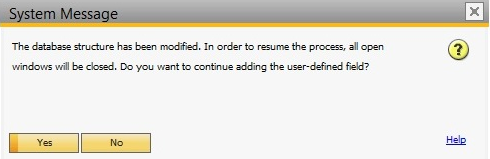
When the Sana add-on is upgraded, you will see a system message notifying that the database structure has been modified. Click Yes.
Step 10: Restart the DI server service using the SAP Business One Service Manager.
After you finish upgrading Sana, the first time you should run all SAP Business Clients as a Windows administrator to copy the necessary Sana add-on files to your local computer.
Upgrade Sana in SAP Business One Using the Lightweight Add-On Deployment
Before upgrading the Sana add-on in SAP Business One, please reach out to your Sana contact to confirm compatibility.
You can use this manual if you want to upgrade the Sana Commerce add-on in SAP Business One using the lightweight add-on deployment.
Deploy the New Sana Add-On in SAP Business One
To upgrade the Sana add-on in SAP Business One:
Step 1: Open SAP Business One Extension Manager in a Web browser using SAP Business One System Landscape Directory (SLD) Control Center URL.
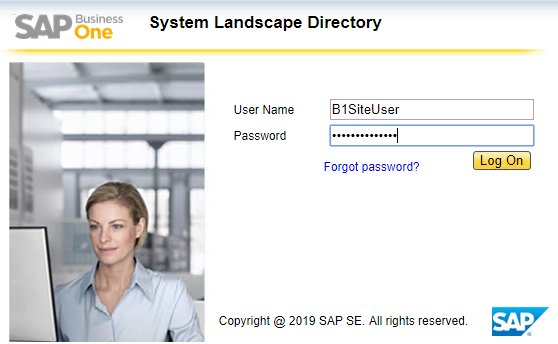
Step 2: Log in to System Landscape Directory (SLD) using B1SiteUser credentials. The SAP Business One Extension Manager window opens. All other users must log out from the system.
You can access SAP Business One Extension Manager directly from a Web browser on the machine on which the System Landscape Directory (SLD) service is running using the following URL: https://<hostname>:<port>/ExtensionManager.
Step 3: In the SAP Business One Extension Manager, click Extensions.

Step 4: On the Extensions tab, click Import. The Extension Import Wizard will open. Click Browse, select the Sana lightweight add-on (.zip package) and then click Upload. When the add-on is imported, click Finish.
Now you should see the Sana add-on in the list of available extensions on the Extensions tab.
Step 5: In the SAP Business One Extension Manager, click Company Assignment. There you can assign the imported Sana add-on to the required SAP Business One companies. Select the necessary company and click Assign.
This will open the Extension Assignment Wizard.
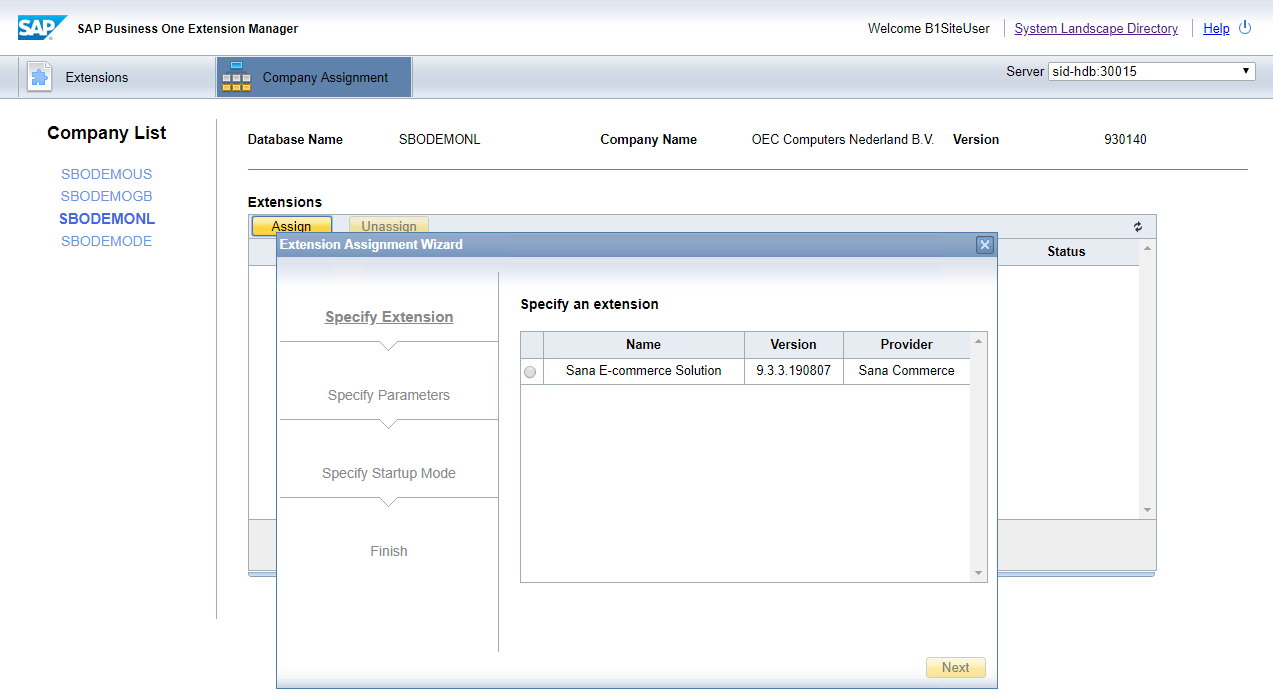
Step 6: In the Extension Assignment Wizard, select the Sana add-on and click Next.
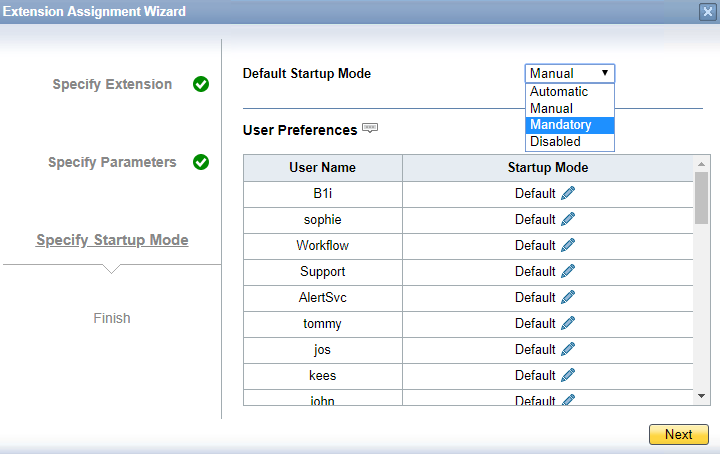
Step 7: On the Specify Parameters step, in the Default Startup Mode field select Mandatory. The startup mode determines how the extension is launched for users that are connected to the company. When you select the Mandatory startup mode, SAP Business One starts the Sana add-on automatically. Users cannot start or stop mandatory add-ons manually.
When you finish, the Sana add-on will be assigned to the selected SAP Business One company. In the SAP Business One Extension Manager, on the Company Assignment tab, select the company and check whether the Sana add-on is available.
Step 8: In the SAP Business One Web Client, click: Webstore > Setup > Parameters.
On the UDT/UDF tab, select the checkbox I want to refresh Sana related UDT/UDF and click on the Refresh UDT/UDF button.
Then, select the checkbox I want to refresh Sana related Stored Procedures and click on the Refresh SP button.
Deploy SAP Business One HANA Models for Sana
Deploying the SAP HANA models is only required if you use the SAP HANA database. Skip this article if you use the SQL database.
The Sana add-on for SAP Business One uses HANA models as a mechanism for data retrieval from the Semantic Layer. Deployment of the SAP HANA models is a part of the Sana add-on installation and upgrade in SAP Business One.
Step 1: Log in to SAP Business One Web client.
To deploy SAP HANA models for Sana, you must log in to SAP Business One Web client using the manager user credentials.
Step 2: In the main menu click: Administration > Setup > General > SAP HANA Model Management.
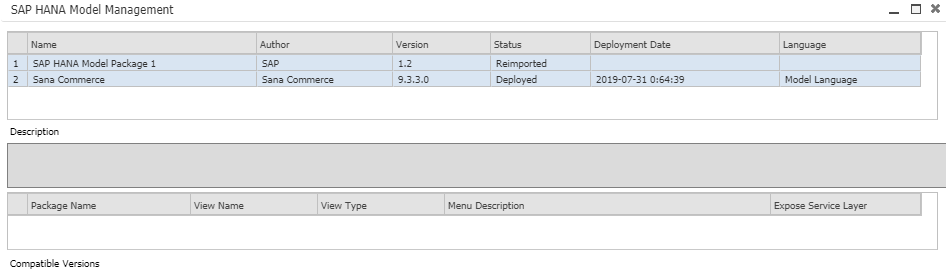
Step 3: In the SAP HANA Model Management window, click Import to import the SAP HANA Models for Sana. Browse the SAP HANA Models for Sana (.zip package) and import them.
When you finish, you should see the SANA model with the status Imported.
You cannot import SAP Business One HANA Model if there is a model with the same name.
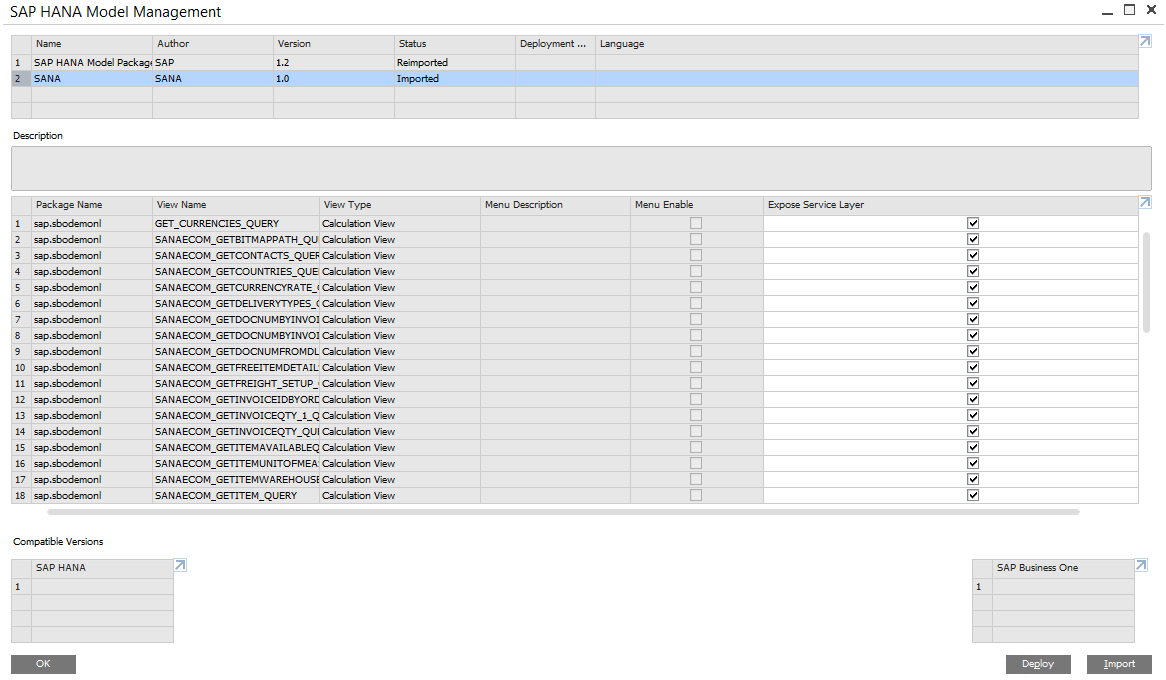
Step 3: Enable all views for the service layer of the SAP HANA Model for Sana by selecting all checkboxes Expose Service Layer and then click Deploy.
When you finish, the status of the SANA model must change to Deployed.



