Upgrade the Sana Add-on in SAP
SAP Add-on Installation Tool (transaction SAINT) is used to install and upgrade add-ons in the SAP system. The add-on upgrade procedure is identical to the add-on installation. Therefore, to upgrade the Sana add-on in SAP, you must follow just the same standard procedure which is used to install the add-on into SAP. The upgrade procedure will overwrite the current version of the Sana add-on in your SAP system with the latest one. After upgrade, all data of the Sana add-on in your SAP system will remain the same and will not be lost.
Upgrade the Sana add-on in SAP only when the system load is low. The users must not be logged into the system and there should be no background jobs running. Otherwise, problems can arise, such as terminated transactions or problems with synchronization.
Import the Sana Add-on
Step 1: Download the Sana package with the latest Sana add-on for SAP (“*.sar” file) from the Sana Community web site. Only registered Sana partners can download it from Sana Community.
Step 2: Extract the package files and copy the “*.sar” file to the computer from which you are going to install the Sana add-on into SAP.
Step 3: Open SAP and log in to client 000.
Step 4: Open the SAP Add-on Installation Tool by calling the transaction SAINT.
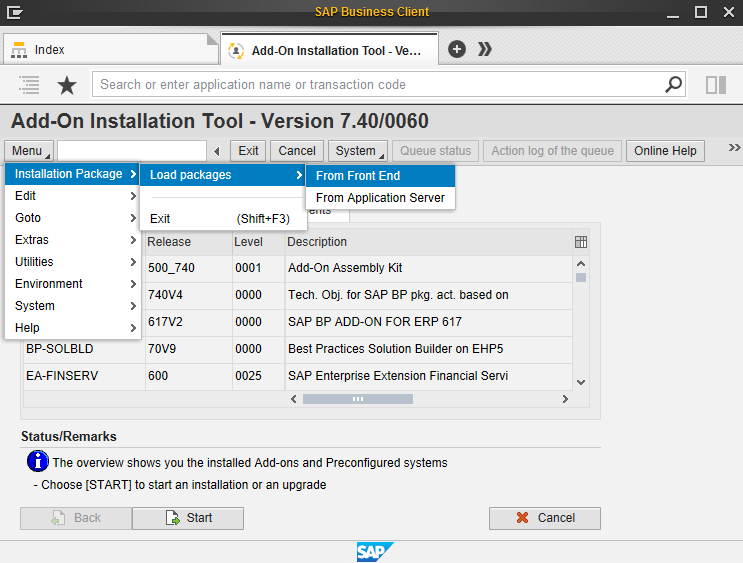
Step 5: In the top menu, click: Installation Package > Load packages > From Front End. Select the “*.sar” file of the Sana add-on. You will see the SAP GUI Security message asking you to grant access to this file. Click Allow.
Step 6: In the Content of the compressed file [Sana “*.sar” file] window, click Decompress. Once the Sana “*.sar” file is decompressed, click Start to start installing the Sana add-on.
Step 7: Select the uploaded Sana add-on package and click Continue.
Step 8: On the Supported Package selection tab, click Continue.
Step 9: On the Installation queue tab, click Continue. You will see a notification screen asking: "Do you want to add Modification Adjustment Transports to the queue?". Click No, if none are applicable in your installation scenario.
After that, you will see a message informing you that the SANAECOM add-on is being installed. Click Import and wait till the import request queue is finished.
Step 10: Run SPDD check. When it is checked, confirm completion of the modification adjustment of the Dictionary objects.
Step 11: When the Sana add-on with the displayed queue is imported, click Finish.
Activate the Business Configuration Set
The Sana add-on is always installed into client 000, together with the Business Configuration Set (BC Set), which contains the client dependent customizing. It is necessary to activate the BC Set after the Sana add-on upgrade.
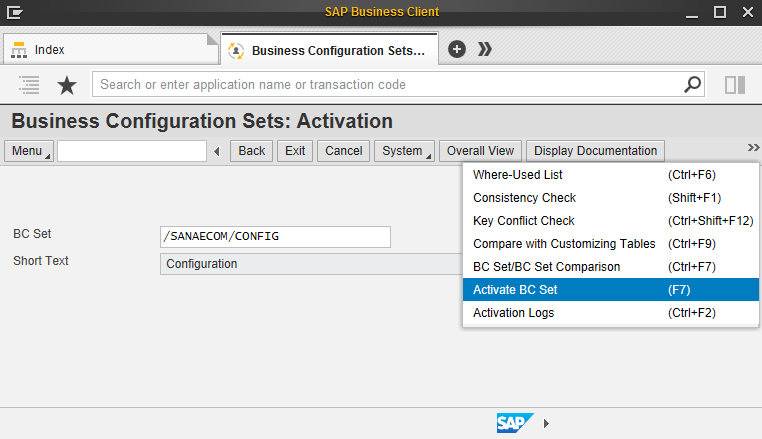
Step 1: Call the transaction SCPR20 and enter the following BC Set name /SANAECOM/CONFIG. Click Activate BC Set.
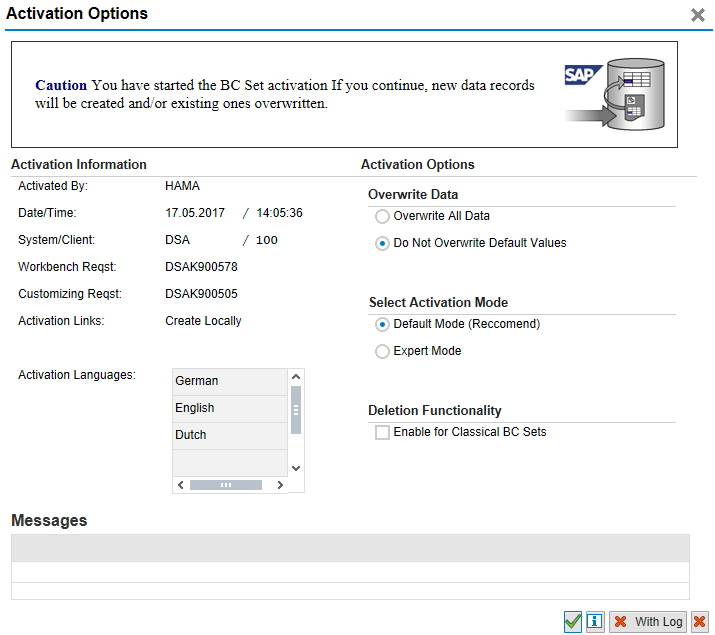
Step 2: In the Activation Options window, select Do Not Overwrite Default Values and Default Mode. Click Continue Activation to activate the BC Set.