Upgrade Sana in Microsoft Dynamics 365 for Finance and Operations
You can upgrade Sana in Microsoft Dynamics 365 for Finance and Operations either by applying the deployable Sana package or by installing the Sana model. It depends on how you installed Sana.
Prerequisites
Generate a new Sana module license before upgrading to Sana ERP Connector:
Your current Sana Commerce license for the Webshop module may not be valid after the upgrade, depending on the version you upgrade to:
| Upgrade to | Reason |
|---|---|
| 10.0.38 or later | For security reasons. |
| 10.0.141 or later | Licenses signed with the previous certificate are no longer accepted. |
Before you upgrade:
-
Generate a new Sana module license on the Sana Community website.
-
Import the license to the Microsoft Dynamics 365 for Finance and Operations environment where Sana Commerce Cloud is installed.
Upgrade the Deployable Sana Package
To upgrade the deployable Sana package in Microsoft Dynamics 365 for Finance and Operations, it must be uploaded first to your Microsoft Dynamics Lifecycle Services (LCS) project assets.
Step 1: Download the deployable Sana package from the Sana Community web site. Make sure that it corresponds to your application and platform release versions. Only registered Sana partners can download it from our Sana Community.
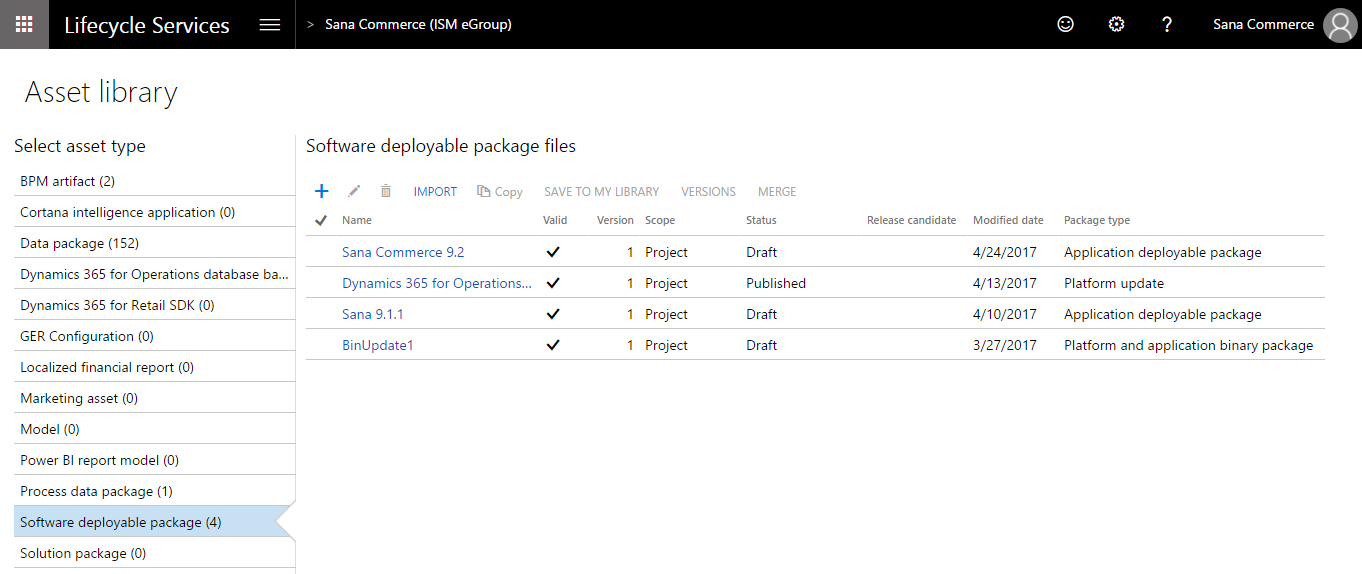
Step 2: Sign in to Microsoft Dynamics Lifecycle Services (LCS). In your LCS project, click Asset Library and upload the deployable Sana package.
Step 3: Open Environment details of your Microsoft Dynamics 365 environment where the Sana package must be installed.
Step 4: Click: Maintain > Apply updates.
Step 5: Select the Sana package and click Apply.
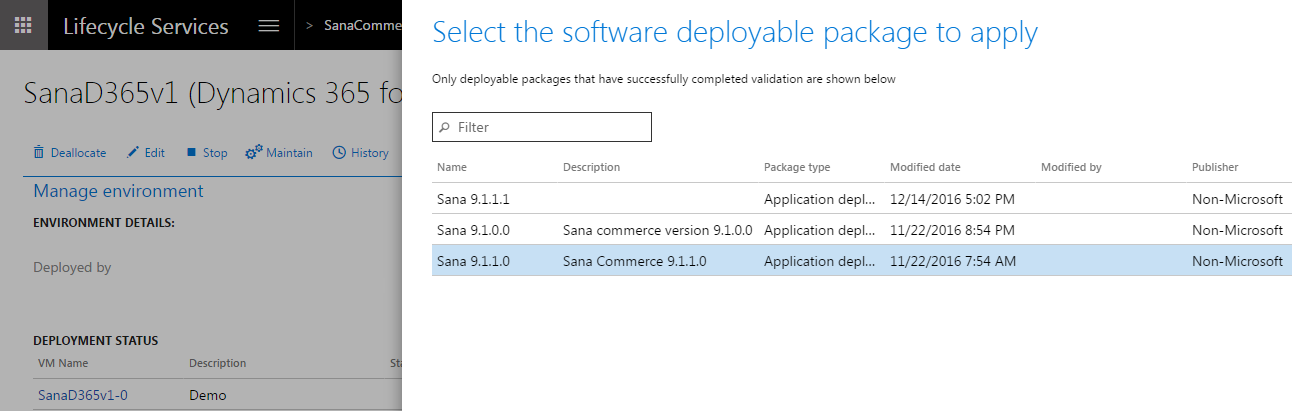
In the Environment details, you can see the status and progress of the package deployment. Once the Sana package is applied, the environment status will change to Deployed, and the servicing status will change to Completed.
Step 6: To sign off on the package application, click Sign off, if there are no issues. If issues occurred, when you applied the package, click Sign off with issues.
For more information, see Apply updates to cloud environments.
Upgrade the Sana Model
To upgrade the Sana model in Microsoft Dynamics 365 for Finance and Operations, you will need the ModelUtil.exe tool and the -import directive. This tool is located in the packages bin folder, typically: c:\packages\bin or i:\AosService\PackagesLocalDirectory\bin.
Step 1: Download the Sana model from the Sana Community web site. Make sure that it corresponds to your application and platform release versions. Only registered Sana partners can download it from our Sana Community.
Step 2: Delete the previous Sana model by executing the command below.
Modelutil.exe -delete -metadatastorepath="j:\AOSService\PackagesLocalDirectory" -modelname="SanaCommerce"Step 3: Install the new Sana model by executing the command below. Before executing the command specify the full path to the Sana model that should be imported.
ModelUtil.exe -import -metadatastorepath="j:\AOSService\PackagesLocalDirectory" -file="path"Step 4: Build the Sana model in the Microsoft Visual Studio development environment with database synchronization.


