Upgrade Sana in Microsoft Dynamics AX 2009
Before you start upgrading Sana in Microsoft Dynamics AX, make sure that you have the correct Sana add-on for your Microsoft Dynamics AX version. This is the package with the Sana project for a specific Microsoft Dynamics AX version. Sana partners can download the Sana packages for different Microsoft Dynamics AX versions or request those that are delivered on demand on the Sana Community website.
Please note, that if you want to use the features from the latest Sana release, you should also upgrade your Sana webshop. You can find the release notes for all Sana versions on the Sana help site.
To upgrade the Sana add-on in Microsoft Dynamics AX 2009:
-
If you did any customizations in Microsoft Dynamics AX, export the SANA project before proceeding to the next step.
-
Find the SanaCommerce.xpo file in the AX package which corresponds to your Microsoft Dynamics AX version.
-
Using the import wizard, point to this “.xpo” file. Select the Delete table and class members option in the Import window.
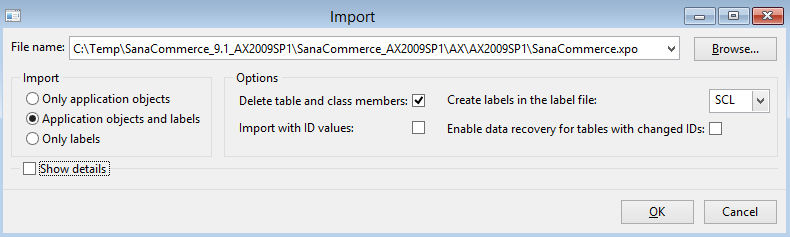
-
Check whether the labels are correct on the Labels tab. If you are not sure whether the label actions are correct, you should use the labels file from the AX package. To do this, stop AOS and replace the labels file in the Microsoft Dynamics AX application directory with the one from the AX package which is located in the same directory as the “.xpo” file.
-
If you did any customizations to the SANA project, you have to merge them manually to avoid losing your changes. In Microsoft Dynamics AX you can compare application objects of the file-based version (the new SANA project which you are going to import) with the AOT version (the existing SANA project in AX with your customizations) using the comparison tool. You should compare application objects of the already existing customized project with the new SANA project before importing it, identify your customizations and save them in any suitable way for you. When your customizations are identified and saved, you can import the Sana project. It will overwrite the existing SANA project. When the project is imported, you should manually transfer your customizations to the appropriate application objects of the newly imported SANA project.
To compare application objects of the existing customized SANA project with the new SANA project which you are going to import:
-
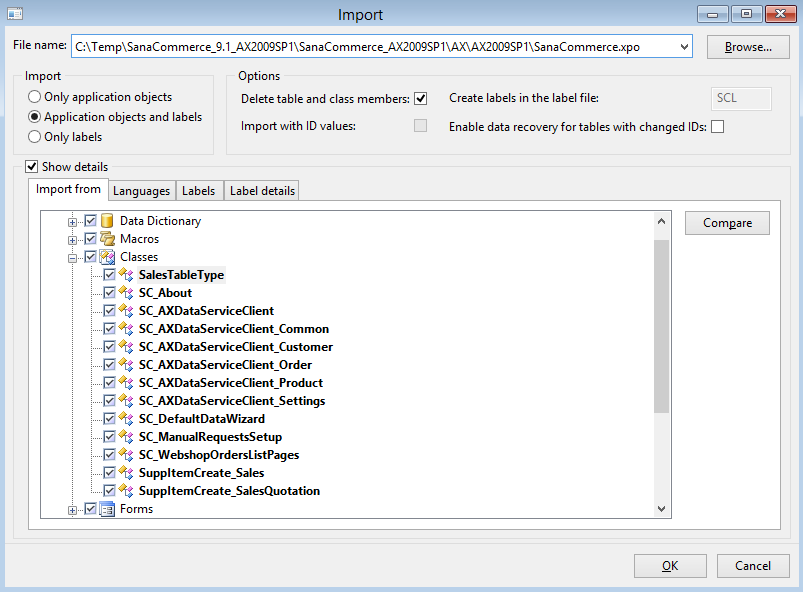
When the SANA project is added to the Import window in Microsoft Dynamics AX, select the checkbox Show details.
-
In the AOT tree, select the application object where you did customizations and click Compare.
-
In the Comparison form, click Compare to begin the comparison of two application objects.
-
You will see the differences in the results window on the Comparison form.
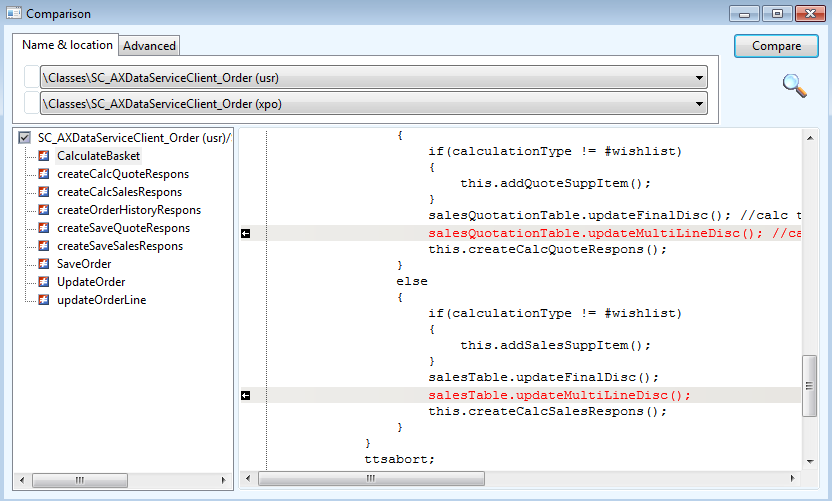
This way you can compare each application object where you did customizations with the objects of the new SANA project, identify your customizations, and save them. When all your customizations are identified and saved you can import the SANA project and then manually transfer your customizations back to the appropriate application objects of the newly imported SANA project.
-
Import the SANA project.
-
Check if everything is OK after project compilation.


