Viewing Workflow Runs
After a workflow runs, whether automatically, manually, or in test mode, you can review the results from the workflow details page. Detailed information about each run is available to help you monitor the results and diagnose any issues.
Workflow run records older than one month are automatically deleted.
Recent Runs
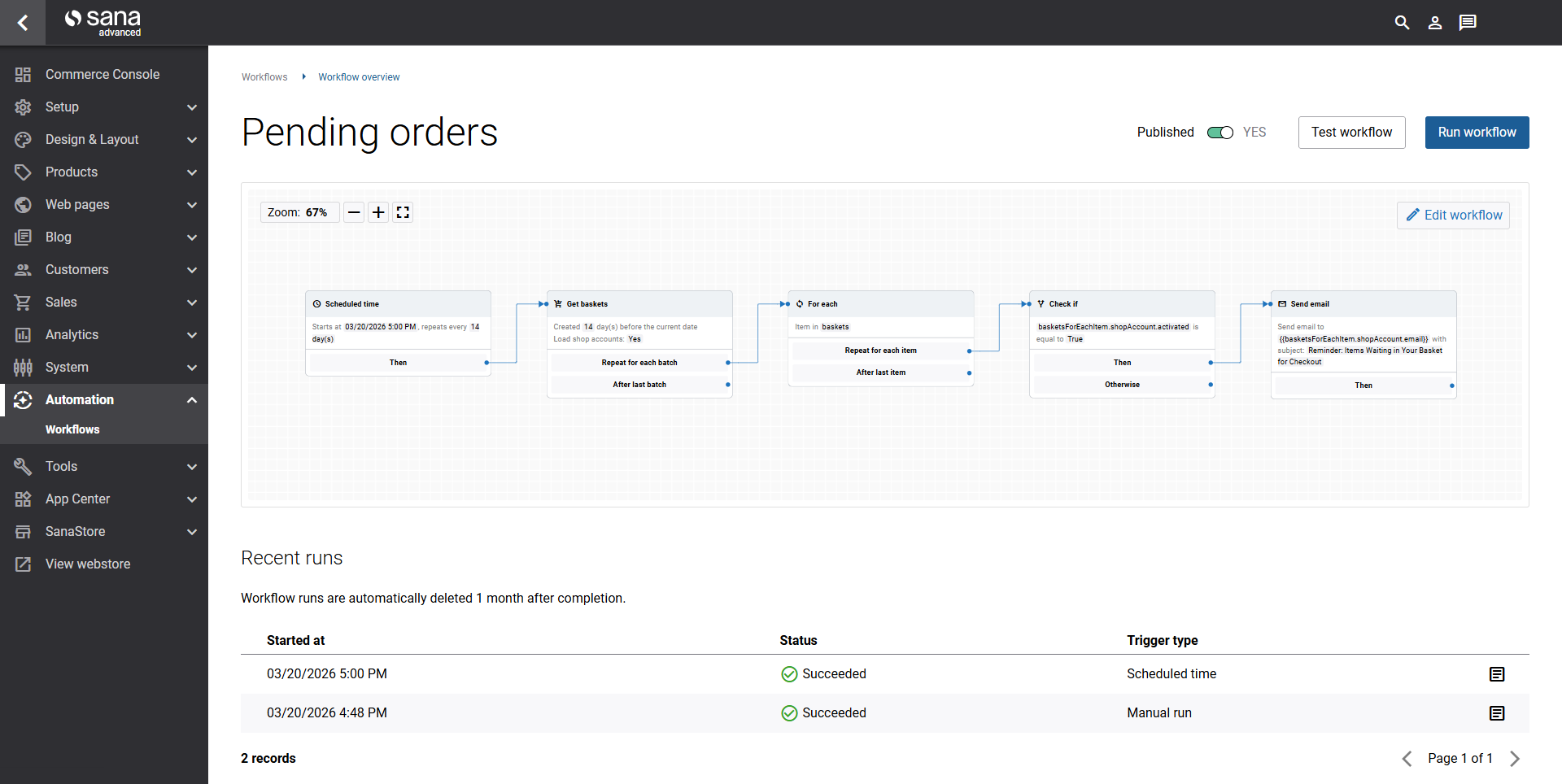
The Recent runs list for each workflow shows a summary of all recent executions:
| Field | Description |
|---|---|
| Started | The date and time the workflow started. |
| Status | The outcome of the run: Succeeded or Failed. |
| Run type | How the workflow was started: Scheduled, Manual, or Test. |
Run Details
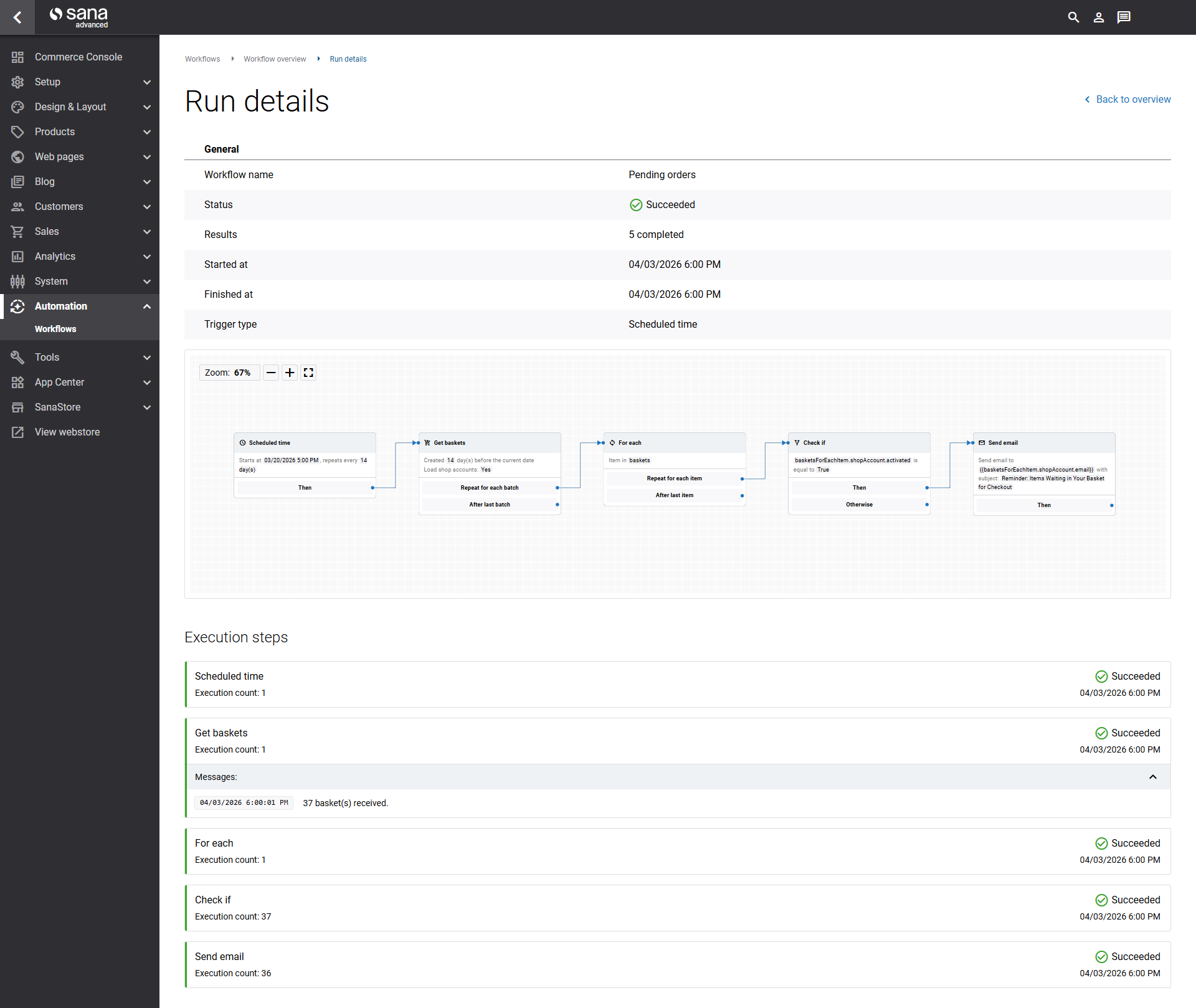
Click Details on any run or simply on the run record to open the Run details page, which provides a comprehensive breakdown of that execution:
| Field | Description |
|---|---|
| Workflow name | The name of the workflow at the time of the run. |
| Status | The outcome of the run: Succeeded or Failed. |
| Results | The number of workflow steps that were completed successfully. |
| Started at | The date and time the workflow started. |
| Finished at | The date and time the workflow ended. |
| Run type | How the workflow was started: Scheduled, Manual, or Test. |
Execution Steps
The Execution steps section provides the outcome of each step in the workflow run. For example:
- How many records were retrieved (e.g., 42 baskets received in this batch).
- How many e-mails were sent.
- How many rows were appended to Google Sheets.
- Whether a step succeeded or failed, and the reason for failure if applicable.
If a step fails, it is highlighted in red in the workflow view, and all subsequent steps are shown as disabled. This makes it straightforward to identify where the workflow stopped and why.
When a workflow is running, you can still edit it. However, the execution details shown after completion reflect the state of the workflow at the time it was run - not any edits made during execution.


