Troubleshooting and Error Handling
This section covers common issues you may encounter when working with workflows and how to resolve them.
Workflow Won’t Save
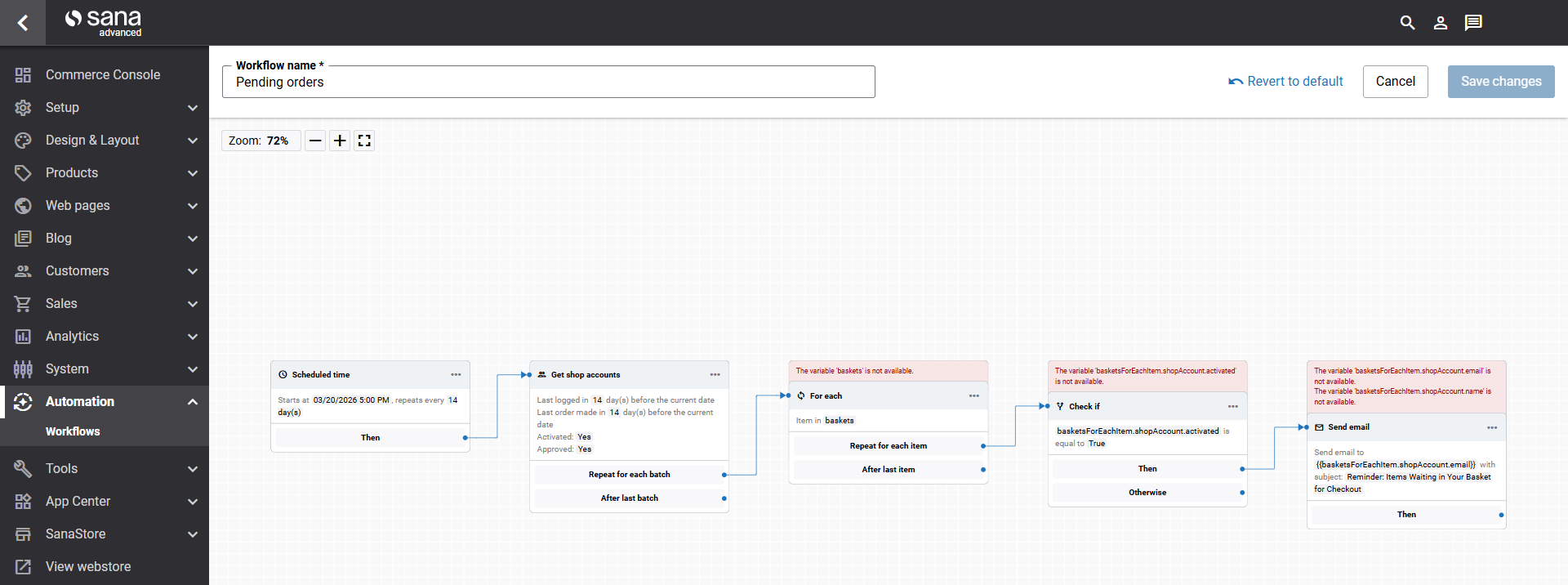
A workflow cannot be saved if it contains validation errors. The workflow editor highlights invalid elements in red and displays a message describing the issue. Common causes include:
- A workflow element is not connected to another element.
- A variable reference points to data that is not available at that point in the workflow.
- The credentials, service URL, or keys in the workflow element are not valid.
Review each highlighted element, fix the reported issue, and save again.
Workflow Run Failed
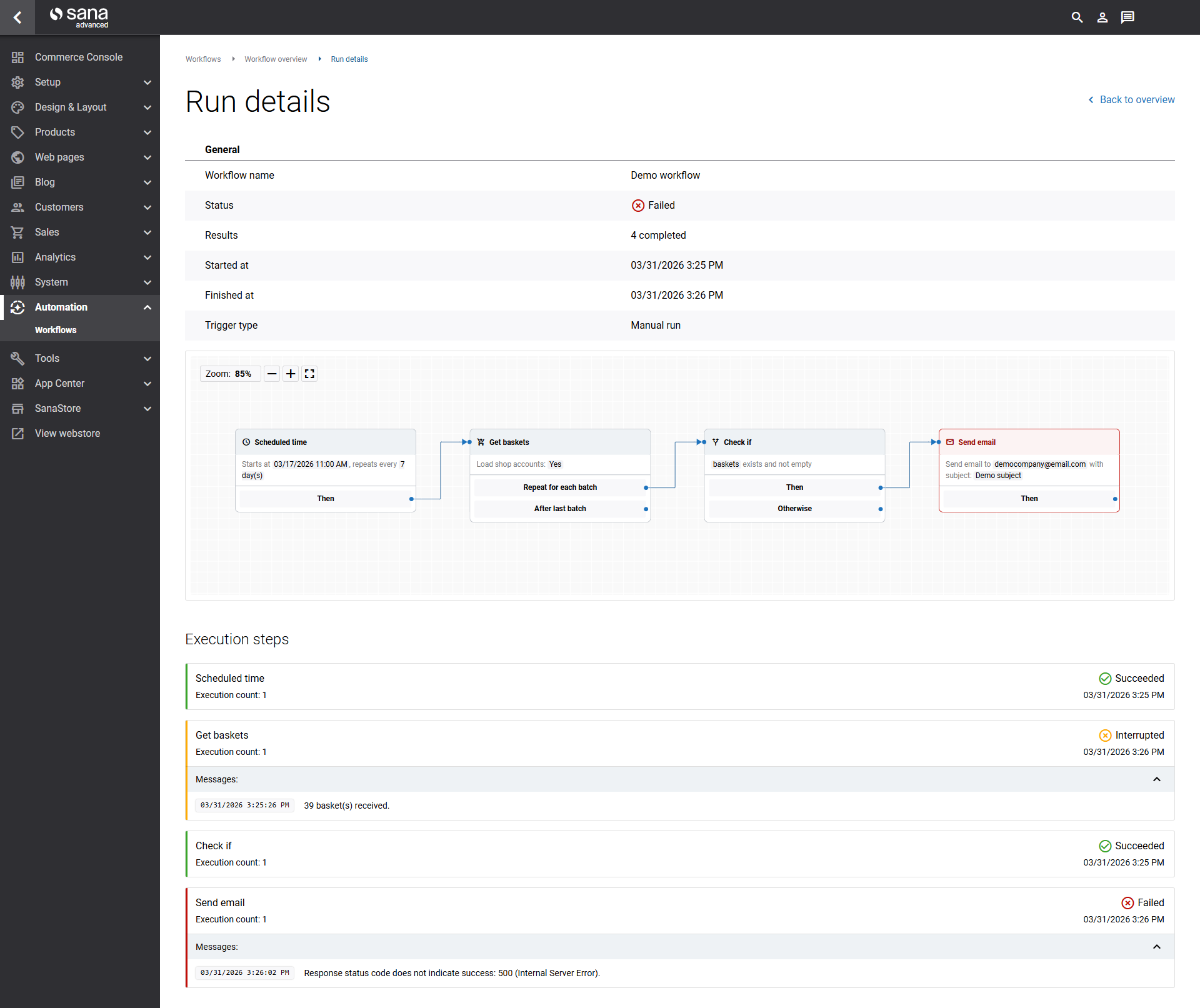
If a workflow run fails, click Details in the Recent runs list to open the Run details page. In the Execution steps section, locate the step highlighted in red to see the failure reason. All workflow steps after the failed step are shown as disabled.
Common causes of failure include:
- The required variable was empty or null at runtime.
- An HTTP request returned an error code and the retry policy was set to Fail.
- Google Sheet credentials are invalid or the service account does not have edit access to the spreadsheet.
- The Google Sheet name specified in the action does not exist in the spreadsheet.
E-Mails Are Not Being Sent
If a workflow runs successfully but no e-mails are sent, verify the following:
- The To field in the Send email action resolves to a valid e-mail address at runtime. Test the workflow and review the execution steps to confirm the value of the e-mail variable.
- The workflow is not running in test mode. In test mode, Send email actions are validated but not executed.
- The workflow is active. Inactive workflows do not run automatically.
Google Sheets Errors
If the Google Sheets actions fail, check the following:
- The Spreadsheet ID is correct. Copy it directly from the Google Sheets URL.
- The Sheet name matches the exact name of the tab in the spreadsheet, including capitalization.
- The service account has been granted edit access to the spreadsheet.
- The service account credentials have been stored as a secret and are referenced correctly.
Workflow Does Not Run Automatically
If a published workflow is not running on schedule, check the following:
- The Active toggle is set to ON.
- The trigger start date and time have already passed, and, if applicable, the repeat frequency is configured.
- No errors occurred in the last run that may have disrupted the schedule.


