Getting Started with Workflows
In Sana Admin, click: Automation > Workflows.
The Workflows page in Sana Admin is your central hub for creating, managing, and monitoring all workflows. From this page, you can:
- Create a new workflow.
- View all existing workflows, their status, and recent activity.
- Edit or delete existing workflows.
- Run a workflow manually or in test mode.
- Manage secrets for secure sensitive data storage.
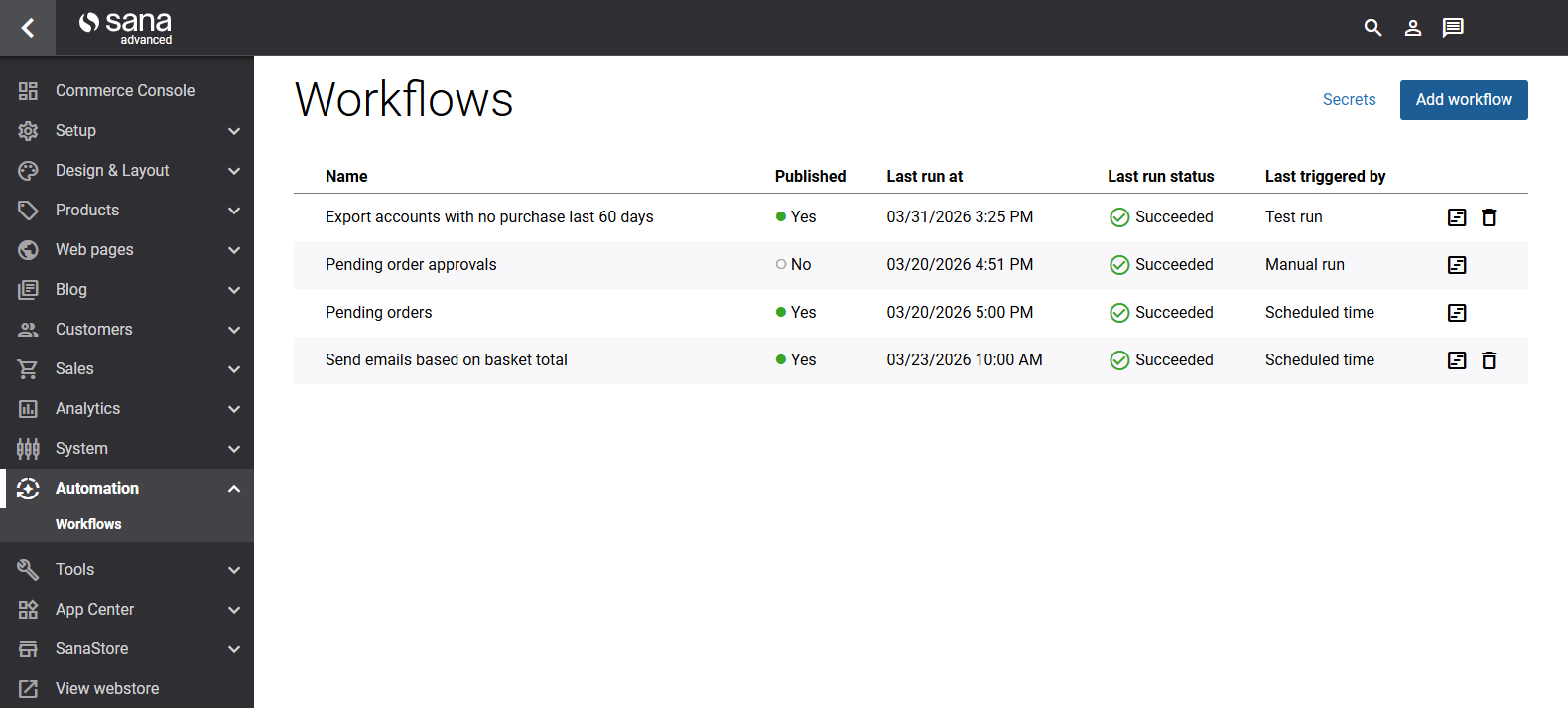
Workflow List
The workflow list displays the following information for each workflow:
| Column | Description |
|---|---|
| Name | The name of the workflow. |
| Active | Indicates whether the workflow is active.
|
| Last run | The date and time the workflow was last executed. |
| Last run status | The result of the last execution: Succeeded or Failed. |
| Last run type |
|
| Created by | The name of the user who created the workflow. |
| Modified by | The name of the user who last modified the workflow. |
Available Actions on the Workflows Page
- Add workflow: Opens the workflow editor for a new, empty workflow.
- View details: Opens an existing workflow where the user can view all its details and edit the workflow.
- Delete: Permanently removes a workflow.
The two default workflows, Pending order approvals and Pending orders, cannot be deleted. - Secrets: Opens the Secrets page for managing the secure storage of sensitive data.
Available Actions on the Workflow Details Page
- Active: Enables the workflow to run according to its scheduled trigger.
- Test run: Runs the workflow in test mode.
- Run now: Runs the workflow immediately (manual run).
- Edit workflow: Opens the workflow editor.
- Recent runs: View results and detailed information about each workflow run.
Default Workflows
Sana Commerce Cloud includes two default workflows provided as ready-to-use examples. They demonstrate common automation patterns and can be edited to fit your needs. Unlike custom workflows, the default workflows cannot be deleted. If you have modified a default workflow, you can restore it to its original state using the Revert to default option.
Before running the Pending order approvals or Pending orders workflow, configure the trigger’s start date and time.
Pending Order Approvals
This workflow targets sub-accounts that have placed orders requiring approval from an account manager. It retrieves the list of pending order authorizers and sends them a notification e-mail.
Pending Orders
This workflow targets webstore customers who have added items to their shopping cart but have not completed checkout for more than 14 days. It retrieves a list of such baskets and sends a reminder e-mail to the relevant customers.
Reverting a Default Workflow
If you have modified a default workflow and want to restore it to its original configuration, click Revert to default. This option is available only for the two standard workflows. Reverting a default workflow will discard all your changes and restore the original configuration. This action cannot be undone.


