Conditions
Conditions are decision points in a workflow. They evaluate one or more criteria and branch the workflow depending on whether those criteria are met. This allows your workflow to take different paths based on the data it processes.
A workflow can contain any number of conditions, and conditions can be chained together or connected to actions depending on the logic you need. For example:
- If Condition A is true, check Condition B. If Condition A is false, check Condition C.
- If Condition A is true, send an e-mail. If false, do nothing.
If you do not connect a next step to either the True or False output of a condition, the workflow stops at that point.
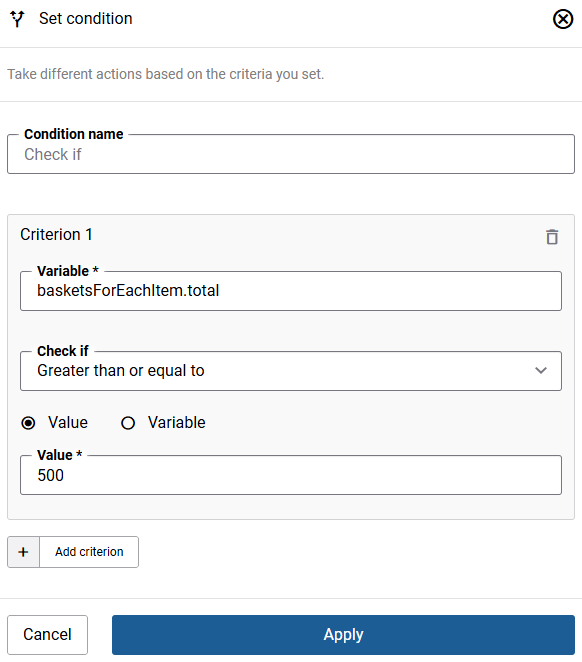
The condition evaluates one or more criteria against available variables and takes different actions based on the result.
Each condition step has two output paths:
- True: The path taken when all criteria are met.
- False: The path taken when one or more criteria are not met.
| Field | Description |
|---|---|
| Step name | A descriptive name for this condition. You can use the default name or enter your own. |
| Criterion | One or more rules to evaluate. For each criterion, select a field to check, then define the comparison. Multiple criteria are combined using AND (all must be true) or OR (any one must be true). |
Comparison Types
For each criterion, you can compare a variable’s field value in one of three ways:
-
Against a static value: Compare the field to a fixed value you enter manually, such as a specific number, text string, or status.
-
Against another field: Compare the field to a value held in a different variable's field at the same point in the workflow. Both fields must have compatible data types. String fields can be compared with other String fields, and Decimal and Integer types can be compared with each other since both are numeric.
-
Against an offset from the current date/time: Available only for fields of the DateTime type. Instead of comparing against a fixed date, you define an offset relative to the current date and time at the moment the workflow runs. You specify whether to Add or Subtract the offset from the current date and time, then set the interval using Days, Hours, Minutes, and Seconds.
This is particularly useful when you want to evaluate how much time has passed since a recorded event, for example, checking how long it has been since a customer placed an order. If the basket data includes a reference to the shop account, and the shop account contains the Last Order Date field, you can set up a criterion that checks whether Last Order Date is earlier than the current date minus a specified number of days. If that condition is true, the workflow can proceed by sending personalized e-mails to customers.
Available Comparison Operators
The operators available for a criterion depend on the data type of the variable you select. The following operators are supported:
| Operator | Description |
|---|---|
| Equal to | The field value exactly matches the specified value or variable. |
| Not equal to | The field value does not match the specified value or variable. |
| Greater than | The field value is greater than the specified value or variable (numeric and DateTime types). |
| Greater than or equal to | The field value is greater than or equal to the specified value or variable (numeric and DateTime types). |
| Less than | The field value is less than the specified value or variable (numeric and DateTime types). |
| Less than or equal to | The field value is less than or equal to the specified value or variable (numeric and DateTime types). |
| Contains | The field value includes the specified substring (String type). |
| Not contains | The field value does not include the specified substring (String type). |
| Starts with | The field value begins with the specified text (String type). |
| Not starts with | The field value does not begin with the specified text (String type). |
| Ends with | The field value ends with the specified text (String type). |
| Not ends with | The field value does not end with the specified text (String type). |
| Exists and not empty | The field has value and is not null or empty. |
| Not exists or empty | The field is null, does not exist, or contains no value. |


