API Call
Starts the workflow when an external system sends an HTTP POST request to a unique URL generated by the Sana workflow. Use this trigger to initiate workflows programmatically from external systems such as a CRM, an external service, or an automation agent, without relying on a scheduled time or an internal Sana event.
This trigger is intended for advanced workflow users who build system integrations.
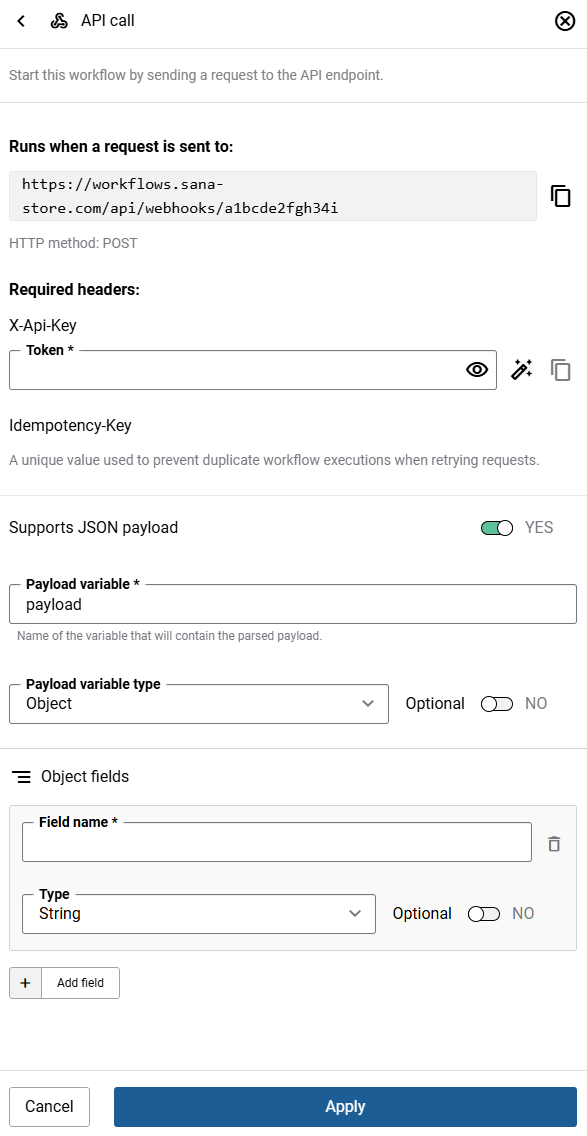
| Field | Description |
|---|---|
| Runs when a request is sent to |
The unique URL generated for this Sana workflow. The external system must send an HTTP POST request to this URL to start the workflow. This URL is tied to the specific workflow instance - if you remove the trigger or delete the workflow and create a new one, the Sana workflow generates a new URL, and the previous one becomes invalid. Any external system using the old URL must be updated to reference the new one. Use the Copy button to copy the URL. |
| X-Api-Key Token |
The API key used to authenticate the request. The external system must include this key in the X-Api-Key request header. Use the available buttons to generate a new key, copy it, show it, or hide it. |
| Idempotency-Key | A unique key generated by the external system and included in the Idempotency-Key request header. Each new request to start the workflow must use a new key. If a request fails and needs to be retried, the retry must use the same key as the original request - this tells the Sana workflow the request is a retry and prevents the workflow from running more than once for the same operation. |
| Supports JSON payload | If enabled, the trigger accepts a JSON payload from the external system. The payload becomes available as a variable in subsequent workflow steps. |
| Payload variable |
The name of the variable that will contain the parsed payload. Available when Supports JSON payload is enabled. |
| Payload variable type |
The data type of the JSON payload to parse. Available when Supports JSON payload is enabled. Supported types:
You can read more information about JSON data types in the Parse JSON action. |
How It Works
When you configure an API call trigger, the Sana workflow generates a unique URL tied to that specific workflow. When the external system sends a POST request to that URL:
-
The workflow validates the X-Api-Key header and identifies the target workflow.
-
The workflow starts and the caller receives an HTTP 202 Accepted response.
-
If a JSON payload is included and Supports JSON payload is enabled, the workflow parses the payload and makes it available as a variable in subsequent workflow steps.
Running the Workflow
The behavior when starting the workflow depends on how it is initiated:
| Mode | How to Start | Behavior |
|---|---|---|
| Active | External system sends a POST request to the workflow URL. | The workflow runs automatically and executes all actions, including sending e-mails and writing data. |
| Test run | Click Test run in the workflow editor. | The workflow prompts you to enter payload values manually or as a JSON input. The workflow runs but does not execute write actions, for example, no e-mails are sent, or data is written. Use this to validate your workflow logic without side effects. |
| Run now | Click Run now in the workflow editor. | The workflow prompts you to enter payload values manually or as a JSON input. The workflow runs and executes all actions, including sending e-mails and writing data. Use this to trigger the workflow manually from the editor when needed. |
For Test run and Run now, you can provide payload values in two ways:
-
Fill in fields: Enter each payload field value individually using the form.
-
Edit as JSON: Enter the entire payload as a raw JSON string.


