Display Real-Time Stock Information
Customers always see up-to-date product availability dates, ensuring a fast, transparent, and reliable shopping experience – from browsing product lists and product pages to reviewing their shopping cart and completing checkout. Product availability dates give customers a clear, up-to-date overview of product availability before placing orders, helping them make informed purchasing decisions. With Sana Commerce Cloud, you can display product availability dates in multiple areas of the webstore:
- Product details pages
- Product list pages (including search results and last viewed products)
- Shopping cart
- Checkout
Starting with Sana Commerce Cloud 1.128, product availability dates can be displayed on the product details and product list pages, in addition to the shopping cart and checkout.
It is important to understand that the dates and quantities displayed in the webstore refer to when a certain quantity of a product will be available again - either in the warehouse or webstore. They do not represent the delivery dates for the customers' orders.
Below, you can see what types of real-time stock information can be displayed.
-
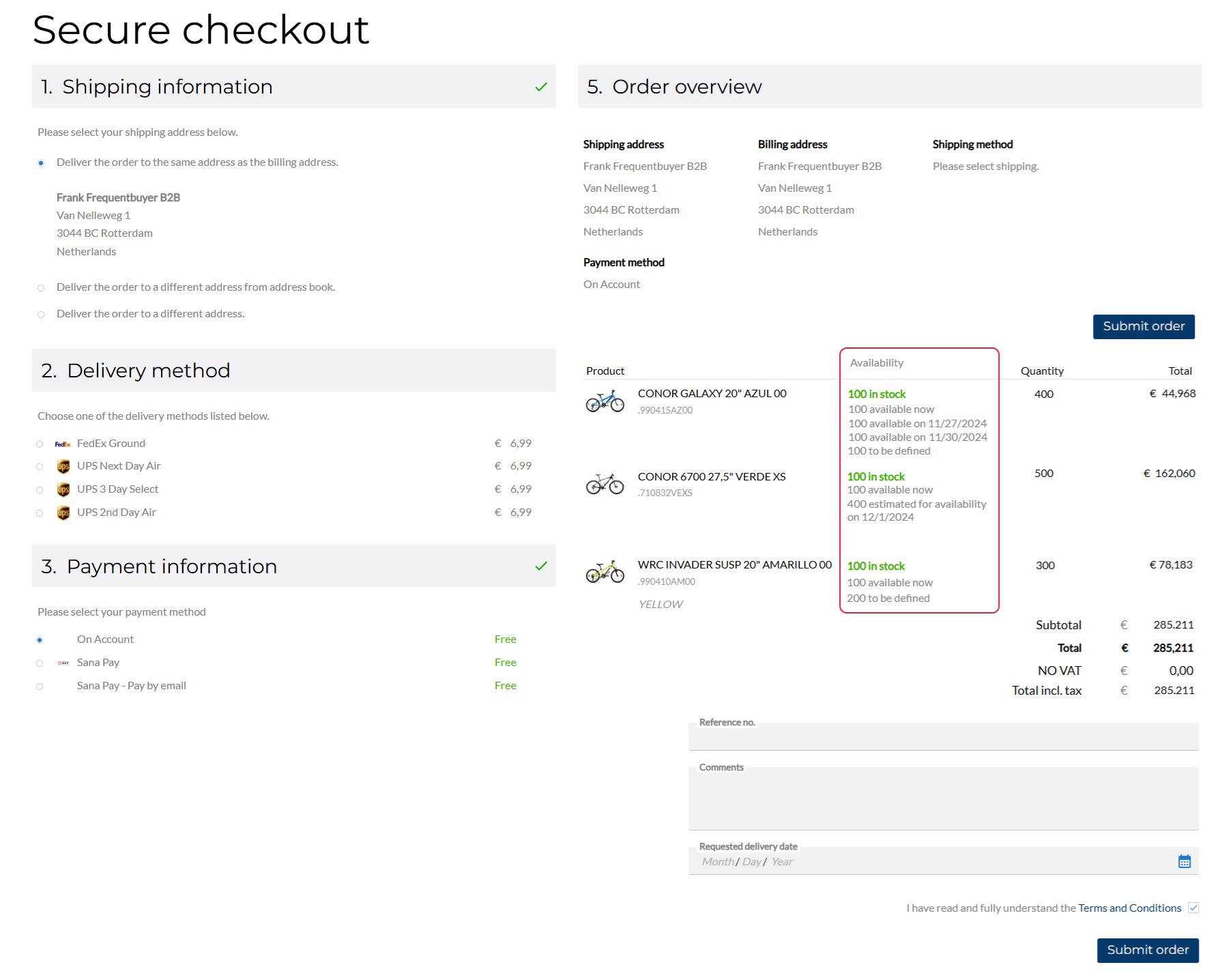
Available now: Indicates that the required product quantity is currently in stock and ready to be delivered. This reassures a customer that the required product quantity can be fulfilled without delays.
-
Available on a specific date: Shows the date when the required product quantity will be available, if a customer needs more than what is currently in stock.
-
Estimated for availability on a specific date: Provides an approximate date for when the required product quantity is expected to be available, if a customer needs more than what is currently in stock, though the date and quantity are subject to change.
-
To be defined: Indicates that the date when the required product quantity will be available is unknown. It is displayed if a customer requests a quantity of a product that exceeds the available stock, and the ATP inventory or lead time is not set for a product in ERP.
To display the real-time stock information in the Sana webstore, follow the steps listed below.
Step 1: In Sana Admin click: Setup > Products > Stock and assortment.
Step 2: Configure the Product availability dates setting to display estimated delivery dates if customers want to order more than the available stock.
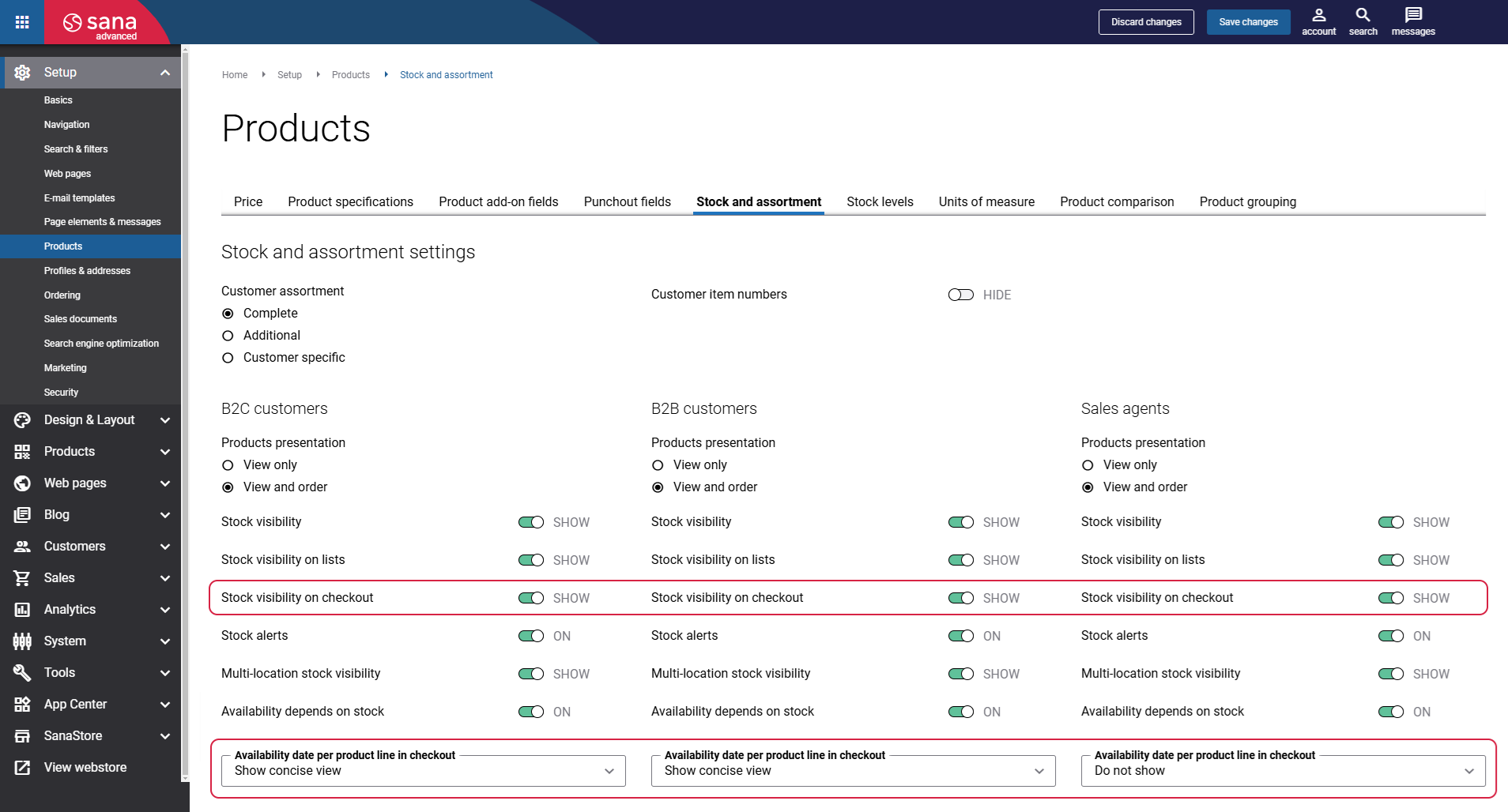
You can choose one of the options in Sana Admin for availability dates per product line.
-
Do not show: Estimated delivery dates are not shown in the Sana webstore.
-
Show concise view: Use this option to show a concise view of the estimated delivery dates, providing clear and straightforward information without overwhelming details. If the requested product quantity exceeds the available stock, the farthest possible fulfillment date will be shown.
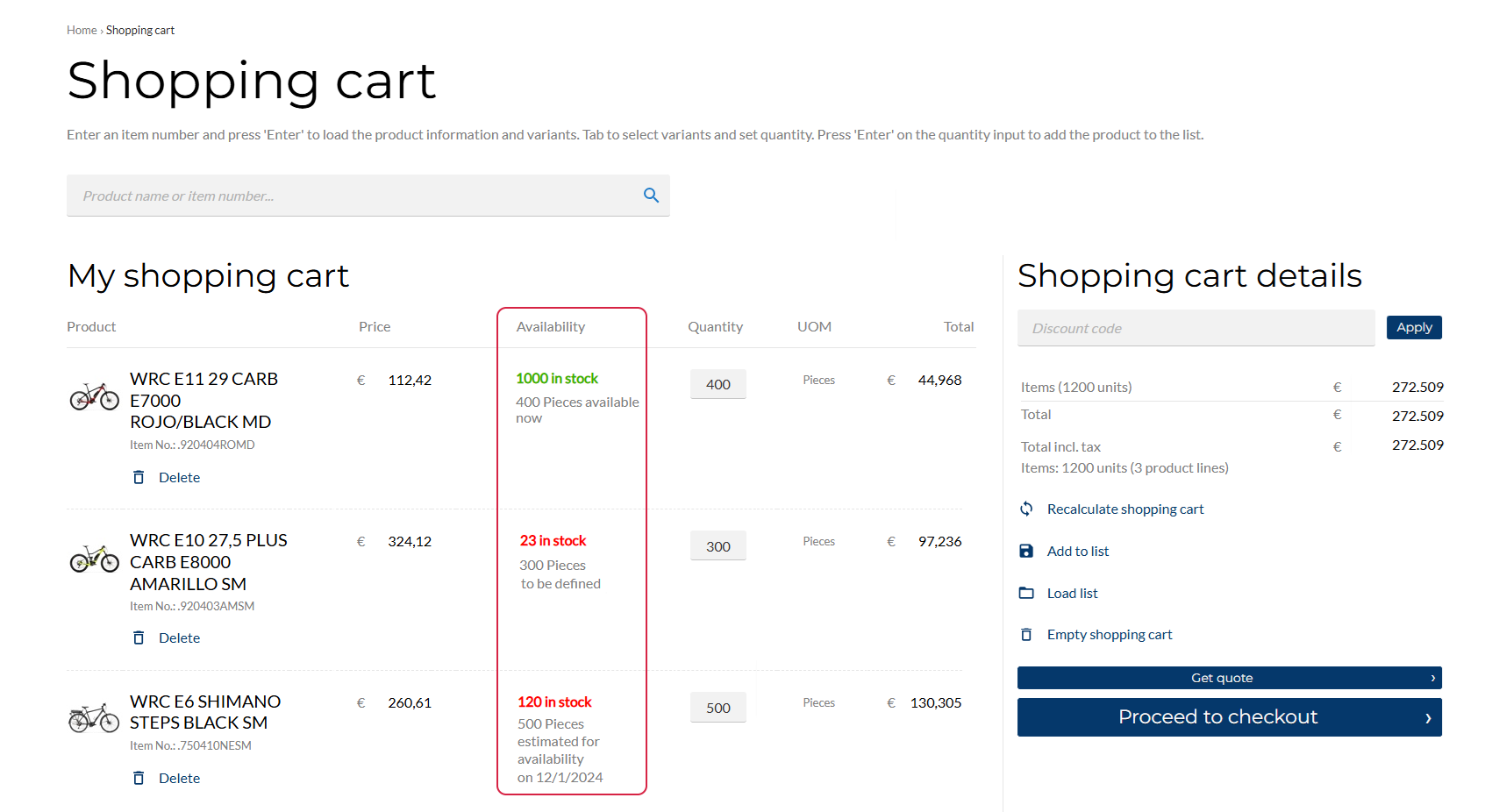
-
Show detailed view: Use this option to show a detailed view of the estimated delivery dates, including the availability of requested quantities for specific dates if such data is available in your ERP system.
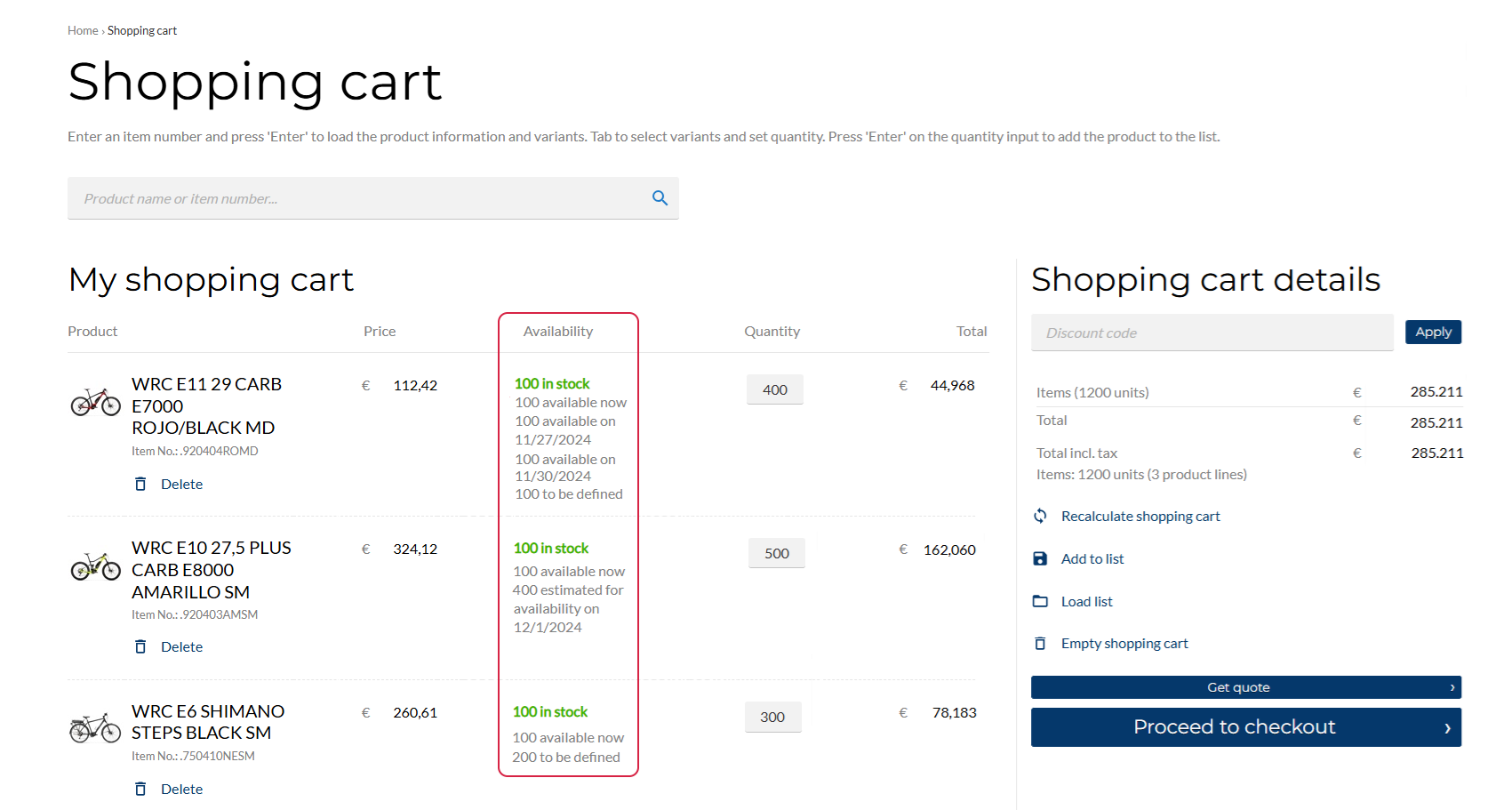
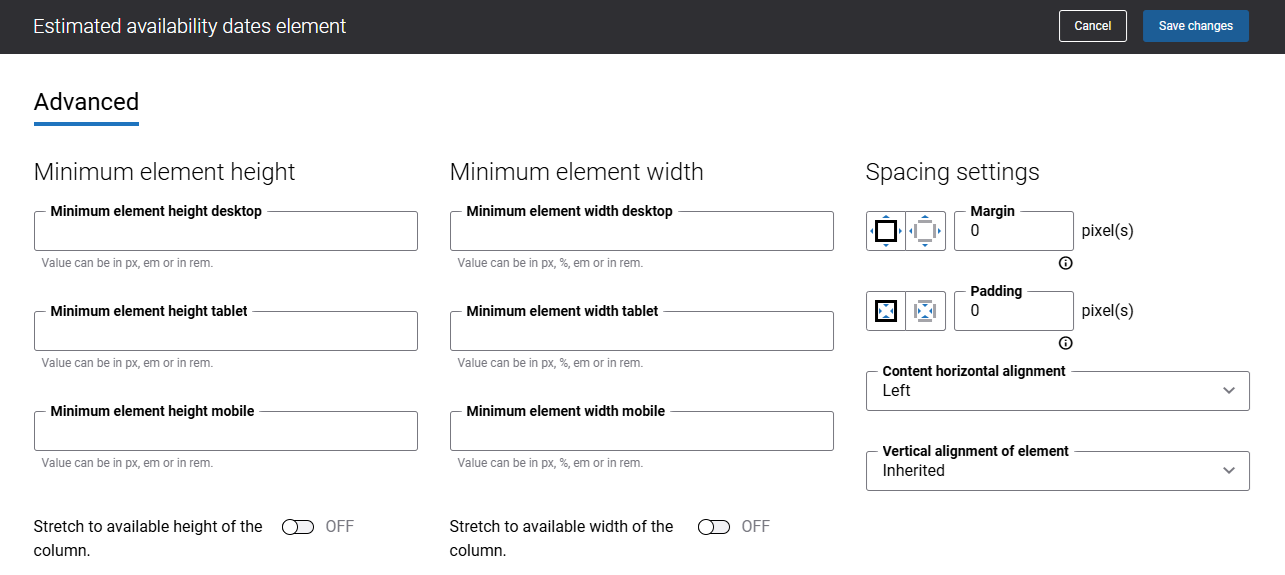
Step 3: To display real-time stock information in the Sana webstore, the Estimated availability dates content element is used. It is available on product pages, product list pages, search results, the page with the last viewed products, and the shopping cart, and can also be repositioned as needed.
On the Advanced tab of the content element, you can configure height, width, and spacing settings. For more information about advanced settings, see Content Elements.
Product Details Page
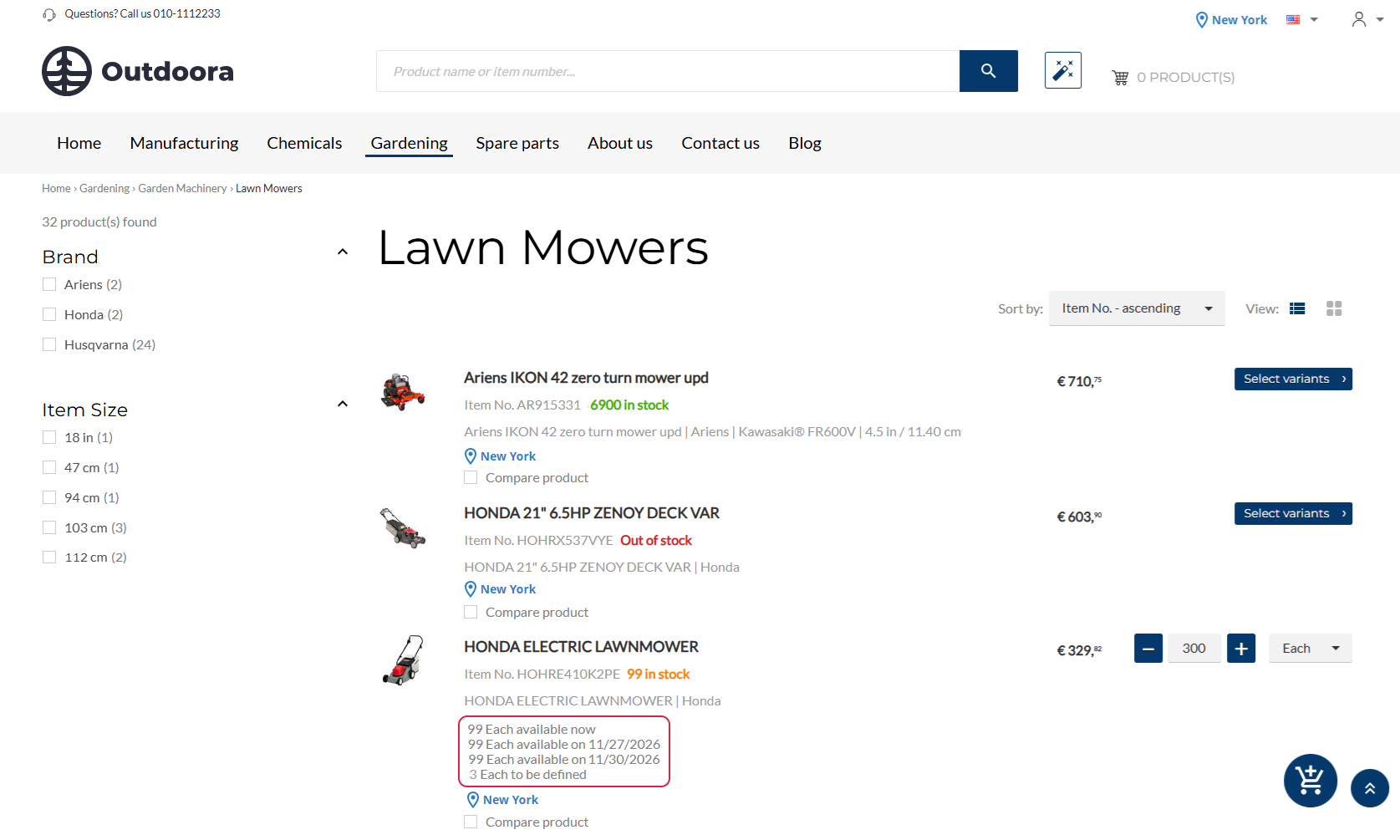
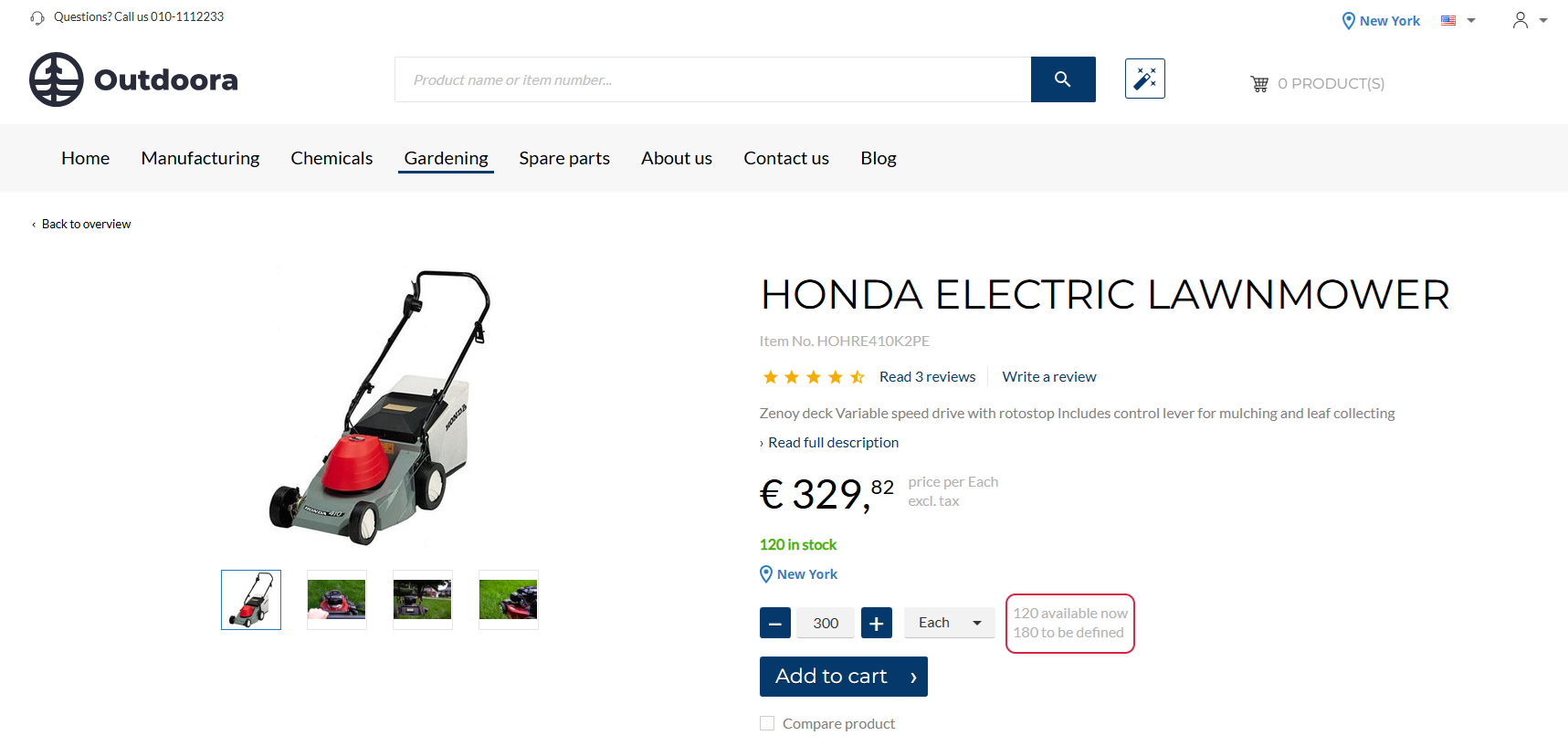
Customers can see how many units are currently in stock. If a customer requests a quantity that exceeds the available stock, Sana displays when the missing quantity will be replenished.
On the product details pages, the real-time stock information depends on:
- Product quantity, considering the minimum quantity if set in ERP
- Unit of measure
- Location
- Product variant
Product List Page
Real-time stock information can be shown on the product list, search results, and last viewed products pages in the Sana webstore. Showing product availability at these key touchpoints gives customers immediate visibility into stock levels without the need to navigate to each product page. This makes it easier for customers to evaluate options quickly, compare availability across multiple products side by side, and make faster, more informed purchasing decisions.
Sana Commerce Cloud provides two page layouts for product list pages – B2B and B2C. The way real-time stock information is shown depends on the selected page layout.
-
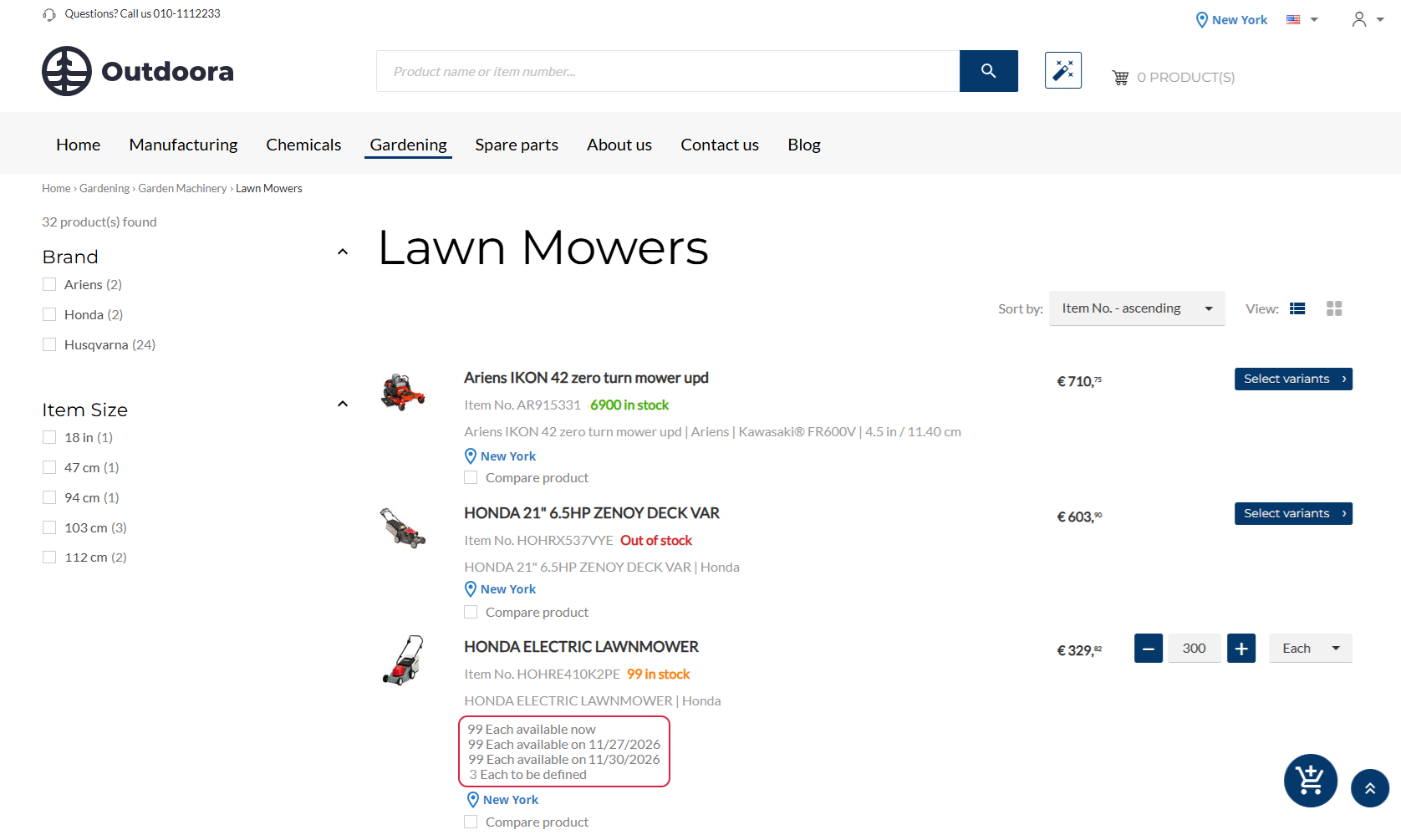
B2B layout: Real-time stock availability is shown dynamically when customers enter a specific product quantity, select a location, or a unit of measure.
-
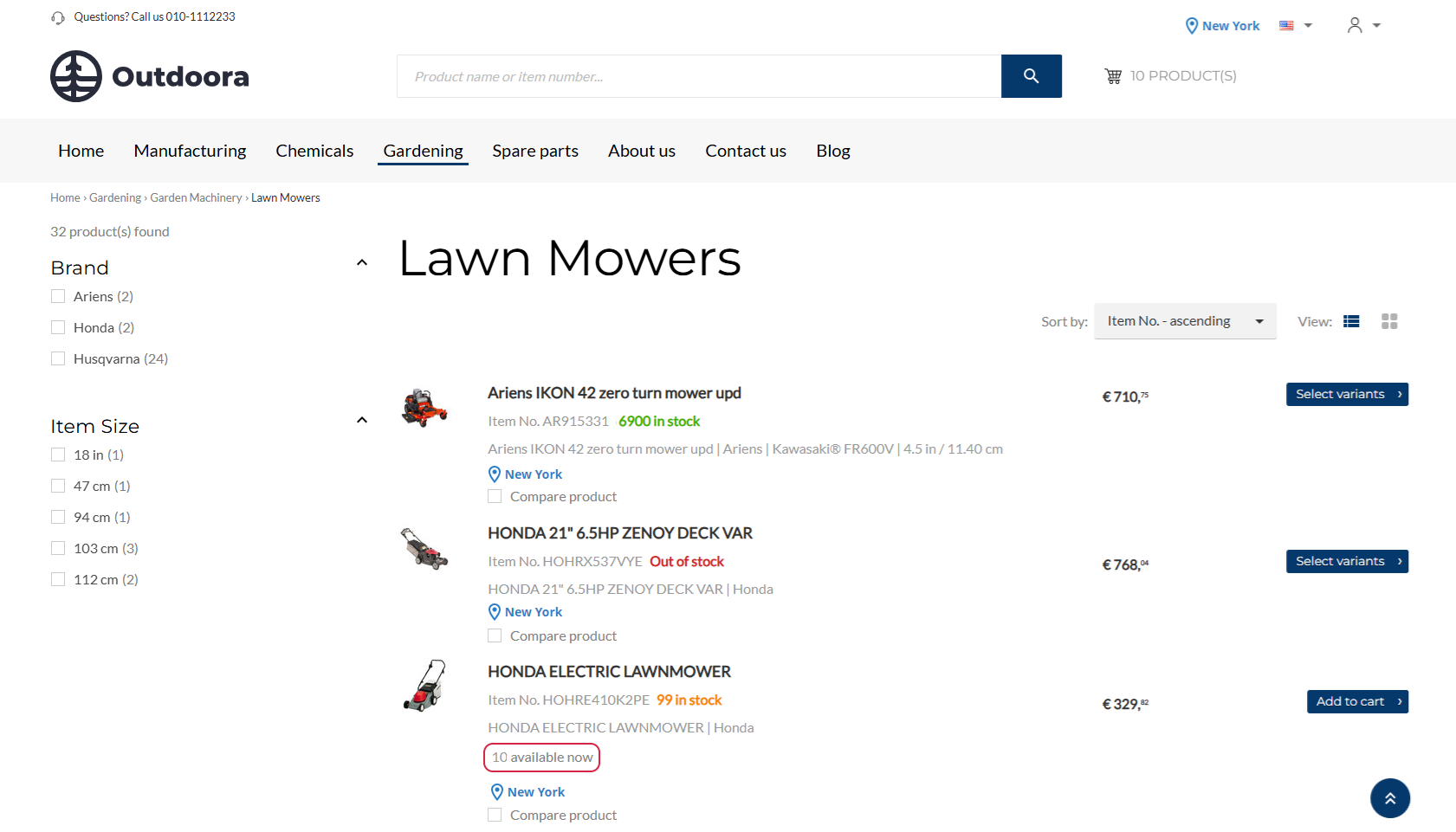
B2C layout: Real-time stock availability is displayed for simple products (not variants) and is calculated based on the minimum order quantity, if set in ERP.
Shopping Cart
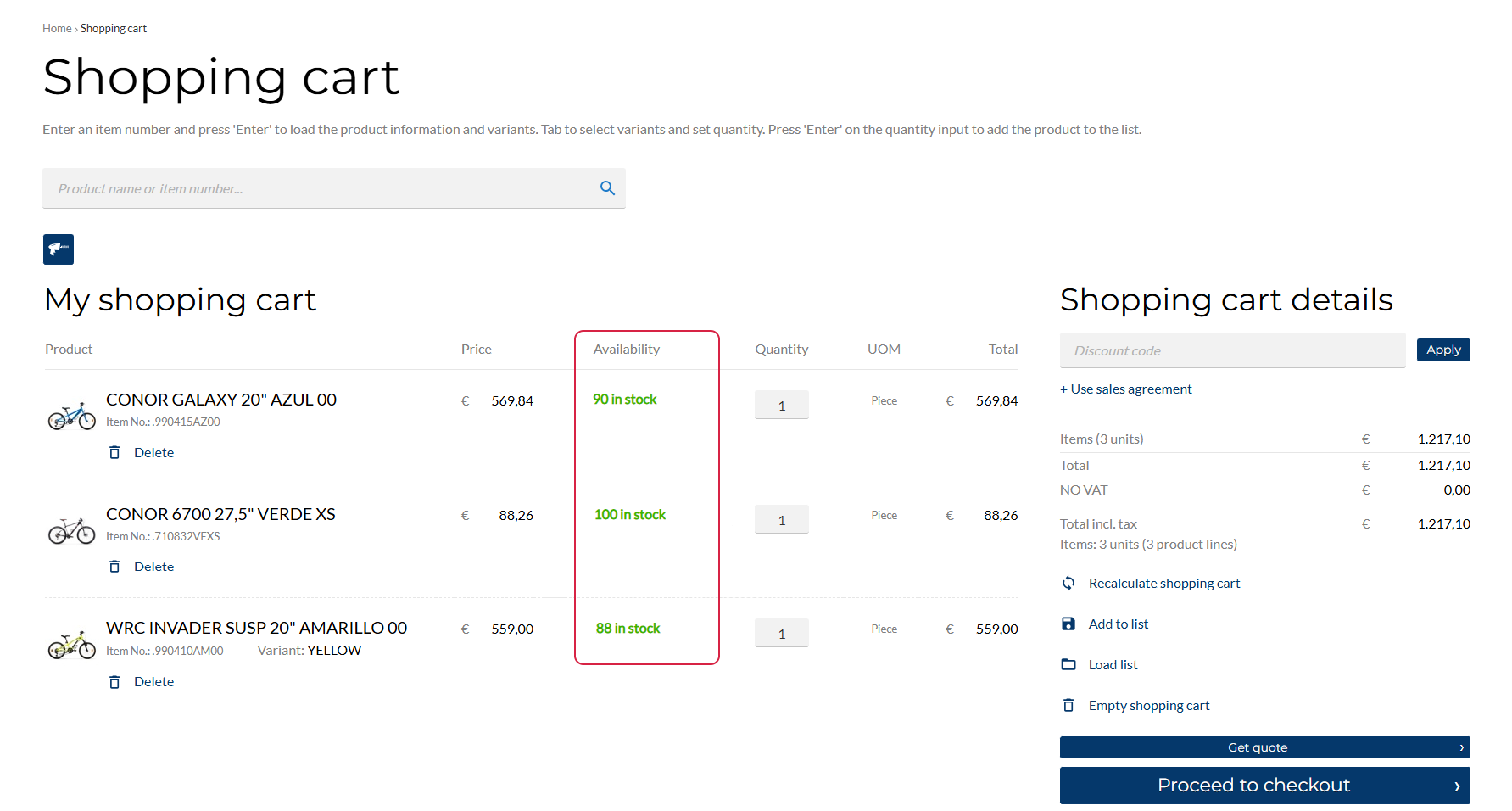
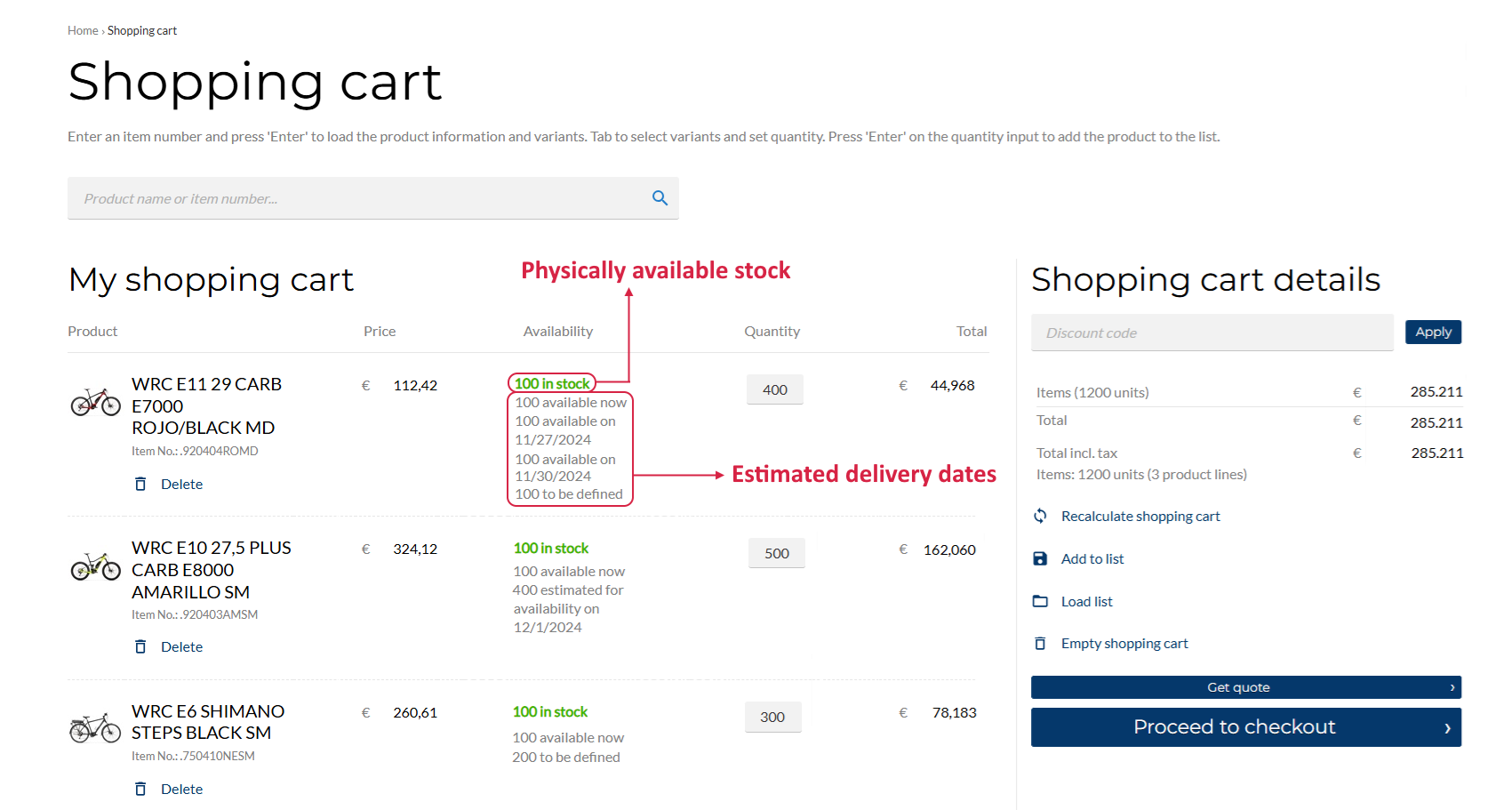
When customers add products to the shopping cart and proceed to checkout, Sana Commerce Cloud can show how many units are physically available in stock. If customers need more than is currently available, Sana can display when the missing quantity will be replenished. For the best user experience, we recommend showing estimated delivery dates alongside physical product availability.
In the screenshot below, you can see how the real-time stock information is displayed in the shopping cart.
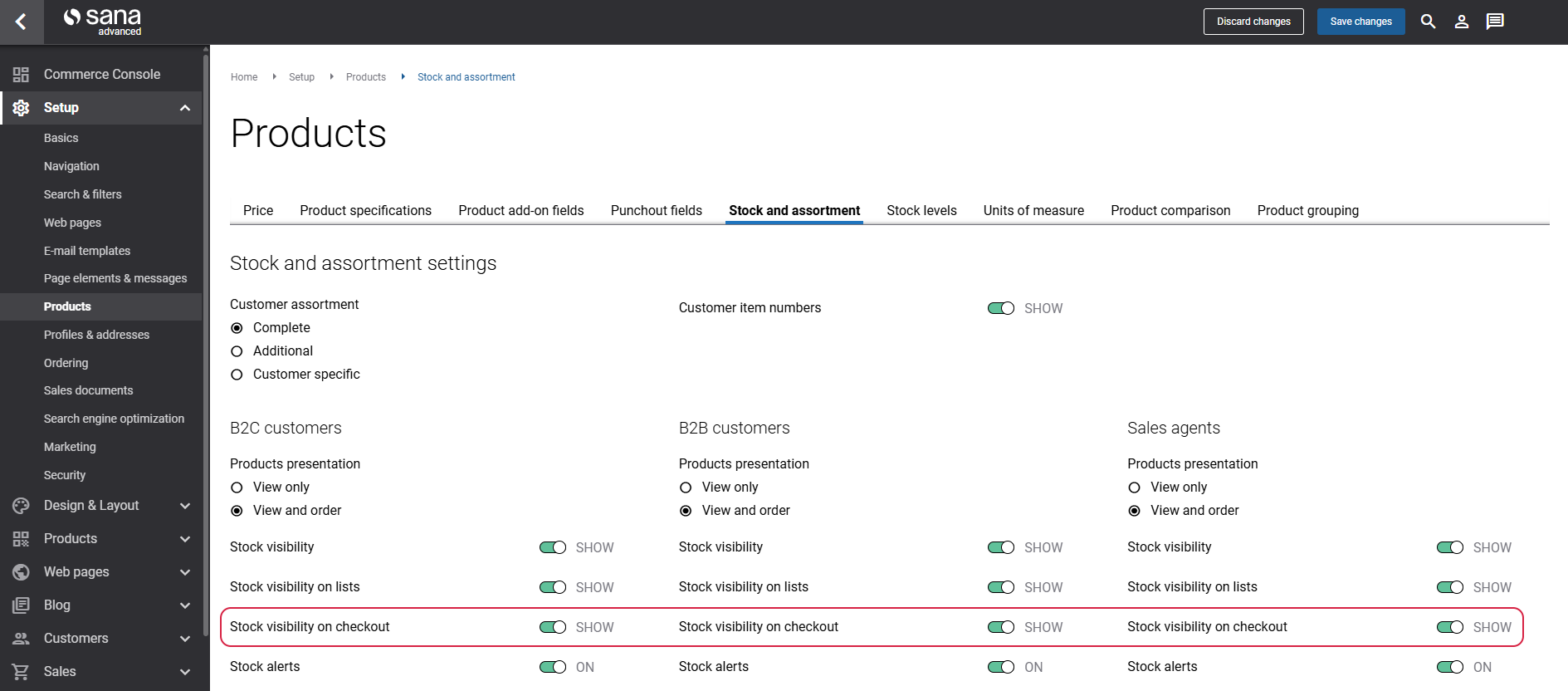
Step 1: In Sana Admin click: Setup > Products > Stock and assortment.
Step 2: Enable the Stock visibility on checkout setting to display the available stock for products in the shopping cart and during checkout.
The feature can be activated based on customer types, allowing for tailored inventory presentation. For more information, see Stock Presentation.
Stock is not shown if you use the Optimized for large orders order processing strategy.
Customers can order more products than are available in stock only if product availability is not checked. To allow this, you must disable the Availability depends on stock option.
In the screenshot below, you can see how the real-time stock information is displayed on the checkout page.