Webstore Search Tracking
Using the Google Analytics 4 site search tracking feature, you can determine the search terms (keywords) used by your webstore visitors to find the information they are looking for.
To keep track of the search terms your visitors use on the webstore, you need to:
- Make sure that the site search event measurement is enabled in Google Analytics.
- Create the custom search event in Google Tag Manager.
Check if the Site Search Event Measurement is Enabled in Google Analytics
Step 1: Open Google Analytics. Make sure you are using the correct Google Analytics 4 account and property - the one used for your Sana webstore.
Step 2: In the property settings, click: Data collection and modification > Data Streams, and open the data stream used for your Sana webstore.
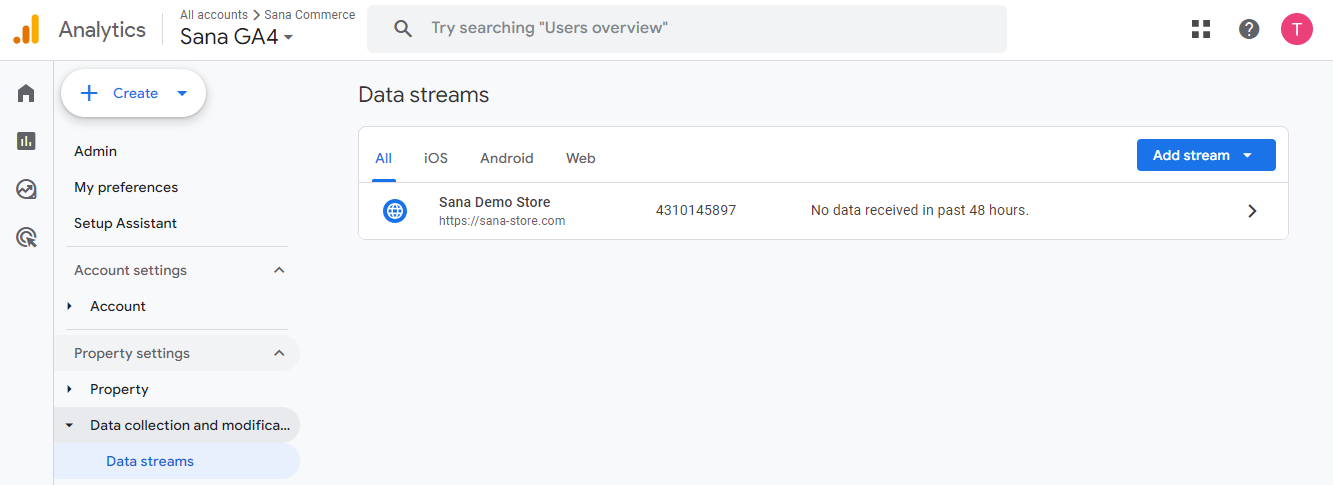
Step 3: Make sure that the Site search event is available.
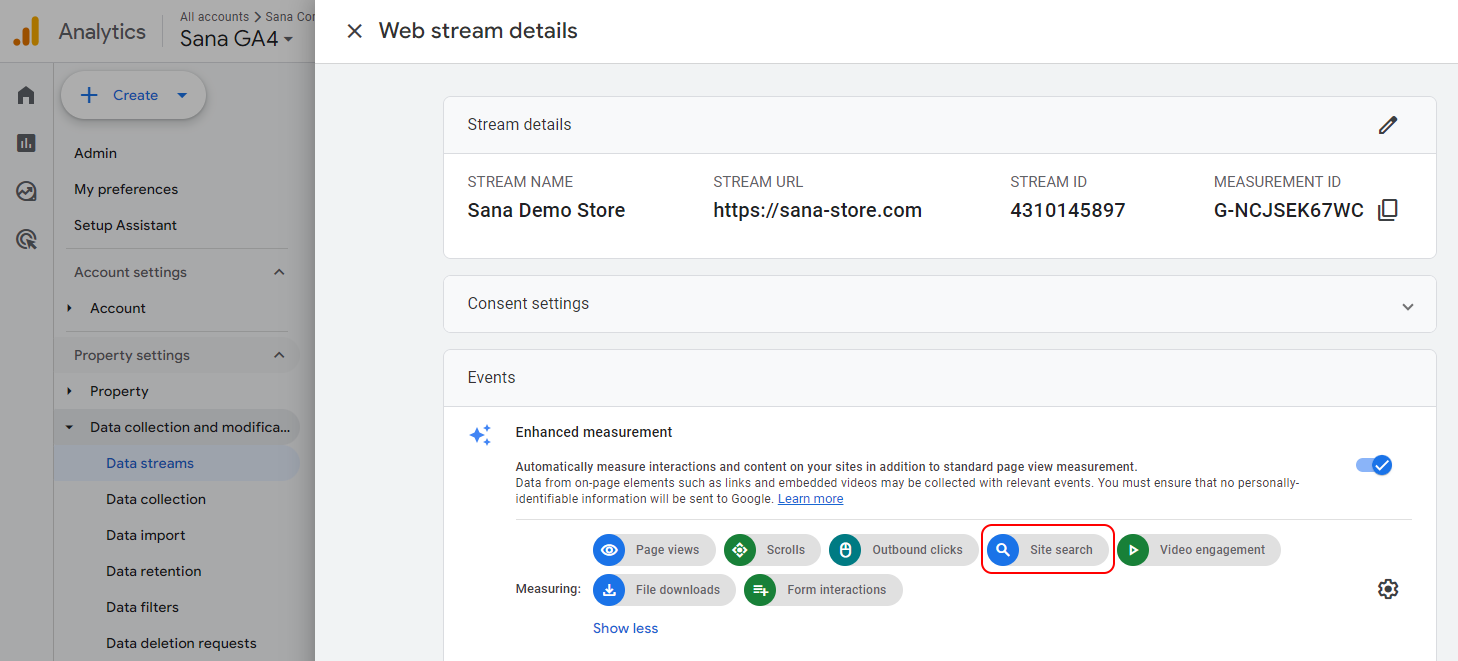
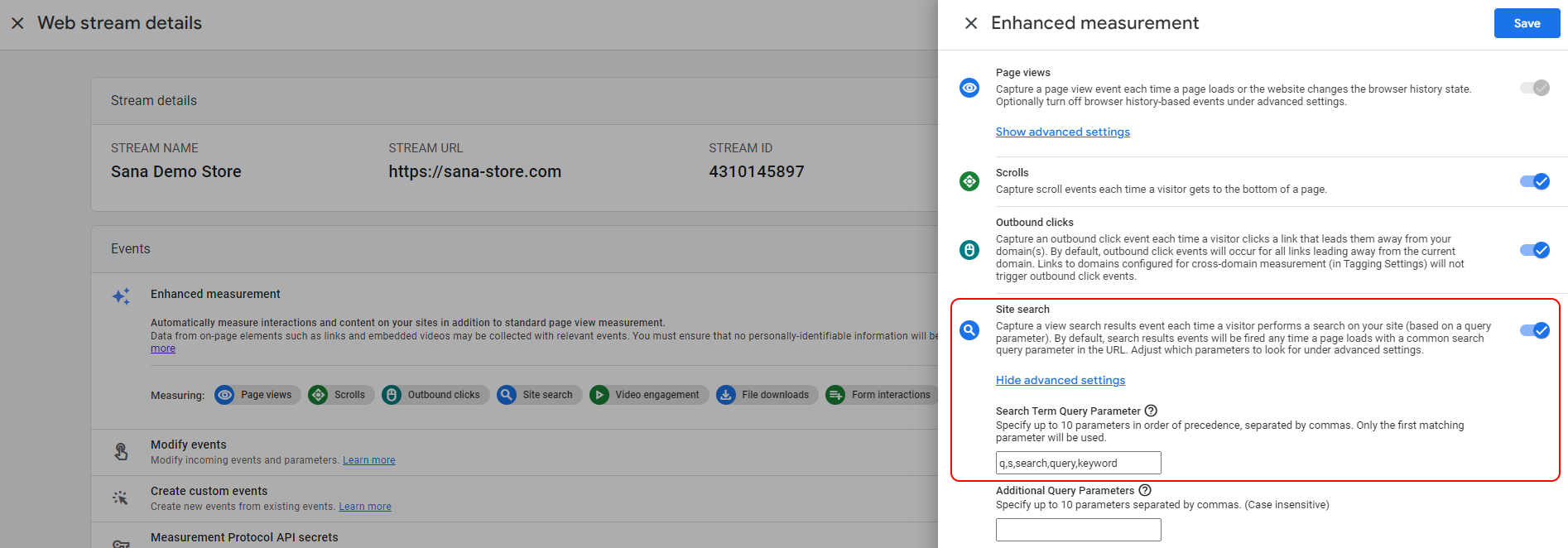
If not, click Configure enhanced measurement and enable it.
Sana uses q as the search term query parameter.
Create a Data Layer Variable for Search Terms
To create the custom search event described below, you need two data layer variables, one for search terms and the other for the number of search results (number of products found).
Step 1: Open Google Tag Manager.
Step 2: Click on the container that is used for your Sana webstore.
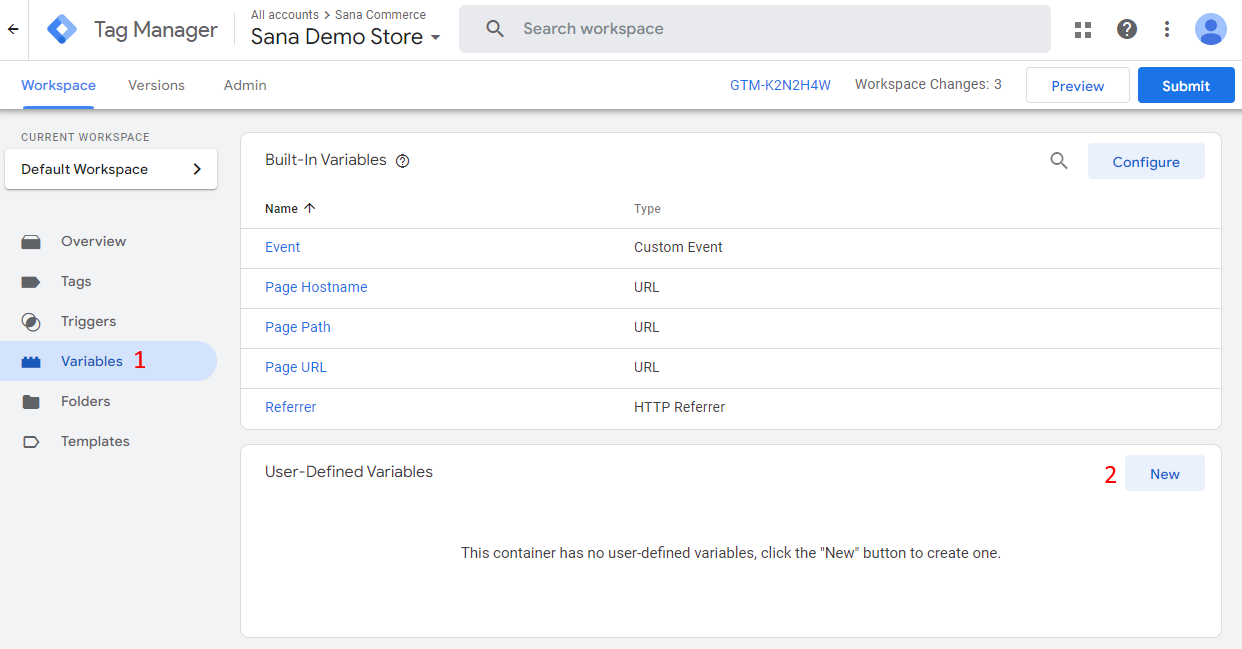
Step 3: Go to Variables.
Step 4: To create a variable, in the User-Defined Variables section, click New and name your variable.
Step 5: Click Choose a variable type to begin setup… and choose Data Layer Variable.
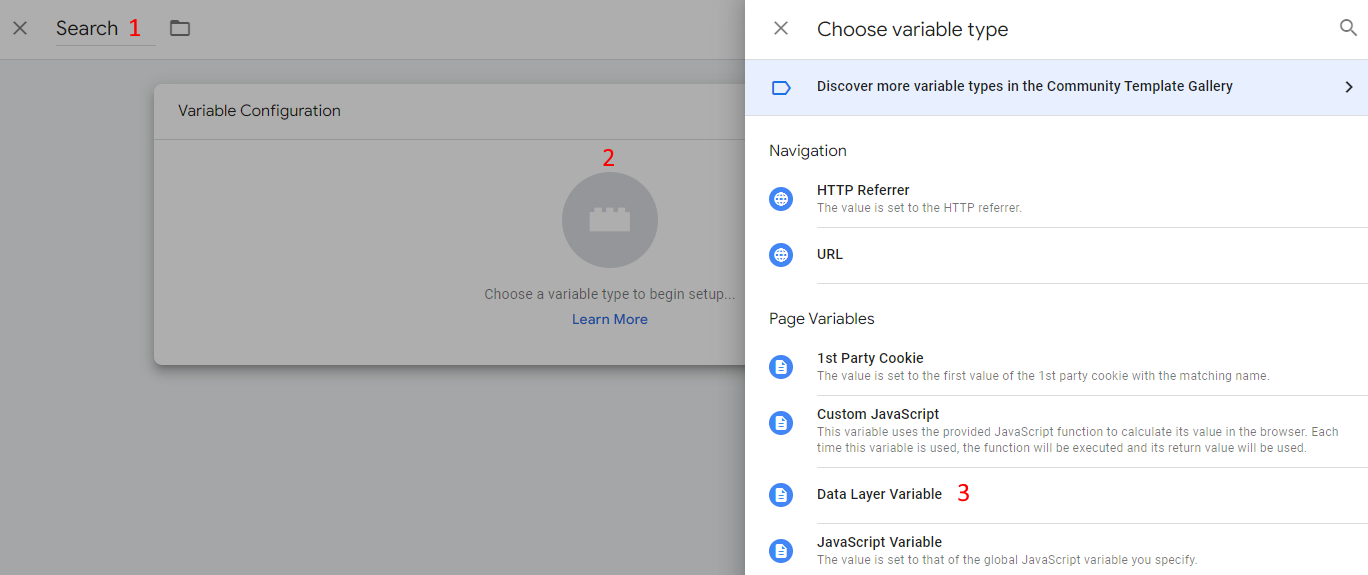
Step 6: In the Data Layer Variable Name field, enter search_term.
Step 7: In the Data Layer Version field, select Version 2.
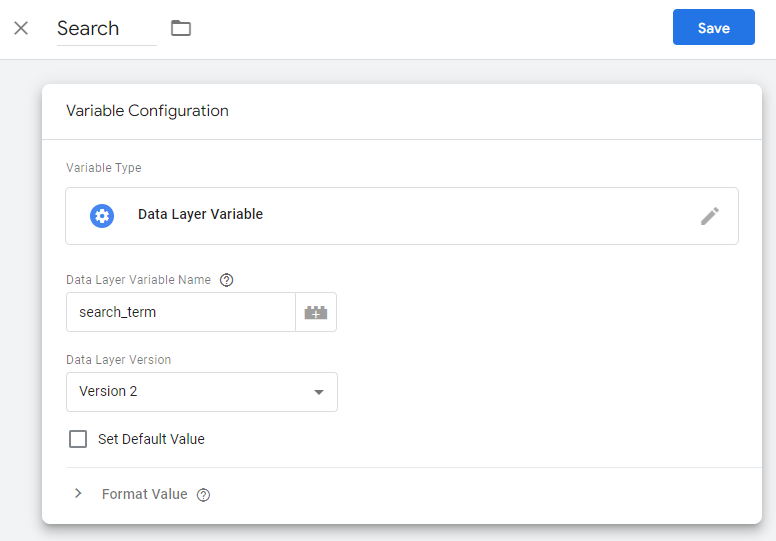
Step 8: Click Save.
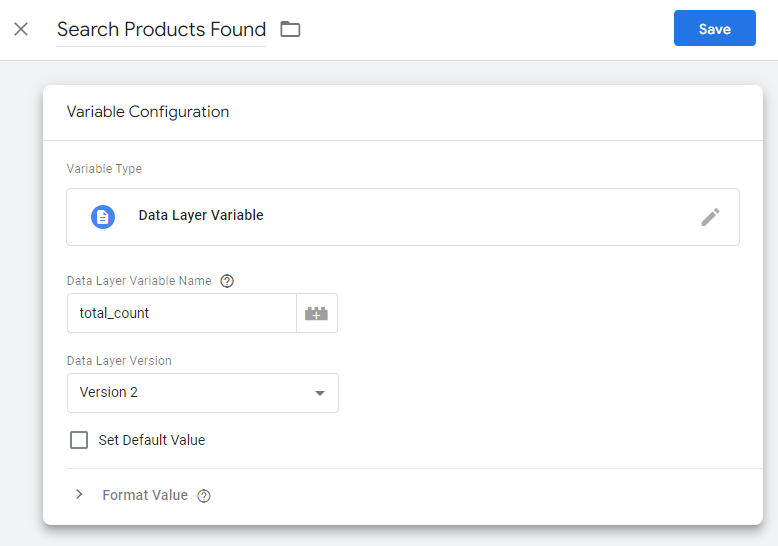
Step 9: In the same way as described above, create a second data layer variable to keep track of the number of products found. In the Data Layer Variable Name field, enter total_count.
Create the Custom Search Event in Google Tag Manager
Step 1: Open Google Tag Manager.
Step 2: Click on the container that is used for your Sana webstore.
Step 3: Go to Tags. To add a new tag, click New.
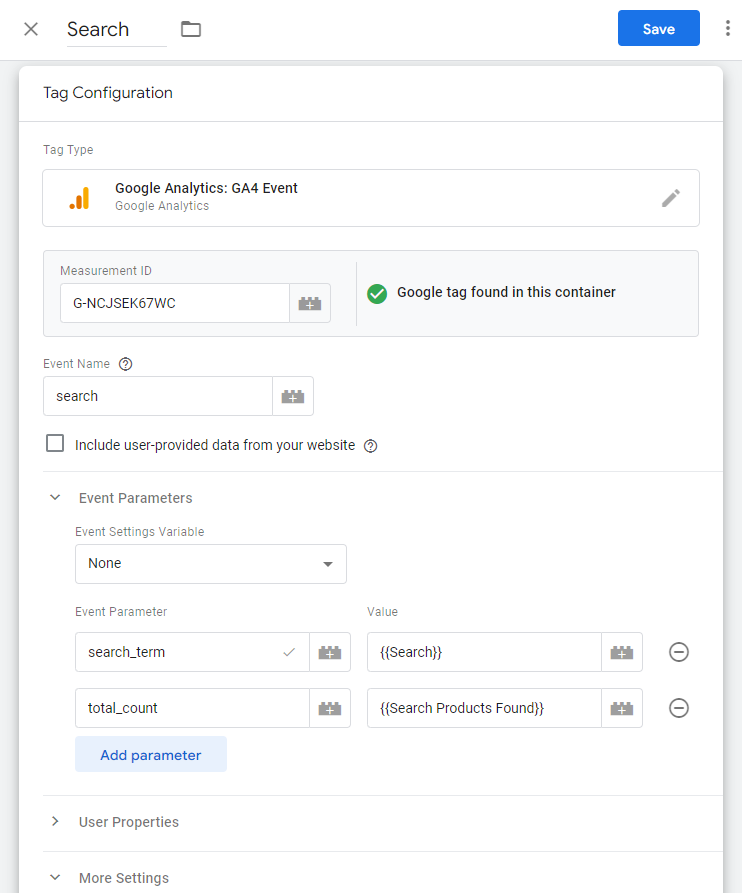
Step 4: Name your tag and configure it. To understand which tag is responsible for what, it is better to name them similarly to the corresponding event names, for example Search.
4.1 Tag Configuration: Choose Google Analytics: GA4 Event.
4.1.1 Select the Measurement ID created earlier.
4.1.2 In the Event Name field, enter search.
4.1.3 Under Event Parameters, click Add Parameter. You must add two rows with two different parameters and values.
Parameter 1: In the Event Parameter field, enter search_term. In the Value field, select the search_termdata layer variable created earlier.
Parameter 2: In the Event Parameter field, enter total_count. In the Value field, select the total_countdata layer variable created earlier.
4.1.4 Under More Settings, select the Send Ecommerce data checkbox.
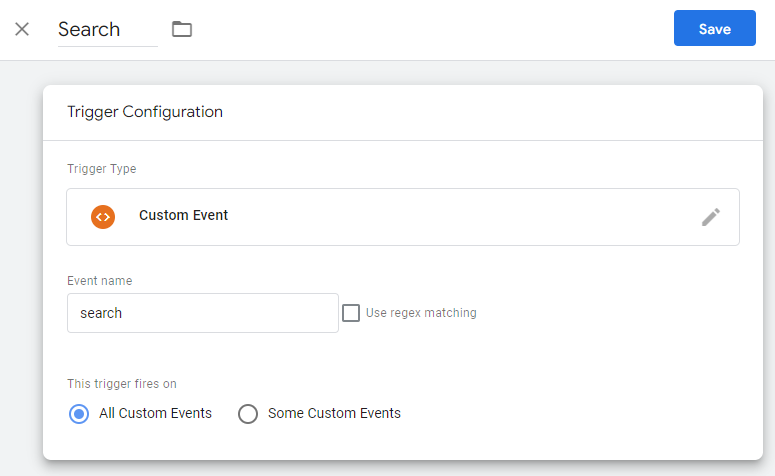
4.2 Triggering: You must create a new Custom Event trigger for the search event.
Step 5: Click Save to save the tag.
When you are ready, you can preview and debug the container, and publish your changes.


