Track Ecommerce Data
Events are used to measure user interactions on your Sana webstore, for example, you can measure when someone loads a page, clicks a link, or makes a purchase. Google Analytics uses data from events to create reports.
You need to create 10 different events.
| Event name | Description |
|---|---|
| select_item | It is triggered when a user clicks on a product. |
| view_item | It is triggered when a user views a product details page. |
| view_item_list | It is triggered when a user views a product list page, search results, and last viewed products. |
| add_to_cart | It is triggered when a user adds one or multiple products to the shopping cart. |
| remove_from_cart | It is triggered when a user removes one or multiple products from the shopping cart. |
| begin_checkout | It is triggered when a user initiates the checkout process. |
| add_payment_info | It is triggered when a user selects a payment method during checkout. |
| add_shipping_info | It is triggered when a user selects a shipping method during checkout. |
| purchase | It is triggered when a user places an order. |
Step 1: Open Google Tag Manager.
Step 2: Click on the container that is used for your Sana webstore.
Step 3: Go to Tags. To add a new tag, click New.
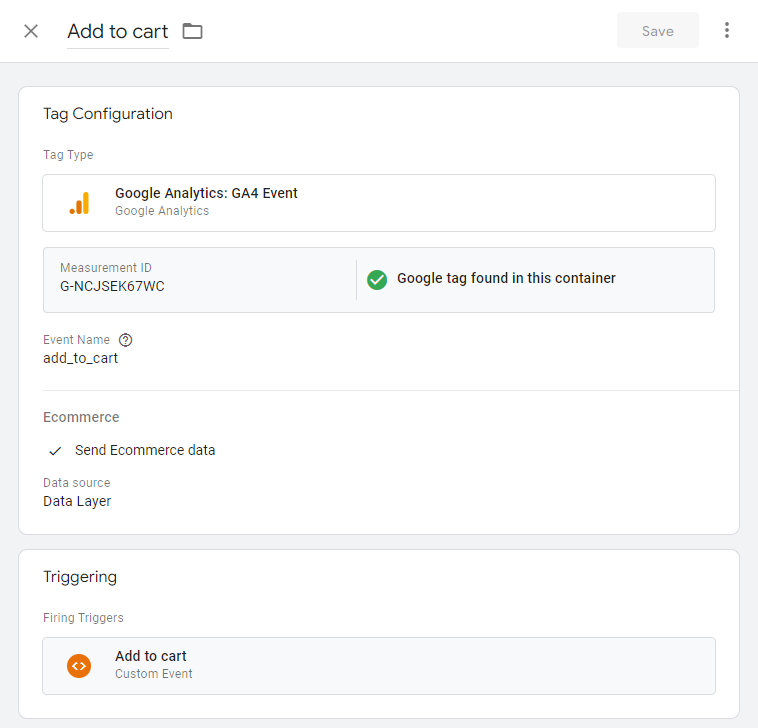
Step 4: Name your tag and configure it. To understand which tag is responsible for what, it is better to name them similarly to the corresponding event names.
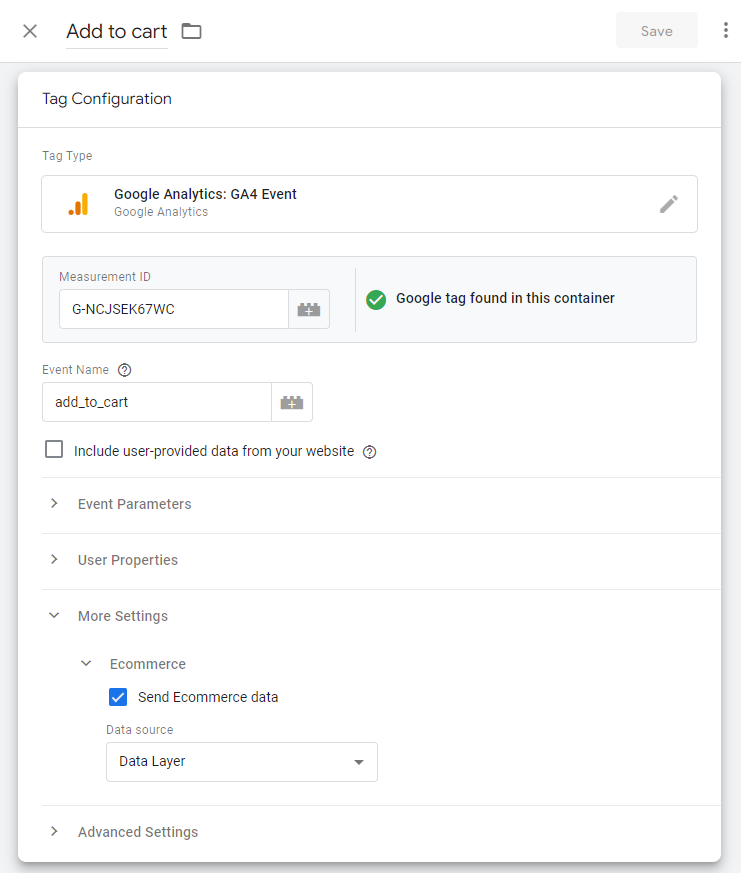
4.1 Tag Configuration: Choose Google Analytics: GA4 Event.
4.1.1 Select the Measurement ID created earlier.
4.1.2 In the Event Name field, enter the necessary event name. In the table above you can see a list of all events supported by Sana.
4.1.3 Under More Settings, select the Send Ecommerce data checkbox.
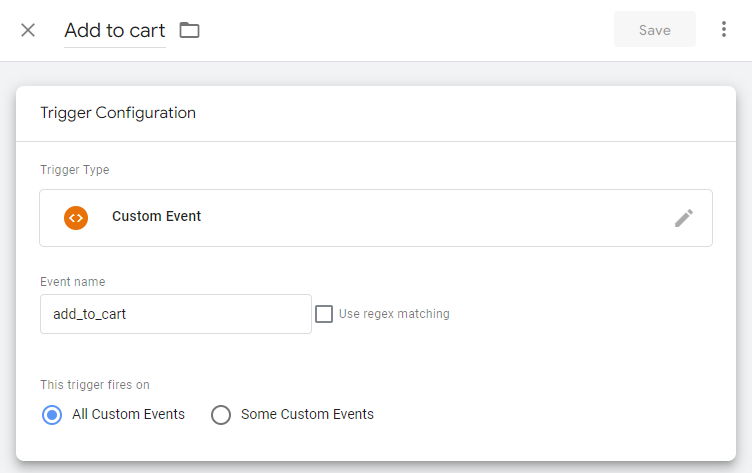
4.2 Triggering: You must create a new Custom Event trigger for each event.
Step 5: Click Save to save the tag.