Recognize Sales Document Types
After completing the initial Google Analytics 4 configuration for your Sana webstore, you can extend purchase tracking with the document_type parameter. This parameter allows Google Analytics 4 to distinguish between different transaction types, such as orders, quotes, and invoice orders. You can then use the transaction type in reports and filters to analyze each type of transaction separately.
This configuration assumes that Google Analytics 4 and Google Tag Manager have already been configured for your Sana webstore. In particular, the purchase event must already be configured in Google Tag Manager, as the steps below extend the existing purchase event with the document_type parameter.
Create the Document Type Data Layer Variable
First, create a Google Tag Manager variable that retrieves the document_type value from the Sana webstore data layer.
Step 1: Open Google Tag Manager and select the container used for your Sana webstore.
Step 2: Go to Variables.
Step 3: In the User-Defined Variables section, click New.
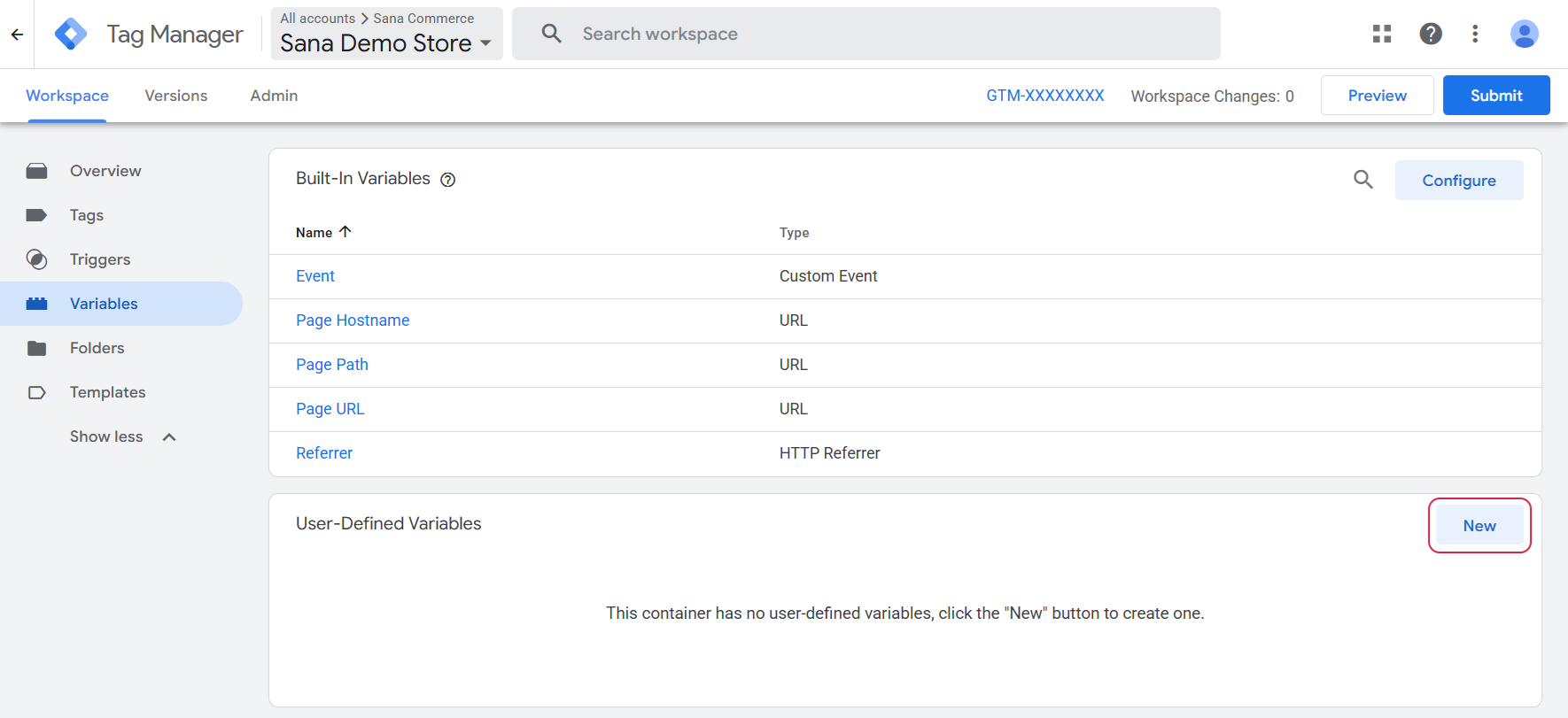
Step 4: Configure the variable.
4.1 Click Choose a variable type to begin setup… and select Data Layer Variable under Page Variables.
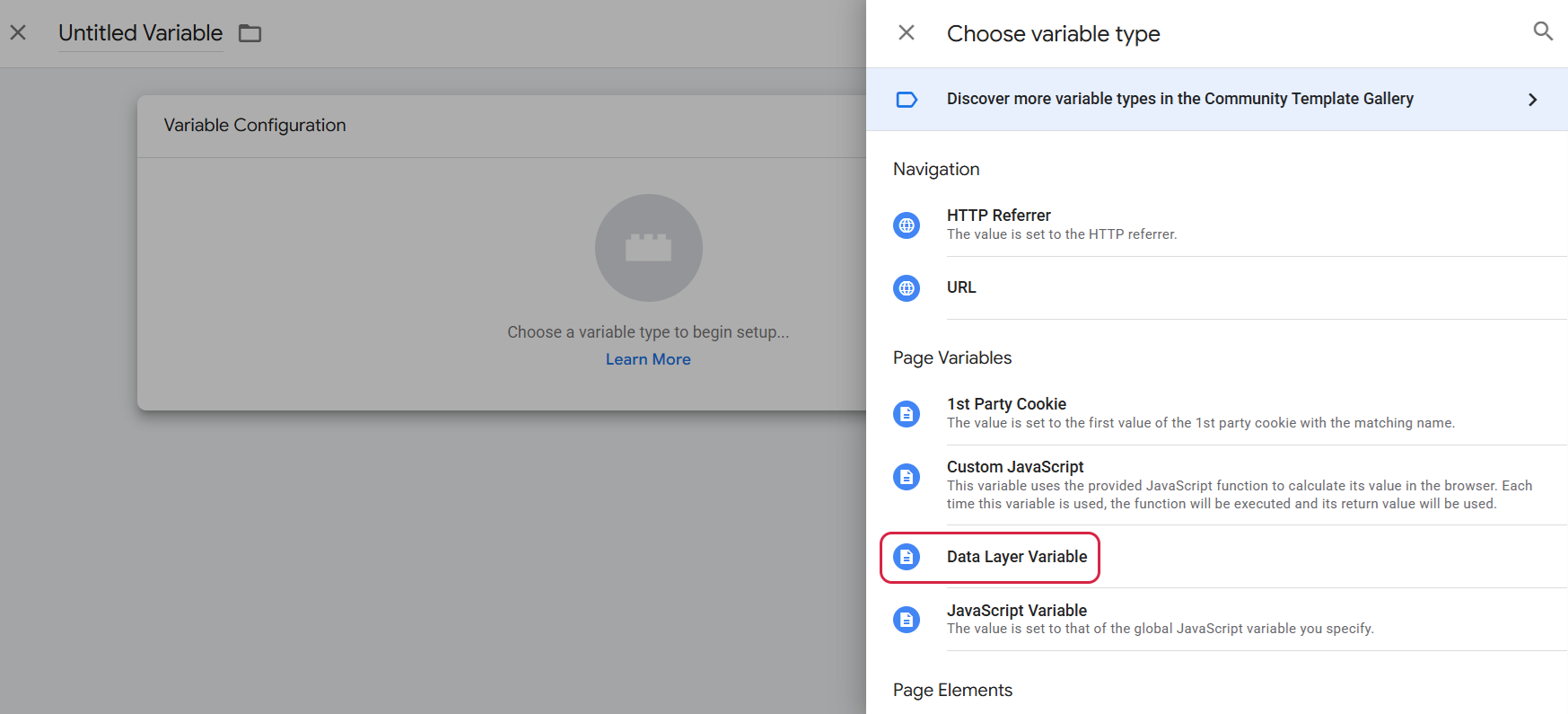
4.2 In the Data Layer Variable Name field, enter document_type.
4.3 In the Data Layer Version field, select Version 2.
4.4 Click Save.
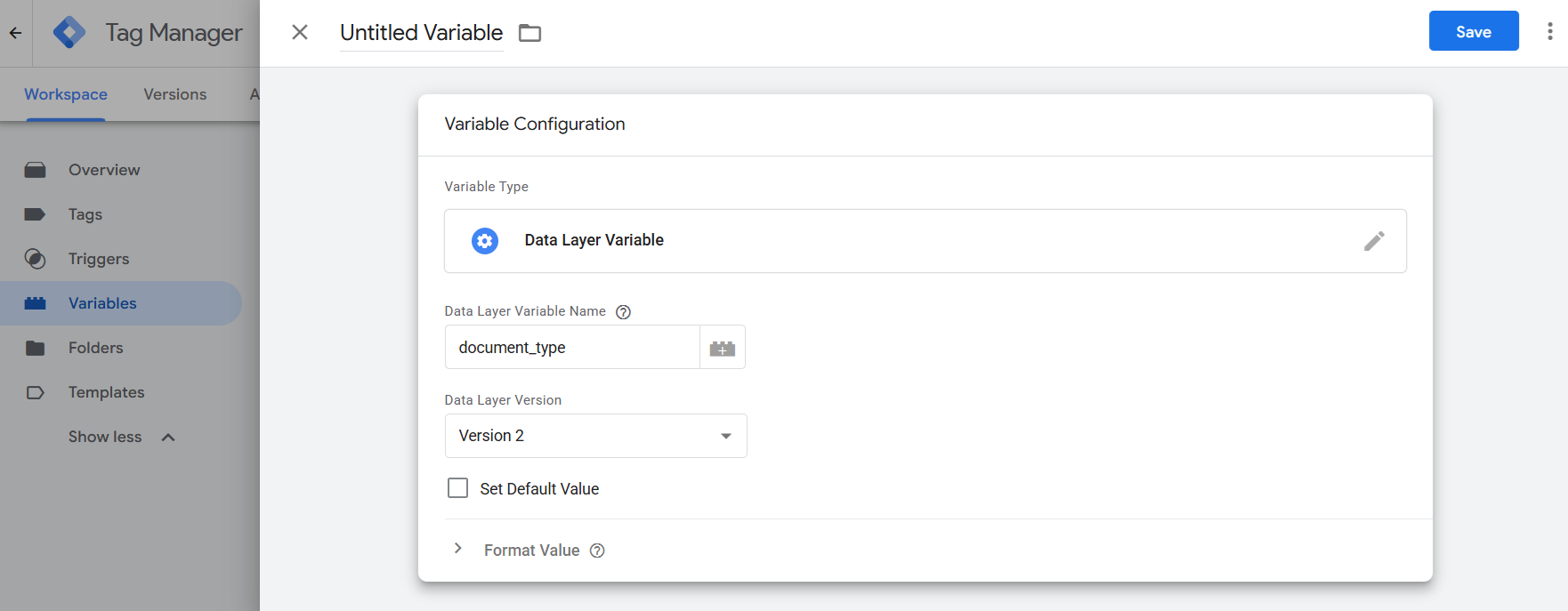
The document_type variable can now retrieve the transaction type provided by the Sana webstore.
Add the Document Type Parameter to the Purchase Event
Next, add the document_type variable to the Google Analytics 4 purchase event. This ensures that the transaction type is sent to Google Analytics together with the purchase data.
Step 1: In Google Tag Manager, go to Tags.
Step 2: Open the Google Analytics: GA4 Event tag used for the purchase event. This is the purchase event tag that was created during the initial Google Analytics 4 setup.
Step 3: Under Event Parameters, click Add parameter. Configure the parameter as follows:
| Setting | Value |
|---|---|
| Event Parameter | document_type |
| Value | {document_type}} |
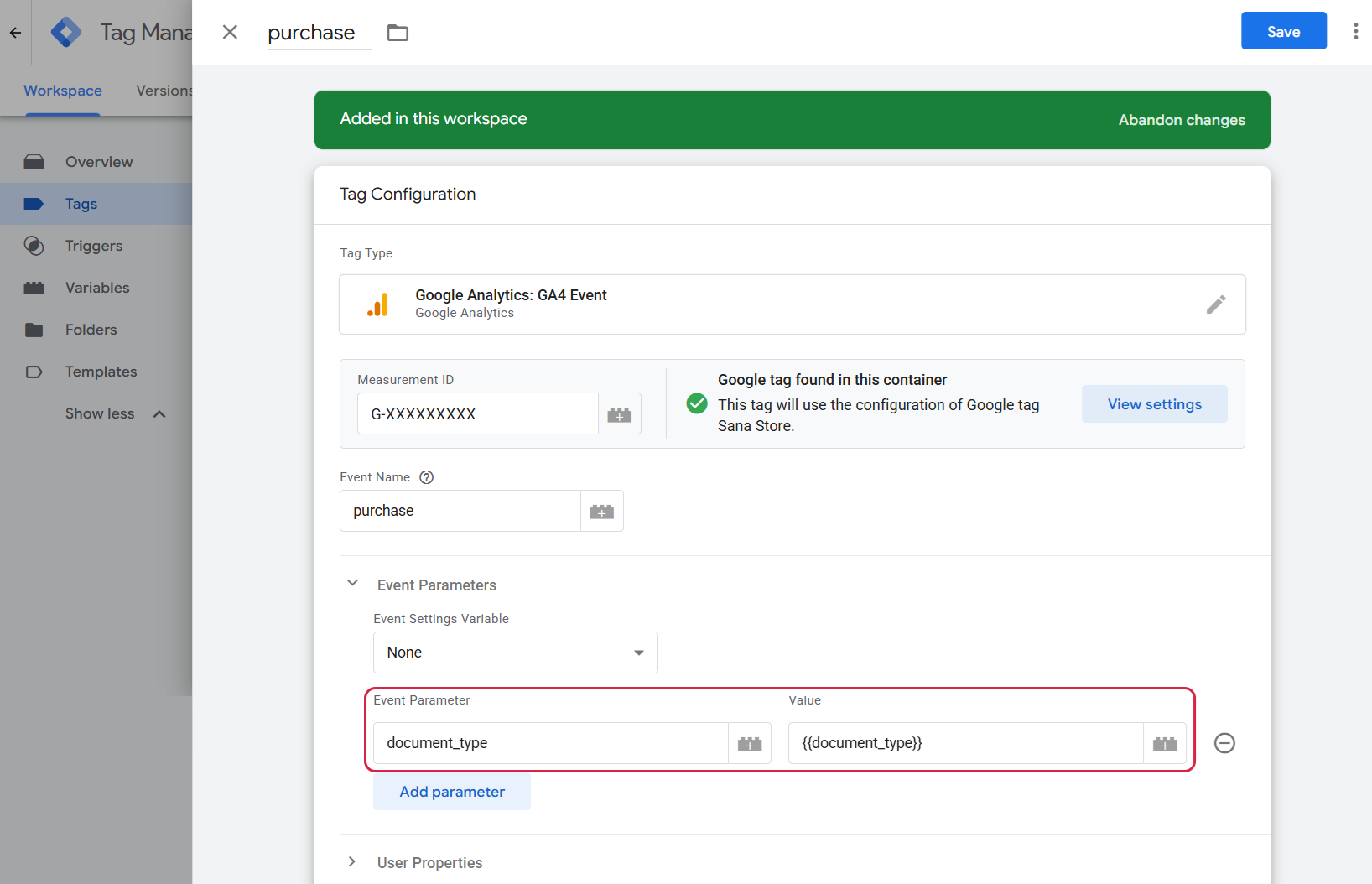
Step 4: Click Save.
Step 5: Submit and publish a new version of the Google Tag Manager container. The updated configuration is now published to your Sana webstore, and the purchase event will include the transaction type.
Create a Custom Dimension in Google Analytics
The document_type event parameter must be registered as a custom dimension before you can use it in Google Analytics reports.
Step 1: Open Google Analytics and make sure you are using the property connected to your Sana webstore.
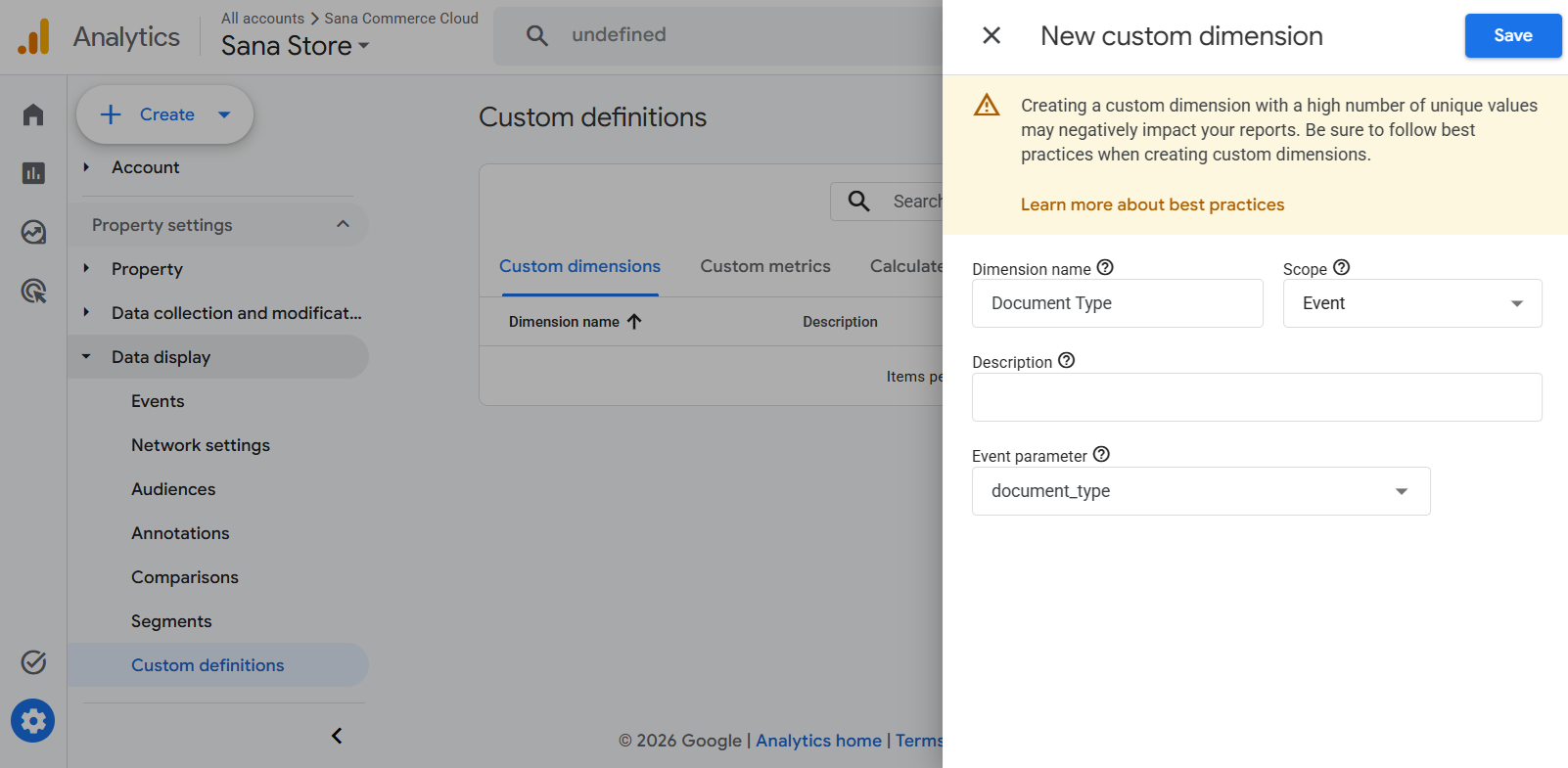
Step 2: Go to Admin > Property settings > Data display > Custom definitions > Custom dimensions.
Step 3: Click Create custom dimension.
Step 4: Configure the custom dimension as follows:
| Setting | Value |
|---|---|
| Dimension name | Document Type |
| Scope | Event |
| Event parameter | document_type |
Step 5: Click Save.
After creating the custom dimension, place a new order in the webstore and wait for the corresponding purchase data to appear in Google Analytics.
Google Analytics does not apply the custom dimension retroactively. The dimension becomes available for new data after it has been registered.
Once data is available, you can use Document Type in reports and filters.
Display the Transaction Type in the Transactions Report
You can add Document Type to the Transactions report to see the transaction type for each transaction.
Step 1: In Google Analytics, go to Reports > Life cycle > Monetisation > Transactions.
Step 2: Scroll down to the transactions table.
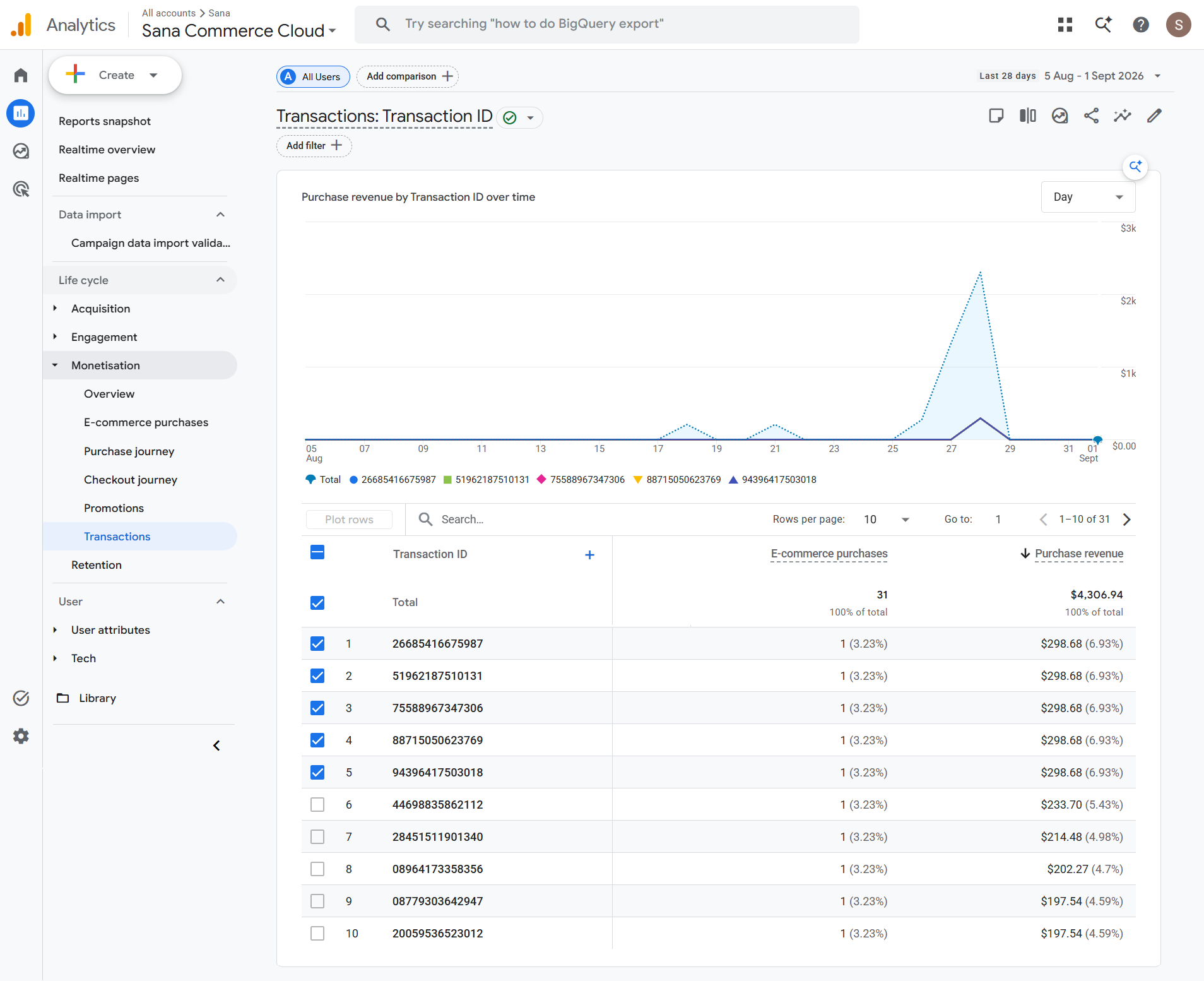
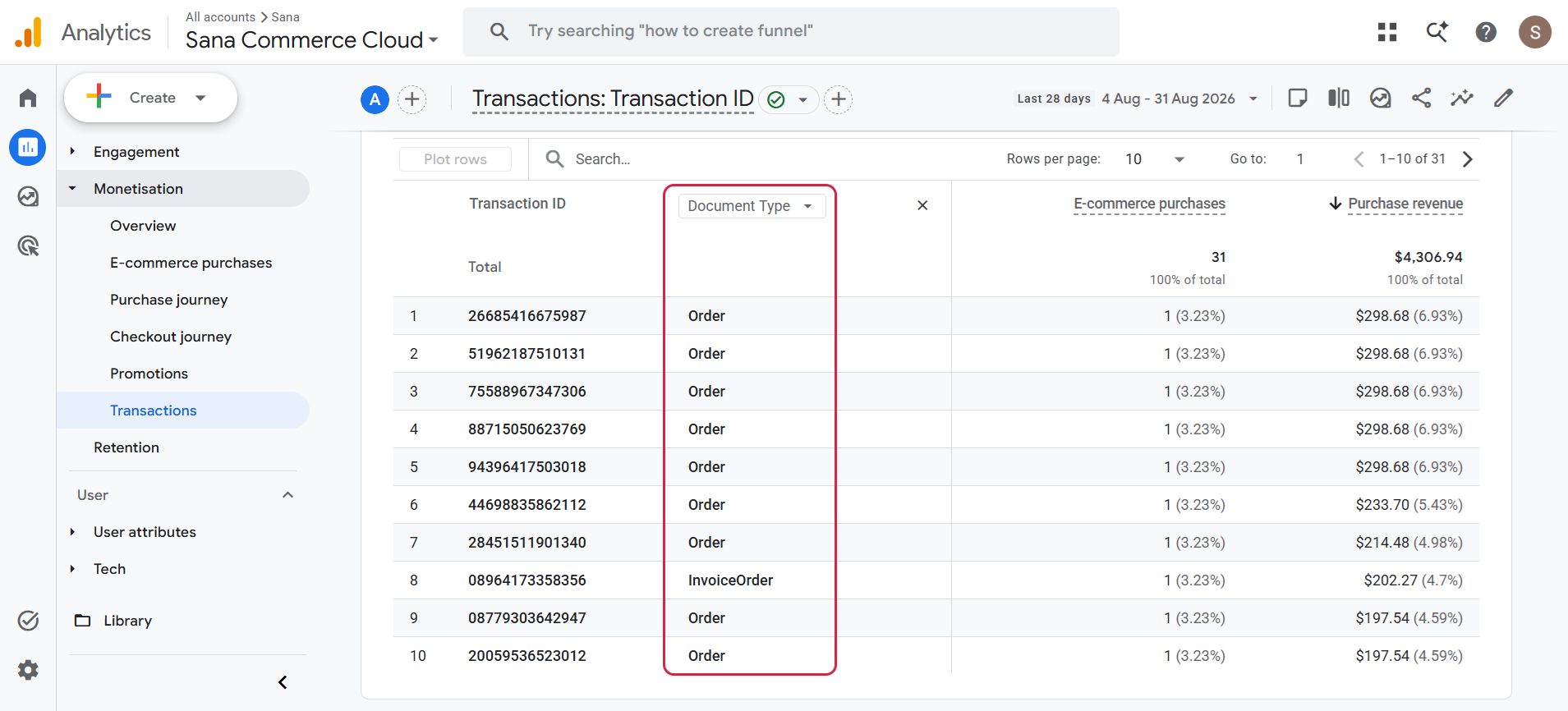
Step 3: Click the + button next to Transaction ID and select Document Type as the additional dimension.
The transactions table now displays the document type for each transaction. This allows you to distinguish between transaction types such as:
-
Order
-
Quote
-
InvoiceOrder
Filter the Report by Transaction Type
You can also filter the Transactions report to analyze a specific transaction type.
Step 1: In the Transactions report, click Add filter.
Step 2: Configure the filter. For example, to display only transactions related to orders, use the following settings:
| Setting | Value |
|---|---|
| Dimension | Document Type |
| Match Type | exactly matches |
| Value | Order |
Step 3: Click Apply.
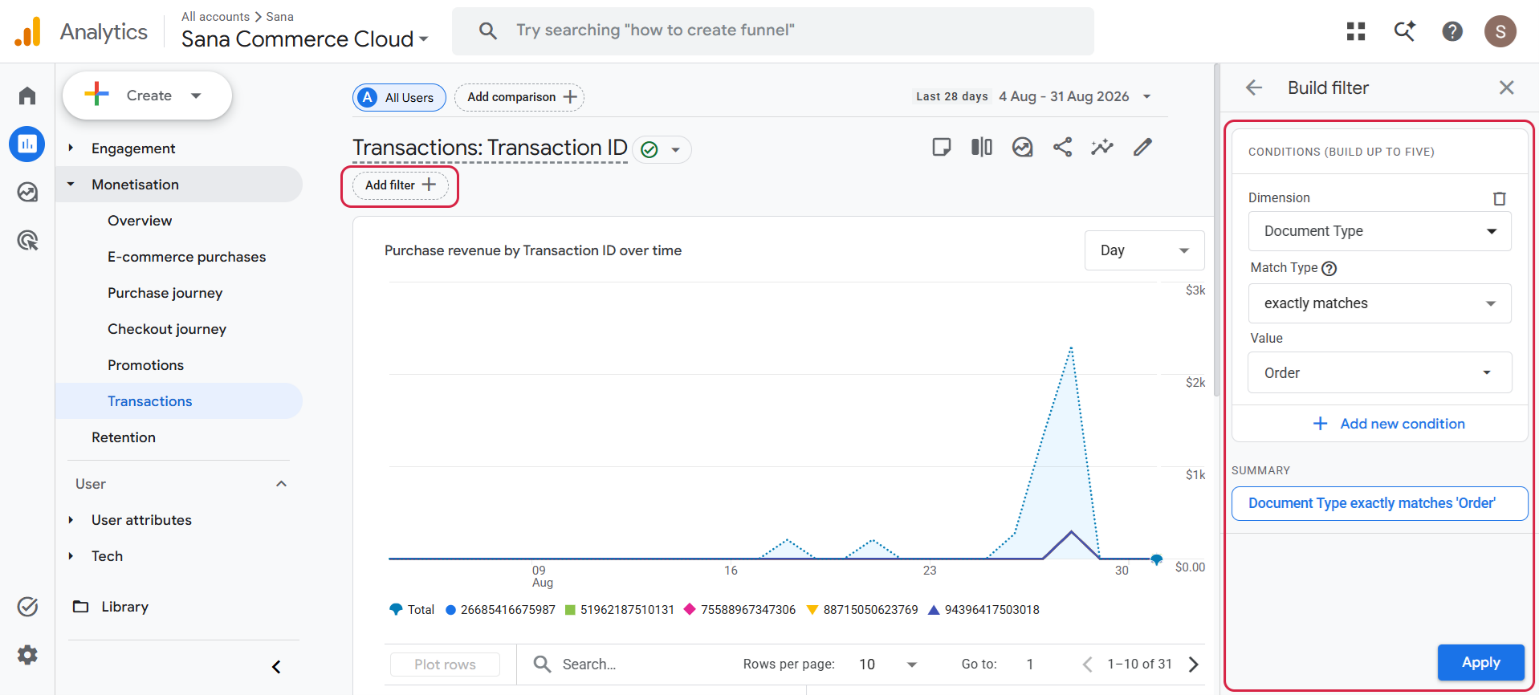
The report now displays only transactions where Document Type exactly matches Order. You can use the same approach to analyze other transaction types, such as Quote or InvoiceOrder.


