Create Google Tag Manager Account and Container
Google Tag Manager allows you to manage and deploy tracking tags for your Sana webstore without directly modifying its code. Follow the steps below to create a Google Tag Manager account and container, then connect the container to Sana Admin.
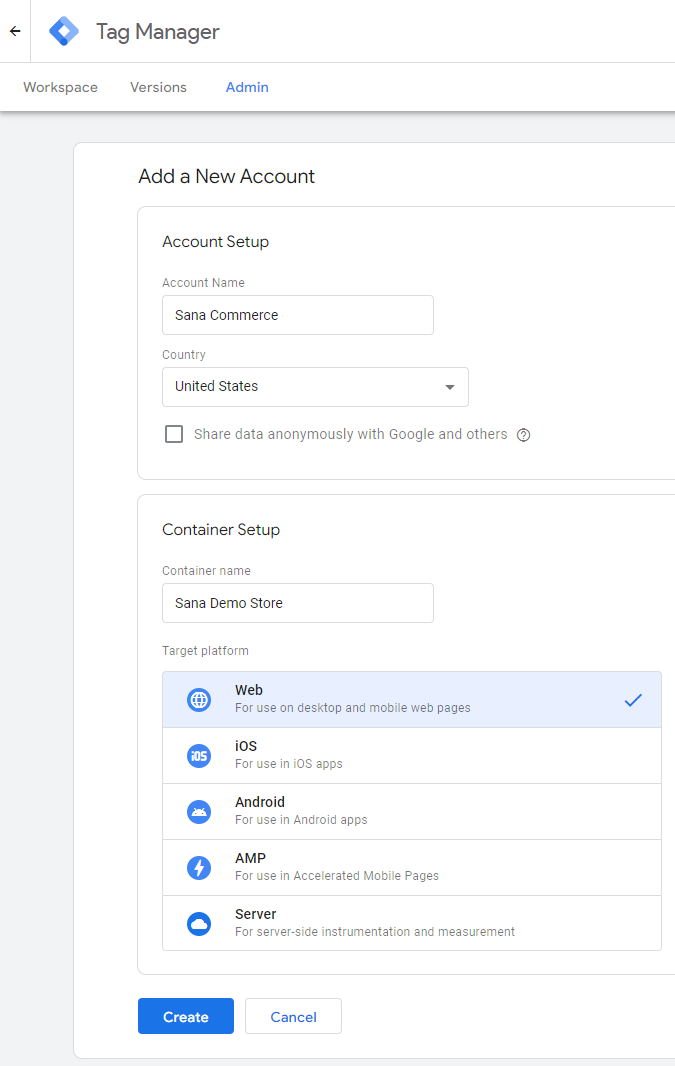
Step 1: Open Google Tag Manager and create an account.
If you already have a Google Tag Manager account, you can create a new container for the Sana webstore with the Web target platform.
1.1 Enter the account name and select the country.
1.2 Enter the container name and select the Web target platform.
1.3 Click Create and agree to the Terms of Service.
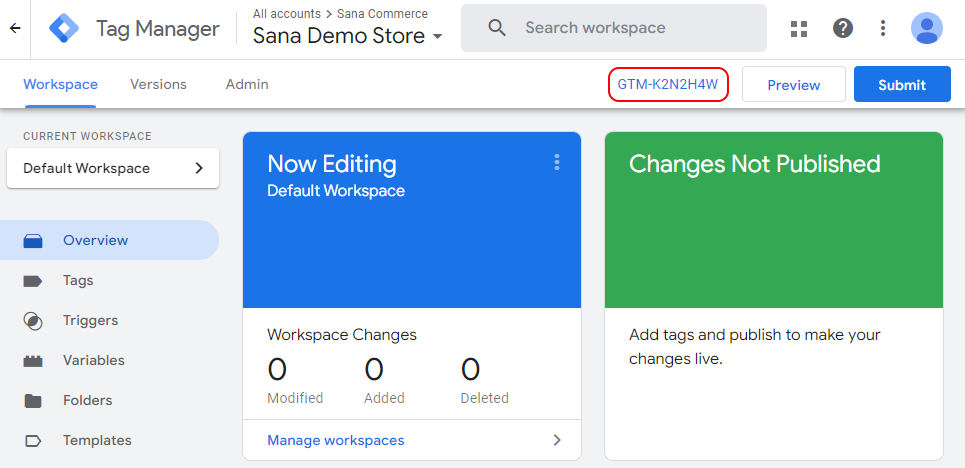
Step 2: When the container is created, you will see the container ID in the following format GTM-XXXXXXX. Copy the container ID.
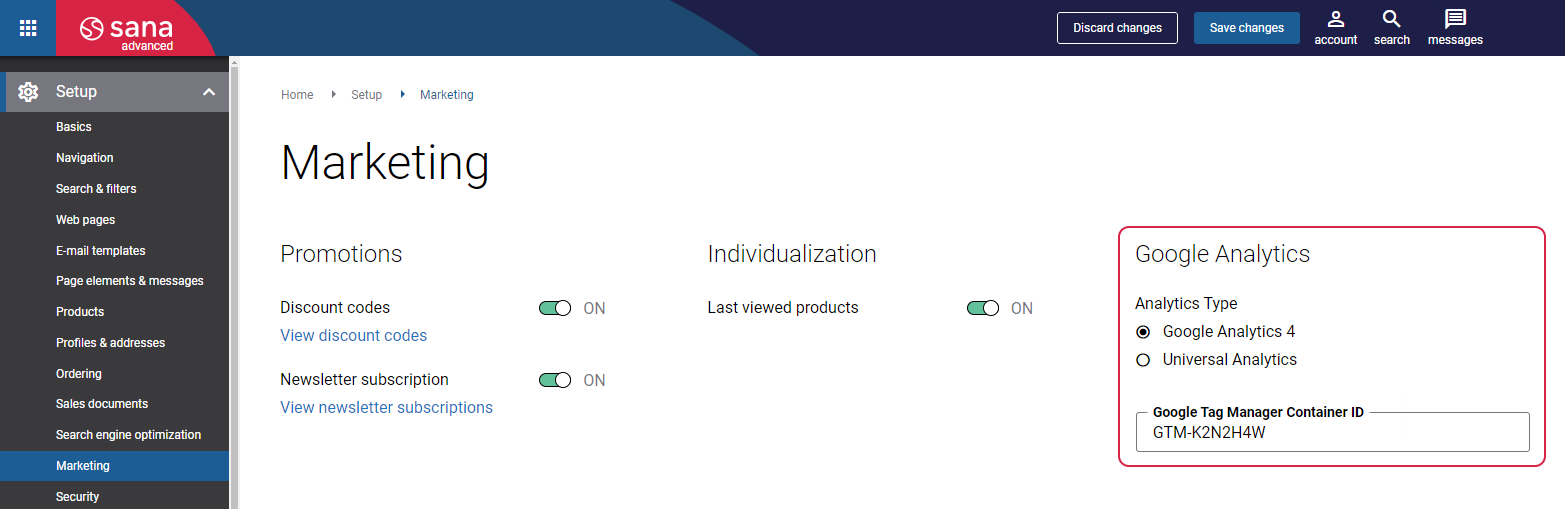
Step 3: Log in to Sana Admin and go to: Setup > Marketing. In the Google Analytics section, select Google Analytics 4. Enter the container ID in the Google Tag Manager Container ID field and save your changes.