Lookbook SVG File Preparation Guide
An SVG file for the Lookbook add-on is built from a script, a group named paperID, product lines, hotspots that react to the mouse, and a tooltip. This guide explains each part, using the sample and the script as a starting point, and ends with a checklist for verifying your file.
The instructions are intended for the Page-specific image type of the Lookbook content element.
Before You Start
To prepare your SVG, you need two reference files:
-
SVG sample — use this as the structural reference for a Lookbook-ready file.
-
Lookbook SVG script — include this script in the SVG <script> element.
The sample shows the structure of the SVG and where each element belongs. The script defines the functions that the hotspots call when the mouse moves over them, plus a function that sets up the paper.
Alternatively, you can generate the SVG in a tool, for example, SOLIDWORKS Composer. In that case, compare the generated file with the sample and with the structure described in this guide, and adjust it if it differs.
SVG File Structure
Use the following structure as a reference when preparing your file. The illustration below shows the structure of the SVG, and the sample file contains the same components.
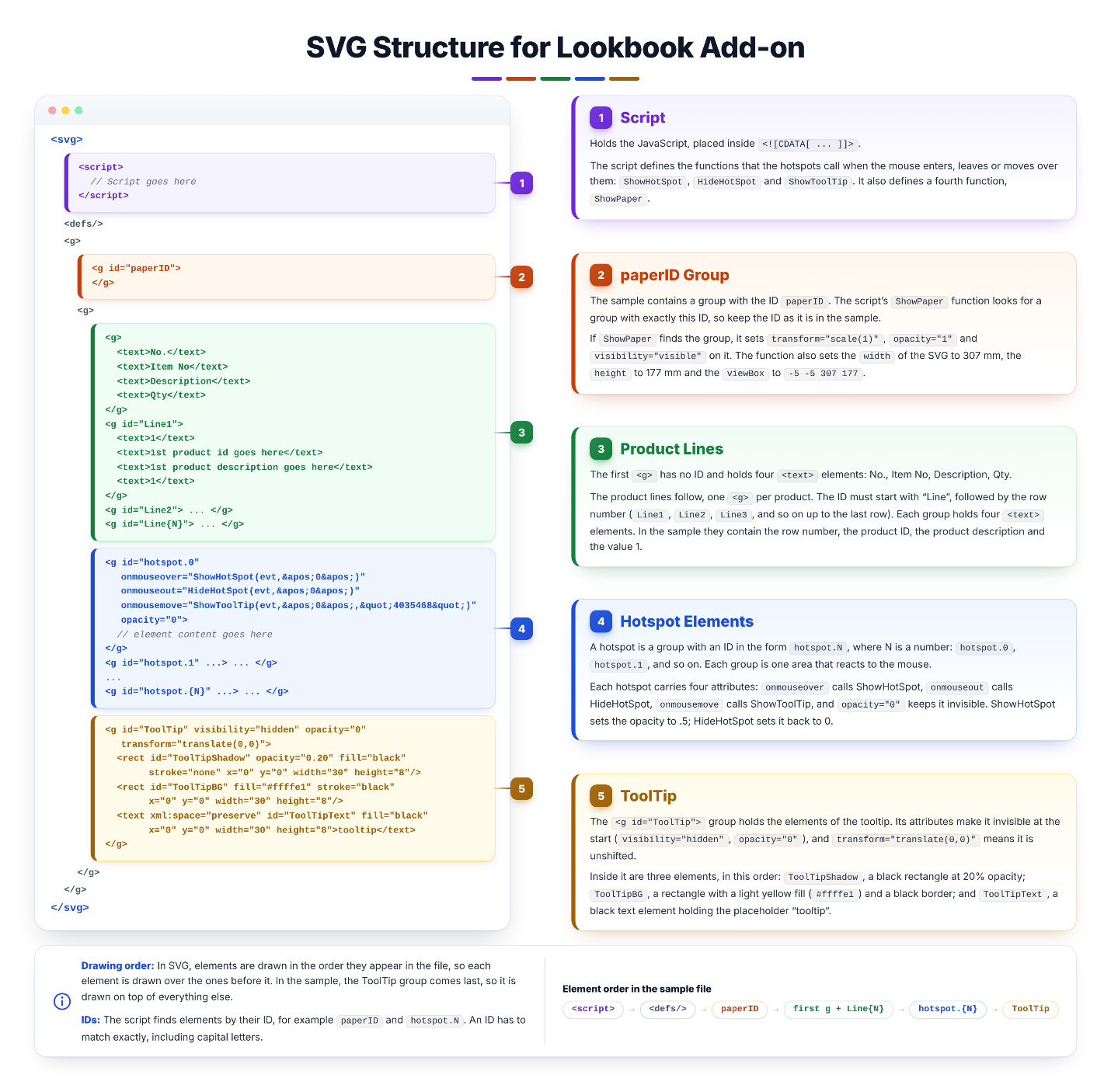
Creating an SVG File
Script
Replace the placeholder // Script goes here in the <script> element with the script you downloaded. The script starts with <![CDATA[ and ends with ]]>.The script defines four functions:
-
ShowHotSpot
-
HideHotSpot
-
ShowToolTip
-
ShowPaper
Download the Lookbook SVG script
The paperID Group
The sample contains a group with the ID paperID. The script's ShowPaper function looks for a group with exactly this id, so keep the ID as it is in the sample.
If ShowPaper finds the group, it sets transform="scale(1)", opacity="1" and visibility="visible" on it. The function also sets the width of the SVG to 307 mm, the height to 177 mm, and the viewBox to -5 -5 307 177.
Product Lines
The first <g> has no ID and holds four <text> elements: No., Item No, Description, and Qty. The product lines follow, one <g> per product. The ID of each line must start with Line, followed by the row number (Line1, Line2, and so on). Each line holds four <text> elements; in the sample, they contain the row number, the product id, the product description, and the value 1. Keep your product-line structure consistent with the sample when preparing the SVG.
This is the first line of the sample:
<g id="Line1">
  <text>1</text>
  <text>1st product id goes here</text>
  <text>1st product description goes here</text>
  <text>1</text>
</g>
Hotspots
A hotspot is a group with an ID in the form hotspot.N, where N is a number: hotspot.0, hotspot.1, and so on. Each group is one area that reacts to the mouse. This is the first hotspot of the sample:
<g id="hotspot.0"
onmouseover="ShowHotSpot(evt,'0')"
onmouseout="HideHotSpot(evt,'0')"
onmousemove="ShowToolTip(evt,'0',"4035468")"
opacity="0">
// element content goes here
</g>
-
Mouse events: The attributes onmouseover, onmouseout, and onmousemove call ShowHotSpot, HideHotSpot, and ShowToolTip. The hotspot starts with opacity="0", which keeps it invisible. ShowHotSpot sets the opacity to .5, and HideHotSpot sets it back to 0.
-
The number N: Use the same number in the ID and in the three calls, as in the sample. ShowHotSpot and HideHotSpot find the group by joining hotspot. and the number from the call.
-
The tooltip text: It is the third argument of ShowToolTip. The sample uses 4035468 for the hotspots shown.
-
Quotes: Inside the attribute values, the single quote (') is written as ' and the double quote (") is written as ", as in the sample. For example, '0' appears as '0', and "4035468" appears as "4035468".
-
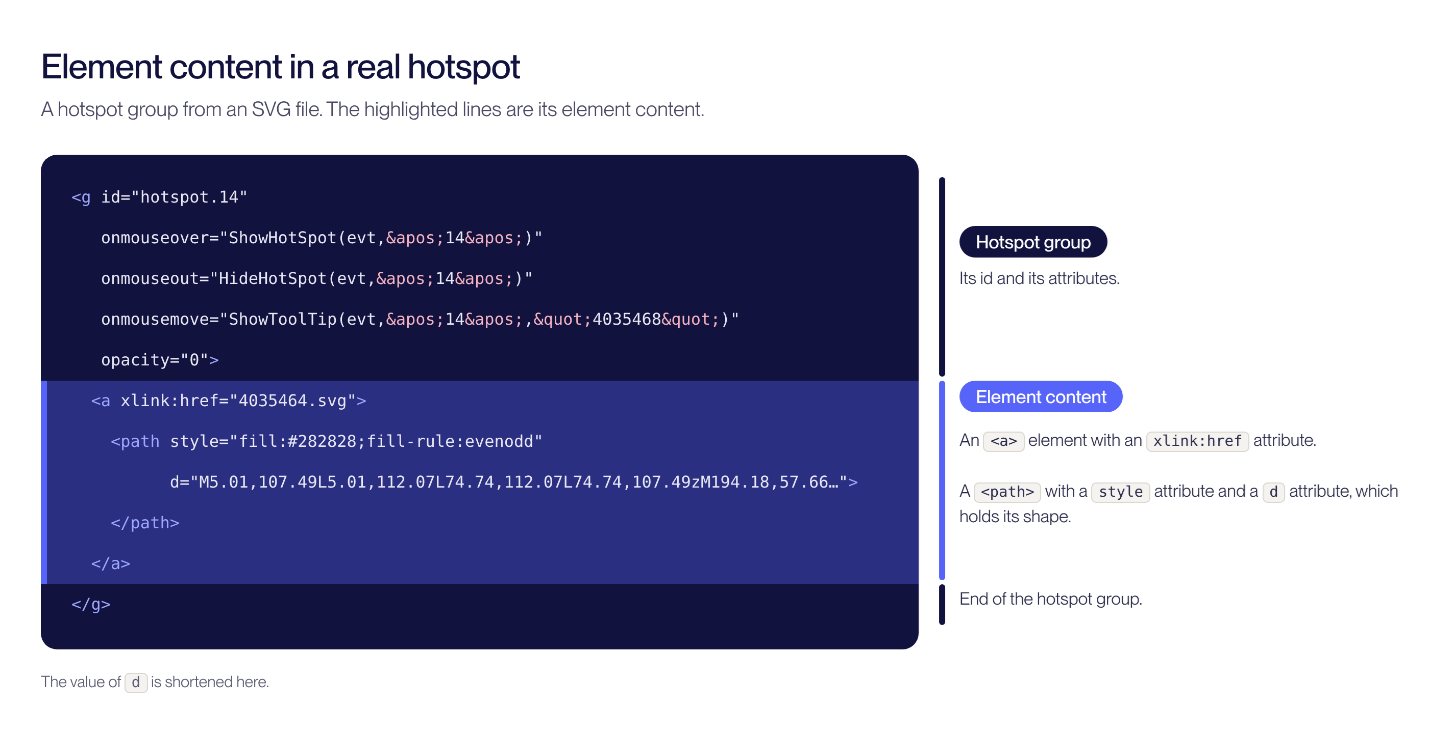
The element content: The line // element content goes here marks where the content of a hotspot goes: inside the hotspot group, between its opening and closing tags. Replace it with the tags related to the highlighted part. They can be any tags, such as <path> or <g>.

The image below shows the element content of a real hotspot, hotspot.14. Here, the content is an <a> element with an xlink:href attribute, and it wraps a <path>. The d attribute of the path holds the shape of the area, and its style attribute sets how the shape is filled. The attributes of the group itself (its id, the mouse events, and the opacity) are not part of the element content.
Tooltip
The tooltip is a group with the ID ToolTip. In the sample, it is the last group in the file. Its attributes visibility="hidden" and opacity="0" keep it hidden at the start. transform="translate(0,0)" leaves it unshifted.
The group contains three elements, in this order:
-
ToolTipShadow is a black rectangle with 20% opacity (opacity="0.20").
-
ToolTipBG is a rectangle with a light yellow fill (#ffffe1) and a black border.
-
ToolTipText is a black text element. Its content in the sample is the placeholder "tooltip".
Keep the ids exactly as in the sample. The script looks for ToolTipText by ID and writes the tooltip text into it. When the mouse leaves a hotspot, HideHotSpot sets ToolTip to hidden.
Check Your File
-
The file opens in a web browser without an XML error message.
-
The script is pasted inside the <script> element. It begins with <![CDATA[ and ends with ]]>.
-
The groups follow the order and nesting of the sample, with the ToolTip group last.
-
The ids paperID, ToolTip, and ToolTipText are written exactly as in the sample, including capital letters.
-
The first group and every product line hold four <text> elements, and every product line ID starts with Line.
-
Every hotspot has an ID of the form hotspot.N, a number that is used only once. The same N appears in its ShowHotSpot, HideHotSpot, and ShowToolTip calls, because the script builds the hotspot ID from that number. Every hotspot also has onmouseover, onmouseout, onmousemove, opacity="0" and its own element content.
-
Quotes inside the calls are written as ' and ", as in the sample. The third argument of ShowToolTip is the tooltip text. If it is empty, the script does nothing.
-
No placeholder text is left, such as {N}, goes here, or Element content goes here.


