Create PFCG Roles
This topic explains how to create the roles required for different purposes.
Two PFCG roles need to be created:
-
Launchpad role (ZSANASTORE) – grants access to the Launchpad Catalog and Launchpad Group. This role must be assigned to a user in SAP S/4HANA so they can access the Sana apps from the SAP Fiori launchpad.
-
Backend services role (ZSANA_FIORI_LP_AUTH) – provides access to the backend services SAP Gateway Business Suite Enablement – Service and SAP Gateway: Service Groups Metadata.
Create the Launchpad Role (ZSANASTORE)
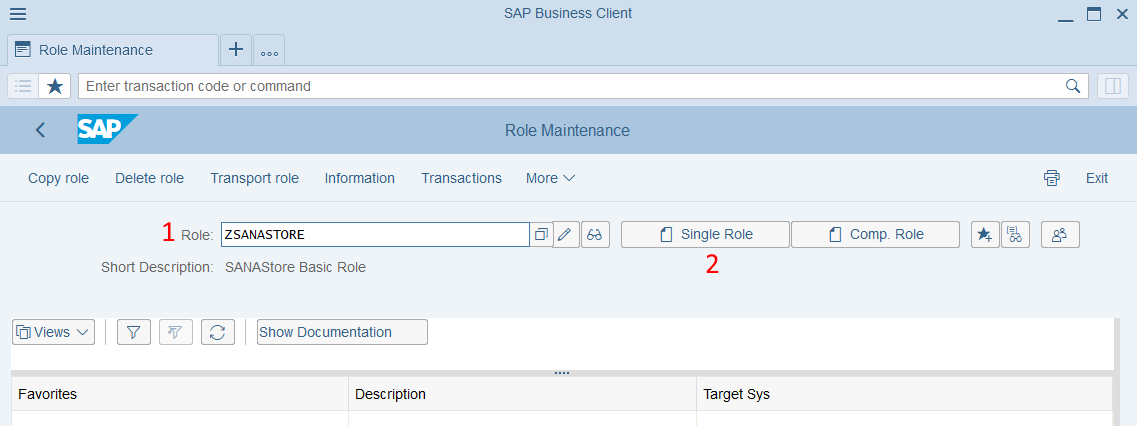
Step 1: In SAP S/4HANA, run the transaction Role Maintenance (PFCG).
Step 2: In the Role field, enter the Sana role you created (ZSANASTORE) and click Single Role.
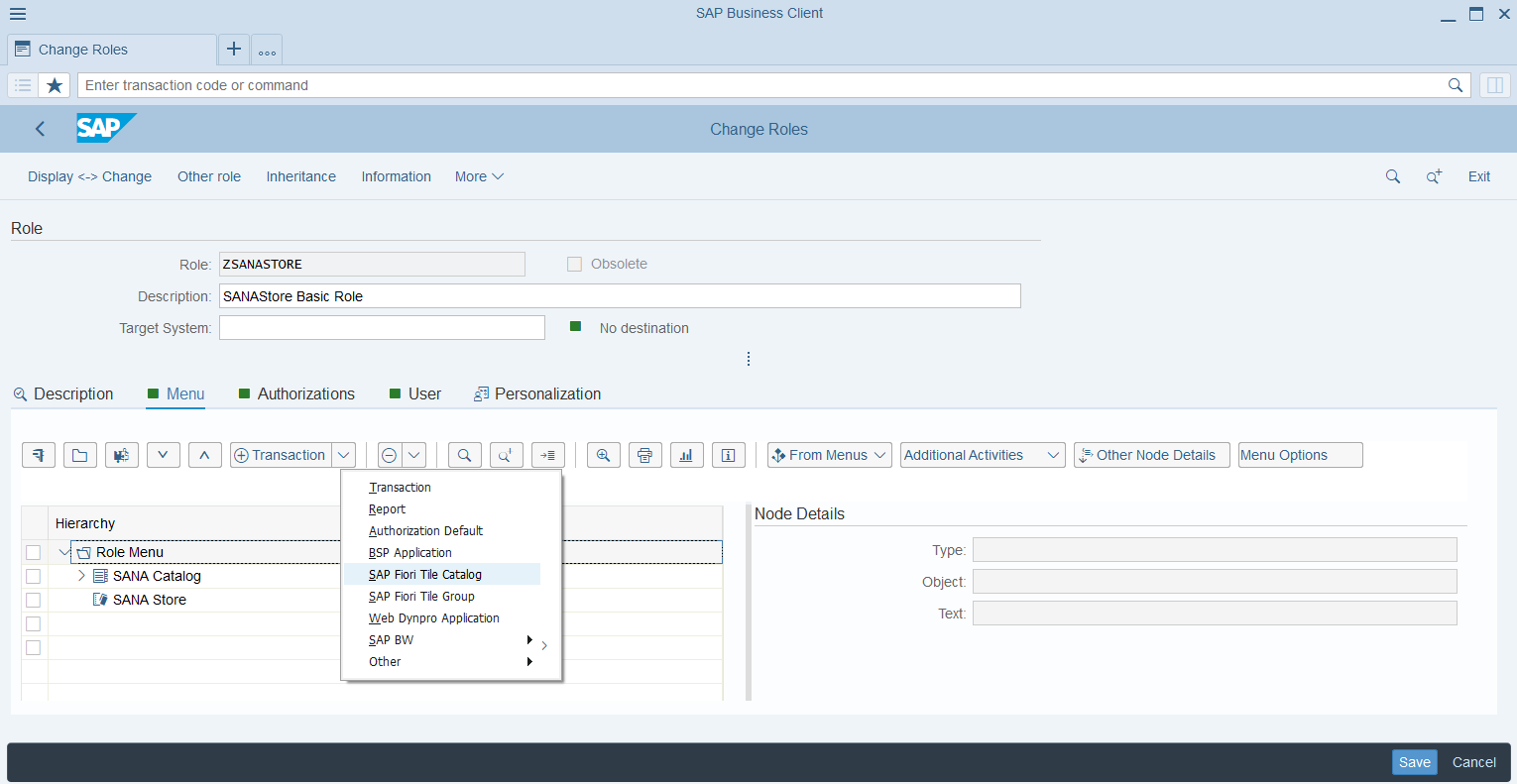
Step 3: On the Menu tab, from the Transaction dropdown list, select SAP Fiori Tile Catalog.
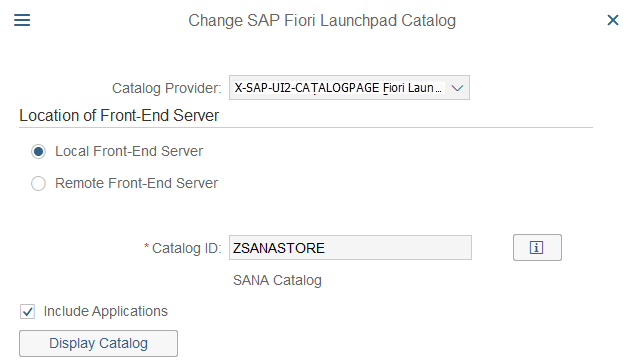
Step 4: Assign the Sana catalog (ZSANASTORE) as shown on the screenshot below.
Step 5: On the Menu tab, from the Transaction dropdown list, select SAP Fiori Tile Group.
Step 6: Assign the Sana group (ZSANASTORE) as shown on the screenshot below.
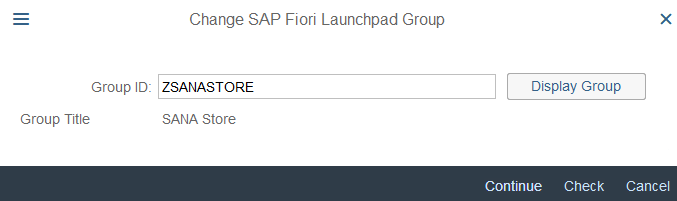
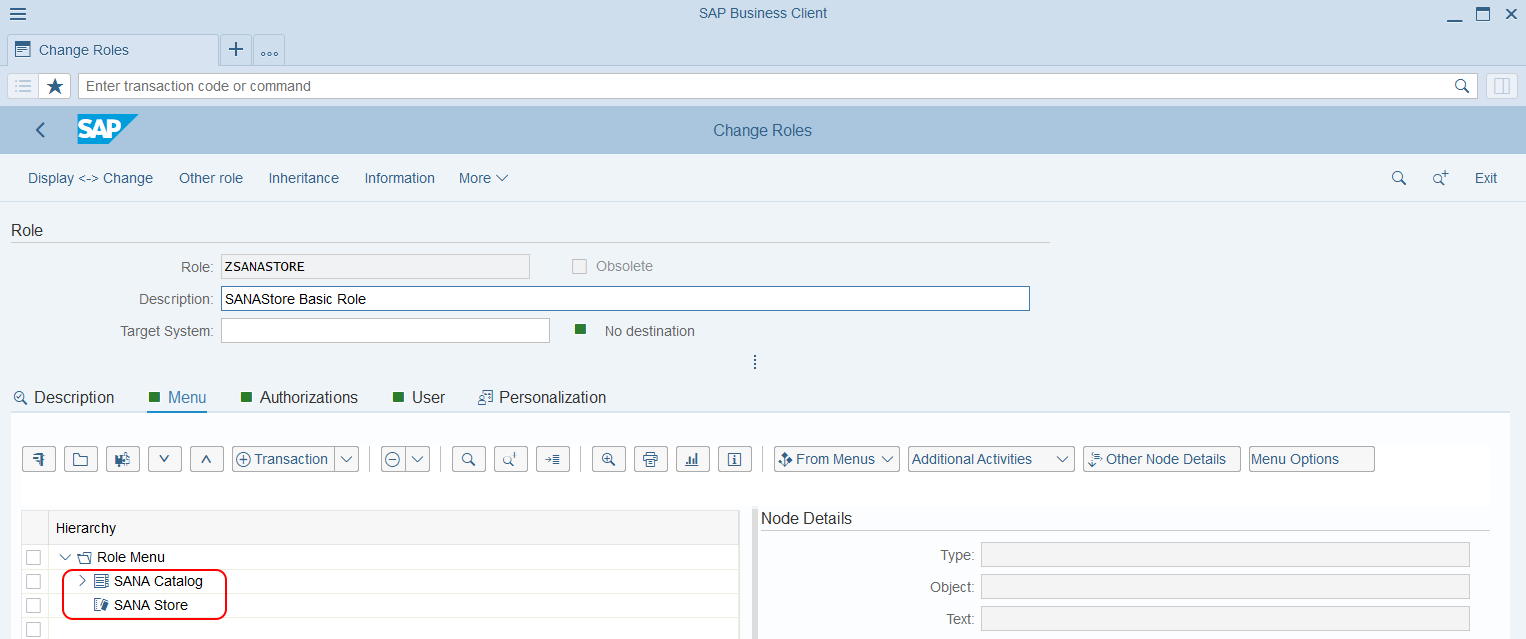
After adding the Sana catalog and group, you should see them on the Menu tab.
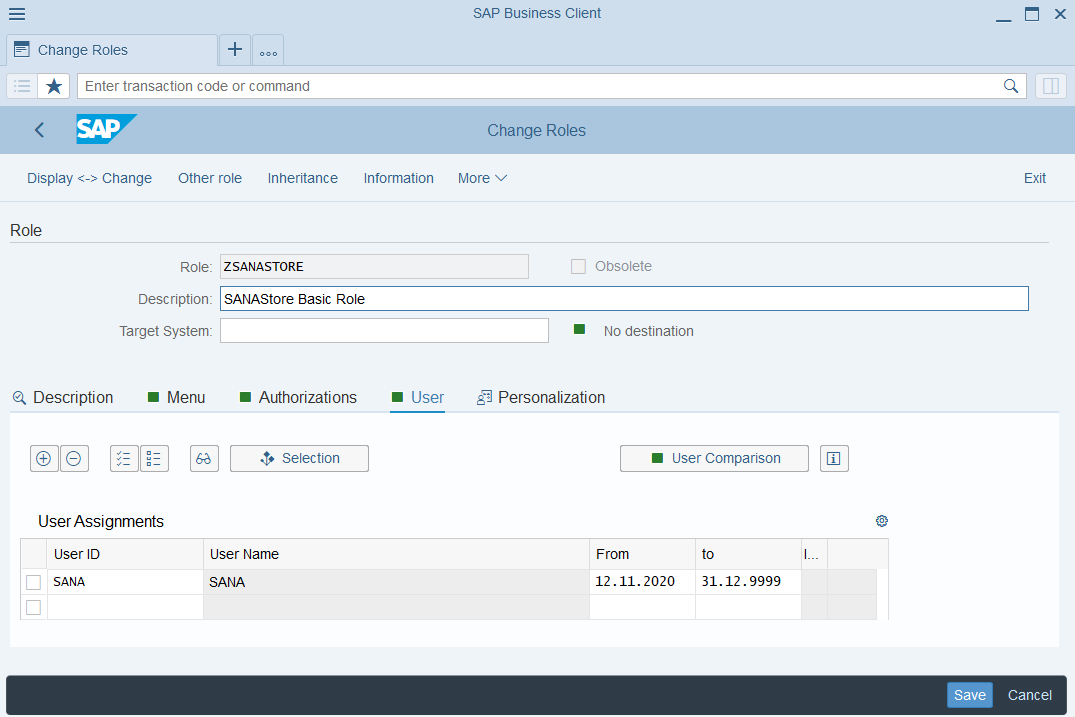
Step 7: On the User tab, assign the users that should have authorization for this profile.
Create the Backend Services Role (ZSANA_FIORI_LP_AUTH)
Step 1: In SAP S/4HANA, run the transaction Role Maintenance (PFCG).
Step 2: In the Role field, enter the role name ZSANA_FIORI_LP_AUTH and click Single Role.
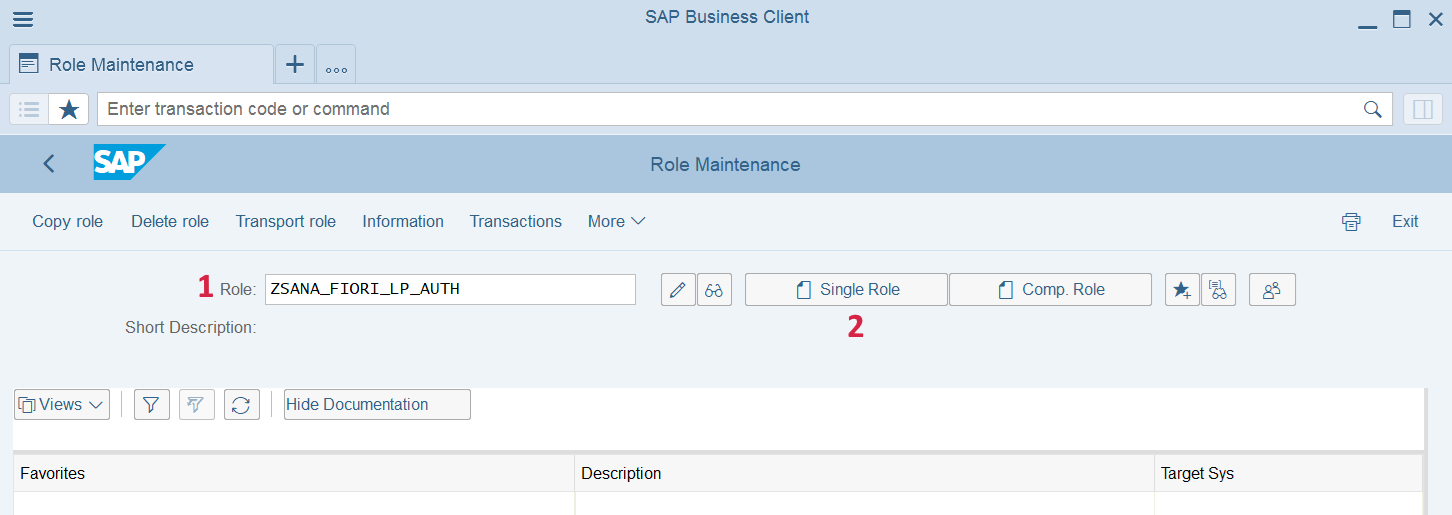
Then, in the Description field, enter a short description. For example:
-
Role: ZSANA_FIORI_LP_AUTH
-
Description: SAP Gateway Business Suite Enablement – Service & SAP Gateway: Service Access
Step 3: On the Menu tab in the Change Roles window, from the Transaction dropdown list, select Authorization Default.
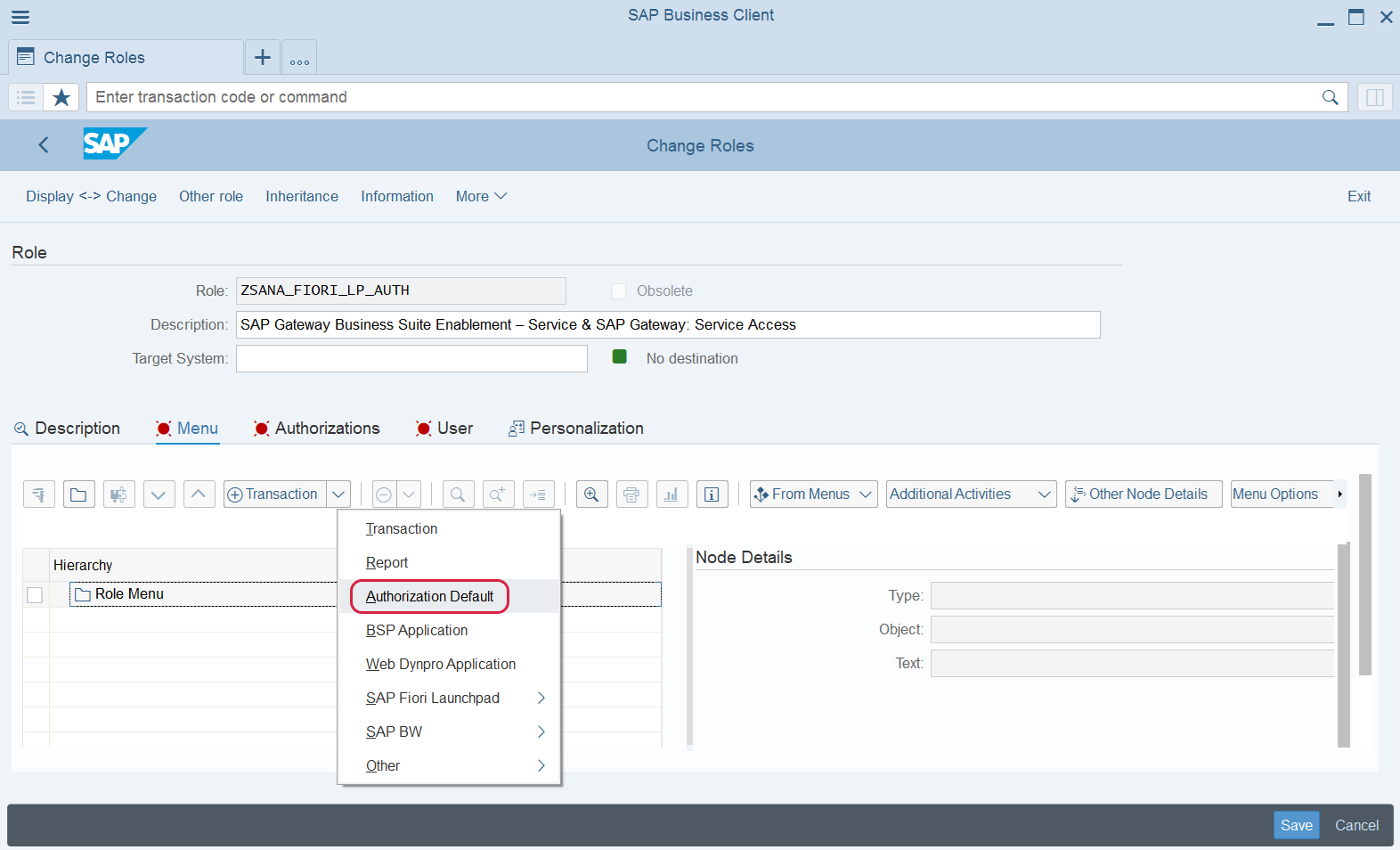
1. In the Authorization Default field, select SAP Gateway Business Suite Enablement – Service, then click Add in the table to start adding services.

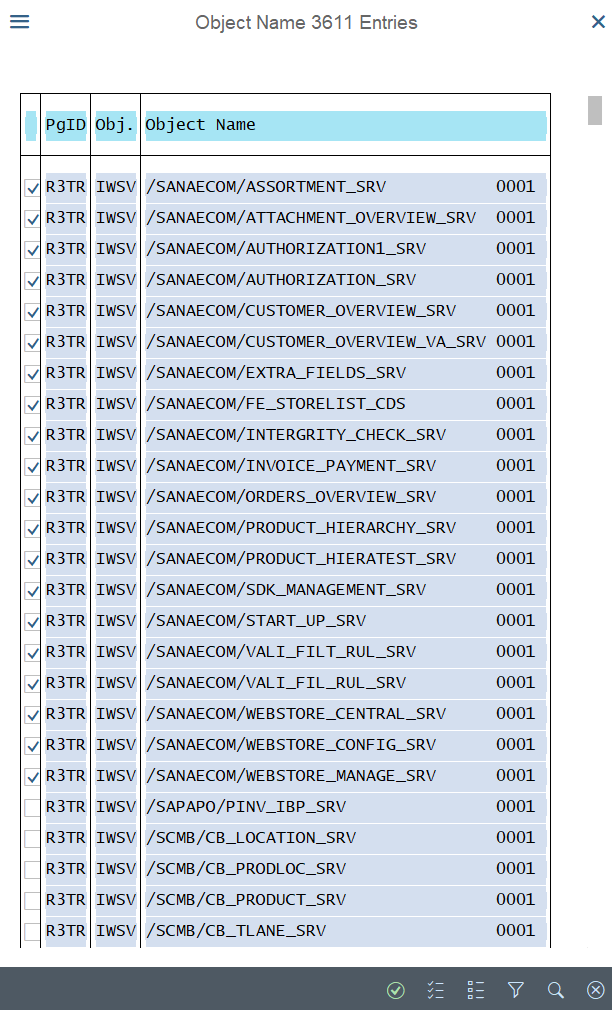
2. In the objects table, open the search and enter /SANAECOM/ to find all /SANAECOM/ services. Verify that 20 services are listed. Select the relevant services in the table, then click Apply.
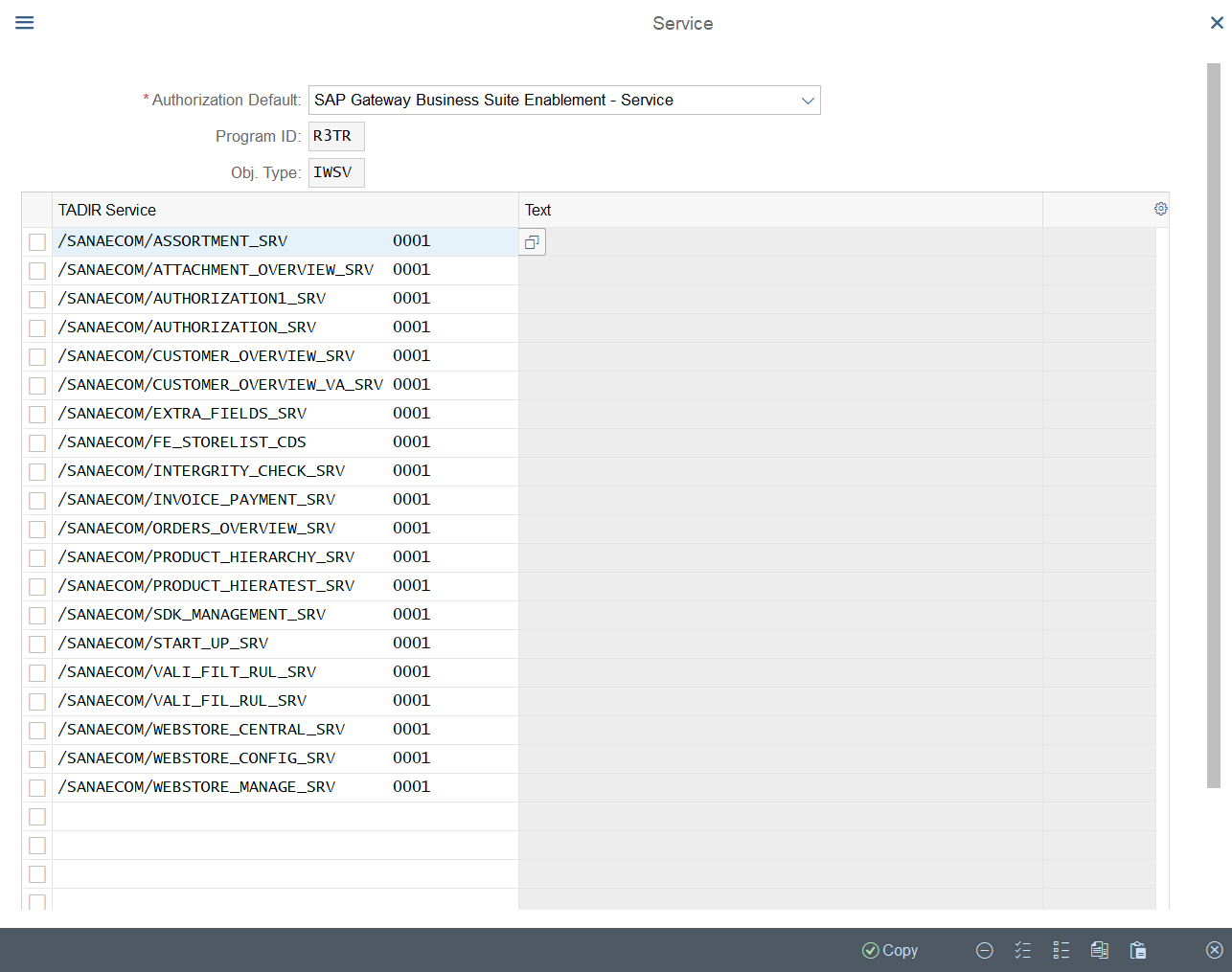
3. In the Service window, click Copy. Then, in the Change Roles window, click Save.
Step 4: In the Change Roles window, go to the Menu tab and click Authorization Default.
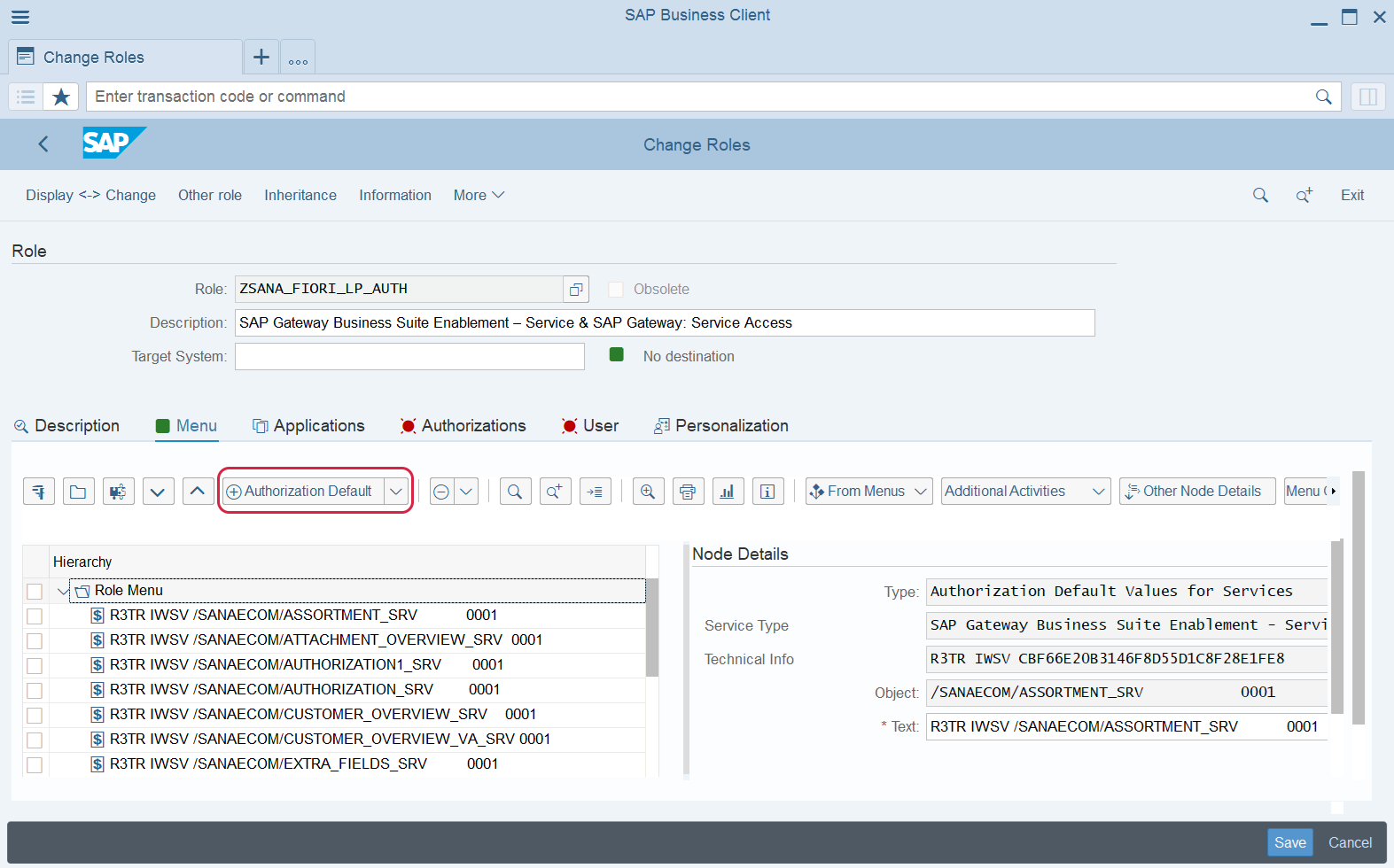
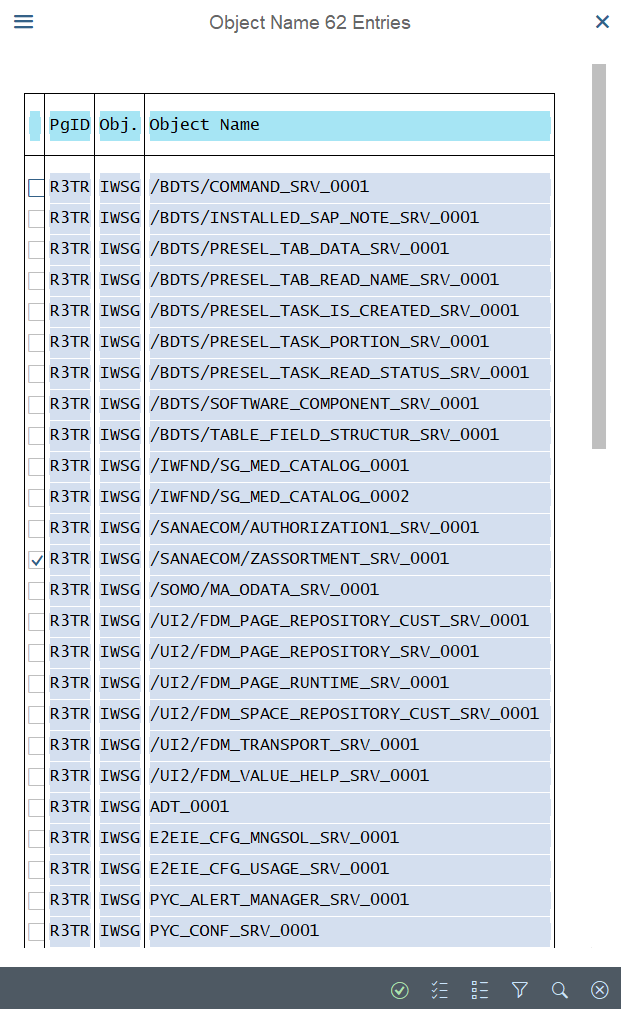
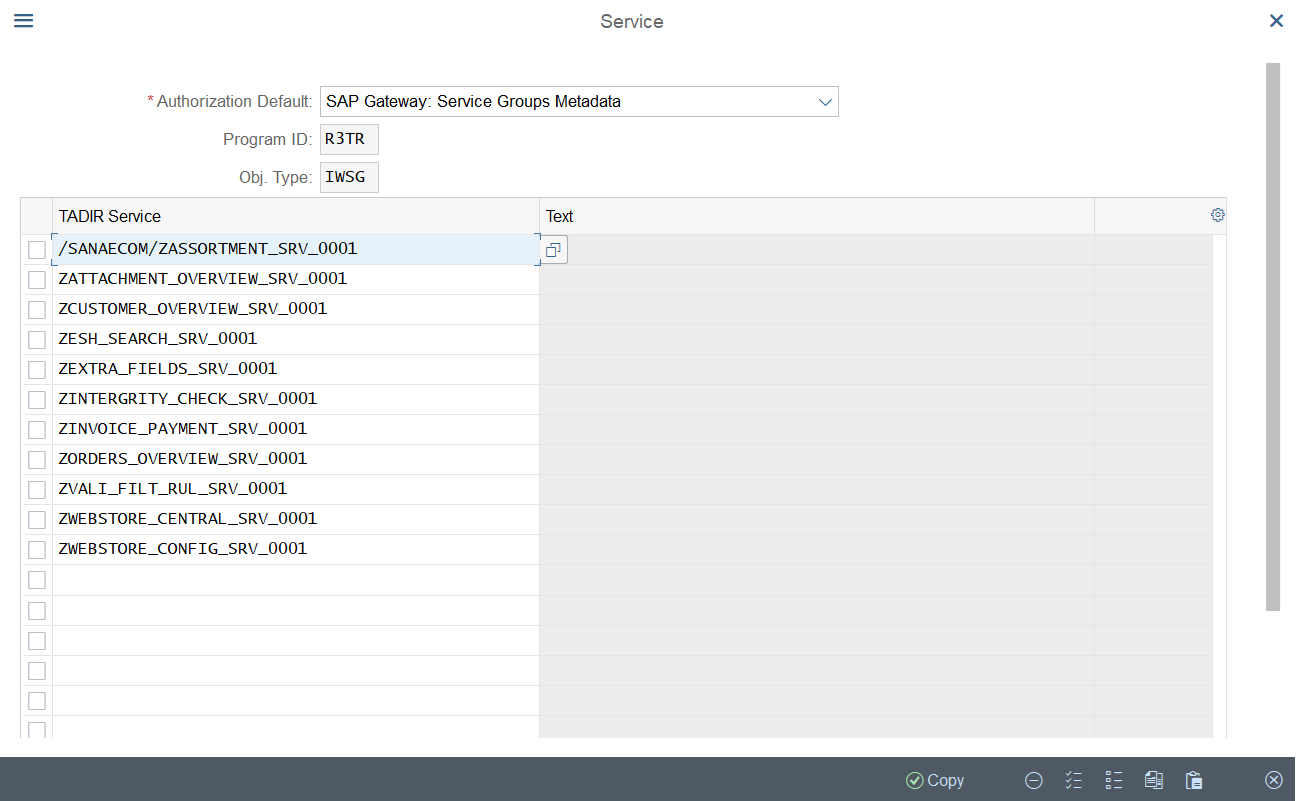
1. In the Authorization Default field, select SAP Gateway: Service Groups Metadata, then click Add in the table to start adding services.

2. In the objects table, select the following services:
- /SANAECOM/ZASSORTMENT_SRV_0001
- ZATTACHMENT_OVERVIEW_SRV_0001
- ZCUSTOMER_OVERVIEW_SRV_0001
- ZESH_SEARCH_SRV_0001
- ZEXTRA_FIELDS_SRV_0001
- ZINTERGRITY_CHECK_SRV_0001
- ZINVOICE_PAYMENT_SRV_0001
- ZORDERS_OVERVIEW_SRV_0001
- ZVALI_FILT_RUL_SRV_0001
- ZWEBSTORE_CENTRAL_SRV_0001
- ZWEBSTORE_CONFIG_SRV_0001
- ZWEBSTORE_MANAGE_SRV_0001
Then click Apply.
3. In the Service window, click Copy. Then, in the Change Roles window, click Save.
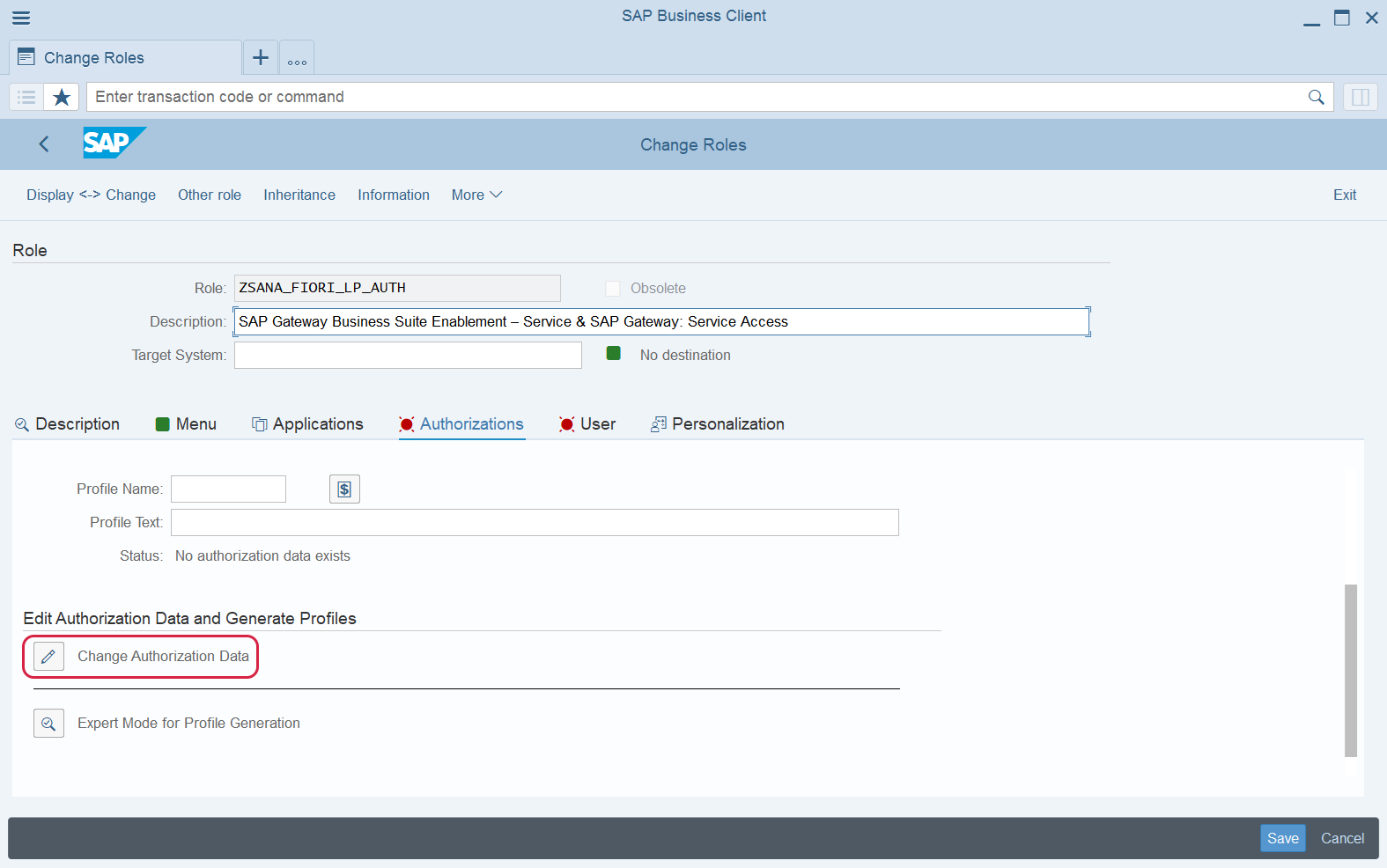
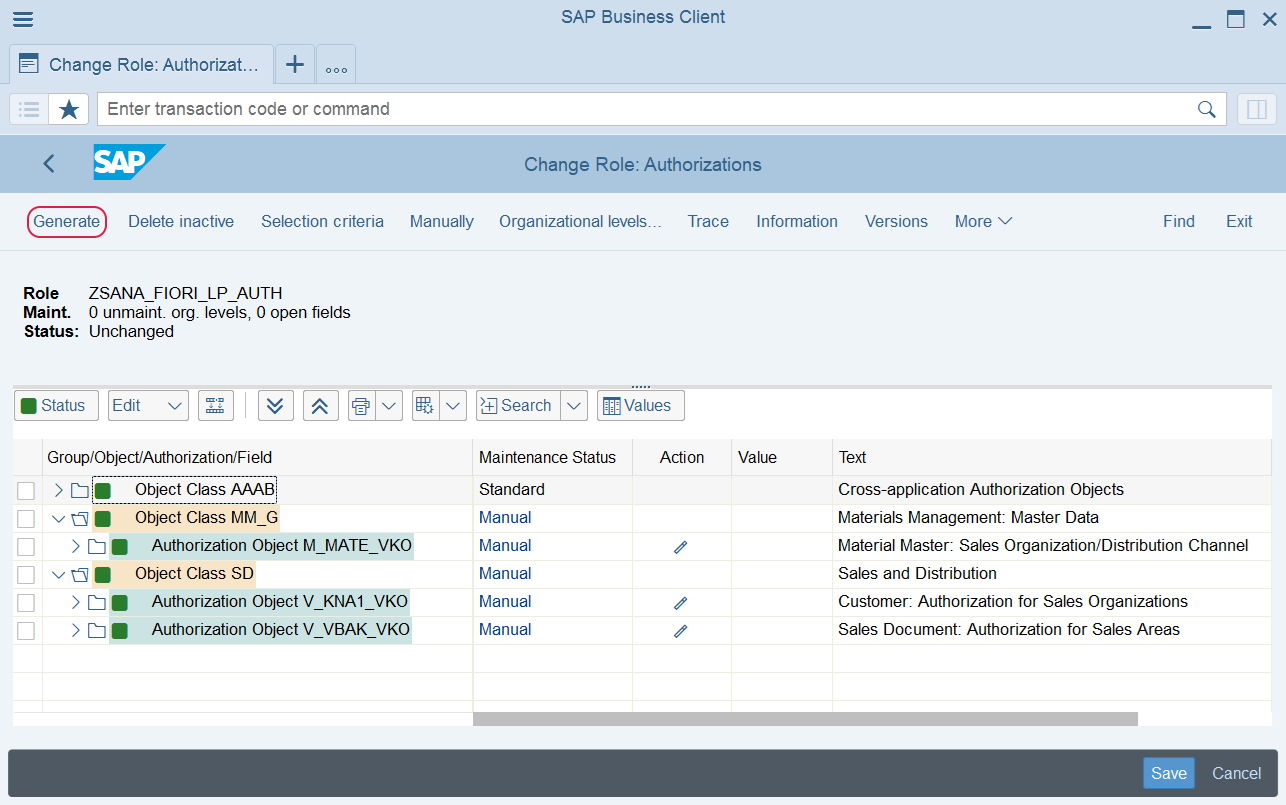
Step 5: In the Change Roles window, go to the Authorizations tab and click Change Authorization Data.
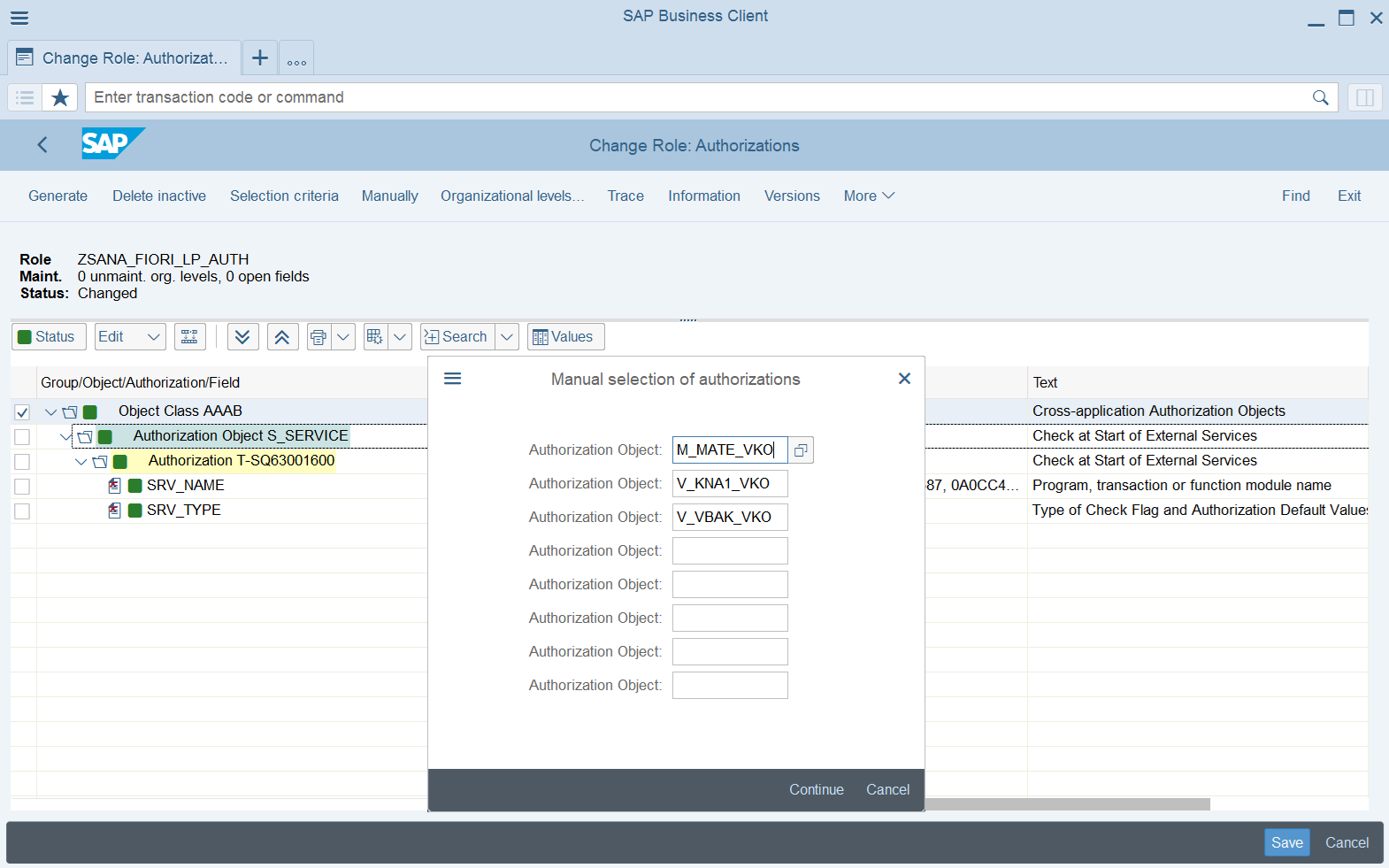
1. Manually add the following authorization objects:
- M_MATE_VKO
- V_KNA1_VKO
- V_VBAK_VKO
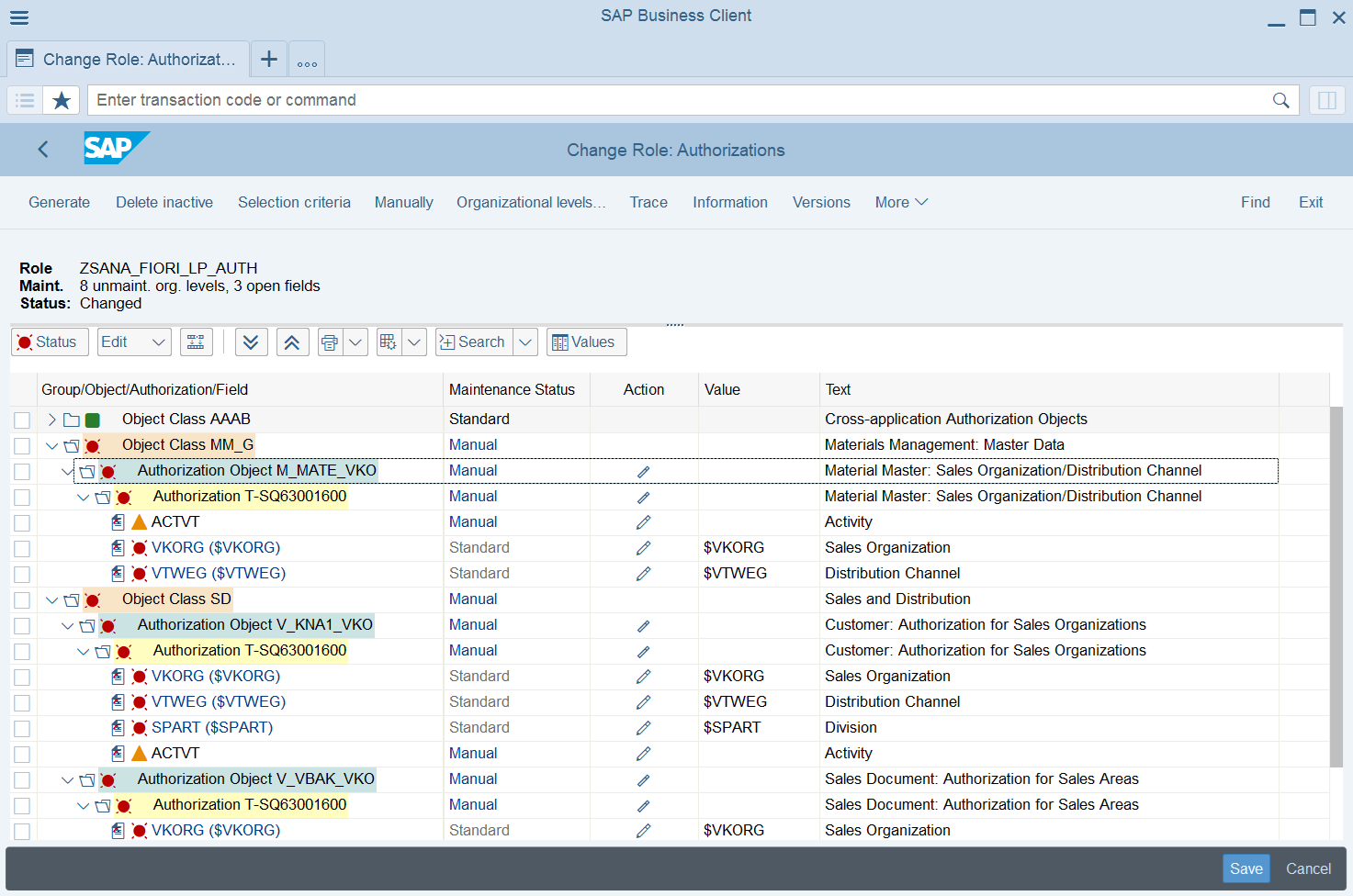
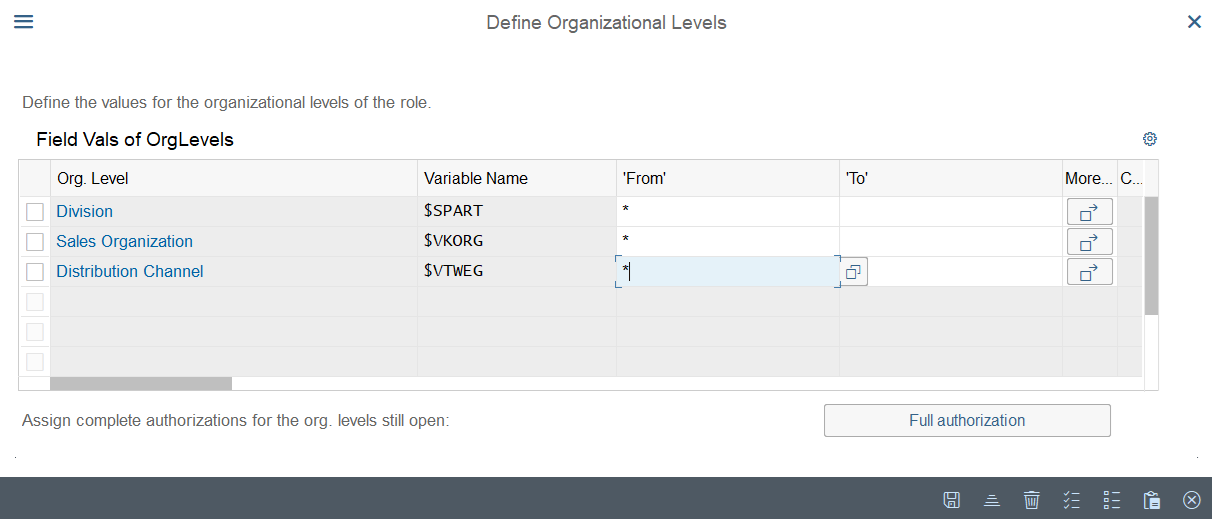
2. Click Organizational levels at the top of the window to define the values for the organizational levels of the role and save the changes. Then, click Save in the Change Role window.
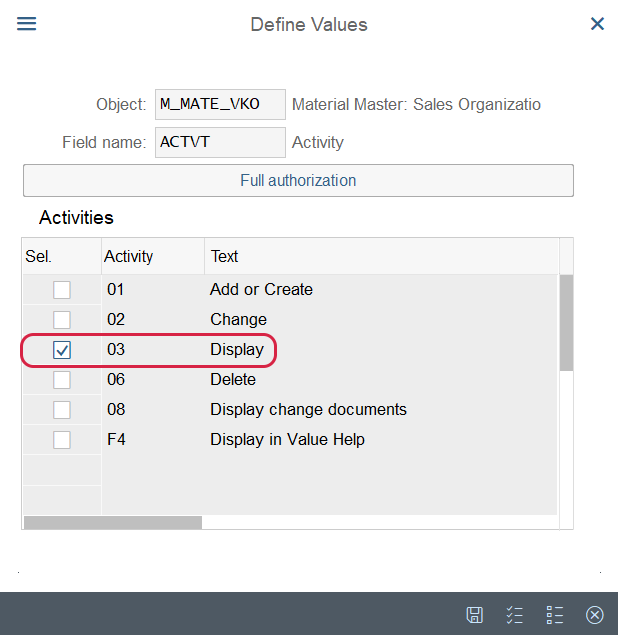
3. For the following authorization objects, set the Activity (ACTVT) field to 03 Display:
- M_MATE_VKO
- V_KNA1_VKO
- V_VBAK_VKO
To update the value, click Change next to the ACTVT field. In the dialog that opens, select 03 Display and confirm the change. Repeat this process for each of the three authorization objects and save the changes.
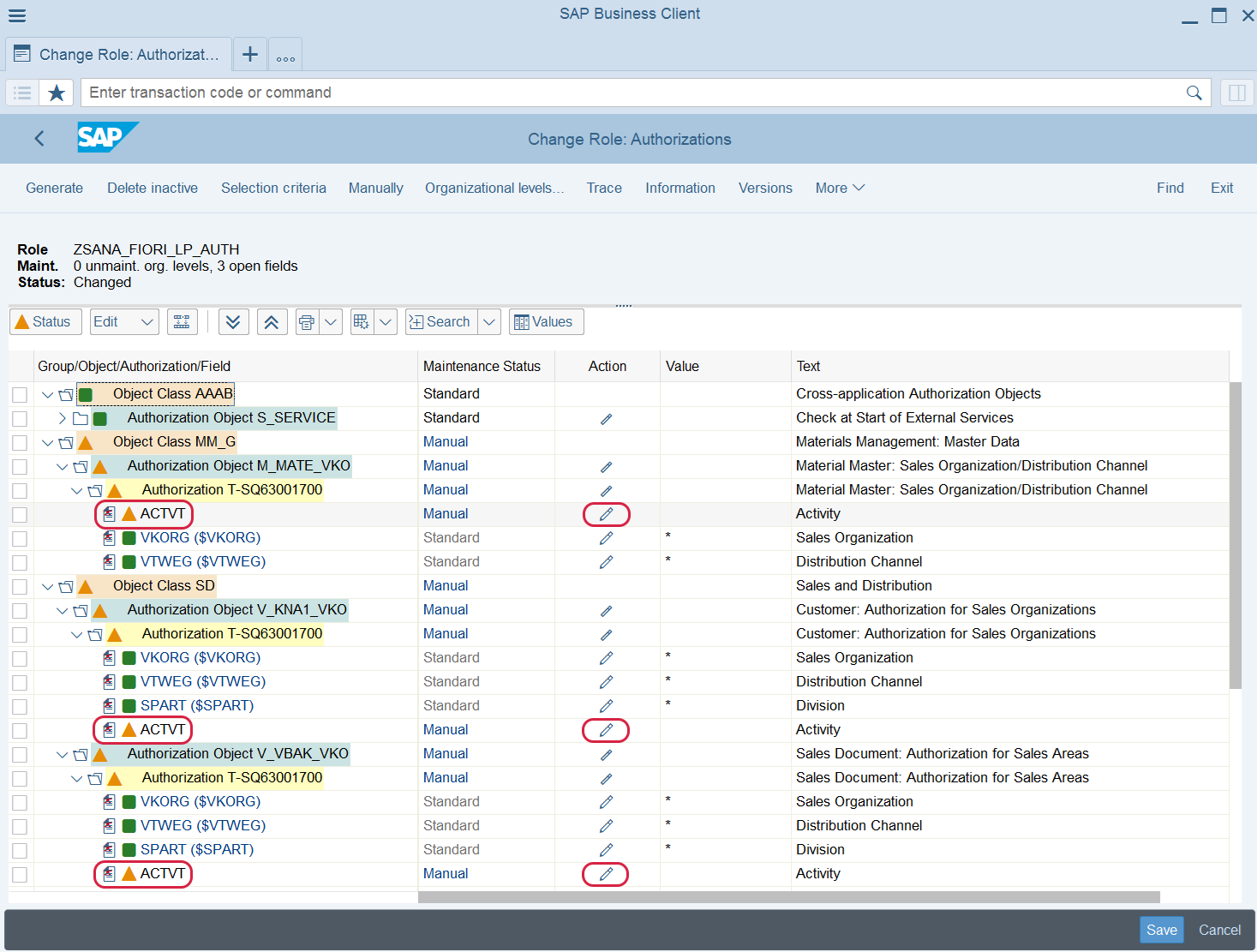
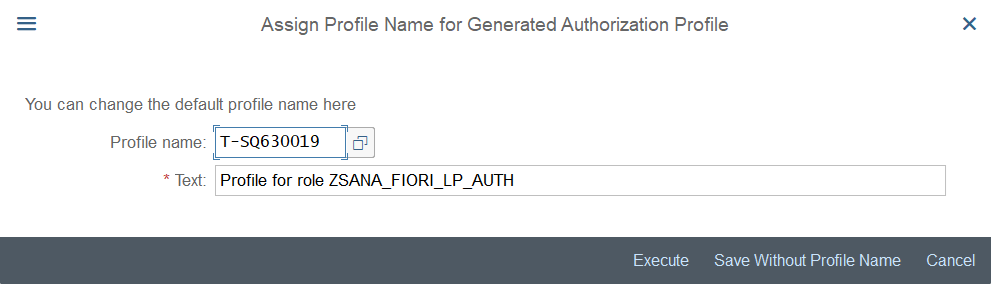
4. Click Generate at the top of the window to create the authorization profile, then click Save. In the dialog that opens, enter a name for the generated authorization profile. This profile links the organizational role to the corresponding technical system authorizations.
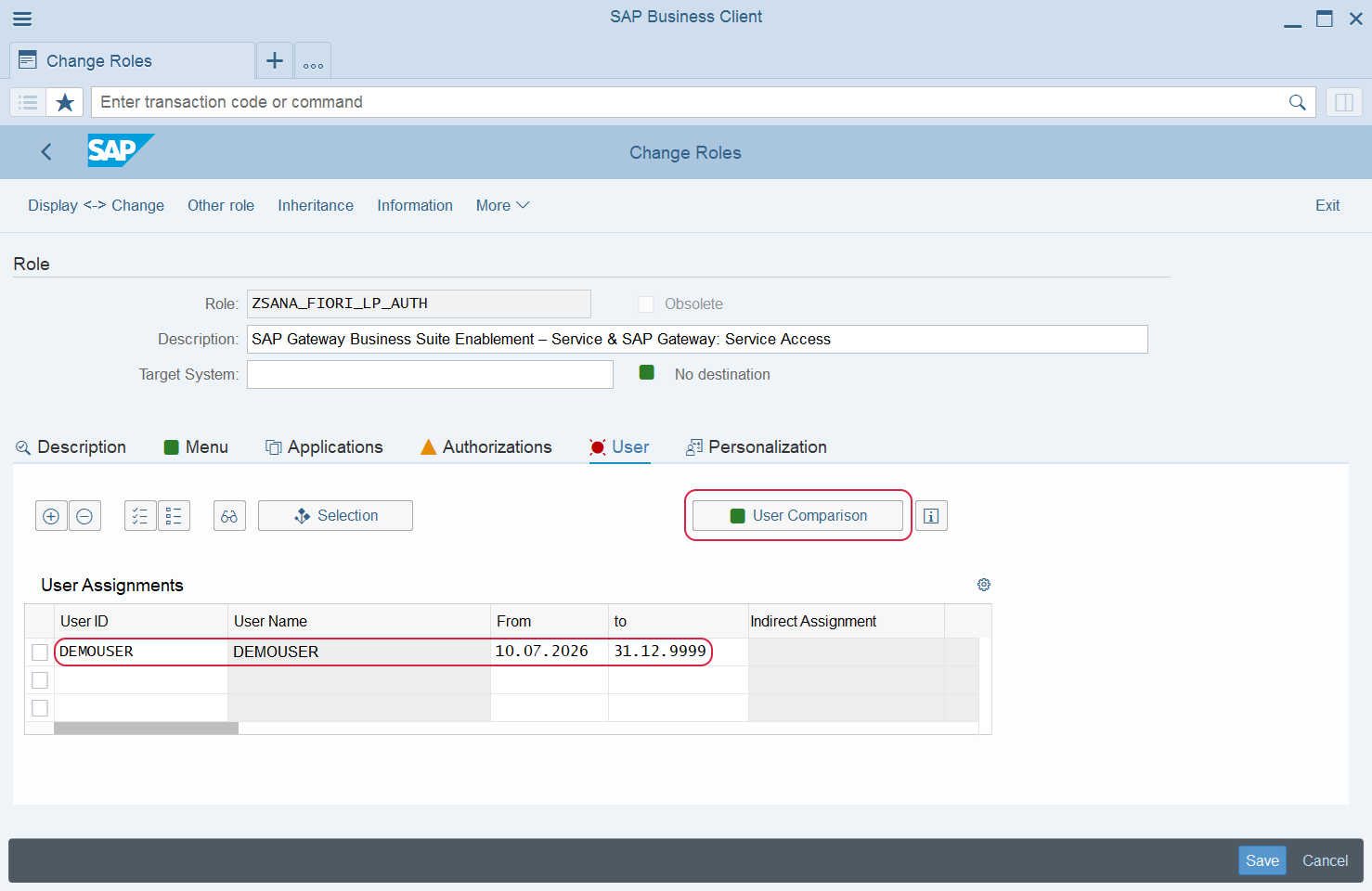
Step 6: In the Change Roles window, open the User tab and assign the required user to the role. Then perform the user comparison to generate and activate the authorization profiles in the user's master record.