Upgrade Sana Extension in Microsoft Dynamics 365 Business Central (On-Premises)
This article provides a step-by-step guide on how to upgrade the Sana extension in Microsoft Dynamics 365 Business Central (On-Premises).
You must upgrade the Sana extension on the Microsoft Dynamics 365 Business Central server. To do this, you will need the Business Central Administration Shell.
Step 1: Copy the new version of the Sana extension to the server where Microsoft Dynamics 365 Business Central is installed.
Step 2: Start the Business Central Administration Shell.
Step 3: Publish the new version of the Sana extension by running the Publish-NAVApp command:
Publish-NAVApp -ServerInstance YourDynamics365BCServerInstance -Path .\SanaExtension_[version].appBefore running the command, specify your Microsoft Dynamics 365 Business Central server instance and path to the Sana extension with the correct version.
Example:
Publish-NAVApp -ServerInstance Dynamics365BC -Path C:\SCC10.0.0.0_D365BC_W1_onprem\Sana Commerce (RoW) - On Premises_10.0.0.0.appStep 4: Synchronize the new version of the Sana extension with the database, by running the Sync-NAVApp command:
Sync-NAVApp -ServerInstance YourDynamics365BCServerInstance -Name SanaExtensionName -Version [version]Before running the command, specify your Microsoft Dynamics 365 Business Central server instance, Sana extension name and version. Use "Sana Commerce" as the value of the -Name parameter.
Example:
Sync-NAVApp -ServerInstance Dynamics365BC -Name Sana Commerce -Version 10.0.0.0Step 5: Start data upgrade, by running the Start-NAVAppDataUpgrade command:
Start-NAVAppDataUpgrade -ServerInstance YourDynamics365BCServerInstance -Name SanaExtensionName -Version [version]Before running the command, specify your Microsoft Dynamics 365 Business Central server instance, Sana extension name and version. Use "Sana Commerce" as the value of the -Name parameter.
Example:
Start-NAVAppDataUpgrade -ServerInstance Dynamics365BC -Name Sana Commerce -Version 10.0.0.0This runs the upgrade logic that is defined by the upgrade codeunits in the Sana extension. This will uninstall the current version of the Sana extension, and enable the new version instead.
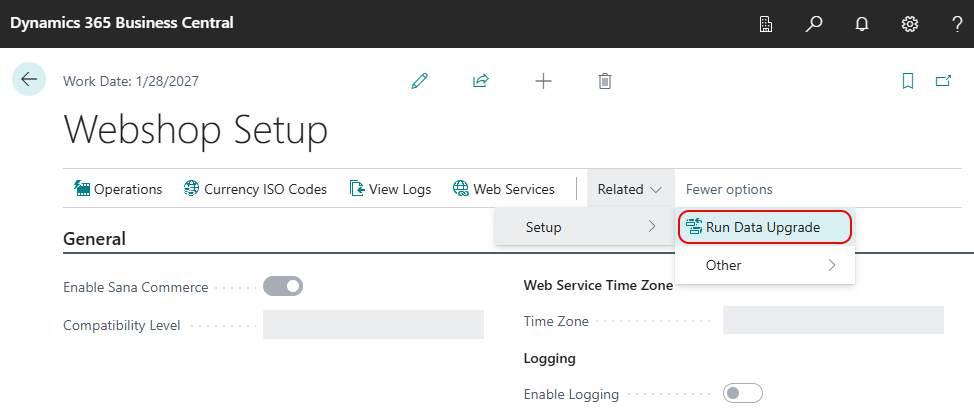
Step 6: In Microsoft Dynamics 365 Business Central, click on the search button  and enter Webshop Setup. In the Webshop Setup window click: Related > Setup > Run Data Upgrade. This will ensure smooth data transitions after upgrading the Sana Commerce extension to the new version. For more information, see Data Upgrade.