Upgrade Sana in Microsoft Dynamics 365 Business Central (Cloud)
When a new version of the Sana Commerce app is available on Microsoft AppSource, you must upgrade it manually.
For the major releases of Microsoft Dynamics 365 Business Central, every app installed on your tenant will be updated automatically to the latest available version.
For more information, see Sana Compatibility Level.
Upgrade the Sana Commerce App in Microsoft Dynamics 365 Business Central
Step 1: Log in to the Microsoft Dynamics 365 Business Central Web client.
Step 2: Click on the search button  , enter Extension Management, and then choose the related link to open it.
Step 3: Find the Sana Commerce extension and Uninstall it.
Don't worry about your Sana Commerce Cloud data. When you uninstall the Sana Commerce extension, a backup of the Sana-related data will be automatically created. When you install the latest available version of the Sana Commerce app, all your Sana-related data will be automatically restored.
Step 4: When the Sana Commerce extension has been uninstalled, open Extension Marketplace, find the Sana Commerce extension and click Install to reinstall the app. This will update the Sana Commerce app to the latest available version.
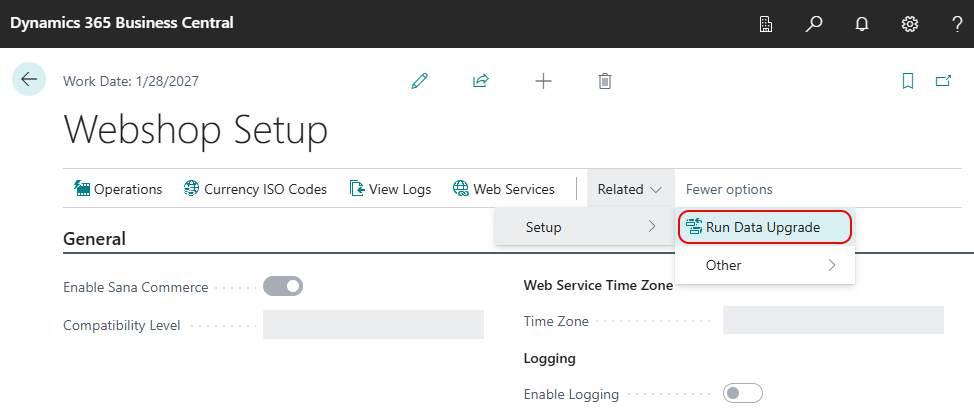
Step 5: In Microsoft Dynamics 365 Business Central, click on the search button and enter Webshop Setup. In the Webshop Setup window click: Related > Setup > Run Data Upgrade. This will ensure smooth data transitions after upgrading the Sana Commerce extension to the new version. For more information, see Data Upgrade.