Tax Number Formats
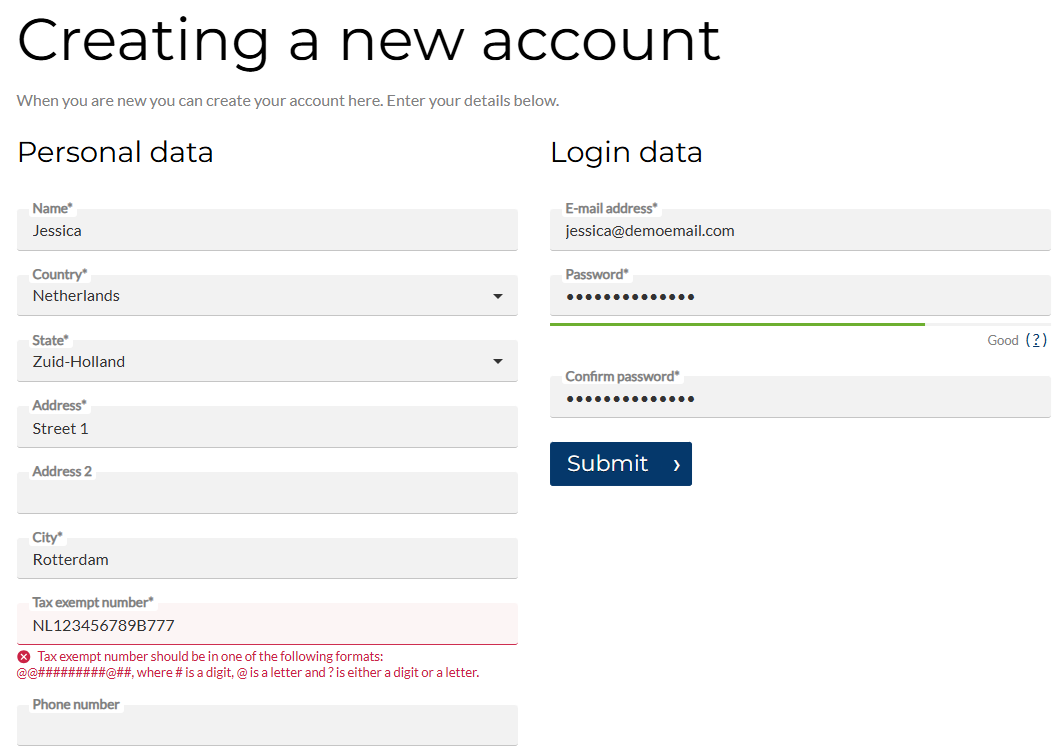
Tax number is the unique number that identifies a taxable person (business) or non-taxable legal entity that is registered for tax.
You can ask a customer to enter the tax number when:
- A customer registers in a Sana webshop.
- A customer creates an order as a guest without registration.
- A sales agent creates a prospect.
In Microsoft Dynamics 365 for Finance and Operations, you can set up tax number formats to ensure that a number entered by a customer corresponds to the standard format used in a customer's country. Tax number is validated in a Sana webshop based on the format set in Microsoft Dynamics 365 for Finance and Operations.
Key Benefits
- Ensures accuracy of tax number entries, reducing errors.
- Saves time for both customers and merchants by catching formatting issues early.
- Supports compliance with local tax regulations.
- Improves data quality in Microsoft Dynamics 365 for Finance and Operations, enabling smoother order processing and invoicing.
Country-specific tax number formats enhance customer experience and streamline financial operations for accountants, making tax-related workflows more reliable and efficient.
Set Up Tax Number Format
Step 1: In Microsoft Dynamics 365 for Finance and Operations click: Organization administration > Global address book > Registration types > Registration types.
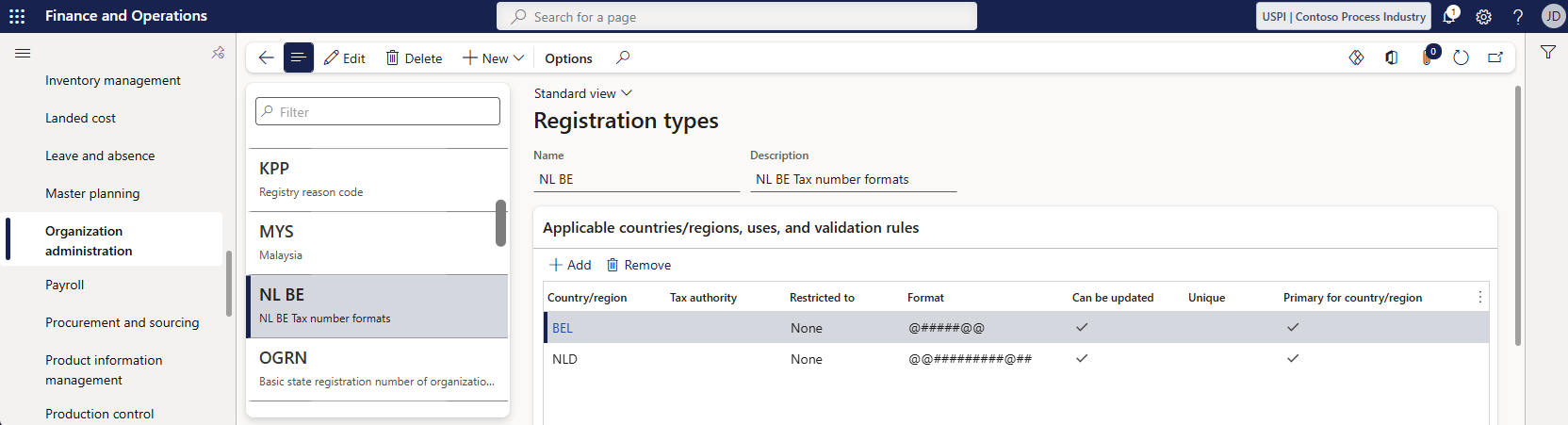
Step 2: Specify the tax number format for a country. Several tax number formats can be added to a country. But keep in mind that only the format marked as Primary for country/region will be used to validate tax numbers for that country.
The following symbols can be used to specify the tax number format for a country:
- # - only a digit can be entered
- @ - only a letter can be entered (a-z or A-Z)
- ? - either a digit or a letter can be entered
You can use other symbols, such as dashes, dots, or slashes, in the tax format if they are present in the country's tax number format. Any character in the tax number format must exactly match the corresponding character in the tax number. This ensures that only valid tax numbers that match the specified tax number format are accepted.
Example 1: ####.####.####.
A period after each group of four digits must be entered.
Example 2: @???#-#
The matching tax number should contain a letter, followed by 3 letters or digits, then a single digit, then a dash, and a digit. No additional characters are allowed - not at the beginning, in the middle, or at the end of the tax code.
Store Tax Number Formats
In Microsoft Dynamics 365 for Finance and Operations the tax number formats are stored:
-
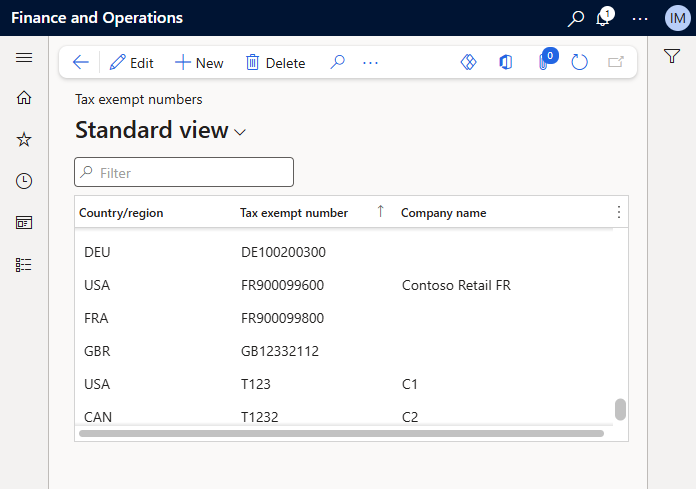
In the Tax exempt numbers table: Tax > Setup > Sales tax > Tax exempt numbers. In this table, all tax number formats are stored that are specified during customer registration and prospect creation in the Sana webstore.
-
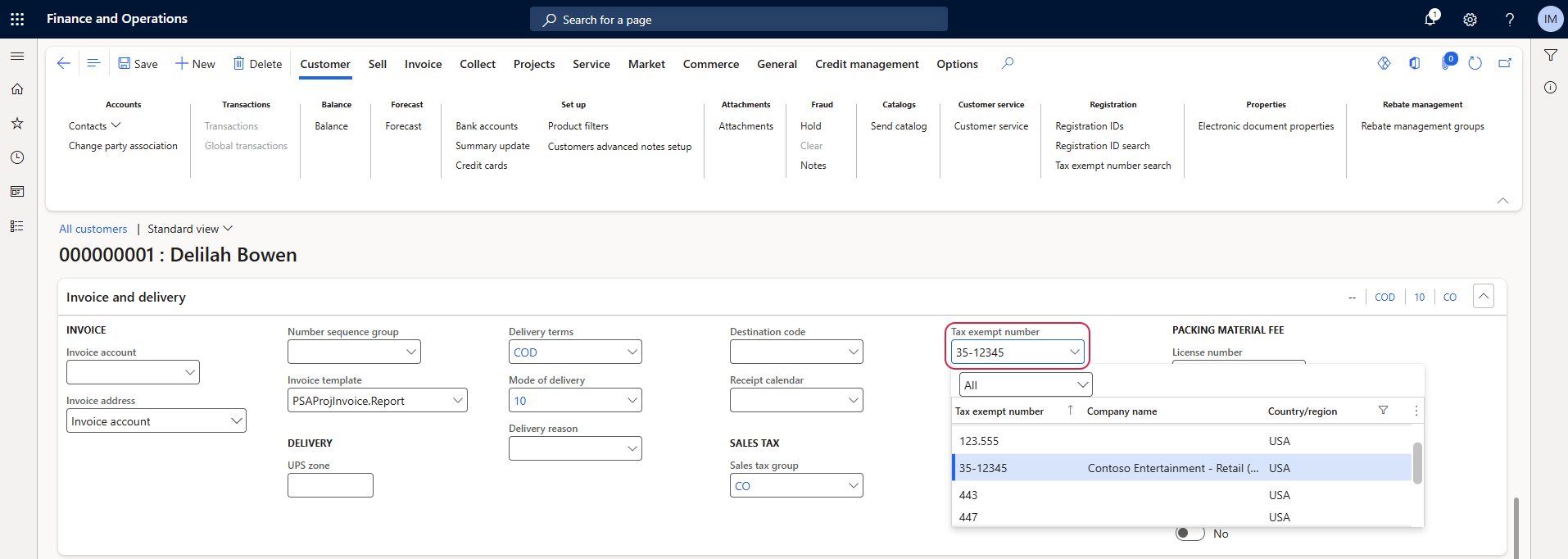
Customer: On the Invoice and delivery tab, in the Tax exempt number field. Here you can see the tax number format entered by a customer during registration.
-
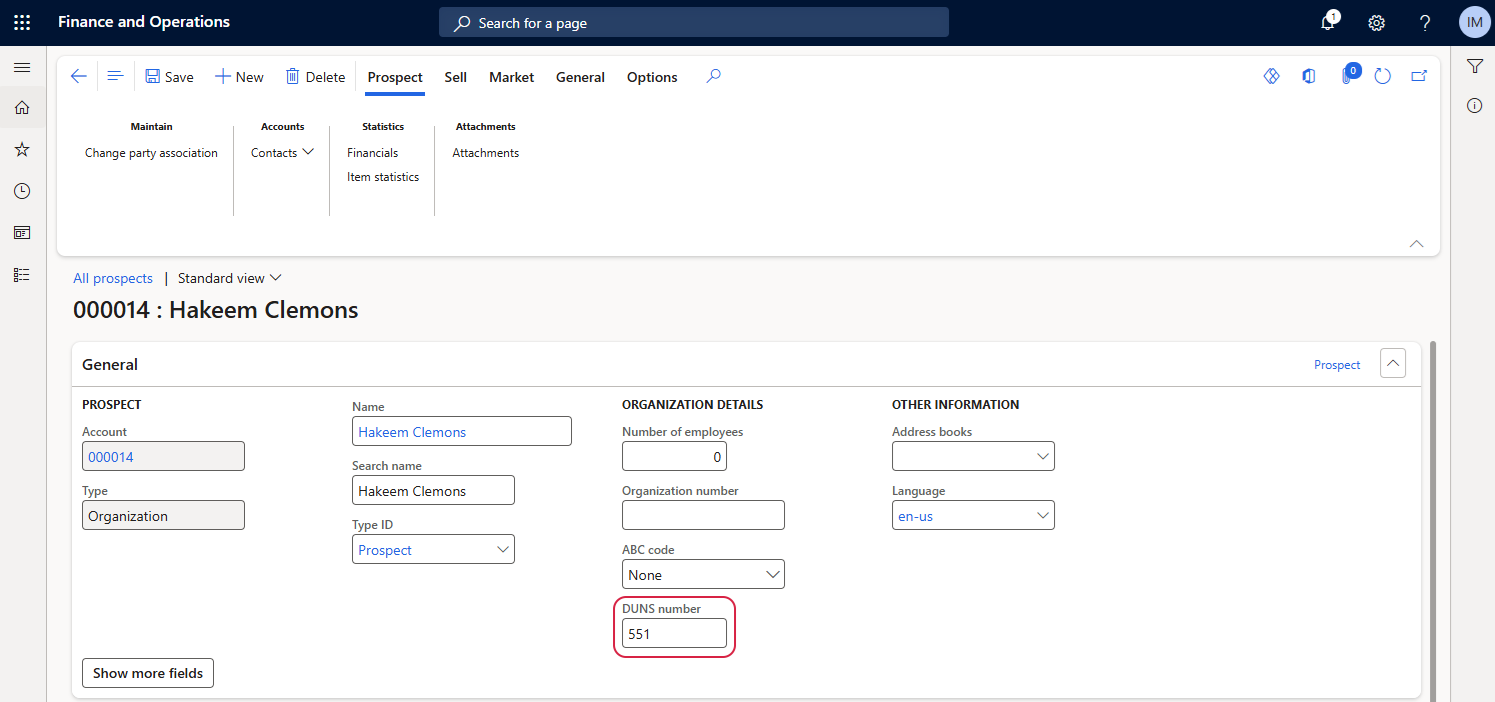
Prospect: On the General tab, in the DUNS number field. Here you can see the tax number format entered by a sales agent when creating a prospect.
Disable Taxes
Step 1: In Microsoft Dynamics 365 for Finance and Operations click: Webshop > Common > Webshops.
Step 2: Select the necessary webshop and on the Advanced options tab, click Webshop optimization.
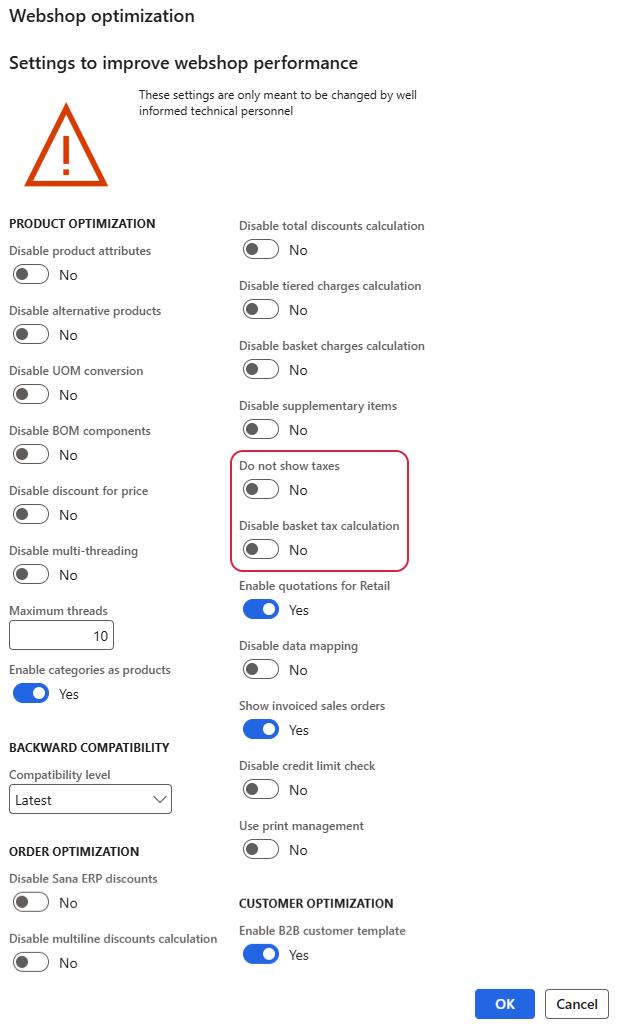
Step 3: In the Webshop optimization window, use:
-
Disable basket tax calculation:
-
If the option is enabled, tax calculations are turned off in the shopping cart. Taxes are still calculated by the standard ERP logic when the order is placed and are shown in the order details.
-
If the option is disabled, taxes are displayed in the shopping cart based on the customer’s tax group.
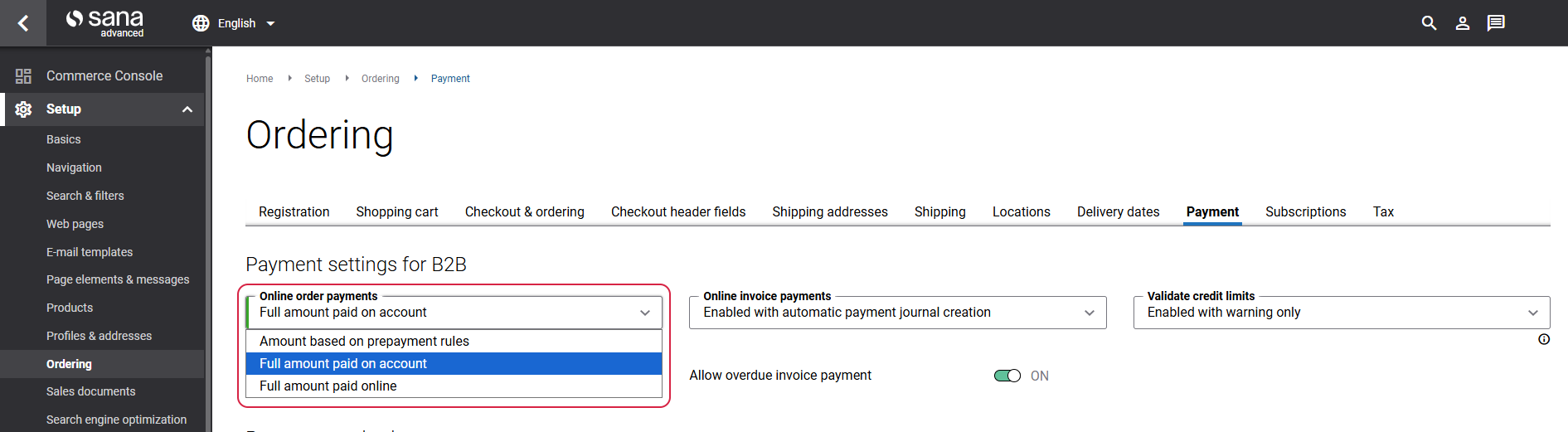
This option can be used when B2B customers pay on account, since orders paid online through a payment service provider (PSP) require the exact order total to be calculated at checkout.
-
-
Do not show taxes: If the option is enabled, the taxes are not shown in the shopping cart, but they are still calculated and reflected in the shopping cart totals.


