Logging
Logging is used to write XML requests from Sana to Dynamics 365 Business Central and responses from Dynamics 365 Business Central to Sana. Sana communicates with Dynamics 365 Business Central via a web service. You can use XML requests and responses for troubleshooting and debugging.
By default, logging is disabled as it affects performance. Therefore, it is better to use it only for debugging purposes.
Webshop-specific logging, selective logging for individual API methods, and the option to log requests, responses, or both are available in Microsoft Dynamics 365 Business Central starting from Sana Commerce Cloud 10.0.155.
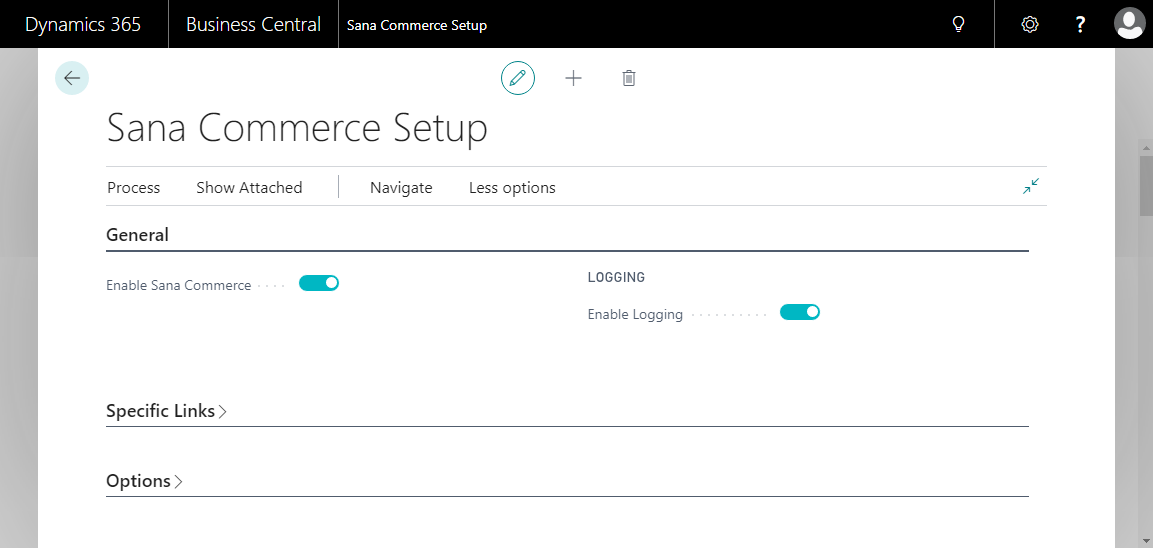
Enable Logging
In Microsoft Dynamics 365 Business Central click on the search button  and enter Webshop Setup. Use the Enable Logging option to enable or disable logging globally. This setting determines whether logging is enabled for all webshops.
Logging Setup
The Logging Setup action is available in the Sana Commerce Logs window. It provides a list of all API operations and allows you to configure logging for each operation.
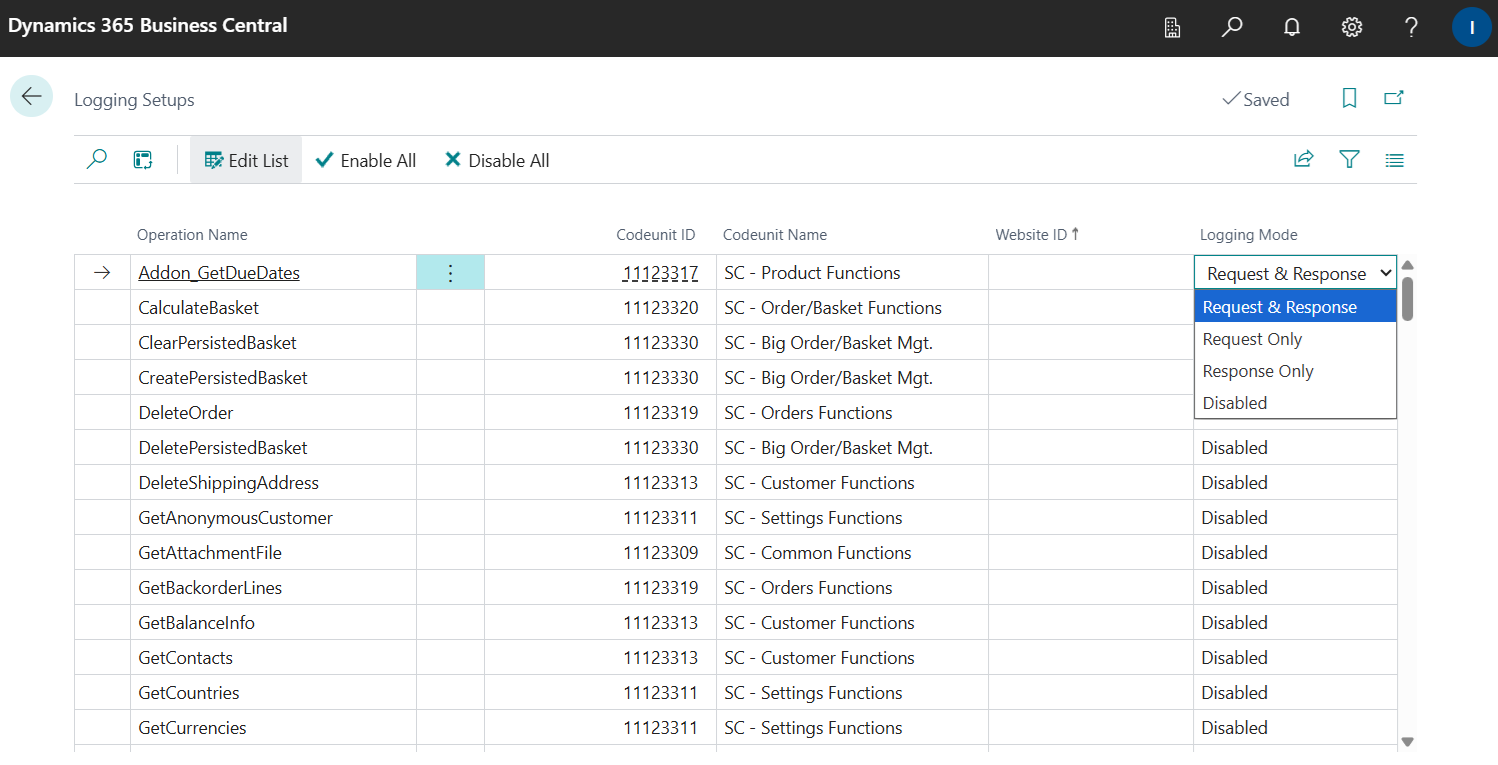
The Logging Mode field is available for each API operation and specifies which data is logged when the operation is called. The following options are available:
-
Request & Response - logs both the request sent to Dynamics 365 Business Central and the response returned to Sana.
-
Request Only - logs only the request sent to Dynamics 365 Business Central.
-
Response Only - logs only the response returned to Sana.
-
Disabled - neither the request nor the response is logged for the API operation.
Use Enable All to enable logging for all API operations at once. Use Disable All to disable logging for all API operations at once.
After enabling or disabling logging for all API operations, you can use the Logging Mode field to configure logging individually for specific operations. This allows you to select which API operations are logged and whether requests, responses, or both are recorded.
View Logs
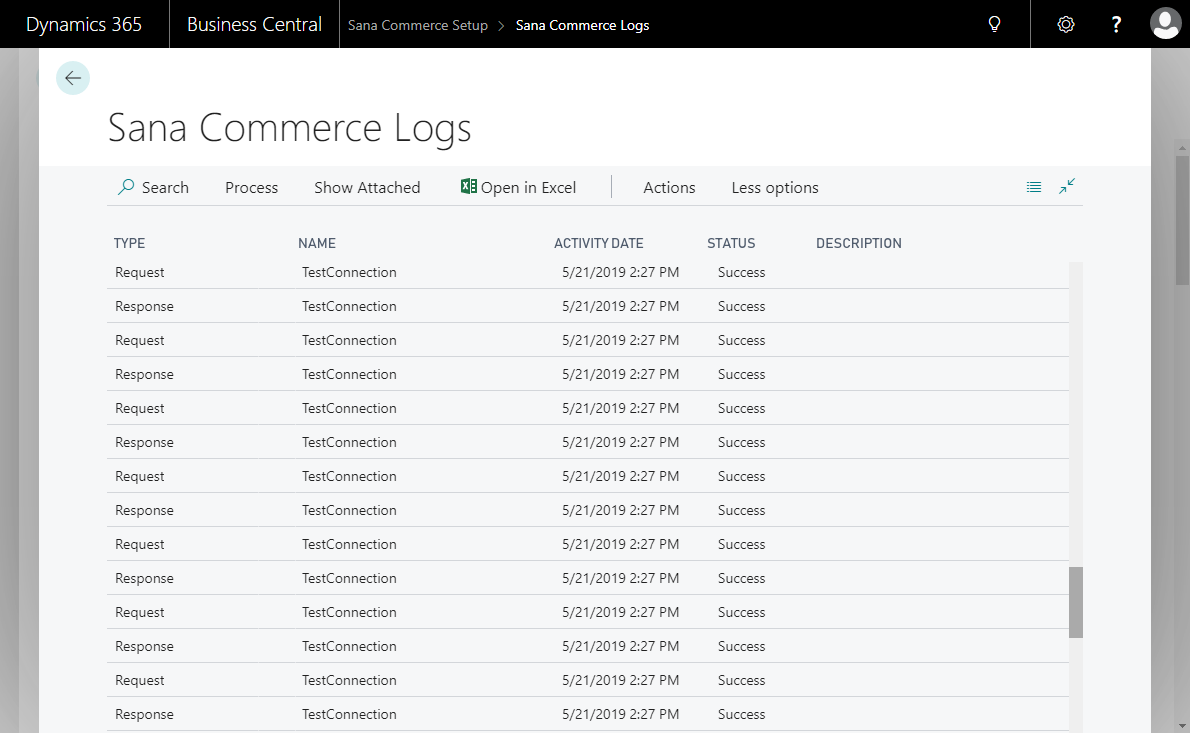
When logging is enabled, click View Logs in the Webshop Setup window. You are redirected to the Sana Commerce Logs window, where you can view the list of all log files, including the webshop ID (the identifier of the webshop associated with the log), the log file type, whether it is a request or response, the file name, and its status.
If there is an error in a response from Dynamics 365 Business Central, the status of this log will be Failed and the error message will be shown in the Description field.
To view the details of a log file or save it, select the necessary request or response and click View Details. You can also download the list of all logs and save it in Excel file format, by clicking Open in Excel.
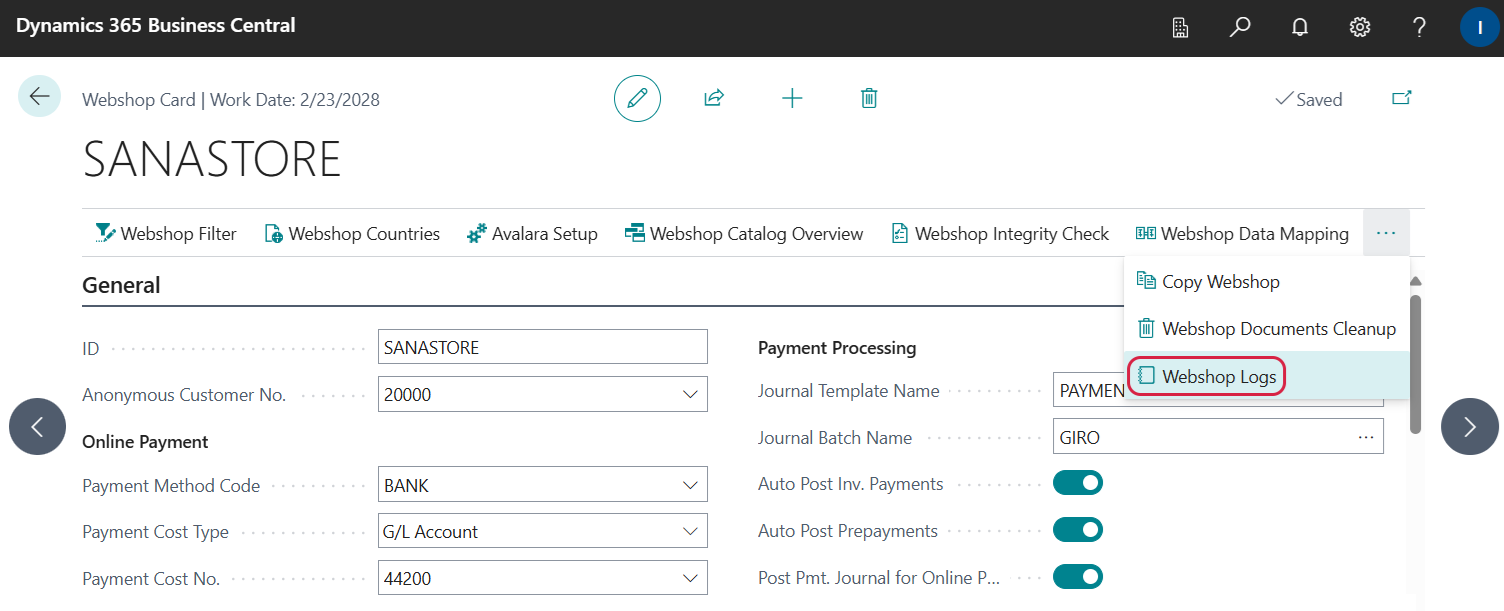
You can also access logs for a specific webshop. In Microsoft Dynamics 365 Business Central, click the search button and enter Webshops. From the list of webshops, select the necessary webshop and click Webshop Logs. The Webshop Logs action is also available on an individual webshop card. This action opens the Sana Commerce Logs window and automatically filters the log list to display only the logs associated with the selected webshop. This makes it easier to troubleshoot and review API requests and responses for a specific webshop.
You can also process requests using Manual Process Requests for debugging purposes.
Clear Logs
Batch deletion of logs, based on specific filters and scheduled intervals, is available in Microsoft Dynamics 365 Business Central starting from Sana Commerce Cloud 10.0.141.
As mentioned earlier, logging should be enabled only when necessary and disabled when no longer needed. Prolonged use can negatively affect performance and lead to the accumulation of unnecessary data. Additionally, users may forget to turn off logging, so it is advisable to delete accumulated logs periodically.
In the Sana Commerce Logs window, click Clear Logs. You can delete either all logs or only those that match specific filters.
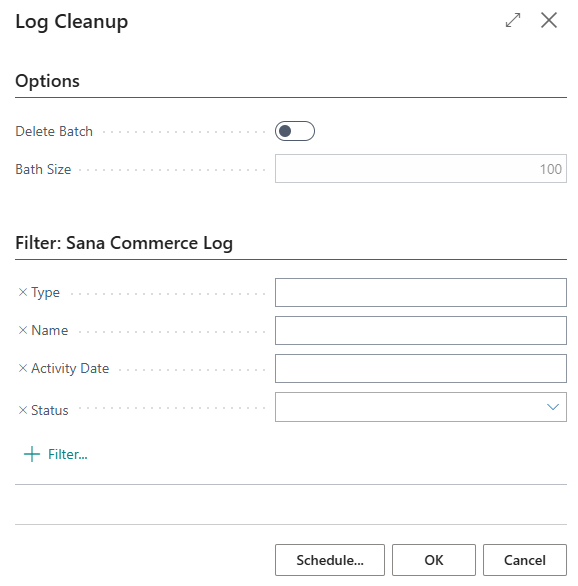
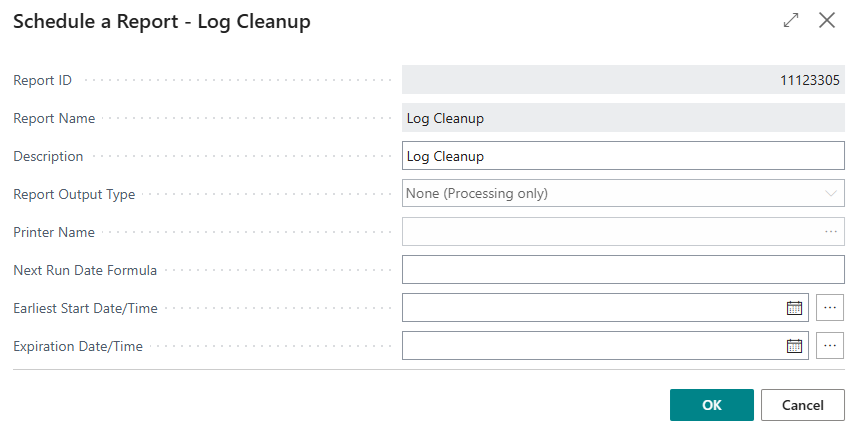
If the Delete Batch option is disabled, the system tries to delete all logs at once. Clearing many log records at once can fail when thousands of logs are present. Thus, logs can be deleted in batches, allowing you to remove records in smaller sets, for example, 100 logs at a time, if the system cannot process a full deletion at once. You can also apply filters to delete only specific logs, such as requests or responses, based on name, date, or status.
In addition, you can schedule automatic log deletion to keep the system clean and prevent log accumulation.