Supplementary Items
WATCH THE VIDEO
Supplementary items are extra items added to the shopping cart automatically when a certain quantity of an item or a combination of items is purchased, or as a bonus. These items cannot be removed or edited by customers. For example, if customers buy a gearbox and gaskets, they can receive a maintenance tool kit for free.
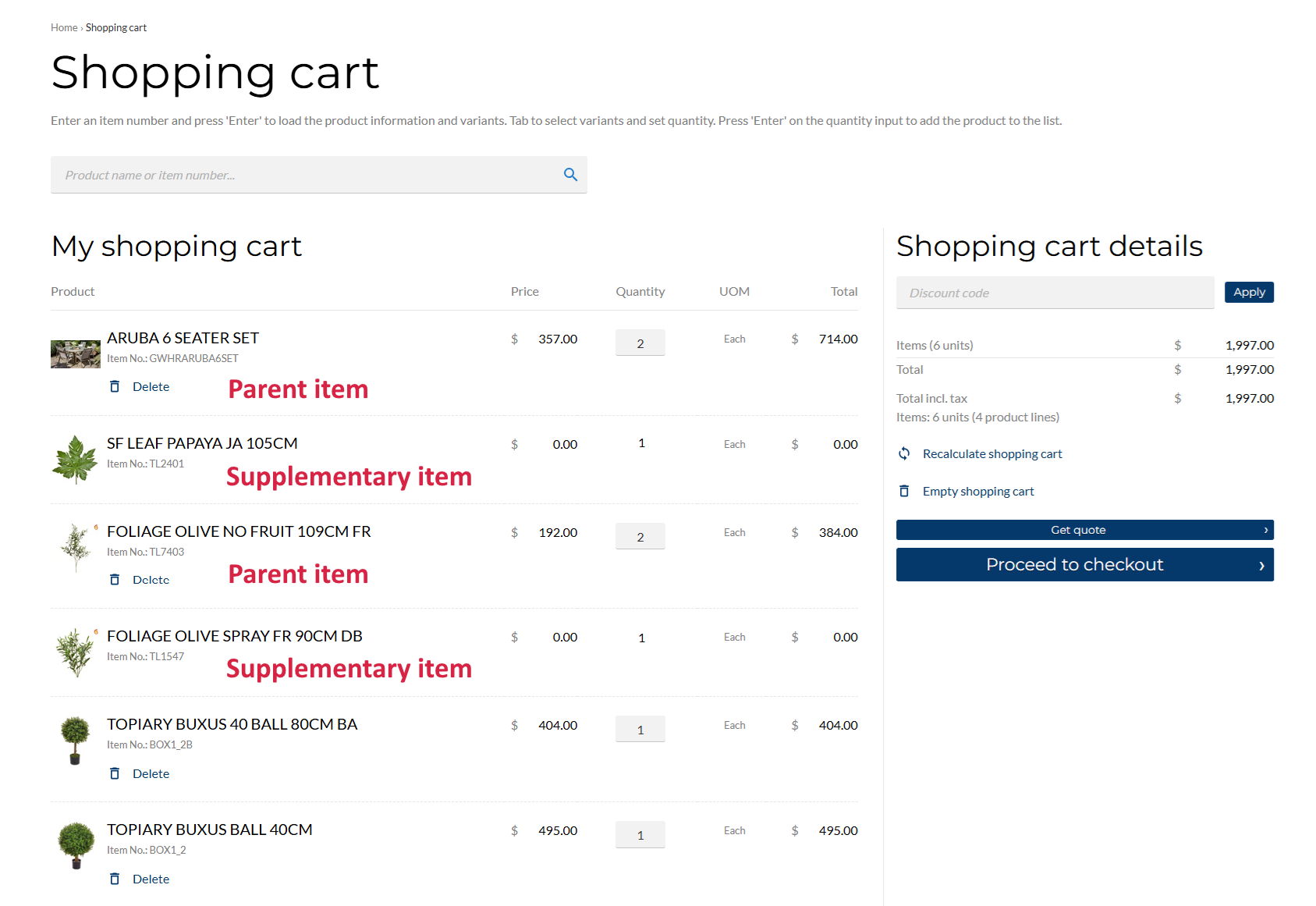
The supplementary item will be visually grouped with its parent item in the shopping cart, checkout, and order confirmation e-mails, providing a clearer and more intuitive experience for customers. They appear directly below their associated parent item. If a supplementary item has no parent item, it will be listed at the end of the shopping cart.
In the order overview at the checkout, there is no horizontal separator between the parent and the supplementary items that are linked together.
Add a Supplementary Item
In Microsoft Dynamics AX you need to build a relationship between the main item and supplementary item. This relationship can be set up using Supplementary sales items on the related Released product form.
To add a supplementary item, open the Released product details form, switch to the Sell tab, and click Supplementary sales items. Use this form to add a supplementary item and build relationship with the main item.
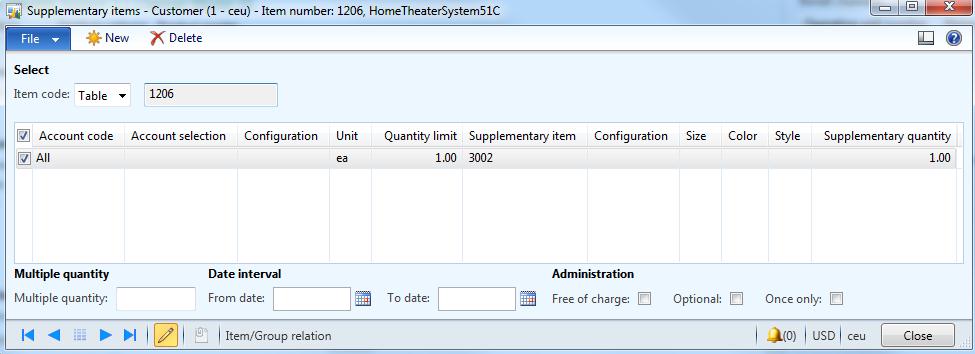
Here, you can set what the supplementary items are and who is allowed to take advantage of the supplementary items: customer, customer group or all. And you can also set a quantity limit for inclusion of supplementary item.
Supplementary items can be included either at a cost or for free, using the Free of charge option.
If you set a supplementary item as optional, then it is not included in the sales process; therefore such item will be skipped.
Item visibility and stock checking do not have influence on supplementary items. This can be used by the webshop owner for selling some products only as supplementary and cannot be sold as a separate item.
Enable or Disable Supplementary Items
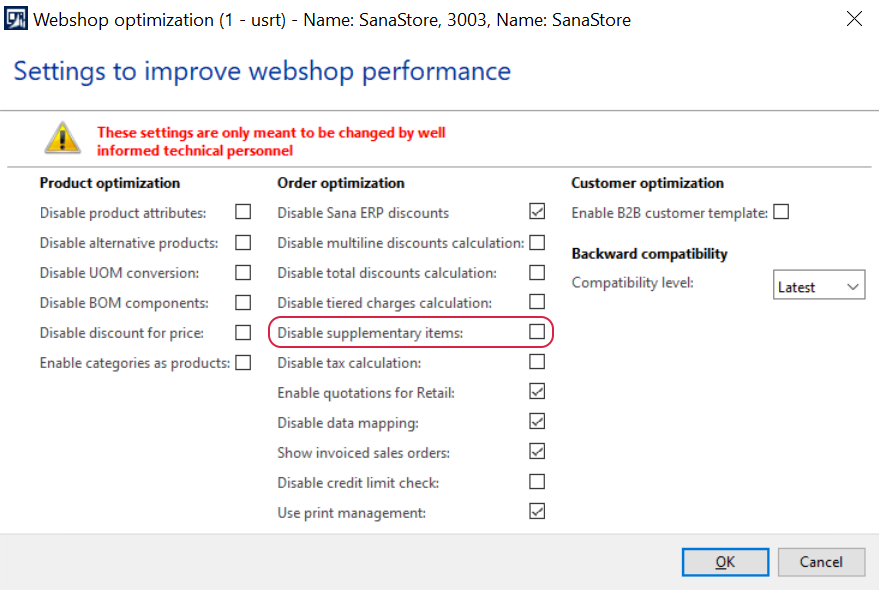
Supplementary items can be enabled or disabled globally in Microsoft Dynamics AX. To configure this setting, click: Webshop > Webshops, select the required webshop, and click Webshop optimization at the top of the window. Select the Disable supplementary items checkbox to turn off this functionality. When this setting is disabled, customers will no longer automatically receive free bonus items for qualifying purchases, nor will these items appear grouped with their parent item in the cart, checkout, or confirmation e-mails.
For more information, see Webshop Optimization.